Integration Techniques (Grade 10 NSC Matric Computer Application Technology): Revision Notes
📚Revision Notes
Integration Techniques
Integration techniques allow you to connect and share information between different software applications. This is particularly useful when working with word processors, spreadsheets, and presentations, as you can transfer data seamlessly between these programmes.
Understanding data transfer between applications
When working with multiple applications, you often need to move information from one programme to another. For example, you might want to transfer data from a spreadsheet into a word processing document, or include a chart from one application in another. Integration techniques make this process smooth and efficient.
Note
Key Integration Components
Hyperlinks provide one way to connect different documents. You can create links between a spreadsheet and a word processing document, allowing users to navigate between related files easily. Additionally, the clipboard serves as a temporary storage area that enables information exchange between various applications.
Copy and paste operations
The most common integration technique involves copying content from one application and pasting it into another. This fundamental process allows you to transfer text, numbers, images, and other data between different software programmes.
Basic copy and paste workflow
When transferring data from a word document to a spreadsheet or presentation, understanding the essential workflow is crucial for efficient document management.
Example
Step-by-Step Copy and Paste Process
- Open both applications that you want to work with
- In the source document (such as Word), select the content you want to transfer
- Copy the selected data using Ctrl+C or the Copy command
- Switch to the destination application (like a spreadsheet)
- Position your cursor where you want the data to appear
- Right-click and select Paste from the context menu, or use Ctrl+V
This process works in reverse as well - you can copy information from a spreadsheet and paste it into a word document when needed.
Paste special functionality
Paste Special is a powerful feature that gives you control over how copied content appears in the destination document. Rather than simply pasting content with its original formatting, Paste Special allows you to choose exactly how the information should be displayed.
Important
Why Paste Special Matters
Paste Special functionality provides precise control over data formatting and presentation, allowing you to maintain document consistency while integrating content from multiple sources.
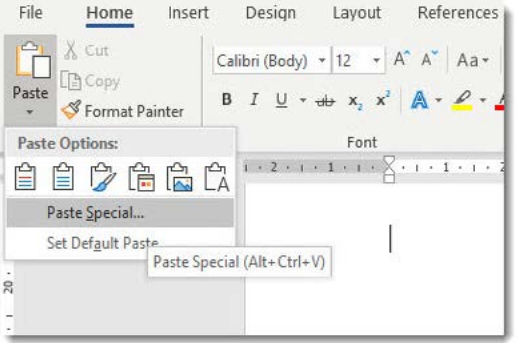
Accessing paste special
To harness the full power of Paste Special functionality, you need to understand the proper access methods.
Example
Accessing Paste Special
- Copy the content you want to transfer from the source application
- Navigate to the destination document and position your cursor appropriately
- On the Home tab, locate the Clipboard group
- Click the drop-down arrow below the Paste button
- Select "Paste Special" from the menu
- Alternatively, use the keyboard shortcut Ctrl+Alt+V
Understanding paste special options
When you open the Paste Special dialogue box, you'll see several options for how your copied content can be inserted. Each option serves a different purpose depending on your specific needs.
| Paste Option | When to Use It |
|---|---|
| Formatted text | When you want to preserve the original formatting from the source document |
| Unformatted Text | When you want the pasted content to adopt the formatting of the destination document |
| Microsoft Office Drawing Object | When you want images from the clipboard to remain editable as drawing objects |
| Picture (GIF) | When you want clipboard images to be inserted as static GIF graphics |
Choosing the right paste option
The paste option you select depends on how you want the transferred data to appear and behave in your document. Formatted text maintains the original appearance, which is useful when you want consistency with the source material. Unformatted text adapts to your destination document's style, creating a more unified appearance.
For images and graphics, you can choose whether to keep them as editable objects or convert them to static pictures. Drawing objects can be modified and edited, while GIF pictures become fixed images that cannot be easily changed.
Problem-solving using word processor help features
Modern word processing applications include comprehensive help systems designed to assist users with various tasks, troubleshooting, and support services. These help features are particularly valuable when you encounter unfamiliar functions or need guidance with complex operations.
Accessing help resources
The Help feature provides assistance with a wide range of topics and can help resolve various issues you might encounter while working. To make full use of these resources, you need an active internet connection, as many help articles and troubleshooting guides are accessed online.
Note
Help System Components
Help systems typically include:
- Step-by-step tutorials for common tasks
- Explanations of features and functions
- Solutions to frequently encountered problems
- Contact information for additional support
Troubleshooting common issues
Troubleshooting involves analysing problems to identify their causes and find appropriate solutions. This systematic approach helps you resolve issues efficiently and prevents similar problems from occurring in the future.
Understanding troubleshooting
When you encounter problems with word processing software, troubleshooting helps you work through the issue methodically. This process involves:
- Identifying what went wrong
- Determining possible causes
- Testing potential solutions
- Implementing the fix that resolves the problem
Common word processor problems
While working with word processing software, you may encounter various issues that can disrupt your workflow. These problems can range from relatively minor inconveniences to more serious disruptions.
Important
Common Issues to Watch For
- Documents not saving properly, which could result in lost work
- The application closing unexpectedly, potentially causing data loss
- Formatting problems that affect document appearance
- Performance issues that slow down your work
- Compatibility problems when sharing documents with others
Understanding these common issues helps you recognise problems early and apply appropriate solutions quickly.
Summary
Key Points to Remember:
-
Integration techniques enable seamless data transfer between different software applications, making your work more efficient and connected
-
Copy and paste operations form the foundation of data integration, allowing you to move content between word processors, spreadsheets, and presentations
-
Paste Special gives you precise control over how copied content appears in the destination document, with options for formatted text, unformatted text, drawing objects, and static pictures
-
Help features and troubleshooting tools are essential resources for solving problems and learning new functions in word processing software
-
Effective troubleshooting involves systematically analysing problems to identify causes and implement appropriate solutions