What Is Hardware? (Grade 10 NSC Matric Computer Application Technology): Revision Notes
📚Revision Notes
What Is Hardware?
Understanding computer components
Every computer system is made up of two essential parts that work together: hardware and software. Think of hardware as all the physical parts of a computer that you can actually see and touch. This includes components like the monitor that displays information, the keyboard you type on, storage devices that save your files, the graphics card that processes images, sound cards for audio, and the motherboard that connects everything together.
Software, on the other hand, consists of all the programs and instructions that tell the hardware what to do. While you cannot physically touch software, it needs hardware to run and function properly.
Note
Think of it this way: Hardware is like the "hard" physical parts you can touch, while software is the "soft" programmes that exist only as digital instructions. They work together like a car (hardware) and its driver (software) - both are needed for the system to function!
Categories of hardware devices
To help you understand the different types of hardware better, we can organise them into three main categories:
- Input devices - These allow you to give information and commands to the computer (like keyboards, mice, and microphones)
- Output devices - These show you information from the computer (like monitors, speakers, and printers)
- Storage devices - These save and store your data and programmes (like hard drives, USB flash drives, and memory cards)
Ports and connectors
Ports and connectors play a crucial role in how computers work with other devices. Understanding these connections is essential for anyone working with computer technology.
What are ports and connectors?
A port is like a socket or gateway on your computer where you can plug in external devices. The connector is the plug at the end of a cable that fits into the port.
Important
Key Distinction: Think of it like plugging an electrical appliance into a wall socket - the wall socket is like a port (female connection), and the plug is like a connector (male connection). This analogy helps you remember which is which!
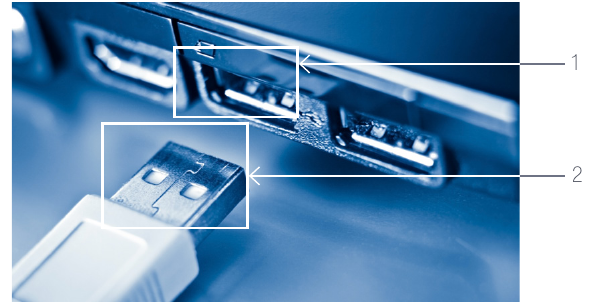
Computers can connect to other devices in different ways. Many devices use cables for reliable connections, while others can connect wirelessly through Wi-Fi or Bluetooth technology. Most ports are located at the back of desktop computers, though laptops often have ports on the sides as well.
Common types of ports
Understanding different port types will help you connect the right devices to your computer. Here are the most important ones you should know:
USB ports
USB (Universal Serial Bus) ports are probably the most common type you'll encounter. They have a rectangular shape and can connect many different devices including smartphones, flash drives, external hard drives, keyboards, and mice. USB ports are designed to be universal, meaning many different devices can use the same type of connection.
Example
Practical Example: USB Connections
You can use the same USB port to connect:
- Your smartphone for charging and data transfer
- A flash drive to save or transfer files
- A wireless mouse receiver
- An external keyboard
This versatility is why USB became so popular!
VGA ports
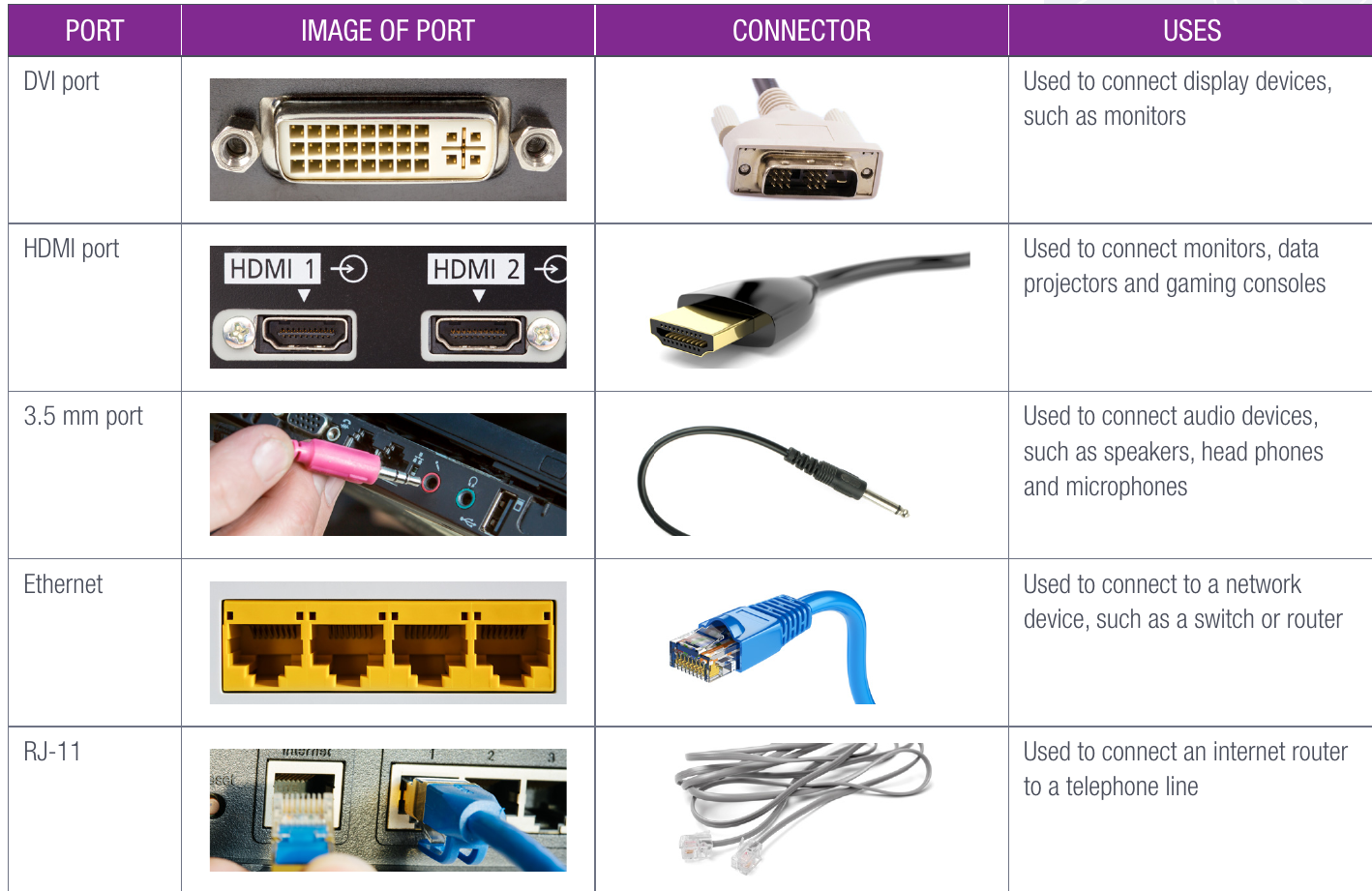
VGA (Video Graphics Array) ports have a distinctive D-shape with multiple pin holes. These are older ports primarily used to connect monitors and data projectors to display visual information from your computer.
DVI ports
DVI (Digital Visual Interface) ports are used for connecting display devices like monitors. They provide digital video signals and often deliver better image quality than VGA connections.
HDMI ports
HDMI (High Definition Multimedia Interface) ports are rectangular and can carry both high-quality video and audio signals. They're commonly used to connect monitors, data projectors, televisions, and gaming consoles.
Note
HDMI Advantage: Unlike other video ports, HDMI can carry both video AND audio through a single cable, making it very convenient for connecting to TVs and modern monitors.
3.5mm audio ports
These small, round ports are used for audio connections. You can plug in speakers, headphones, or microphones depending on the specific port. They're often colour-coded to help you identify which is for input (microphone) and which is for output (speakers/headphones).
Ethernet ports
Ethernet ports are rectangular and used for wired network connections. They connect your computer directly to network devices like switches, routers, or modems to provide reliable internet access.
RJ-11 ports
These smaller ports are typically used to connect internet routers to telephone lines, allowing for internet connectivity through phone line connections.
Adapters and convertors
Sometimes you might find that the connector on your cable doesn't match the port on your computer or device. This is where adapters and convertors become very useful.
Almost every peripheral device uses some form of adapter to communicate with computers. As technology evolves, the types of ports on computers and other devices change. Rather than having to buy completely new equipment, you can often use an adapter or convertor to provide additional compatibility and functionality.
Example
Common Adapter Solutions:
HDMI to VGA adapter: Connect your modern laptop (with HDMI) to an older classroom projector (with VGA only)
HDMI to DVI adapter: Connect your gaming console (HDMI output) to an older computer monitor (DVI input)
These adapters save you money and extend the life of your existing equipment!
Common types of adapters include:
- HDMI to VGA adapters (to connect newer devices with HDMI to older monitors with VGA)
- HDMI to DVI adapters (to connect HDMI devices to DVI displays)
These adapters are particularly helpful when you have newer computers with modern ports but need to connect them to older display devices that use different connection types.
Summary
Key Points to Remember:
- Hardware consists of all the physical components you can see and touch in a computer system, while software is the programmes that run on the hardware
- Hardware can be organised into three categories: input devices (for giving commands), output devices (for receiving information), and storage devices (for saving data)
- Ports are sockets on your computer where you plug in connectors from cables to connect external devices
- Different ports serve different purposes: USB for general devices, HDMI for high-quality video and audio, Ethernet for network connections, and audio ports for sound devices
- Adapters help solve compatibility problems by allowing you to connect devices with different port types, saving you from having to buy new equipment