Search Engines (Grade 10 NSC Matric Computer Application Technology): Revision Notes
📚Revision Notes
Search Engines
What are search engines?
In today's digital world, we do almost everything online - from socialising and shopping to research and entertainment. With billions of websites available on the internet, finding specific information would be nearly impossible without the right tools. This is where search engines become essential.
A search engine is a powerful tool that helps you find information on the internet quickly and efficiently. Instead of knowing the exact web address of every site you want to visit, you can simply describe what you're looking for using keywords, and the search engine will find relevant websites for you.
Note
Think of search engines as librarians for the internet - they organise and index all the available information so you can access what you need without having to search through irrelevant content.
Popular search engines
There are several search engines available, but three stand out as the most popular and effective:
- Google (www.google.com) - The most powerful and user-friendly search engine
- Microsoft Bing (www.bing.com) - Microsoft's search platform
- Yahoo (www.yahoo.com) - One of the original search engines
Among these options, Google is widely recognised as the most powerful and easy-to-use search engine, making it the preferred choice for most internet users.
Note
Google processes over 8.5 billion searches per day, making it by far the most popular search engine worldwide, handling about 92% of all internet searches.
Basic search techniques
When you need to find information online, you can follow these simple steps:
The basic search process
- Open your web browser and navigate to a search engine. Most browsers allow you to search directly from the address bar, though some may have a separate search box.
- Type your keywords (also called search terms) that describe what you're looking for.
- Press Enter on your keyboard to start the search.
- Review the results - you'll see a list of relevant websites that match your search terms. If a site looks promising, click on the link to open it.
- Skim through the content to see if it contains the information you need.
- Try different searches if you don't find what you're looking for on the first page or two of results.
Example
Worked Example: Basic Search Process
Let's say you want to find information about renewable energy:
Step 1: Open your browser and go to Google
Step 2: Type "renewable energy sources" in the search box
Step 3: Press Enter
Step 4: Review the first few results - you might see links to government websites, educational institutions, or news articles
Step 5: Click on a promising link, such as one from a university or energy department
Step 6: If the information isn't quite what you need, try a more specific search like "solar energy advantages" or "wind power statistics"
Understanding autocomplete
As you type your search terms, you'll notice that the search engine suggests related searches in a dropdown menu. This feature is called autocomplete.
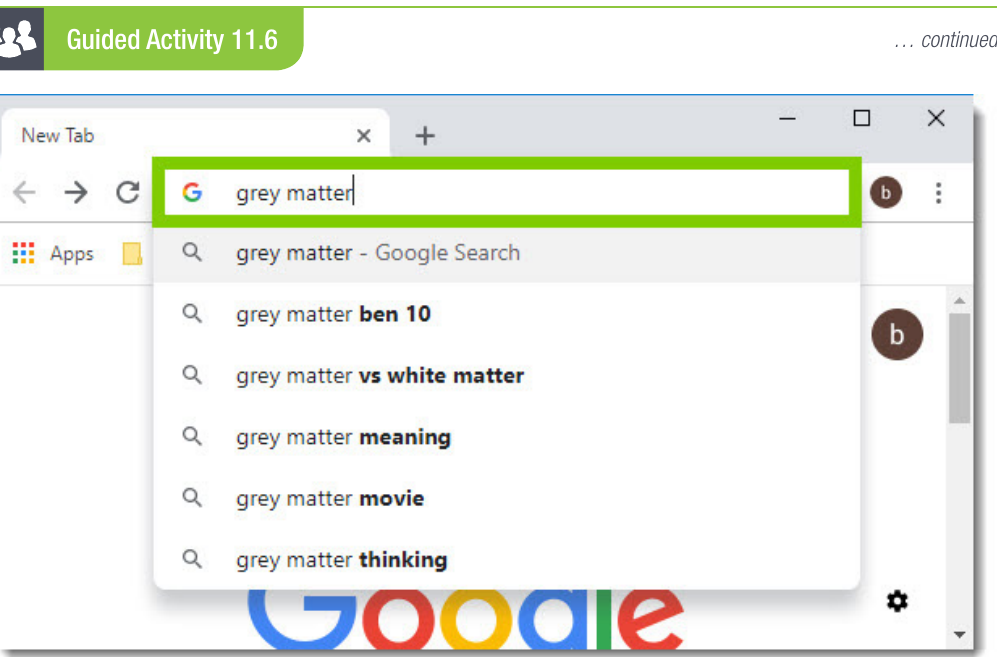
Autocomplete is helpful because it:
- Shows popular searches related to your topic
- Helps you discover new search ideas
- Can save you time by completing your search phrase
- Gives you alternative ways to phrase your search
Important
Pay attention to autocomplete suggestions - they often reveal more specific or better search terms that can lead to more relevant results than your original search idea.
Refining your search
Sometimes your initial search might return too many results or not quite what you're looking for. You can use special techniques to make your searches more precise:
Using special operators
Excluding words with the minus (-) sign:
If you want to find information about a topic but exclude certain aspects, add a hyphen before the word you want to exclude. For example, searching for :coderef[grey matter - movie] will find results about grey matter but exclude any mention of movies with that title.
Including specific words with quotation marks:
When you want to search for an exact phrase, put it in quotation marks. For example, searching for :coderef["grey matter songs"] will only return results that contain that exact phrase, giving you more focused results about songs rather than general grey matter content.
Note
These refinement techniques help you get more accurate and useful search results, saving you time and effort by filtering out irrelevant information.
Advanced search techniques
Modern search engines offer sophisticated ways to find exactly what you need. Here are some powerful techniques you can use:
| Purpose | Method | Example |
|---|---|---|
| Search for specific content types | Use Google's philtres (Images, News, Videos, Maps) after searching | Search "Meghan Markle" then click on "News" for recent news articles |
| Time-specific searches | Use Tools button and select time period | Search "Meghan Markle", click Tools, select "Past week" for recent content |
| Site-specific searches | Add "site:" before the website name | Search "violin music site.com" to find violin music only on YouTube |
| Social media searches | Add "@" before the platform name | Search "violin @twitter" to find violin-related content on Twitter |
Understanding search results
The most relevant and popular results typically appear on the first page of your search. Here's what you should know about search results:
- Best results first: Search engines rank results by relevance and popularity
- Don't stop at page one: Sometimes the information you need might be on the second or third page
- Try different search terms: If you don't find what you need, rephrase your search using different words
- Use advanced techniques: When basic searches don't work, try the advanced operators mentioned above
Important
Don't assume the first result is always the best - take time to review several results and compare information from multiple sources, especially for important research or decision-making.
Search tips for better results
Be specific with your keywords
Instead of searching for broad terms like "music", try more specific terms like "classical guitar techniques" or "pop music production methods".
Use multiple keywords
Combine several relevant words to narrow down your results. For example, "South African rugby schools Springboks" is more specific than just "rugby".
Check your spelling
Search engines are good at understanding misspellings, but correct spelling usually gives better results.
Try different approaches
If one search doesn't work, try:
- Synonyms (different words with similar meanings)
- Different word order
- Adding or removing keywords
- Using the advanced techniques mentioned above
Note
Remember that effective searching is a skill that improves with practice. The more you use these techniques, the better you'll become at finding exactly what you need quickly and efficiently.
Summary
Key Points to Remember:
- Search engines are essential tools for finding information efficiently among billions of websites on the internet
- Google, Bing, and Yahoo are the most popular search engines, with Google being the most powerful and user-friendly
- Basic searching involves typing keywords, pressing Enter, and reviewing results - but don't forget about the helpful autocomplete suggestions
- Refine your searches using special operators: minus (-) to exclude words, quotation marks ("") for exact phrases, and site: for specific websites
- Advanced techniques like time-specific searches, content philtres, and social media searches can help you find exactly what you need when basic searching isn't enough