E-Communications (Grade 11 NSC Matric Computer Application Technology): Revision Notes
📚Revision Notes
Managing Email
Email management is one of the most time-consuming tasks in today's digital world. In 2018, it was estimated that dealing with emails took up almost 11 hours of the work week! Learning how to organise and manage your emails effectively can save you valuable time and reduce stress.
This guide focuses on Gmail, but the principles apply to most web-based email applications like Outlook.com or Hotmail.com. Gmail offers powerful tools to help you stay organised and find important messages quickly.
Organise using labels
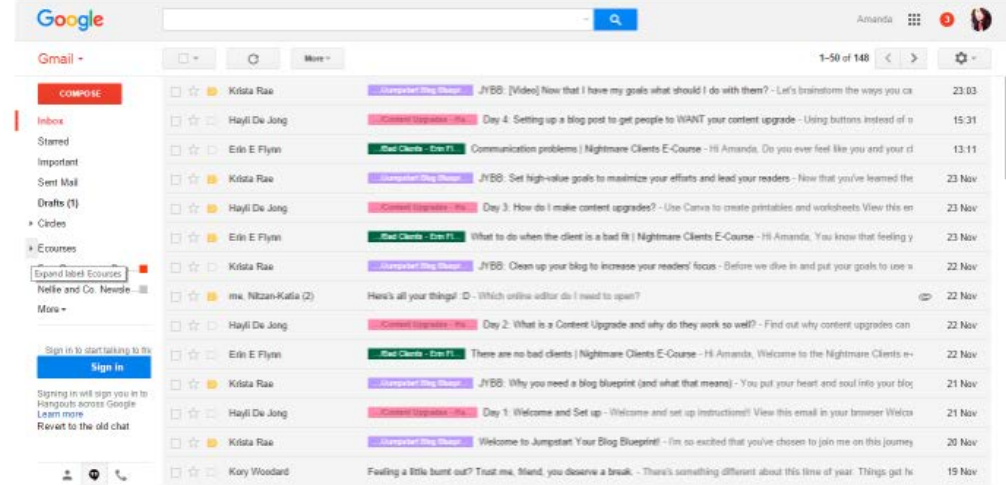
Gmail uses a label-based system that works differently from traditional folders. Labels function like digital sticky notes that you can attach to your emails to categorise and organise them effectively.
Note
Labels offer several advantages over traditional folder systems. Unlike folders, where an email can only exist in one location, you can apply multiple labels to a single email. For example, an email from your school about a swimming competition could have both a "School" label and an "Activities" label, making it easier to find later.
Creating and managing labels
To keep your email system organised, it's important to create a simple but effective labelling system. Consider creating labels for different areas of your life, such as:
- Family
- Friends
- School
- Activities
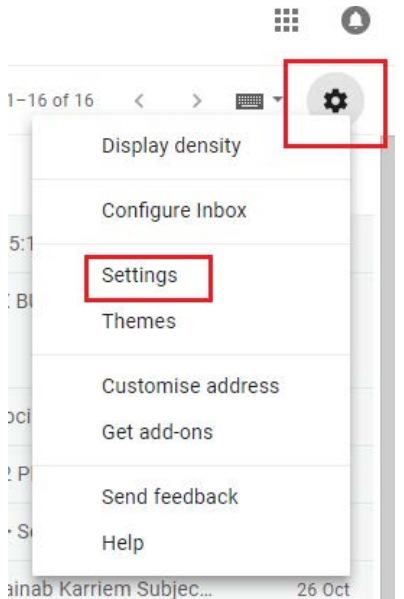
Creating new labels is straightforward through Gmail's settings menu. You access this through the gear icon in the top-right corner of your Gmail interface, then select "Settings" from the dropdown menu.
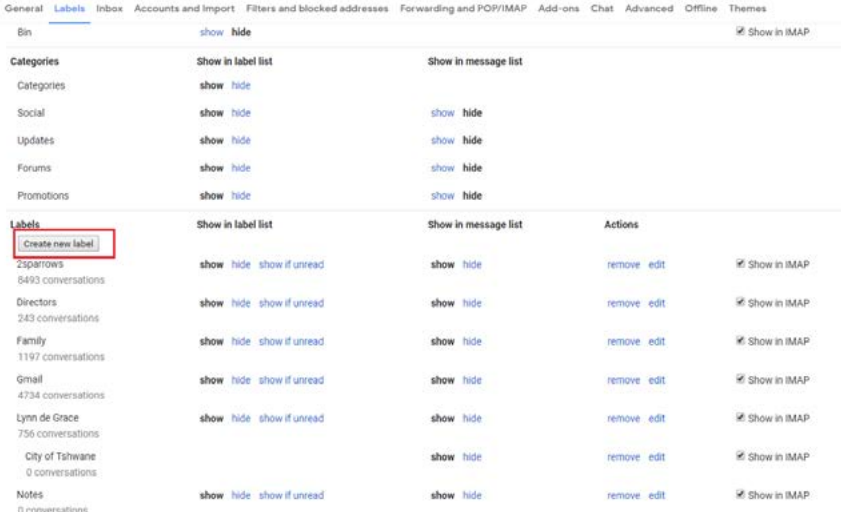
In the Labels section of your Gmail settings, you can create new labels, edit existing ones, and control how they appear in your inbox. The "Create new label" button allows you to add custom categories that match your specific organisational needs.
Applying labels to emails
Once you've created your label system, you can apply them to emails in several ways. You can select multiple emails and apply labels in bulk, or label individual messages as you read them.
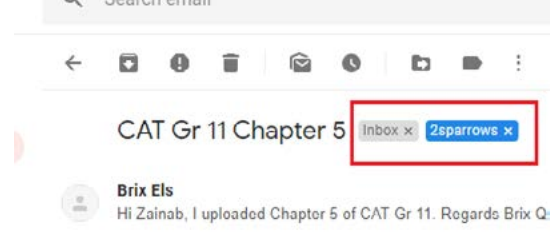
When viewing an email, you'll see any applied labels displayed prominently. This visual system helps you quickly identify the category of each message at a glance.
Customising label colours
Gmail allows you to colour-code your labels, making them even more visually distinctive and easier to spot in your inbox.
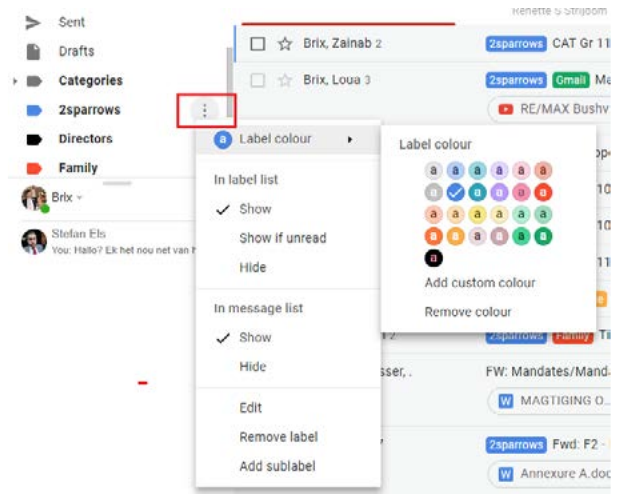
Example
Practical Example: Colour-Coding System
You might use:
- Red for urgent school matters
- Green for family emails
- Blue for friends
- Orange for activities and hobbies
This visual coding system helps your brain process and categorise information more quickly.
Prioritising emails
Gmail's star system provides an excellent way to mark important emails so you can find them easily later. This prioritisation system helps ensure that crucial messages don't get lost in your inbox.
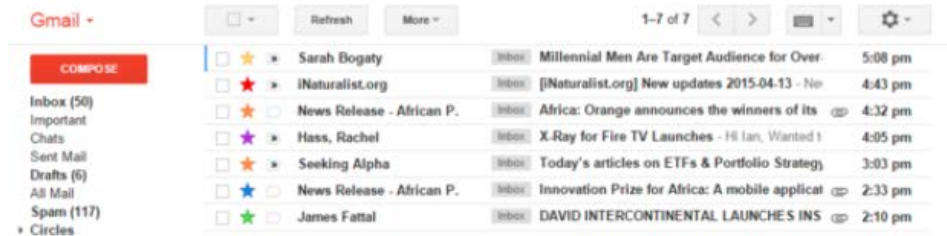
Understanding the star system
By default, Gmail uses yellow stars, but you can customise both the colour and type of stars to create your own priority system. Different star types can represent different levels of importance or different types of actions needed.
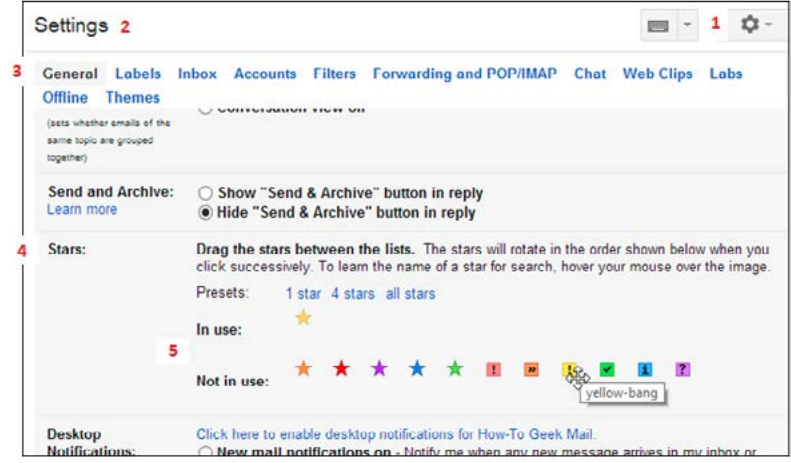
Note
The star configuration settings allow you to drag different star types between the "In use" and "Not in use" sections. You might use a yellow star for general importance, a red exclamation mark for urgent items, and a green checkmark for completed tasks.
Inbox organisation options
Gmail offers several ways to organise your inbox to prioritise different types of emails:
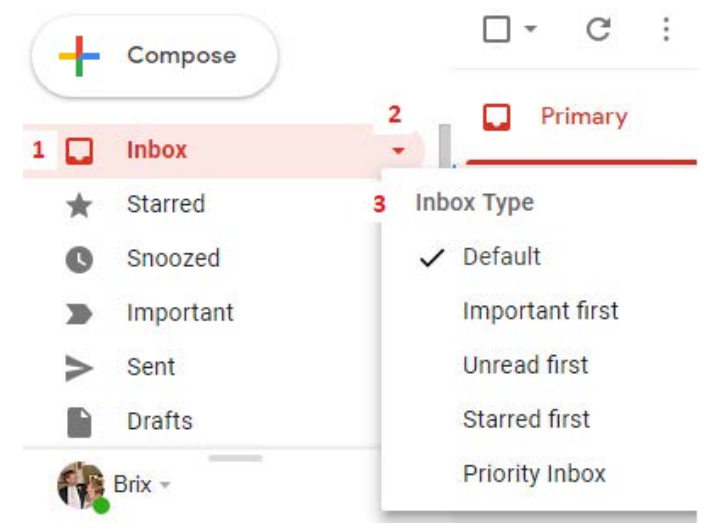
- Default: Shows all emails in chronological order
- Important first: Places emails marked as important at the top
- Unread first: Prioritises unread messages
- Starred first: Shows starred emails before others
- Priority Inbox: Uses Gmail's algorithm to sort and prioritise automatically
Important
These options help you focus on the most relevant emails first, improving your productivity and ensuring important messages receive prompt attention.
Distribution lists
A contact group, formerly known as a distribution list, allows you to send emails to multiple people simultaneously without manually typing each email address. This feature is particularly useful for group communications like family updates, project teams, or club announcements.
The main advantage of distribution lists is efficiency. Instead of typing or selecting multiple email addresses each time you want to contact a group, you simply select the group name. Additionally, members of the group cannot see other members' email addresses, which protects everyone's privacy.
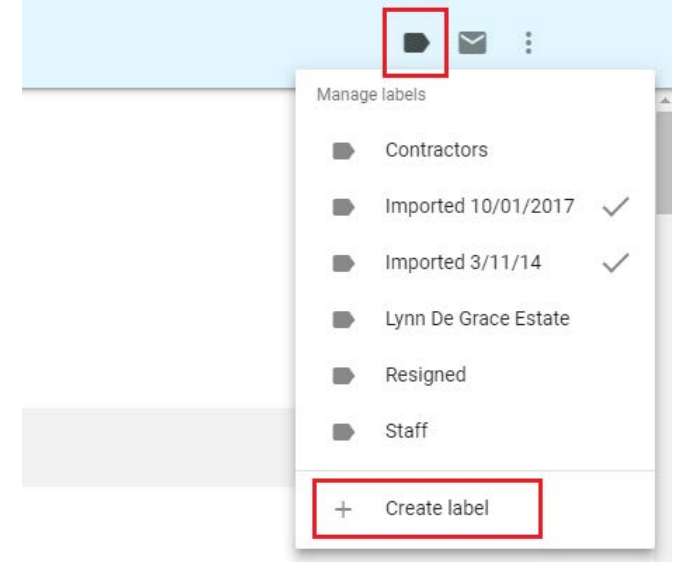
Creating contact groups
To create a distribution list, you'll work with Google Contacts, which integrates seamlessly with Gmail. The process involves selecting the contacts you want to include and grouping them under a memorable name.
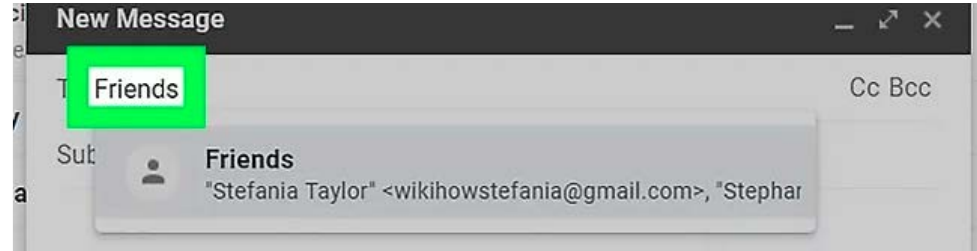
Once created, your contact group appears as a selectable option when composing emails. The green "Friends" button shown here represents a contact group that includes multiple email addresses, making group communication simple and efficient.
Philtres
Email philtres are automated rules that help Gmail handle your incoming messages according to your preferences. They can automatically sort, label, archive, delete, or forwards emails based on criteria you specify.
Important
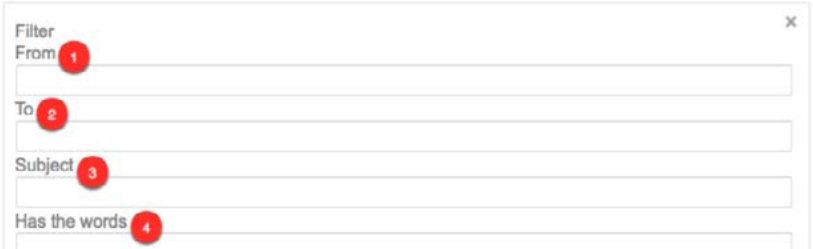
Philtres save time by automatically organising your emails as they arrive. For example, you might create a philtre that automatically labels all emails from your school, archives newsletters after reading, or forwards important family emails to another account.
Setting up philtre criteria
When creating a philtre, you can specify various criteria to identify which emails should be processed:
- From: Philtre emails from specific senders
- To: Philtre emails sent to particular addresses
- Subject: Target emails with specific subject lines
- Has the words: Look for emails containing certain keywords
Philtre actions
Once Gmail identifies emails matching your criteria, it can perform various actions:
- Skip the Inbox (Archive it): Remove emails from your inbox automatically
- Mark as read: Treat filtered emails as already read
- Star it: Automatically mark important emails
- Apply the label: Categorise emails with specific labels
- Forward it to: Send copies to another email address
- Delete it: Remove unwanted emails permanently
Note
These automated actions help maintain an organised inbox with minimal manual intervention, allowing you to focus on emails that truly require your attention.
Remember!
Summary
Key Points to Remember:
- Labels are like digital sticky notes - you can apply multiple labels to one email, making them more flexible than traditional folders
- Use colour-coding for labels to create a visual system that helps you quickly identify different types of emails
- The star system helps prioritise important emails - customise star types to create your own priority levels
- Distribution lists save time when emailing groups by allowing you to select multiple recipients with one click
- Filters automate email management by automatically sorting, labelling, or processing emails based on rules you create