Basic System Requirements (Grade 11 NSC Matric Computer Application Technology): Revision Notes
📚Revision Notes
Basic System Requirements
What are system requirements?
System requirements are the minimum specifications your computer needs to run software properly. Think of them as a shopping list that tells you exactly what your computer must have before you can install and use a particular programme or game successfully.
Note
The shopping list analogy is helpful because just like you need specific ingredients to make a recipe work, your computer needs specific hardware and software components to run programmes effectively.
These requirements act as a safety guide to ensure that software runs smoothly without overworking your computer's hardware. If your computer doesn't meet these specifications, you might face several problems:
- The software may refuse to install completely
- The programme might install but run very slowly
- You could experience frequent crashes or freezing
- Some features might not work at all
Where to find system requirements
Software developers typically include system requirements in several places:
- Printed on the software package or box
- Listed on the software's official website
- Included in product advertisements
- Shown in online stores before you purchase
Important
Always check system requirements before purchasing software to avoid compatibility issues and potential refund complications.
Key components of system requirements
Understanding system requirements means knowing what each component does for your computer:
Processor (CPU)
This is your computer's "brain" that handles all calculations and processing tasks. Requirements will specify:
- The type needed (such as Intel Core 2 or AMD Athlon 64)
- The minimum speed (measured in GHz - gigahertz)
- Whether it needs to be 32-bit or 64-bit capable
Operating system
This tells you which version of Windows, macOS, or Linux the software supports. For example:
- Microsoft Windows 7, 8.1, or Windows 10
- Specific service pack requirements
- Version numbers that are compatible
Memory (RAM)
RAM determines how much information your computer can work with at once. Requirements typically show:
- Minimum amount needed (like 2 GB)
- Recommended amount for better performance (such as 8 GB)
- Type of RAM if specific
Note
Minimum vs. Recommended RAM: Meeting the minimum RAM requirement means the software will run, but having the recommended amount ensures smoother performance and better multitasking capability.
Storage space
This indicates how much room the software needs on your hard drive:
- Space needed for installation
- Additional space required during use
- Whether you need extra room for saving files
Graphics capability
Some software requires specific graphics processing power:
- Basic integrated graphics for simple programmes
- Dedicated graphics cards for gaming or video editing
- Specific GPU models or memory amounts
Display requirements
Screen specifications ensure proper visual experience:
- Minimum screen resolution (like 1366 x 768)
- Colour depth requirements
- Whether touchscreen capability is needed
Internet connection
Many modern programmes require online access for:
- Initial software activation
- Regular updates and patches
- Online features or cloud storage
- Subscription validation
Understanding hardware compatibility
Beyond basic system requirements, you need to consider hardware compatibility. Different devices work with different operating systems and software versions.
Example
Compatibility Example: Printer Support
A printer might only work with Windows 8.1 and 10, but not Windows 7. This means even if your computer meets the basic system requirements for a software programme, your printer might not be compatible with the older operating system, affecting your ability to print documents from that software.
For example:
- A printer might only work with Windows 8.1 and 10, but not Windows 7
- Some software requires specific graphics cards to function properly
- Older hardware might not support newer software versions
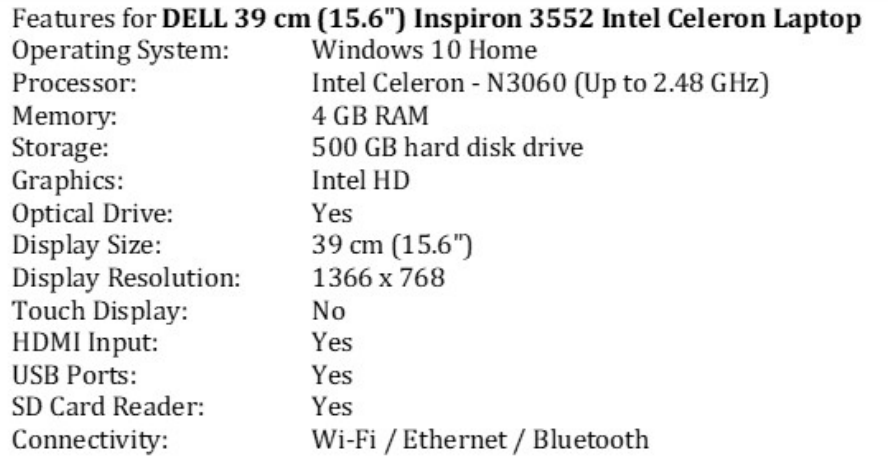
Looking at this Dell laptop specification, you can see how manufacturers list technical details that help you determine software compatibility.
Graphics processing for advanced software
For demanding applications like games or video editing, you'll need to pay special attention to graphics requirements. A GPU (Graphics Processing Unit) is a specialised chip that handles visual processing tasks. These can be:
- Built into the motherboard (integrated graphics)
- Installed as separate cards (dedicated graphics)
- Part of the main processor chip
Note
Gaming software requirements will often specify the exact GPU model needed for optimal performance. Meeting minimum graphics requirements means the game will run, but you may need to use lower quality settings.
When your computer doesn't meet requirements
If your current computer falls short of the system requirements, you have several options:
Upgrade individual components
Rather than buying a completely new computer, you might be able to upgrade:
- Add more RAM memory
- Install a faster or larger hard drive
- Upgrade your graphics card
- Update your operating system
Install updated drivers
Sometimes compatibility issues can be solved by:
- Downloading the latest device drivers
- Updating your operating system
- Installing software patches or updates
Consider alternative software
If upgrades aren't possible, look for:
- Older versions of the same software
- Alternative programmes with lower requirements
- Web-based applications that run in your browser
Important
Before Making Major Purchases: Always research whether your current computer can be upgraded cost-effectively before investing in entirely new hardware. Sometimes a simple RAM upgrade can solve compatibility issues for a fraction of the cost of a new computer.
Exam tips for system requirements
Summary
Key Exam Strategies:
- Always read the specifications table carefully
- Compare each requirement systematically
- Look for minimum vs. recommended specifications
- Consider both hardware and software compatibility
- Remember that meeting minimum requirements means basic functionality, while recommended specifications provide better performance
Remember!
Summary
Essential Points to Remember:
- System requirements are minimum specifications - your computer needs to meet or exceed these to run software properly
- Check before you buy - always verify requirements before purchasing software to avoid compatibility problems
- Six main components matter most - processor, operating system, RAM, storage, display, and internet connectivity
- Upgrading is often possible - you don't always need a new computer; individual components can often be upgraded
- Compatibility extends beyond basics - consider how hardware devices like printers work with different operating systems