Health Issues Due to Input and Output Devices (Grade 11 NSC Matric Computer Application Technology): Revision Notes
📚Revision Notes
Health Issues Due to Input and Output Devices
Introduction to computer-related health problems
As computers become an essential part of our daily lives, we're spending more time using them for work, study, and entertainment. Unfortunately, this increased usage has led to several health concerns that affect millions of people worldwide. These problems mainly occur because of how we interact with input devices (like keyboards and mice) and output devices (such as monitors), and how we position our bodies while using them.
The most common health issues include repetitive strain injuries (RSIs) that affect our wrists and back, eye strain from staring at screens for long periods, and various posture-related problems. The good news is that understanding these risks and taking simple preventive measures can help you stay healthy while using technology.
Note
Studies show that people now spend an average of 7-10 hours per day looking at screens, making computer-related health issues more prevalent than ever before.
Understanding ergonomics
Ergonomics is the science of designing and arranging furniture, equipment, and workspaces to make people more comfortable and efficient while working. When applied to computer use, ergonomics focuses on how we interact with our input and output devices to reduce the physical strain on our bodies.
Note
Definition of Ergonomics:
Ergonomics is concerned with how to design and arrange furniture and equipment in a way that will make people more comfortable and efficient in their work.
Good ergonomic design considers factors such as the height and position of your desk and chair, how you hold your hands while typing, the angle of your computer screen, and how often you take breaks. The main goal is to create a workspace that works with your body's natural movements and positions, rather than forcing your body into uncomfortable or harmful positions.
Ergonomically designed computer equipment includes specially shaped keyboards, mice that fit comfortably in your hand, adjustable chairs with proper back support, and monitor stands that allow you to position your screen at the right height and angle.
Common health issues from computer use
Repetitive strain injuries (RSIs)
RSIs occur when you perform the same movements repeatedly over extended periods, causing damage to muscles, tendons, and nerves. In computer use, this commonly affects the hands, wrists, and arms from typing and using a mouse. The constant repetitive motions, combined with poor posture, can lead to pain, swelling, and reduced mobility.
Carpal tunnel syndrome
This specific type of RSI affects the wrist and hand. It occurs when the median nerve, which runs through a narrow passage in your wrist called the carpal tunnel, becomes compressed. Symptoms include numbness, tingling, and pain in the thumb, index, and middle fingers. Poor keyboard and mouse positioning often contributes to this condition.
Important
Carpal tunnel syndrome is preventable through proper ergonomic design and correct hand positioning while typing and using a mouse.
Back strain and posture problems
Sitting in poor positions for extended periods can cause significant back problems. Slouching, hunching over a keyboard, or sitting in chairs without proper support can strain your spine and surrounding muscles. This can lead to chronic back pain and long-term spinal issues.
Eye strain and computer vision syndrome
Staring at computer screens for hours can cause eye fatigue, dry eyes, blurred vision, and headaches. This collection of symptoms is often called computer vision syndrome. The bright light from screens, reduced blinking while concentrating, and focusing on small text or images all contribute to eye strain.
Prevention strategies and proper positioning
The key to preventing computer-related health issues lies in maintaining proper posture and setting up your workspace correctly. Here are essential guidelines to follow:
Desk and chair setup
Ensure your desk, chair, and screen are all at comfortable heights that allow you to maintain good posture. Your desk should be at a height that allows your arms to rest comfortably while typing, and your chair should provide adequate back support while allowing your feet to rest flat on the floor.
Proper sitting posture
When sitting, avoid slouching or hunching your shoulders, as this can cause backache and neck pain. Keep your shoulders relaxed and your back straight against the chair's backrest. Your neck should remain in a neutral position, with your chin parallel to your desktop, avoiding the need to crane your neck up or down to see your screen.
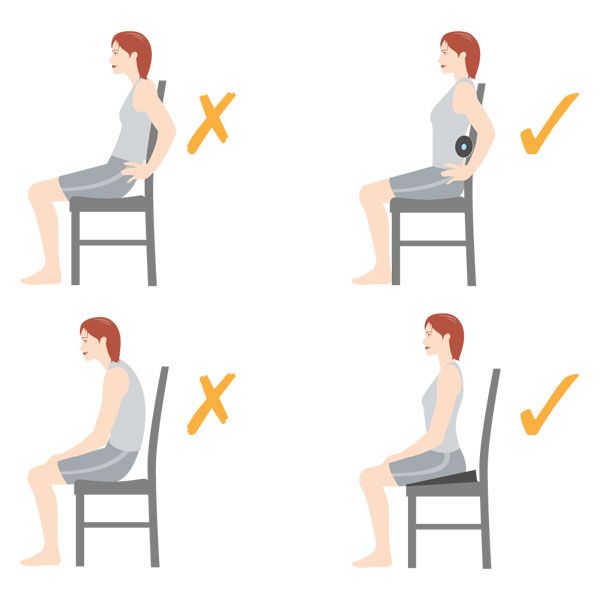
Example
Worked Example: Perfect Sitting Position
Step 1: Adjust your chair height so your feet rest flat on the floor
Step 2: Position your back straight against the chair's backrest
Step 3: Keep your shoulders relaxed and not hunched forwards
Step 4: Ensure your chin is parallel to your desktop
Step 5: Check that your knees are at approximately 90 degrees
Arm and hand positioning
Position your arms at a comfortable angle, typically around 90 degrees at the elbow, when typing or using a mouse. Avoid resting your wrists on hard surfaces while typing, as this can contribute to carpal tunnel syndrome. Your wrists should remain straight and relaxed, not bent up or down.
Leg and foot positioning
Your knees should be at approximately a 90-degree angle, with your feet flat on the floor. If you're too short to reach the floor comfortably, use a footrest to maintain proper positioning. Ensure you have adequate legroom under your desk to avoid cramped positioning.
Regular movement and breaks
One of the most important prevention strategies is to stand up and move around at least once every hour. Try using a standing desk if possible for some portion of your working time. Regular movement helps prevent muscle stiffness and improves blood circulation, reducing the risk of developing strain injuries.
Important
Critical Rule: Stand up and move at least once an hour - this single habit can prevent most computer-related health issues.
Monitor positioning
Position your screen so that you don't need to bend your neck to look at it. The top of your monitor should be roughly at eye level, and you should be able to look at the centre of the screen while keeping your chin parallel to your desktop. This prevents neck strain and maintains proper spinal alignment.
Screen-related health management
Modern computer and smartphone screens can be adjusted to reduce their impact on your health. Many devices now offer blue light philtres that can be activated to reduce the harsh blue light that contributes to eye strain and can interfere with sleep patterns.
Screen glare is another significant factor in eye strain. Position your monitor to avoid reflections from windows or overhead lighting. You can also tilt your screen until you find a comfortable viewing angle that minimises glare. Some people find it helpful to use anti-glare screen protectors or adjust their workspace lighting to reduce harsh contrasts.
Note
The 20-20-20 Rule for Eye Health:
Every 20 minutes, look at something 20 feet away for at least 20 seconds. This simple practice helps relax the muscles in your eyes and reduces fatigue from focusing on close objects for extended periods.
Taking regular breaks from screen time is crucial for eye health. Follow the 20-20-20 rule: every 20 minutes, look at something 20 feet away for at least 20 seconds. This helps relax the muscles in your eyes and reduces fatigue from focusing on close objects for extended periods.
Summary
Key Points to Remember:
- Ergonomics matters: Properly designed and arranged workspaces significantly reduce the risk of developing computer-related health problems
- Posture is key: Maintain proper sitting or standing posture with relaxed shoulders, straight back, and neutral neck position to prevent strain injuries
- Regular breaks are essential: Stand up and move around at least once every hour to prevent muscle stiffness and improve circulation
- Screen positioning counts: Keep your monitor at eye level and adjust settings to reduce blue light and glare for better eye health
- Prevention is better than cure: Taking simple preventive measures now can help you avoid serious long-term health issues from computer use