Software for Physically Challenged Users (Grade 11 NSC Matric Computer Application Technology): Revision Notes
📚Revision Notes
Software for Physically Challenged Users
What is assistive technology software?
Assistive technology software plays a crucial role in making computers accessible to physically challenged users. This specialised software works alongside input and output devices to interpret information correctly and provide the appropriate response for users with different physical abilities.
Every assistive technology device requires specific software to function properly. For example, when you use text-to-speech software, it takes written text on your screen and converts it into spoken words, allowing visually impaired users to "read" content by listening to it. Similarly, more complex devices like gesture controllers and sip-and-puff devices need their own specialised software to translate user actions into computer commands.
Note
The key to successful assistive technology is the seamless integration between hardware devices and their corresponding software. Without the proper software, even the most advanced assistive hardware cannot function effectively.
Types of accessibility software and devices
There are several categories of accessibility software designed to help users with different physical challenges:
Text-to-speech software converts written text into spoken words, making it possible for visually impaired users to access written content on websites, documents, and applications.
Screen readers are sophisticated programmes that can navigate through entire computer interfaces, reading out menus, buttons, and content in a logical order that makes sense to users who cannot see the screen.
Gesture controllers and sip-and-puff devices require specialised software to translate physical movements or breath control into computer commands, helping users with limited mobility to operate their computers effectively.
Operating system accessibility features
Modern technology companies have recognised the importance of accessibility and now include built-in accessibility features in their operating systems. Microsoft's Windows 8 and 10, Apple's OSX, and Google's Android operating systems all come with pre-installed accessibility software and settings designed specifically for physically challenged users.
Important
This integration means that users don't always need to purchase additional software - many accessibility features are already available on their devices and just need to be activated and configured properly.
Web accessibility challenges and solutions
One of the biggest challenges for physically challenged users occurs when accessing the internet. Screen readers can struggle with websites that haven't been designed with accessibility in mind. Since most websites are created as visual experiences, users who cannot see these visual elements find it difficult to navigate and interact with the content.
However, web designers and developers can make their websites much more accessible by following these important practices:
Example
Worked Example: Making Websites Accessible
Step 1: Use descriptive links and buttons Instead of using vague text like "click here," use descriptive labels that explain what will happen when clicked
Step 2: Add alt text for images Provide good descriptions for all images and graphics so screen readers can describe visual content to users
Step 3: Structure content properly Use headings to organise content logically on web pages
Step 4: Create descriptive page titles Clear titles that help users understand what each page contains
Step 5: Include closed captions These describe all audio elements in videos, not just dialogue, helping deaf and hearing-impaired users understand video content fully
Built-in accessibility settings in modern systems
Almost all modern operating systems include a range of special settings and functions designed to make computer use easier for physically challenged users.
Note
Common Built-in Accessibility Features:
- Colour settings: Special colour schemes for people who are colour blind, making it easier to distinguish between different elements on screen
- Screen magnification: Tools to enlarge text and images for partially sighted users who need bigger text to read comfortably
- Text-to-speech functionality: Built-in software that can read typed text aloud to users who are blind or have reading difficulties
- Visual notifications: Instead of sound alerts, the system can display visual cues to notify users who are hard of hearing about important updates or problems
- Speech recognition software: Allows users to control their computers using voice commands, which is particularly helpful for people with mobility limitations
How to access accessibility options in Windows
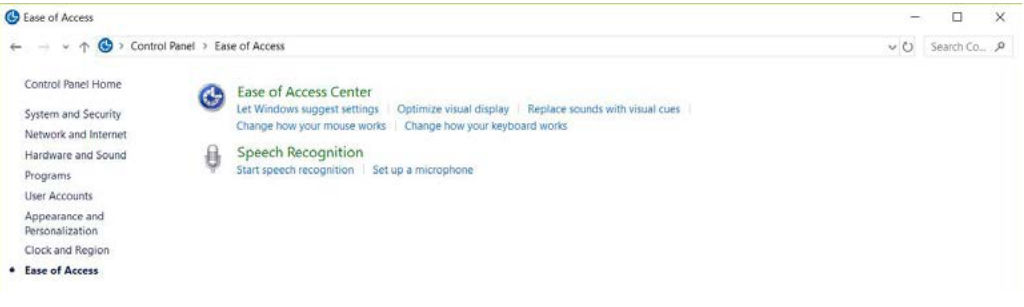
If you're using a Windows computer, you can easily explore the accessibility options available to you. Simply click on the Windows icon in the bottom-left corner of your screen, search for "Control Panel", and then click on "Ease of Access".
Note
Quick Access Steps:
- Click the Windows icon (Start button)
- Type "Control Panel" in the search box
- Click on "Ease of Access" from the results
This will open the Ease of Access Centre, where you can find all the accessibility settings and options available on your Windows system.
Activity: Understanding accessibility terminology
Example
Activity 4.3: Matching Exercise
To help you better understand accessibility concepts, here's a matching exercise that connects important terms with their meanings:
| Column A | Column B |
|---|---|
| 1.1 Special settings and functions to make using a computer easier for physically challenged users | A. Screen reader |
| 1.2 Device used to interpret websites for visually impaired readers | B. Monitor |
| 1.3 Click on Ease of Access on the Control Panel to view... | C. Accessibility software |
| D. Accessibility options |
Answers: 1.1 matches with C (Accessibility software), 1.2 matches with A (Screen reader), and 1.3 matches with D (Accessibility options).
It's important to understand that accessibility isn't just about having the right devices - the information and content must also be designed with accessibility in mind. When websites, applications, and digital content are created without considering accessibility needs, even the best assistive technology cannot work properly.
Important
Critical Point: Accessibility is a two-way process - it requires both proper assistive technology AND content that is designed to be accessible. One without the other significantly limits effectiveness.
Remember!
Summary
Key Points to Remember:
- Assistive technology requires specialised software to interpret user input correctly and provide appropriate output for physically challenged users
- Modern operating systems include built-in accessibility features like text-to-speech, screen magnification, colour settings, and speech recognition
- Web accessibility depends on good design - websites must include alt text, descriptive links, proper headings, and closed captions to work with screen readers
- Windows accessibility options can be found through Control Panel > Ease of Access, where you can configure settings for your specific needs
- Accessibility benefits everyone - features like closed captions and clear navigation help all users, not just those with physical challenges