Hardware (Grade 12 NSC Matric Computer Application Technology): Revision Notes
📚Revision Notes
Troubleshooting Hardware Devices
Introduction
Computer hardware can develop problems over time, just like any other equipment you use regularly. As components age and experience normal wear and tear, various issues can arise that affect how your computer works. Learning to troubleshoot these common problems can save you time and money, helping you resolve issues quickly before they become more serious.
Note
Hardware troubleshooting involves identifying the source of a problem and applying the appropriate solution. The key to successful troubleshooting is following a systematic approach, starting with the most common and simple causes before moving on to more complex solutions.
Mouse problems
Erratic mouse movement
One of the most frustrating computer problems is when your mouse cursor starts behaving unpredictably. This issue occurs when the mouse pointer jumps randomly across the screen instead of following your hand movements smoothly. Understanding the common causes can help you fix this problem quickly.
Common causes and solutions:
Dirty mouse sensor: Optical mice use a small camera to track movement, and dirt or debris can interfere with this process. The solution is straightforward - clean the sensor area on the bottom of your mouse using a soft cloth or cotton swab. Make sure to power off the mouse first if it's wireless.
Poor surface conditions: Your mouse needs a suitable surface to track movement accurately. Shiny, reflective surfaces or irregular textures can confuse the optical sensor. Try using a mouse pad or moving to a different surface. Avoid using your mouse on glass, mirrors, or heavily textured surfaces.
Wireless mouse battery issues: If you're using a wireless mouse, low battery power is often the culprit behind erratic behaviour.

Replace the batteries with fresh ones to restore normal operation. Many wireless mice have battery level indicators that can help you monitor power levels.
Scanning problems
Document scanners can sometimes produce unexpected results, even when you think you've followed the correct procedure. Understanding common scanning issues helps you achieve better quality scans and avoid frustration.
Common scanning problems:
Skewed or cropped documents: This happens when your document isn't properly aligned on the scanner bed. To prevent this, ensure your document is straight and positioned correctly before starting the scan. Most scanners have alignment guides to help you place documents accurately.
Poor image quality: Several factors can cause poor scan quality. A dirty scanner surface can create spots or lines on your scanned images - clean the scanner glass regularly with appropriate cleaning materials. Additionally, if the OCR (Optical Character Recognition) software cannot read text clearly, ensure your document is clean and legible before scanning.
Connection problems: Scanner connection issues typically result from loose cables or improper setup. Check that all cables are securely connected and that your scanner is properly installed on your computer.
Disc errors and defragmentation
Hard drives can develop various problems over time, particularly as they fill up with data and files become scattered across the storage space. This process, called fragmentation, can slow down your computer and potentially lead to errors.
Checking disc drive health
Regular monitoring of your hard drive's condition is essential for preventing data loss and maintaining system performance.
Example
Worked Example: Checking hard drive status using command prompt
Here's how to check if your hard drives are functioning properly:
- Open your computer's Start menu
- Search for and open "Command Prompt"
- Type the command:
wmic diskdrive get status - Press Enter to execute the command
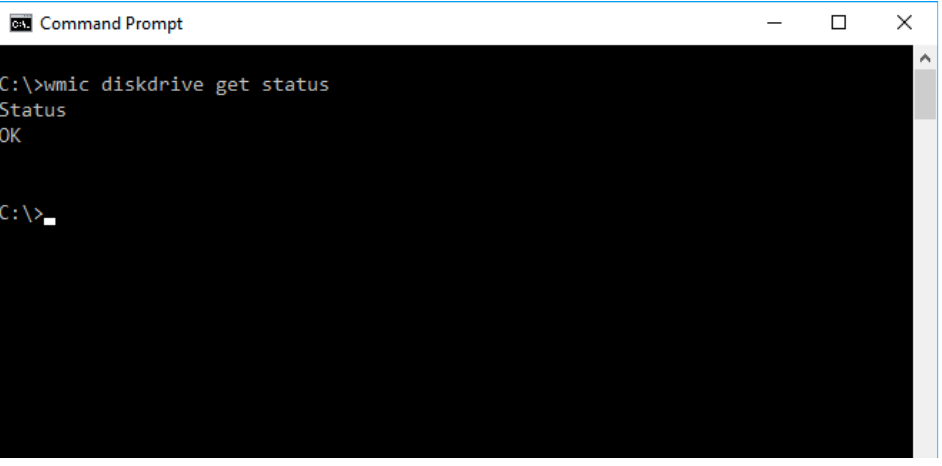
If your hard drives display "Status OK", they are functioning normally. Any other status indicates potential problems that require immediate attention, including backing up important files and considering drive replacement.
Using the disc defragmentation tool
Windows includes a built-in tool called "Optimise Drives" (previously known as "Disc Defragmenter") that helps reorganise data on your hard drive for better performance.
Example
Worked Example: Running disc optimisation
- Open the Start menu and search for "optimise drives"
- Click on the "Defragment and Optimise Drives" application
- The Optimise Drives window will display all your storage devices
- Click the "Optimise" button to begin reorganising your hard drive data
- Ensure "Scheduled optimisation" is enabled for automatic maintenance
Important
Critical Warning: SSDs (Solid State Drives) should never be defragmented. Windows 10 automatically recognises SSD drives and will not attempt to defragment them, as this process can actually harm SSD performance and lifespan.
Display and resolution problems
Screen display issues can significantly impact your computing experience. Resolution problems are among the most common display-related issues you might encounter.
Common resolution problems
Black screen issues: If your screen appears completely black, first check that all cables are properly connected. Loose connections between your computer and monitor are often the simplest explanation for display problems.
Resolution too high: Sometimes the screen resolution gets set too high for your monitor to display properly. Most operating systems include a safety feature that automatically reverts to the previous resolution after 15 seconds if you don't confirm the change. If you accidentally set an incompatible resolution, simply wait for the automatic reversion.
Oversized display elements: When images and text appear too large on screen, the resolution is likely set too low. Increasing the resolution should resolve this issue.
Adjusting display settings
Example
Worked Example: Changing screen resolution
- Open the Start menu and search for "display settings"
- Click on "Change Display Settings" to open the Display Settings window
- Navigate to the resolution section in the settings panel
- Select an appropriate resolution from the dropdown menu (look for the "recommended" option)
- Apply the changes and confirm when prompted
- If the screen goes black, wait 15 seconds for Windows to automatically revert the change
Non-responding programmes
When programmes stop responding to your input, they can freeze your entire system or prevent you from completing important tasks. This problem can result from various causes, including faulty software, insufficient system resources, or hardware conflicts.
The most effective solution for non-responding programmes is to close them completely and restart them. However, frozen programmes don't respond to normal closing methods, requiring alternative approaches.
Example
Worked Example: Using task manager to close unresponsive programs
- Open the Start menu and search for "Task Manager"
- Alternatively, use the keyboard shortcut Ctrl+Shift+Esc to open Task Manager directly
- In the Task Manager window, locate the programme that has stopped responding
- Select the non-responsive programme from the list
- Click the "End Task" button to force the programme to close
- Once closed, you can safely restart the programme
This method effectively terminates problematic programmes without requiring a full system restart.
Printing problems
Printing issues are incredibly common and can be caused by various factors ranging from software settings to hardware malfunctions. Understanding these common problems helps you resolve them quickly.
Common printing issues and solutions
Slow printing: Extended printing times often result from high-resolution settings, memory limitations, or outdated printer drivers. Try reducing the print quality to "normal" or "draught" mode for faster output. This also helps resolve memory-related printing problems.
High-resolution image problems: Printing high-resolution images requires substantial data transfer between your computer and printer, which can slow the process significantly. Consider reducing image resolution or using standard print quality for everyday documents.
Printer driver issues: Outdated or corrupted printer software can cause various problems. Check your printer manufacturer's website for the latest driver updates and install them to resolve software-related issues.
Paper jams: Physical obstructions occur when paper gets stuck inside the printer mechanism. Turn off the printer and carefully remove any stuck paper by following the paper path. Check for torn pieces that might remain inside the printer.
Poor print quality: This usually indicates low ink or toner levels, or incorrect paper settings. Check your printer's ink/toner status and ensure you're using the appropriate paper type setting for your documents.
Printer not responding: Complete printer failures can result from connection problems, depleted consumables, or missing drivers. Check all physical connections, verify adequate ink/toner levels, and ensure proper driver installation.
Storage space management
Modern computers generate and store vast amounts of data, and storage space can become limited over time. When your hard drive approaches capacity, you may receive warnings about insufficient space for saving files or installing new software.
Example
Worked Example: Checking available storage space
- Open the Start menu and search for "File Explorer"
- Click on "File Explorer" to open a new window
- In the left panel, click on "This PC" to view all storage devices
- Your available space will be displayed for each drive (for example: "23.0 GB free of 118 GB")
To resolve storage issues, consider deleting unnecessary files, moving data to external storage, or using built-in disc cleanup tools to remove temporary files and system cache.
Network connection problems
Internet connectivity issues can stem from problems at various points in your network setup. Systematic troubleshooting helps identify where the problem originates, making it easier to apply the correct solution.
Network troubleshooting approach
Note
Network problems can occur at five main locations: your computer, the network cable, the router, the internet cable, or with your Internet Service Provider (ISP). Each location requires different diagnostic approaches and solutions.
Systematic network diagnosis
Computer-related issues: Start by checking if other devices on your network can access the internet. If they can connect but your computer cannot, the problem lies with your specific device. Ensure your network cable or Wi-Fi connection is properly configured and try running the built-in network troubleshooter.
Network cable problems: If you're using a wired connection, test the ethernet cable with a different computer. If the cable works elsewhere, the issue may be with your computer's network port. If the cable doesn't work anywhere, replacement is necessary.
Router problems: Check if any computers on your network can access the internet. If none can connect, but you can still access the router's setup page, the router is functioning but may need restarting. Look for indicator lights on the router - most display connection status through coloured LEDs.
Internet cable and ISP issues: If you can access your router but not the internet, the problem may be with your internet connection or service provider. Check with your ISP about service outages or data limit restrictions. Sometimes simply restarting your router can resolve temporary connection issues.
Summary
Key Points to Remember:
-
Start with simple solutions - Many hardware problems have straightforward causes like loose connections, dirty components, or depleted batteries
-
Use built-in diagnostic tools - Windows includes many troubleshooting utilities like Task Manager, Disc Optimiser, and network troubleshooters that can resolve common issues
-
Follow systematic approaches - For complex problems like network connectivity, work through potential causes methodically from your computer outward to your ISP
-
Regular maintenance prevents problems - Clean your mouse and scanner regularly, monitor disc space, and keep drivers updated to avoid many common hardware issues
-
Know when to seek help - If basic troubleshooting doesn't resolve hardware problems, especially with storage drives showing error status, contact technical support or professional repair services