Use of SQL to Search for Data (AQA GCSE Computer Science): Revision Notes
📚Revision Notes
Using SQL to search for data
What is SQL and why do we use it?
Structured Query Language, or SQL for short, is the special language we use to get information out of databases. Think of a database like a giant digital filing cabinet with lots of organised drawers (tables) full of information. SQL is like giving the filing cabinet specific instructions about which drawer to open and what information to pull out.
When you want to find data in a database, you write SQL commands that tell the computer exactly what you're looking for. This could be as simple as "show me all the student names" or as complex as "show me all students in Year 10 who have a particular teacher, sorted by their surname."
Note
Why SQL matters for GCSE Computer Science:
SQL is essential because it's the standard way to interact with databases across all computer systems. Whether you're building a website, mobile app, or desktop programme that stores data, you'll likely need SQL to retrieve and organise that information effectively.
The four main SQL keywords you need to know
Every SQL search query is built using up to four main instruction words. Understanding these four core keywords is fundamental to mastering database queries.
SELECT - choosing what information to show
The SELECT keyword tells the database which pieces of information (called fields or columns) you want to see in your results. You can either name specific fields like "FirstName" and "Surname", or use the asterisk symbol (*) as a shortcut to select everything.
FROM - choosing which table to look in
The FROM keyword tells the database which table contains the data you want to search through. Think of this like telling someone which filing cabinet drawer to look in.
WHERE - filtering your results (optional)
The WHERE keyword lets you set conditions or criteria for your search. It's like adding philtres to narrow down your results to only show records that match what you're looking for.
ORDER BY - sorting your results (optional)
The ORDER BY keyword organises your results in a particular order. You can sort alphabetically from A-Z (called ascending or ASC) or from Z-A (called descending or DESC).
Important
Critical SQL Rule: Mandatory vs Optional Components
SELECT and FROM are compulsory in every SQL query - you always need them. WHERE and ORDER BY are optional extras that you only use when needed. This is a common exam question topic!
Basic SQL query structure
Every SQL query follows the same basic pattern. The structure is logical and follows a specific sequence that you must memorise.
Example
Basic SQL Query Structure:
SELECT [fields you want]
FROM [table name]
WHERE [your conditions]
ORDER BY [field to sort by] [ASC or DESC]
Memory Aid: Remember "Some Friendly Workers Order" for the sequence: SELECT, FROM, WHERE, ORDER BY
Here's a simple example using a student database:

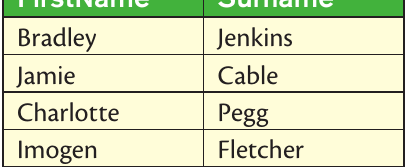
To get the first name and surname of every student, you would write:
SELECT FirstName, Surname
FROM Student
This would show you:
Note
Notice how we only get the two fields we asked for (FirstName and Surname), even though the original table contains more information like StudentID and RegClass. This demonstrates how SELECT acts as a philtre for which columns appear in your results.
Using wildcards for flexible searching
Wildcards are special symbols that act like jokers in a card game - they can represent different things depending on what you need. They provide flexibility when you're not sure of exact values or want to search for patterns.
The asterisk (*) wildcard: When you use SELECT *, it means "give me all the fields from this table." It's a quick way to see everything without having to type out every field name.
Example
Using the Asterisk Wildcard:
SELECT *
FROM Student
WHERE RegClass = "10B"
This query would show all information for students in registration class 10B, including StudentID, FirstName, Surname, and RegClass - every field in the table.
Sorting your results with ORDER BY
When you get results from a database, they might appear in any random order. The ORDER BY keyword lets you organise them properly, making your data much more readable and useful.
Ascending order (ASC): This sorts from smallest to largest, or A to Z alphabetically. If you don't specify, ASC is the default.
Descending order (DESC): This sorts from largest to smallest, or Z to A alphabetically.
Example
Sorting Example:
SELECT FirstName, Surname
FROM Student
ORDER BY Surname ASC
This would show:
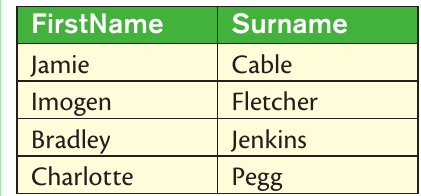
Notice how the surnames are now in alphabetical order (Cable, Fletcher, Jenkins, Pegg).
Using WHERE to philtre your results
The WHERE clause is like a philtre that only lets through records that match your criteria. This is one of the most powerful features of SQL, allowing you to find exactly what you're looking for in large datasets.
Example
Filtering with WHERE:
To find only students in a particular registration class:
SELECT StudentID, FirstName, RegClass
FROM Student
WHERE RegClass = "10B"
This would return:

The WHERE clause has filtered out all students except those in class 10B.
Complex searches with OR conditions
Sometimes you want to find records that match one condition OR another condition. The OR operator allows you to search for multiple criteria simultaneously, broadening your search results.
Example
Using OR Conditions:
To find students named either Jamie or Charlotte:
SELECT StudentID, FirstName, RegClass
FROM Student
WHERE FirstName = "Jamie" OR FirstName = "Charlotte"
ORDER BY StudentID DESC
This would show:

Notice how we've also used ORDER BY to sort the results by StudentID in descending order (highest numbers first).
Searching across multiple tables
Real databases often have information spread across multiple connected tables. This is more efficient than putting everything in one giant table and demonstrates good database design principles.
Note
Why Use Multiple Tables?
Splitting data across multiple tables prevents repetition and makes databases more efficient. Instead of storing a teacher's name multiple times for each student, we store it once in a separate table and create links between the tables.
Primary keys and foreign keys: Every table has a primary key (a unique identifier for each record). When one table references another table's primary key, it's called a foreign key. This creates a link between the tables.
Let's look at an example with two connected tables:
Student table:
Registration table:
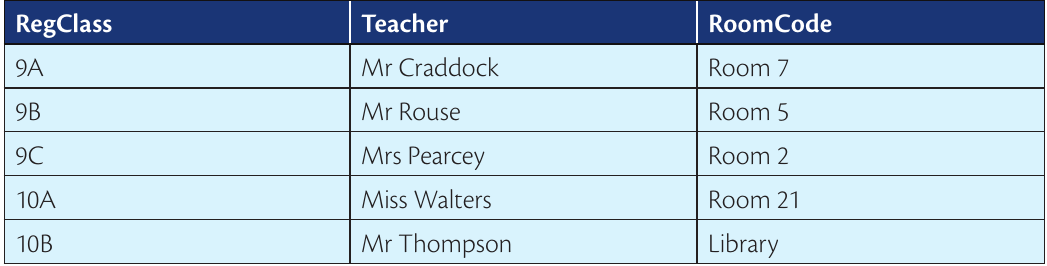
In the Student table, RegClass is a foreign key that links to the RegClass primary key in the Registration table. This connection lets us find out which teacher each student has.
Example
Multi-Table Query:
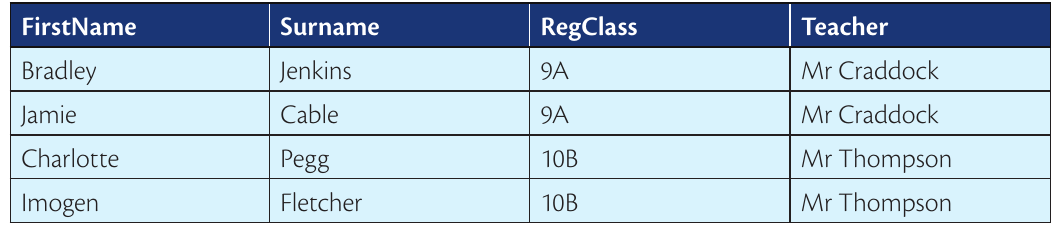
To search both tables at once, you need to specify which table each field comes from using the format TableName.FieldName:
SELECT FirstName, Surname, Student.RegClass, Teacher
FROM Student, Registration
WHERE Student.RegClass = Registration.RegClass
This would return:
Adding extra conditions to multi-table searches
You can combine table linking with additional WHERE conditions using the AND keyword to create more specific searches.
Example
Multi-Table Query with Additional Filtering:
SELECT FirstName, Surname, Student.RegClass, Teacher
FROM Student, Registration
WHERE Student.RegClass = Registration.RegClass
AND RegClass = "9A"
This would show only students from class 9A:

Practical example with a contact database
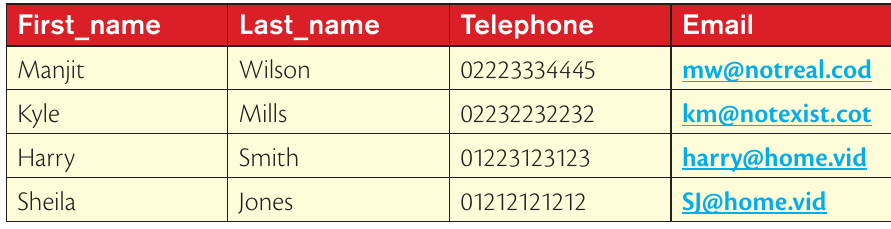
Let's practice with a different type of database - a contact list. This shows how SQL principles apply to various types of data storage.
Example
Contact Database Queries:
- To get just names and phone numbers:
SELECT First_name, Telephone
FROM Address_book
- To find all information for someone with a specific email:
SELECT *
FROM Address_book
WHERE Email = "SI@home.vid"
- To get everyone's details sorted by last name alphabetically:
SELECT *
FROM Address_book
ORDER BY Last_name ASC
Common exam mistakes to avoid
Important
Critical Mistakes That Lose Marks:
- Forgetting FROM: Remember, you always need both SELECT and FROM in every query
- Wrong quotation marks: Use straight quotes "like this" not curved quotes "like this"
- Case sensitivity: Some databases are picky about capital letters, so be consistent
- Missing table names: When working with multiple tables, always specify which table each field belongs to using TableName.FieldName
- Forgetting the linking condition: When searching multiple tables, you must include the WHERE clause that links them together
Exam tips for SQL questions
Understanding how to approach SQL exam questions systematically will improve your accuracy and confidence.
Note
Step-by-Step Approach:
- Read the question carefully: Make sure you understand exactly what data is being asked for
- Identify the tables: Work out which table(s) contain the information you need
- Plan your query: Write down the SELECT, FROM, WHERE, and ORDER BY parts before putting them together
- Check your syntax: Make sure you have the keywords in the right order
- Test with the given data: If sample data is provided, trace through your query to check it gives the expected results
Summary
Key Points to Remember:
- SELECT and FROM are always required - they're the bread and butter of every SQL query
- Use the asterisk (*) wildcard to select all fields without typing them all out
- WHERE acts like a filter - it decides which records make it through to your results
- ORDER BY organises your results - use ASC for A-Z sorting or DESC for Z-A sorting
- When linking multiple tables, always include a WHERE condition to connect the primary and foreign keys
- Practice makes perfect - the more SQL queries you write, the more natural the structure becomes