More Functions (Grade 10 NSC Matric Computer Application Technology): Revision Notes
📚Revision Notes
More Functions
In your previous studies, you learnt about basic spreadsheet functions like SUM and AVERAGE. Now it's time to explore more advanced functions that will help you analyse data with greater precision and flexibility. These functions are particularly useful when you need to count data that meets specific conditions or format numbers for better presentation.
Understanding the COUNTIF function
The COUNTIF function is a powerful tool that builds upon the basic COUNT function you already know. While COUNT simply counts all numerical values in a range, COUNTIF allows you to count only the cells that meet a particular condition or criteria.
Note
The key difference between COUNT and COUNTIF is specificity. COUNT is like counting all the apples in a basket, while COUNTIF is like counting only the red apples or only the apples that weigh more than 200 grammes.
Basic counting vs conditional counting
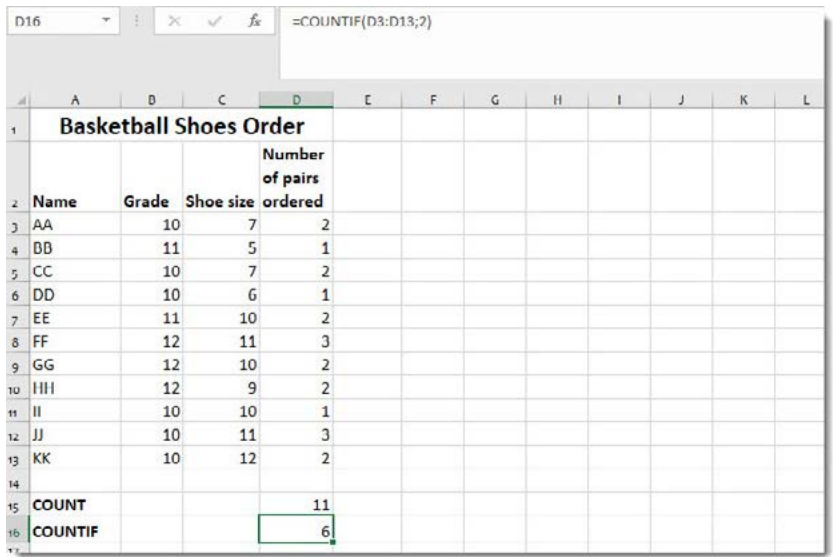
The COUNT function works by counting all numerical data within a specified cell range. For example, if you apply COUNT to a range with 11 cells containing numbers, it will return 11 as the result.
However, COUNTIF gives you much more control. Instead of counting everything, you can set specific conditions. This means you can count only the cells that contain certain values, making your data analysis much more targeted and useful.
Using COUNTIF with numerical criteria
When working with numbers, COUNTIF allows you to count cells that match exact values. The basic structure of a COUNTIF function follows this pattern:
Example
Basic COUNTIF Syntax:
=COUNTIF(range, criteria)
Practical Example:
To count how many people ordered exactly 2 pairs of shoes from a list:
=COUNTIF(D3:D13,2)
This formula looks through cells D3 to D13 and counts only those cells containing the number 2.
Working with text criteria
COUNTIF isn't limited to numbers - it can also work with text. When you're counting text values, you must enclose the text in quotation marks to tell the spreadsheet you're looking for specific words or letters.
Example
Text Criteria Example:
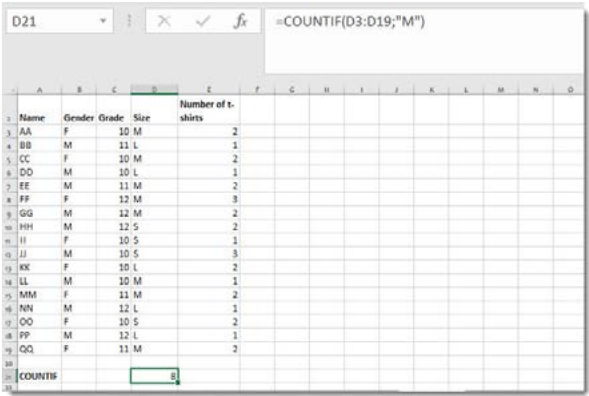
To count how many medium-sized T-shirts were ordered:
=COUNTIF(D3:D19,"M")
The quotation marks around "M" are essential - without them, the spreadsheet would treat M as a cell reference rather than the letter you want to search for.
Important
Always remember to use quotation marks when searching for text values in COUNTIF functions. Without quotation marks, the spreadsheet will interpret your text as a cell reference, leading to incorrect results or errors.
Relational operators
Relational operators are symbols that allow you to compare values and create conditions. These operators are particularly useful when combined with the COUNTIF function, as they let you count cells based on ranges of values rather than exact matches.
| Operator | Description |
|---|---|
| > | Greater than |
| < | Less than |
| = | Equal to |
| >= | Greater than or equal to |
| <= | Less than or equal to |
| <> | Not equal to (less than or greater than, but not equal to) |
Using relational operators with COUNTIF
These operators become powerful when used within COUNTIF functions. Instead of counting exact matches, you can count all values that fall above, below, or within certain ranges.
Example
Relational Operator Example:
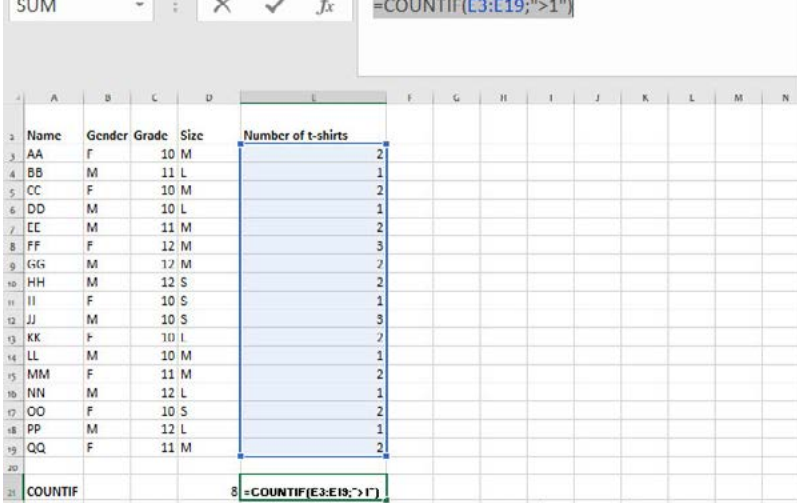
To count how many people ordered more than 1 T-shirt:
=COUNTIF(E3:E19,">1")
The quotation marks are still needed because you're creating a condition that the spreadsheet needs to interpret.
When using relational operators, remember that the entire condition must be enclosed in quotation marks. The spreadsheet evaluates each cell against your condition and returns either True or False, then counts all the True results.
Rounding numbers with cell formatting
Sometimes you need to display numbers with fewer decimal places to make your spreadsheet look cleaner and more professional. Spreadsheet applications offer several ways to round numbers, with cell formatting being one of the most common approaches.
Note
Cell formatting is a non-destructive way to control how numbers appear in your spreadsheet while preserving the original precision of your data for calculations.
Understanding formatting vs actual values
It's important to understand that formatting only changes how numbers appear - it doesn't change the actual values stored in the cells. The spreadsheet still uses the full, unrounded numbers for calculations, but displays them according to your formatting preferences.
Using the Format Cells dialogue
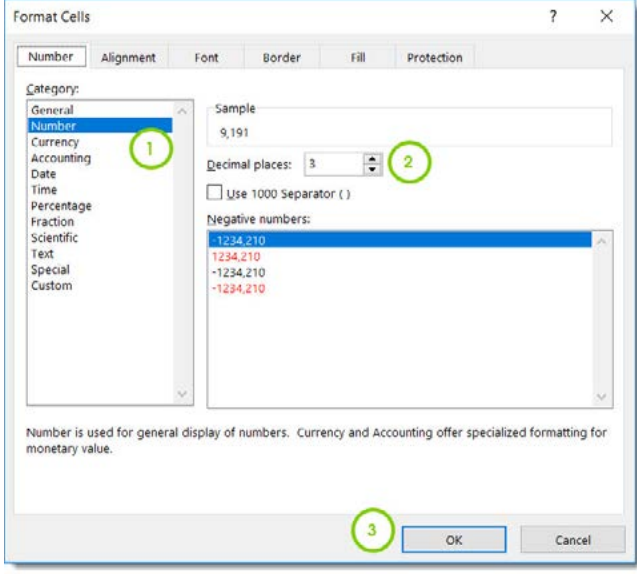
To round numbers using cell formatting, you can access the Format Cells dialogue box. This gives you precise control over how numbers appear in your spreadsheet.
Here's how the process works:
- Select the cells containing the numbers you want to format
- Right-click and choose "Format Cells" or use Ctrl+1
- In the Number tab, you can specify exactly how many decimal places to display
- Choose from various formatting options including currency, percentage, or general number formats
- Preview your changes before applying them
Quick formatting using the ribbon
For faster formatting, most spreadsheet applications also provide decimal adjustment buttons on the ribbon toolbar. These allow you to quickly increase or decrease the number of decimal places displayed without opening the full Format Cells dialogue.
The increase decimal button adds one more decimal place each time you click it, while the decrease decimal button removes one decimal place. This method is perfect for quick adjustments when you don't need to access all the formatting options.
Practical applications
These advanced functions become particularly valuable in real-world scenarios. Imagine you're managing inventory for a school sports team - you could use COUNTIF to quickly determine how many students ordered each shoe size, how many ordered more than one pair, or how many students from each grade level placed orders.
Similarly, the rounding functions help present financial data, statistics, or measurements in a clean, professional format that's easy to read and understand.
Important
Mastering these functions will significantly improve your ability to analyse and present data effectively. They form the foundation for more advanced data analysis techniques you'll encounter in higher-level studies and professional environments.
Summary
Key Points to Remember:
- COUNTIF extends basic counting by allowing you to set specific conditions for what gets counted
- Always use quotation marks around text criteria and relational operator conditions in COUNTIF functions
- Relational operators (>, <, =, >=, <=, <>) let you create flexible conditions for counting ranges of values
- Cell formatting changes how numbers appear but doesn't alter the actual values used in calculations
- The Format Cells dialogue gives you precise control over number display, while ribbon buttons offer quick decimal adjustments