Integration and Troubleshooting (Grade 10 NSC Matric Computer Application Technology): Revision Notes
📚Revision Notes
Integration and Troubleshooting
Basic integration in graphs
Integration refers to the process of transferring data or information from one software application to another. This is particularly useful when working with spreadsheets and word processing programmes, as you can create detailed calculations in a spreadsheet and then incorporate the results into a professional document.
Understanding integration
When you create graphs and charts in spreadsheet applications like Excel, you often need to include these visual elements in reports or documents created in word processing software. Integration allows you to combine the powerful calculation features of spreadsheets with the document formatting capabilities of word processors.
Note
The most common method of integration involves copying data from your spreadsheet and pasting it into your word document. This creates a connection between the two applications, allowing you to present your data analysis in a more comprehensive format.
Step-by-step integration process
Let's examine how to transfer a graph from a spreadsheet into a word processing document:
Example
Worked Example: Transferring a Graph from Spreadsheet to Word Document
Step 1: Prepare your word document Begin by opening the word processing document where you want to insert your graph. Position your cursor at the location where the graph should appear. This step is important because it ensures your graph will be placed exactly where you need it in your document.
Step 2: Access your spreadsheet Open your spreadsheet application and locate the graph you want to transfer. Make sure the graph displays the correct data and formatting before proceeding with the integration process.
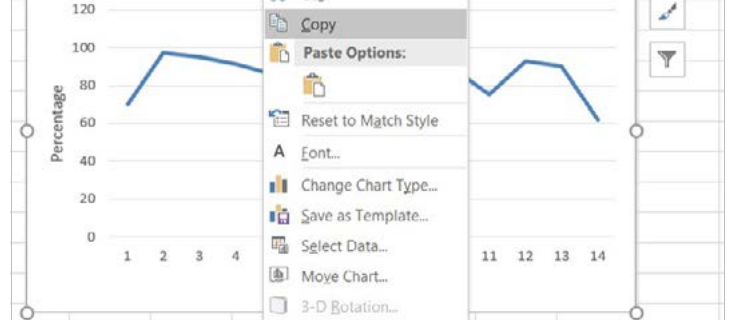
Step 3: Select and copy the graph Click on your graph to select it, then right-click to open the context menu. Choose the "Copy" option from the menu that appears. This action places a copy of your graph onto the clipboard, ready for transfer to your word document.
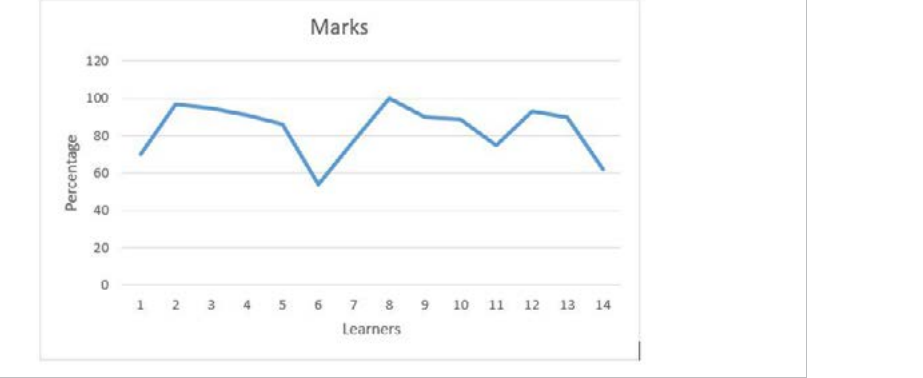
Step 4: Paste into your document Return to your word processing document and position your cursor where you want the graph to appear. Right-click and select "Paste" from the menu, or use the keyboard shortcut Ctrl+V. Your graph will now appear in your document, maintaining its original formatting and data.
Benefits of integration
Note
Integration offers several advantages for students and professionals. You can perform complex calculations in spreadsheet software, then present the results in professionally formatted documents. This approach combines the analytical power of spreadsheets with the presentation capabilities of word processors, creating more effective and visually appealing reports.
Troubleshooting
When working with spreadsheets, you may encounter various errors that prevent your formulas from calculating correctly. Understanding how to identify and resolve these issues is essential for effective spreadsheet use.
Common spreadsheet errors
Spreadsheet applications provide error indicators that help you identify when something has gone wrong with your calculations. These error messages are valuable clues that can guide you towards the solution. When a formula cannot calculate properly, the software will display a specific error message rather than the expected result.
Important
Critical Point: Error messages are your best friends when troubleshooting! They provide valuable clues that can guide you towards the solution rather than leaving you guessing what went wrong.
Troubleshooting reference guide
Here are the most common spreadsheet errors you might encounter and their solutions:
| ERROR | DESCRIPTION | SOLUTION |
|---|---|---|
| Incorrect value | Your formula has returned a date instead of a numerical result | Change the cell formatting from Date or Time to Number or General to display the correct result |
| Function returns the function | The formula appears as text rather than calculating a value | Ensure the cell is not formatted as text and verify that you have used an equal sign at the beginning of your formula |
Problem-solving strategies
When encountering formula errors, follow these systematic approaches to identify and resolve issues:
Important
Essential Troubleshooting Steps:
Check cell formatting: Many problems occur when cells are formatted incorrectly. If your formula returns unexpected results, verify that the cell format matches the type of data you expect to see.
Verify formula syntax: Ensure that your formulas begin with an equal sign and that all brackets, commas, and operators are correctly placed. Missing or incorrect syntax elements will prevent formulas from calculating properly.
Review data types: Confirm that the cells referenced in your formulas contain the appropriate type of data. For example, mathematical operations require numerical values rather than text.
Using help functions
Spreadsheet applications include built-in help systems that can assist you when you encounter difficulties or need to learn new functions. There are several ways to access help within Excel:
Method 1: Keyboard shortcut Press the F1 key on your keyboard to open the Help pane. Note that this feature may only be available when you have an internet connection.
Method 2: Search function Type your query into the search box labelled "Tell me what you want to do" located at the top of the application window.
Method 3: File menu access Select "File" from the main menu, then click the question mark icon in the top-right corner to access help resources.
Exam tips for troubleshooting
Note
Exam Success Strategies:
When working with spreadsheet problems in examinations, remember to:
- Always check your cell formatting first when formulas return unexpected results
- Verify that formulas begin with an equal sign
- Look for missing brackets or incorrect syntax in complex formulas
- Use the help function when you're unsure about formula syntax
- Double-check that referenced cells contain the correct data types
Summary
Key Points to Remember:
- Integration allows you to transfer graphs and data between different software applications, typically from spreadsheets to word processors
- Copy and paste is the most common method for integrating spreadsheet graphs into documents
- Error indicators in spreadsheets provide valuable clues about what has gone wrong with your calculations
- Cell formattingissues are often the cause of incorrect formula results, particularly when dates appear instead of numbers
- Help functions in spreadsheet applications can assist you when you encounter difficulties or need to learn new features