Paragraphs (Grade 10 NSC Matric Computer Application Technology): Revision Notes
📚Revision Notes
Paragraphs
Understanding how to format paragraphs properly is essential for creating professional and well-organised documents in word processing applications. This unit covers three main areas: creating bulleted and numbered lists, using different types of indents, and working with tabs to align text precisely.
Note
Proper paragraph formatting is the foundation of professional document creation. These skills will be essential for academic writing, business documents, and any formal correspondence.
Bulleted and numbered lists
Bulleted and numbered lists are powerful tools that help you organise information in a clear and structured way. They make your documents easier to read and understand by breaking down complex information into manageable chunks.
Important
When to use each list type:
- Use bulleted lists when the order doesn't matter (shopping lists, features, benefits)
- Use numbered lists when sequence is important (steps in a process, rankings, instructions)
Creating bulleted lists
When you want to present information without a specific order or sequence, bulleted lists are ideal. To create a bulleted list in Word, you need to select your text and access the bullet options from the Home tab in the Paragraph group.
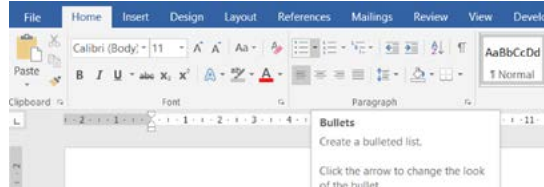
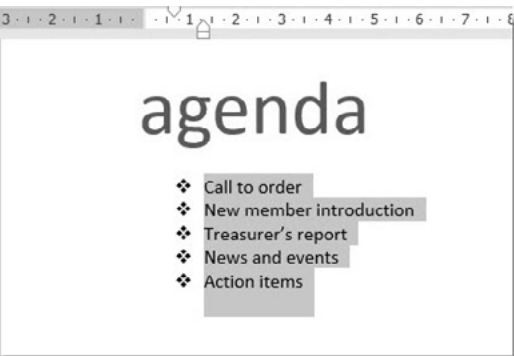
Word offers various bullet styles including:
- Simple dots or circles
- Diamond shapes
- Arrows
- Custom symbols
You can preview different bullet styles by hovering over them before making your selection. Once applied, your list will appear with consistent spacing and formatting.
Working with numbered lists
Numbered lists are perfect when you need to show a sequence, priority, or steps in a process. Word provides several numbering options to suit different document needs:
- Numbers: Standard 1, 2, 3 format
- Letters: Using A, B, C or a, b, c
- Roman numerals: Both uppercase (I, II, III) and lowercase (i, ii, iii)
- Pictures: Custom graphics as list markers
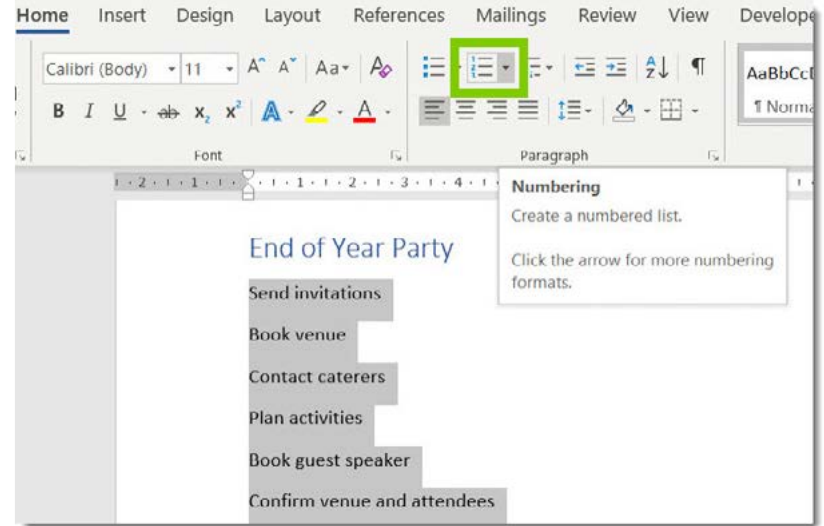
When creating numbered lists, Word automatically continues the numbering sequence as you add new items. You can also customise the starting number and choose from different numbering formats through the numbering library.
Customising list appearance
Both bulleted and numbered lists can be customised to match your document's style. You can adjust the indentation, spacing, and alignment of list items. Word also allows you to create multi-level lists for more complex organisational structures.
Indents
Indents are used to position paragraphs relative to the document margins. They help create visual hierarchy and improve document readability. There are several types of indents, each serving different purposes.
Left and right indents
Left and right indents control how far your paragraph text sits from the document margins. The left indent moves the entire paragraph away from the left margin, while the right indent pulls the paragraph text in from the right margin.
To apply left or right indents:
- Select the paragraph text you want to format
- Right-click and choose "Paragraph" from the context menu
- In the Alignment section, you'll see options for Left and Right indentation
- Enter your desired measurement or use the dropdown arrows
Note
Left and right indents are particularly useful for creating quotes, emphasising important text, or following specific formatting requirements like APA or MLA style guidelines.
First line indent
A first line indent affects only the beginning of each paragraph, creating the traditional look of book paragraphs where the first line is indented while the rest of the paragraph aligns with the left margin.

This formatting style is commonly used in academic writing and formal documents. It helps readers identify where new paragraphs begin, especially in documents with minimal spacing between paragraphs.
Hanging indent
A hanging indent creates the opposite effect of a first line indent. The first line of the paragraph starts at the left margin, while all subsequent lines are indented further to the right.

Example
Common Uses for Hanging Indents:
Bibliography Entry: Smith, J. (2023). Advanced Word Processing Techniques. Academic Press.
Reference List Item: Johnson, M. & Brown, K. (2022). Document formatting principles in modern word processors. Journal of Digital Publishing, 15(3), 45-62.
Hanging indents are extremely useful for:
- Bibliography entries
- Reference lists
- Dictionary definitions
- Any list where you want the first word or phrase to stand out
Using the ruler for indents
The quickest way to adjust indents is by using the ruler that appears above your document. The ruler shows small markers that you can drag to adjust different types of indents quickly and visually.
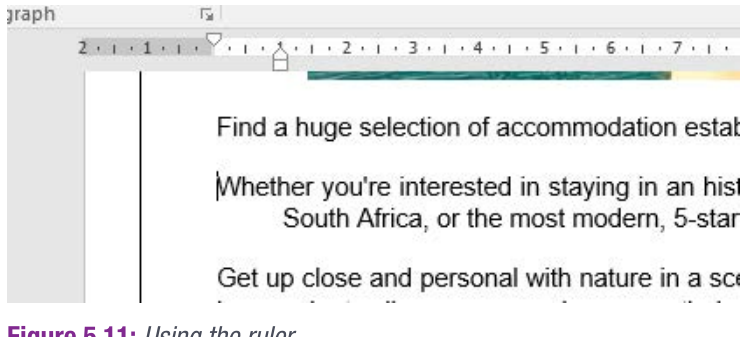
This method gives you immediate visual feedback and allows for precise positioning without having to open dialogue boxes or enter specific measurements.
Tabs
Tabs are essential for precise text alignment within your documents. They allow you to position text at exact locations across the page width, creating professional layouts for items like tables of contents, financial data, or any information that needs to line up perfectly.
Understanding tab stops
When you press the Tab key, your cursor moves to the next tab stop position. By default, Word sets tab stops every cm, but you can customise these positions to meet your specific needs.
Types of tab stops
Different tab stop types serve different alignment purposes:
| Tab Stop | Function |
|---|---|
| Left tab | Text aligns to the left of the tab stop |
| Right tab | Text aligns to the right of the tab stop |
| Centre tab | Text centres around the tab stop |
| Decimal tab | Numbers align by their decimal points |
| Bar tab | Inserts a vertical line at the tab stop position |
Note
Decimal tabs are particularly useful for financial documents where you need currency amounts to align perfectly by their decimal points, making columns of numbers easy to read and compare.
Tab selector
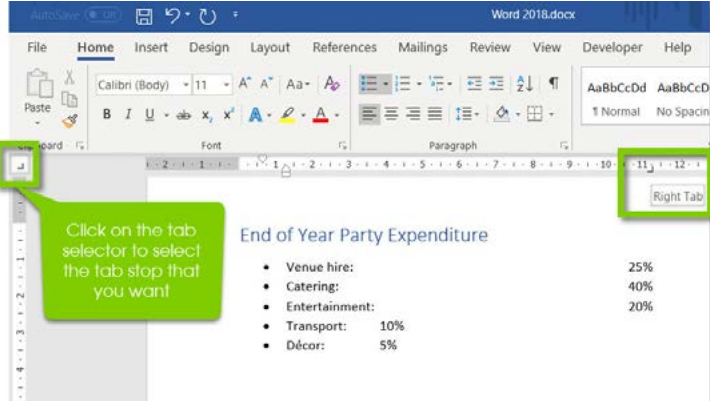
The tab selector appears above the vertical ruler on the left side of your document. You can click through different tab stop types before placing them on the ruler. This ensures you select the correct alignment type for your needs.
Adding and removing tab stops
To add a tab stop, first select the tab type from the tab selector, then click on the ruler where you want the tab stop positioned. You can also use the Tabs dialogue box for more precise control over tab stop positions and properties.
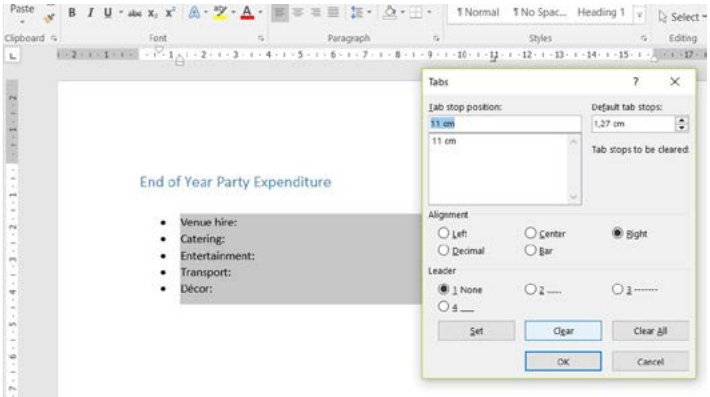
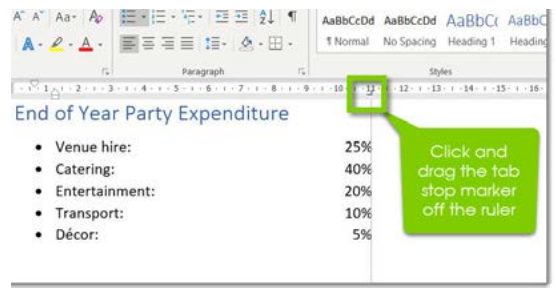
To remove tab stops, you can either drag them off the ruler or use the Tabs dialogue box to delete specific measurements.
Important
Quick Tip: When dragging tab stops off the ruler, make sure to drag them completely off the ruler area. If you don't drag far enough, the tab stop will remain in place.
Tab leader lines
Leader lines are dots, dashes, or other characters that fill the space between tab stops. They're commonly seen in tables of contents where dots connect chapter titles to page numbers.
To add leader lines:
- Open the Tabs dialogue box
- Select your tab stop position
- Choose your preferred leader style from the options
- Apply the settings to your paragraph
This creates professional-looking documents where information is clearly connected and easy to follow.
Summary
Key Points to Remember:
- Bulleted and numbered lists help organise information clearly - use bullets for unordered items and numbers for sequences or steps
- Indents control paragraph positioning - first line indents are great for traditional paragraph formatting, while hanging indents work well for references and lists
- Different tab stops serve different purposes - left tabs for general text, decimal tabs for numbers, and centre tabs for headings
- The ruler provides quick visual formatting - drag indent markers and click to add tab stops for immediate results
- Leader lines connect information professionally - use them in tables of contents, menus, or any document where you need to link items across the page