Reviewing in Presentations (Grade 10 NSC Matric Computer Application Technology): Revision Notes
📚Revision Notes
Reviewing in Presentations
What is reviewing in presentations?
When you've finished creating your presentation, the final important step is to review it thoroughly. This process helps you catch any spelling mistakes, grammatical errors, or other issues that might distract your audience from your message. Think of reviewing as your quality check before presenting to others.
Note
The reviewing process is essential because even small errors can make your presentation look unprofessional and reduce the impact of your hard work. PowerPoint provides several tools to help you with this important final step.
Understanding the review tab
PowerPoint's Review tab contains all the tools you need for checking and improving your presentation. This tab includes features for spell-checking, grammar checking, accessibility verification, and adding comments for collaboration.
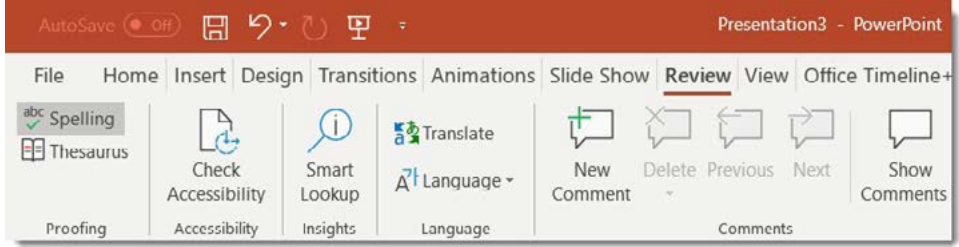
The Review tab is organised into several sections that help you systematically check different aspects of your presentation. The most commonly used tool for reviewing is the Spelling feature, which we'll explore in detail.
Using the spelling tool
The Spelling tool is your first line of defence against embarrassing spelling mistakes in your presentation. Here's how the spell-checking process works:
Accessing the spelling tool
Example
Step-by-Step: Starting Spell Check
Step 1: Navigate to the Review tab in PowerPoint
Step 2: Click on the Spelling command in the Proofing section
Step 3: PowerPoint will begin scanning your entire presentation for potential spelling errors
Working with the spelling dialogue box
When PowerPoint finds a potential spelling mistake, a dialogue box will appear with several options:
- Change: Select this to accept one of PowerPoint's suggested corrections
- Ignore: Choose this if the word is correct but not in PowerPoint's dictionary (like proper names or technical terms)
- Add to dictionary: Use this for words you use frequently that aren't in the standard dictionary
The tool will work through each potential error systematically. After checking all errors, you'll see a message confirming that the spelling and grammar check is complete.
Understanding proofreading limitations
Important
Critical Limitation to Remember
Presentation applications like PowerPoint don't have the same advanced grammar-checking capabilities as dedicated word processors like Microsoft Word. This means you need to be extra careful when reviewing your content.
PowerPoint's spell-check tool is quite basic, so when checking the grammar and overall content of your slides, you'll need to rely more on your own careful reading. This is why it's recommended to:
- Read through each slide carefully after using the spelling tool
- Check that your sentences make sense and flow well
- Verify that your content is logically organised
- Ensure that titles and bullet points are consistent
Manual spell-checking tips
Sometimes the spelling tool might not catch everything, or you might be unsure about a particular word. In these cases, you can:
Note
Additional Manual Checking Strategies
- Manually check words you're uncertain about by looking them up online
- Ask someone else to review your presentation
- Read your presentation aloud to catch errors that spell-check might miss
- Pay special attention to commonly confused words (like "their," "there," and "they're")
Best practices for presentation reviewing
To ensure your presentation is error-free and professional:
- Check every slide: Don't just rely on the automatic spell-check - manually review each slide's title and content
- Review in different views: Look at your presentation in both normal and slide sorter views to catch different types of errors
- Check formatting consistency: Ensure fonts, sizes, and styles are consistent throughout
- Verify factual content: Double-check any facts, figures, or dates mentioned in your presentation
- Test multimedia elements: If you've included videos or audio, make sure they work properly
The importance of thorough reviewing
Remember that your presentation represents you and your work. A well-reviewed presentation shows attention to detail and professionalism, while errors can distract your audience and undermine your credibility. Taking the time to properly review your work is an investment in your success.
Note
The reviewing process might seem tedious, but it's much better to catch and fix errors before your presentation rather than during it. Your audience will appreciate the care you've taken to deliver a polished, professional presentation.
Summary
Key Points to Remember:
- Always review your presentation as the final step before presenting - it's your quality check
- Use PowerPoint's Spelling tool found in the Review tab to catch most spelling errors automatically
- Understand the limitations- presentation software has basic spell-check compared to word processors, so manual checking is essential
- Check every slide manually including titles and content, as the spell-checker might not catch everything
- Professional presentations require error-free content - small mistakes can distract your audience and reduce your credibility