Basic Calculations with Spreadsheets (Grade 10 NSC Matric Computer Application Technology): Revision Notes
📚Revision Notes
Basic Calculations with Spreadsheets
Introduction to spreadsheet calculations
One of the most powerful features of spreadsheets is their ability to perform calculations automatically. This is the main reason why people choose to use spreadsheets over simple word processors or paper-based methods. Spreadsheets can handle everything from basic arithmetic to complex mathematical formulas, making them essential tools for business, education, and personal finance management.
Understanding formula basics
Every formula in a spreadsheet must follow one fundamental rule that determines whether your input will be treated as text or as a calculation.
Important
The Golden Rule of Spreadsheet Formulas
All formulas must begin with an equals sign (=). When you type a formula starting with =, the spreadsheet knows you want it to perform a calculation rather than just display text. After you press Enter, the cell will show the calculated result instead of the formula itself.
This fundamental principle is what transforms a simple grid of cells into a powerful calculation engine.
Standard arithmetic operators
Spreadsheets use specific symbols to represent mathematical operations. These are called operators, and you need to learn them well since they form the foundation of all calculations.
Note
The Four Essential Arithmetic Operators
- Addition (+): Use this to add numbers together
- Subtraction (-): Use this to subtract one number from another
- Division (/): Use this to divide numbers (note it's a forwards slash, not a backslash)
- Multiplication (*): Use this to multiply numbers (use the asterisk, not the letter x)
It's important to get into the habit of using these correct symbols. Many students make mistakes by trying to use 'x' for multiplication or other incorrect symbols.
Order of calculation - the BODMAS rule
Just like in mathematics, spreadsheets follow a specific order when performing calculations. Understanding this sequence is crucial for getting accurate results in your formulas.
Important
BODMAS: The Universal Order of Operations
BODMAS stands for:
- Brackets
- Of (powers/exponents)
- Division
- Multiplication
- Addition
- Subtraction
The spreadsheet will always calculate operations in this order, working from left to right for operations of equal priority. Understanding this rule is crucial because it affects your results significantly.
How BODMAS works in practice
Let's look at simple examples to understand why order matters and how it directly impacts your calculation results:
Example
Worked Example 1: Understanding Brackets
Calculate:
Step 1: Calculate what's in brackets first
Step 2: Then multiply
Final answer: 40
Example
Worked Example 2: Multiplication Before Subtraction
Calculate:
Step 1: Multiplication comes before subtraction (BODMAS rule)
Step 2: Then subtraction
Final answer: 4
Using brackets to control calculations
Brackets are incredibly powerful tools in spreadsheet formulas. They allow you to override the normal BODMAS order and specify exactly which calculations should happen first. You can use brackets to separate different parts of a formula and ensure they're calculated in the sequence you want.
Practical example with cell references
Let's examine how brackets affect real spreadsheet calculations using cell references to see the dramatic difference they can make:
Example
Worked Example: With Brackets
Given:
- Cell A1 contains the value 8
- Cell A2 contains the value 3
- Cell A3 contains the formula =(A1+A2)*3
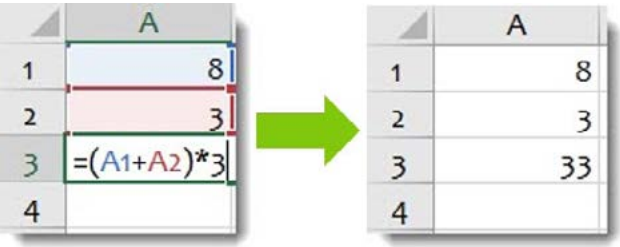
Step 1: The brackets force the addition to happen first
Step 2: Then the multiplication
Final result: 33
Example
Worked Example: Without Brackets
Using the same cell values but with the formula =A1+A2*3:
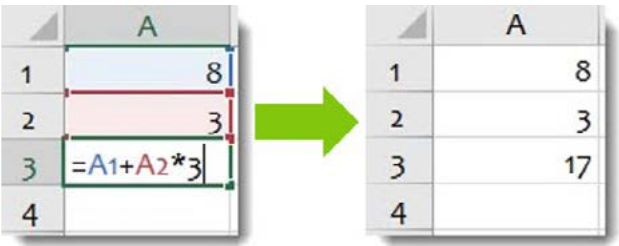
Step 1: Following BODMAS, multiplication happens first
Step 2: Then addition
Final result: 17
This demonstrates how dramatically brackets can change your results! The same numbers gave us 33 with brackets and 17 without brackets.
Building practical spreadsheets
Understanding these calculation principles becomes essential when creating real-world spreadsheets. The ability to structure formulas correctly makes the difference between a functional tool and a source of errors.
Note
Real-World Application: Small Business Profit Calculator
For example, you might need to calculate profits for a small business:
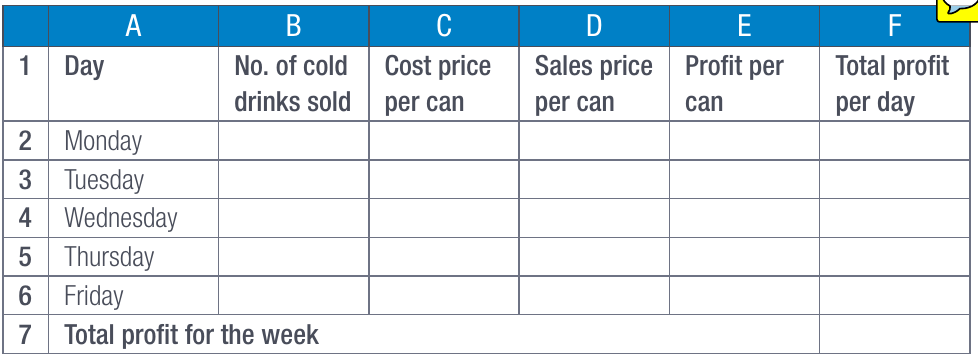
In this type of spreadsheet, you would use formulas to:
- Calculate profit per can: Sales price - Cost price
- Calculate total daily profit: Number sold × Profit per can
- Calculate weekly totals: Sum of all daily profits
Each of these calculations would require proper use of operators, cell references, and potentially brackets to ensure accurate results.
Common exam tips and pitfalls
Understanding where students typically struggle can help you avoid the most common mistakes and develop reliable calculation habits.
Important
Common Mistakes to Avoid
- Forgetting the equals sign at the start of formulas
- Using 'x' instead of '*' for multiplication
- Not understanding how BODMAS affects your calculations
- Mixing up division (/) and multiplication (*) symbols
- Forgetting to use brackets when you need to override BODMAS
Note
Exam Success Strategies
- Always double-check your operator symbols
- Work through BODMAS step by step for complex formulas
- Use brackets liberally when in doubt about calculation order
- Test your formulas with simple numbers first
- Remember that the spreadsheet shows results, not formulas, in normal view
Summary
Key Points to Remember
-
All spreadsheet formulas must start with an equals sign (=) - this tells the software you want to perform a calculation
-
BODMAS rules apply to spreadsheet calculations - Brackets first, then Division and Multiplication, then Addition and Subtraction, working left to right
-
Use brackets strategically - they allow you to control exactly which parts of your formula are calculated first, overriding the normal BODMAS order
-
Master the four basic operators - Addition (+), Subtraction (-), Multiplication (*), and Division (/) form the foundation of all spreadsheet calculations
-
Cell references make formulas dynamic - instead of typing actual numbers, use cell references (like A1, B2) so your formulas automatically update when data changes