Formatting in Word Processing: Editing and Reviewing (Grade 10 NSC Matric Computer Application Technology): Revision Notes
📚Revision Notes
Formatting in Word Processing: Editing and Reviewing
Basic editing
Word processing applications allow you to manipulate text efficiently by copying content from one document and transferring it to another document, spreadsheet, or presentation. This functionality saves considerable time and effort when working with multiple documents. In this section, you'll discover how to cut, copy, and paste text effectively.
Understanding the difference between cut, copy and paste
There are two main ways to duplicate or move text in word processing:
| Action | Description |
|---|---|
| Cut and Paste (Ctrl+X and Ctrl+V) | Moves text or an image from one place in the document to another location |
| Copy and Paste (Ctrl+C and Ctrl+V) | Keeps the text or image in its original place whilst adding a copy to another location |
The key difference is that cutting removes the original text, while copying preserves it in its original position.
Copy and paste text
Copy and paste functions prove particularly useful when you need to duplicate information from one document to another whilst keeping the original intact. The process offers different options for handling formatting - you can preserve the original formatting or paste just the plain text.
Note
When copying text, you can access various paste options through the Home tab. These options allow you to control how the pasted content appears in the destination document, giving you flexibility over formatting and appearance.
Cut and paste text
When you don't need to keep the original text in its current location, the cut and paste functions work together to move content from one document to another. This process removes the selected text from its original position and places it in the new location.
The same paste options that apply to copying also work with cutting and pasting, giving you control over formatting and appearance.
Find and replace
When working with lengthy documents, manually searching through every page to locate specific words or phrases becomes time-consuming and impractical. Word processing applications provide automated search functionality that quickly locates content throughout the entire document. Additionally, the replace feature enables you to change multiple instances of words or phrases efficiently.
Finding a word or phrase
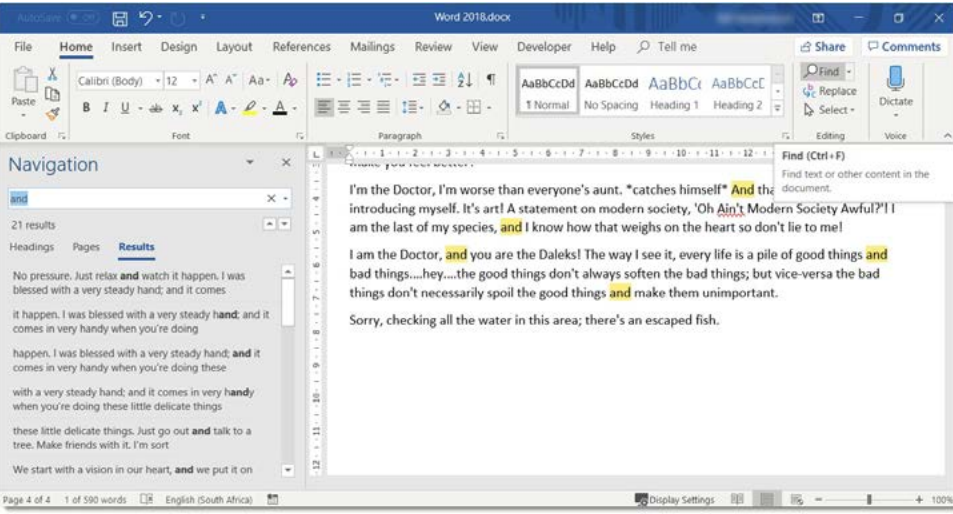
To locate specific content in a document, you can use the Find command, which is accessible through the Home tab or by pressing Ctrl+F. This opens a Navigation pane that displays search results and allows you to move between different instances of the searched term.
Note
The Navigation pane appears on the left side of the screen and can also be accessed through the View tab. When you enter a search term, Word highlights all instances of that word or phrase in the document and provides a preview of the results in the Navigation pane.
You can access additional search options by selecting the drop-down arrow next to the Search field. These advanced options include searching for graphics, tables, equations, footnotes, and comments.
Replacing a word or phrase
The replace function becomes invaluable when you need to substitute one word with another throughout an entire document. This feature proves particularly useful for tasks such as changing a person's name or replacing one term with another across the document.
To access the Find and Replace dialogue box, select the Replace command from the Home tab. The dialogue box contains fields for both the text you want to find and the replacement text.
In the Find what field, enter the word or phrase you want to locate. In the Replace with field, enter the text you want to substitute. You can then choose to replace individual instances by selecting "Replace" or change all occurrences at once by selecting "Replace All".

The Find and Replace feature includes additional search options accessible through the "More" button. These advanced options allow you to refine your search criteria, such as matching case or finding whole words only.
Important
Exercise caution when using the "Replace All" function, as it might change instances you didn't intend to modify. Always review the changes carefully to ensure they're appropriate.
Reviewing
The final stage of document preparation involves thorough reviewing to identify and correct any spelling or grammatical errors. Word processing applications provide comprehensive proofing tools, including spelling and grammar checkers, that help create professional, error-free documents.
Proofreading forms an essential part of the reviewing process, ensuring your document meets professional standards before sharing or publishing.
Language settings
AutoCorrect and Spelling & Grammar functions depend on the selected language. To modify the language settings, select all text (Ctrl+A) and choose the appropriate language in the Review tab. The language used for proofing appears at the bottom left of the window, and you can change it by selecting the displayed language.
Note
Language settings can be adjusted for individual paragraphs or words rather than the entire document, providing flexibility for multilingual documents.
AutoCorrect
Before running a comprehensive spell check, many errors can be prevented using the AutoCorrect feature. This tool automatically detects common typing mistakes and corrects them as you type.
For instance, if you type "doesnt", AutoCorrect will automatically change it to "doesn't" when you press the spacebar. This feature saves time and reduces the need for extensive proofreading later.
AutoCorrect proves particularly helpful when inserting special characters or symbols. Instead of navigating to the Insert tab and Symbol command, AutoCorrect uses predefined shortcuts. For example, typing :) automatically converts to the © emoticon symbol.
You can access AutoCorrect settings by selecting File > Options > Proofing > AutoCorrect options. From this dialogue box, you can enable or disable various AutoCorrect functions that improve document formatting and appearance.
Available AutoCorrect options include:
- Correcting accidental use of the CAPS LOCK key
- Capitalising the first letter of sentences and table cells
- Replacing text as you type
- Creating automatic bulleted and numbered lists
- Applying automatic formatting to tables and borders
Spelling and grammar checking
Spelling and Grammar functions provide comprehensive proofreading capabilities, but remember to configure your Language settings appropriately. These tools can be accessed through the File tab under Options > Proofing, allowing you to customise how Word corrects and formats your text.
To run a complete spelling and grammar check, open the Review tab and select the Spelling & Grammar command. This launches a comprehensive review process that examines the entire document.
The Spelling & Grammar pane appears on the right side of the screen. For each identified error, Word provides suggestions that you can select to correct the mistake. You can choose to accept a suggestion by selecting "Change" to correct individual instances.
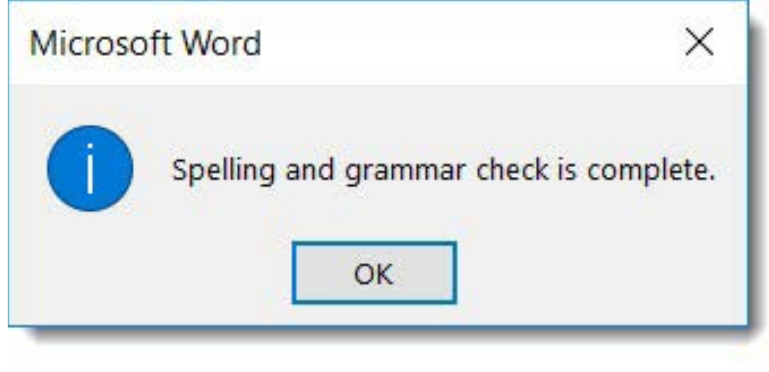
When Word completes the review process, a dialogue box appears indicating that the spelling and grammar check is finished.
Ignoring errors
Sometimes the spelling and grammar checker identifies items as errors when they're actually correct. This commonly occurs with proper nouns such as names, places, or technical terms not found in the standard dictionary.
When Word flags something as an error, you have several options depending on whether it's a spelling or grammatical issue. You can choose to ignore the suggested change if you're confident the original text is correct.
Note
For words that are spelled correctly but not recognised by Word, you can add them to the dictionary to prevent future flagging. This feature proves particularly useful for technical terms, names, or industry-specific vocabulary that you use frequently.
Summary
Key Points to Remember:
- Cut moves text from one location to another, while copy duplicates text whilst keeping the original in place
- Use keyboard shortcuts for efficiency: Ctrl+C (copy), Ctrl+X (cut), Ctrl+V (paste), and Ctrl+F (find)
- Find and Replace saves time when changing multiple instances of words or phrases throughout lengthy documents
- AutoCorrect prevents errors by automatically fixing common typing mistakes as you work
- Always review changes carefully when using Replace All to ensure you haven't altered text unintentionally