Typing (Grade 10 NSC Matric Computer Application Technology): Revision Notes
📚Revision Notes
Typing
What is typing and why do we need keyboards?
When you want to enter text, numbers, or symbols into a computer, the keyboard is your best tool for the job. Think of the keyboard as your primary way to communicate with the computer through text input.
A keyboard serves as an input device that allows you to enter information such as letters, words, numbers and symbols into the computer. Every time you press a key on the keyboard, you're sending data to the computer that it can understand and process.
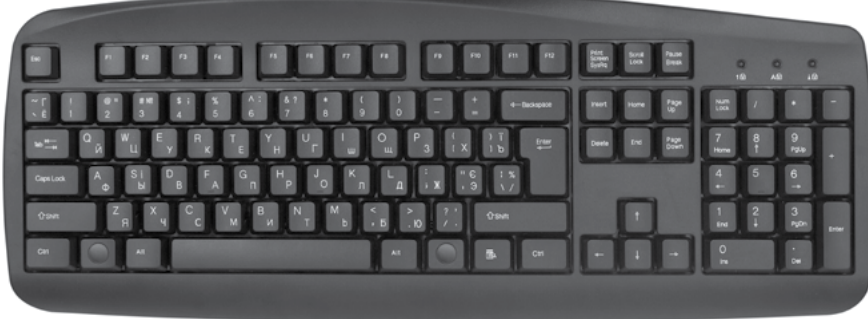
The most common type of keyboard layout is called the QWERTY keyboard. This name comes from the first six letters you'll find on the left-hand side of the top letter row. The letters are arranged in a specific pattern that was originally designed to prevent typewriter keys from jamming, and this layout has remained the standard ever since.
Note
The QWERTY layout was invented in the 1870s for mechanical typewriters. Despite being designed to slow down typing to prevent mechanical jams, it became so widely adopted that we still use it today on modern keyboards, even though the original mechanical limitations no longer exist.
Understanding different types of keys on your keyboard
Not all keys on your keyboard serve the same purpose. To become a skilled typist, you need to understand the different categories of keys and what they do. Let's look at how keyboard keys are organised into different groups:
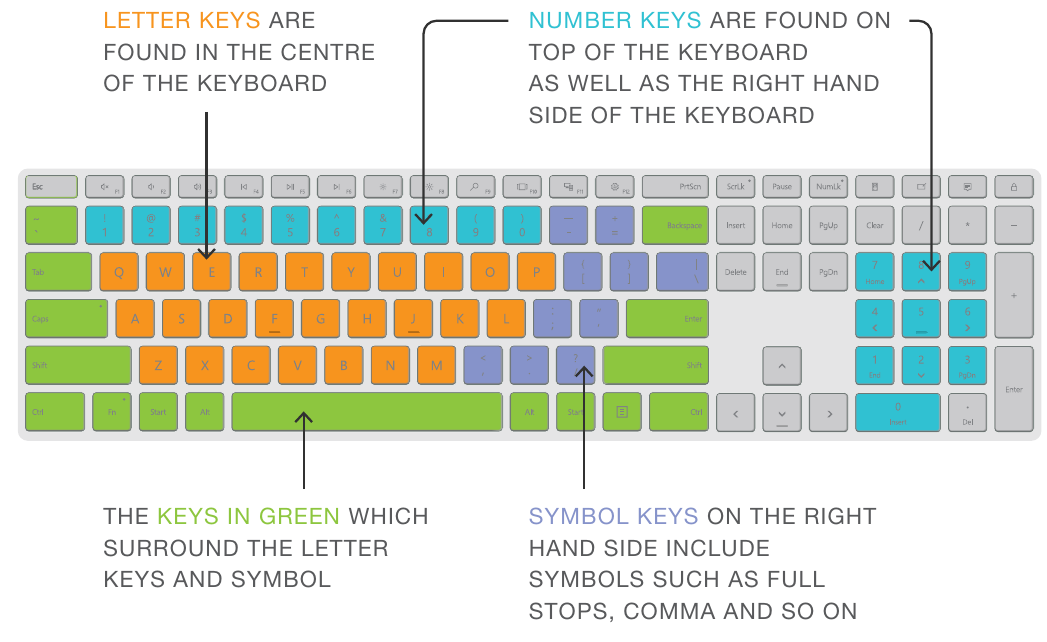
The keyboard can be divided into four main categories of keys, each with its own specific function:
Letter keys are shown in orange and make up the central part of your keyboard. These are the A-Z keys that you'll use most often when typing words and sentences.
Number keys appear in blue and are found in two places: along the top row of the keyboard and on the numeric keypad on the right side. These keys help you input numbers quickly and efficiently.
Special function keys are highlighted in green and include important keys like the spacebar, shift keys, and other modifier keys that surround the letter keys. These keys help you control how your text appears and behaves.
Symbol and punctuation keys are shown in purple and include all the symbols you need for proper writing, such as full stops, commas, question marks, and other punctuation marks.
Important
Understanding these four key categories is essential for efficient typing. Each category serves a specific purpose, and knowing which keys belong to which category will help you locate them quickly and use them effectively.
Important special keys you need to know
Beyond the basic letter and number keys, there are several special keys that are essential for effective typing. Understanding what these keys do will make your typing much more efficient and accurate.
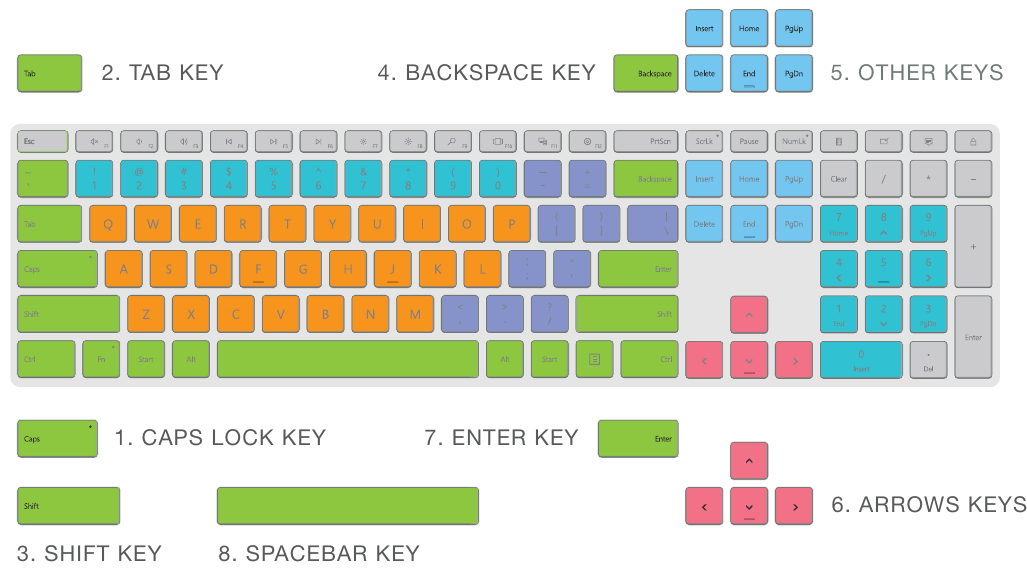
Let's explore the most important special keys and their functions:
CAPS Lock key: This key allows you to type in capital letters continuously. When you press it once, all letters you type will appear in capitals until you press it again to turn it off. Be careful not to leave it on accidentally, as typing in all capitals can seem like you're shouting!
Tab key: Use this key to move your cursor to predetermined positions across the page. It's particularly useful for creating neat, aligned text or moving between fields in forms. You only need to press it once to create a tab space.
Shift keys: These are some of the most versatile keys on your keyboard. Hold down a shift key while typing a letter to make it a capital letter. You can also hold shift while pressing number keys to access the symbols above them (like ! @ # $ %).
Note
The Shift keys are located on both sides of the keyboard for a reason. Use the opposite shift key from the hand that's pressing the letter key. For example, if you're typing a capital "A" with your left pinky, hold down the right Shift key with your right pinky.
Backspace key: When you make a typing mistake, the backspace key is your friend. It deletes the character immediately to the left of your cursor, allowing you to correct errors as you type.
Arrow keys: These four directional keys let you move your cursor around your document without using the mouse. You can move up, down, left, or right through your text to position your cursor exactly where you need it.
Enter key: Press this key to start a new paragraph or line in your document. It's essential for organising your text properly.
Spacebar key: This long key at the bottom of the keyboard creates spaces between words. It's crucial for readable text - without it, all your words would run together!
There are also several other useful keys worth knowing about:
- Insert key: This toggles between inserting new text and typing over existing text
- Home and End keys: Home moves your cursor to the beginning of a line, while End moves it to the end
- Delete key: Unlike backspace, this deletes characters to the right of your cursor
- Page Up and Page Down keys: These help you move through long documents quickly
Important
Common Mistake to Avoid: Many beginners confuse the Backspace and Delete keys. Remember: Backspace deletes to the LEFT of your cursor, while Delete removes characters to the RIGHT of your cursor.
Proper finger placement for efficient typing
Learning to place your fingers correctly on the keyboard is the foundation of good typing technique. This method, called touch typing, allows you to type quickly and accurately without looking at the keys.
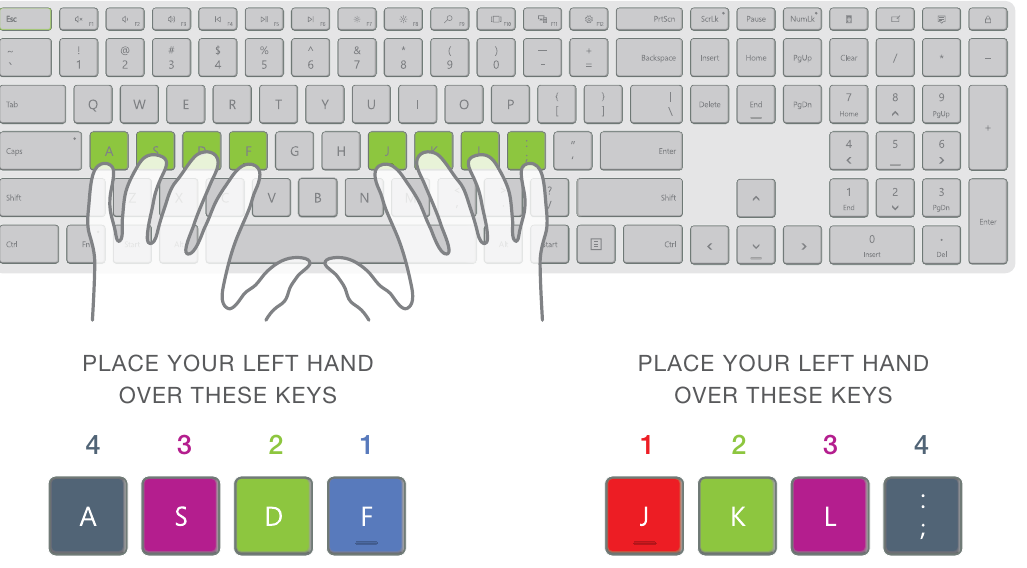
The key to successful touch typing starts with understanding the home row. This is the middle row of letter keys where your fingers should rest when you're not actively typing. The home row consists of specific keys for each hand:
Left hand home keys: Your fingers should rest on A (pinky finger), S (ring finger), D (middle finger), and F (index finger).
Right hand home keys: Your fingers should rest on J (index finger), K (middle finger), L (ring finger), and the semicolon key (pinky finger).
Example
Step-by-Step: Finding Your Home Row Position
Step 1: Place your left index finger on the F key and your right index finger on the J key. You should feel small raised bumps on these keys that help you locate them without looking.
Step 2: Let your other fingers fall naturally onto the adjacent keys: A-S-D-F for your left hand, and J-K-L-; for your right hand.
Step 3: Curve your fingers slightly and rest them gently on the keys. Your wrists should be straight and relaxed.
Step 4: Keep your thumbs hovering over the spacebar, ready to press it when needed.
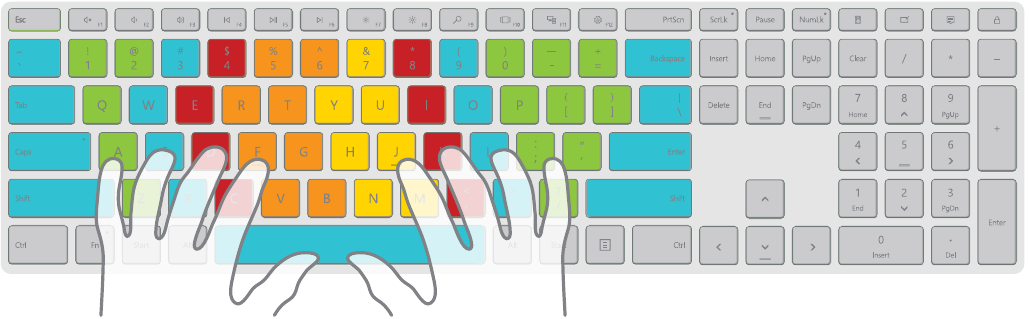
Once you've mastered the home row position, you can learn which fingers are responsible for pressing which keys across the entire keyboard. Each finger has a designated zone of keys that it should handle, creating an efficient system that allows for fast, accurate typing.
The colour-coded system shows you exactly which finger should press each key. By practising this proper finger placement, you'll develop muscle memory that allows you to type without looking at the keyboard. This skill takes time to develop, but it's worth the effort as it dramatically improves your typing speed and accuracy.
Important
Essential Rule: Never look at the keyboard while typing. This defeats the purpose of learning proper finger placement. Start slowly and focus on accuracy rather than speed. Speed will naturally develop as your muscle memory improves.
Exam tips for typing skills
When working with typing in your Computer Applications Technology studies, these concepts are frequently tested and should be thoroughly understood:
Note
Key Exam Focus Areas:
- Accuracy is more important than speed initially - focus on getting the right keys with the right fingers before worrying about typing quickly
- Practice the home row position regularly - this is the foundation of all good typing technique
- Learn the special key functions thoroughly - exams often test your knowledge of what different keys do
- Understand keyboard terminology - know terms like QWERTY layout, home row, and touch typing
- Be able to identify different types of keys - letter keys, number keys, function keys, and symbol keys
Summary
Key Points to Remember:
- The keyboard is an input device that allows you to enter letters, numbers, and symbols into the computer
- QWERTY keyboards are named after the first six letters on the left side of the top letter row
- Keys are organised into four main categories: letters (orange), numbers (blue), special functions (green), and symbols (purple)
- The home row keys (ASDF for left hand, JKL; for right hand) are the foundation of proper typing technique
- Special keys like CAPS Lock, Shift, Backspace, and Enter each have specific functions that make typing more efficient
- Touch typing with proper finger placement is essential for developing speed and accuracy