System Software (Grade 10 NSC Matric Computer Application Technology): Revision Notes
📚Revision Notes
System Software
System software forms the foundation that keeps your computer running smoothly. It includes essential programmes that manage hardware, maintain system performance, and ensure everything works together properly. Understanding system software helps you troubleshoot problems and keep your computer in excellent working condition.
Keeping your system updated
Modern operating systems like Windows regularly receive updates that include new software and improvements. These updates typically happen automatically, ensuring your computer stays current with the latest features and security patches. The system includes built-in tools that handle driver updates and software maintenance, keeping your PC, laptop, or tablet running optimally without requiring constant manual intervention.
Note
Most operating system updates include not only security patches and new features, but also updated drivers for common hardware components. This automated process helps ensure your system remains compatible with both new and existing hardware.
Drivers
What are drivers?
Drivers are special programmes that act as translators between your computer's hardware and its operating system. Think of them as interpreters who help two people speaking different languages communicate effectively. Each piece of hardware in your computer - whether it's a mouse, keyboard, printer, or graphics card - needs its own specific driver to function properly.
When you connect a device to your computer, the operating system needs to understand how to control that device. The driver provides the necessary instructions and communication protocols to make this happen seamlessly.
Note
The term "device drivers" is often shortened to just "drivers" in everyday computer terminology. They're sometimes also called "hardware drivers" because they specifically handle hardware components.
Managing drivers with Device Manager
Windows includes a powerful tool called Device Manager that helps you monitor and manage all the drivers on your system. This utility displays all connected hardware devices and shows their current status.
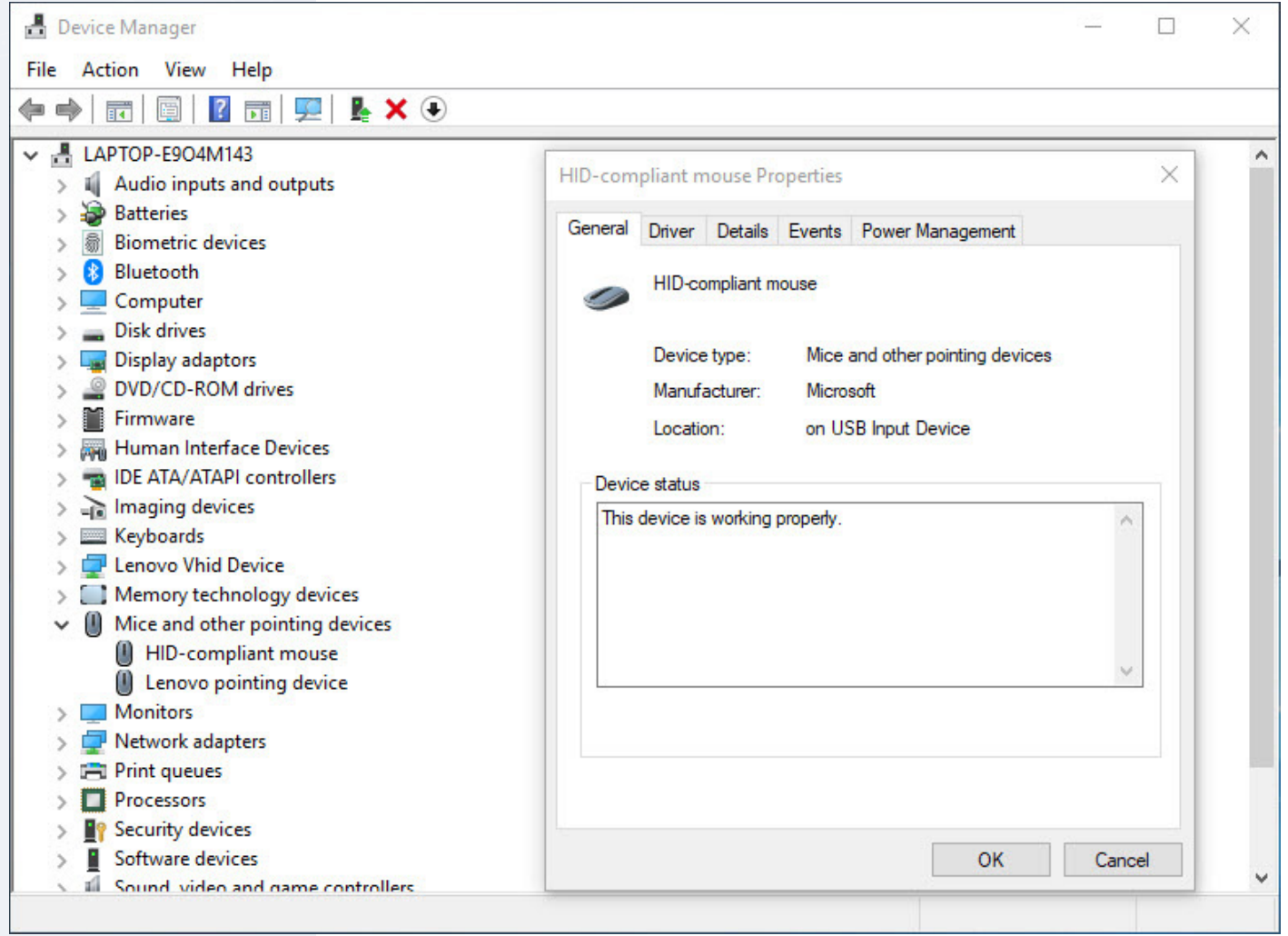
Through Device Manager, you can:
- View all installed hardware devices organised by category
- Check if devices are working properly
- Update outdated drivers
- Troubleshoot hardware problems
- See manufacturer information and device details
Common driver problems
Sometimes drivers can cause issues that prevent hardware from working correctly. Common problems include:
Important
Critical Driver Issues to Watch For:
- Wrong driver installed: Using an incorrect driver can cause the device to malfunction
- Outdated drivers: Old drivers may not work properly with newer operating systems
- Missing drivers: Some devices won't work at all without proper drivers installed
- Compatibility issues: Drivers designed for different operating systems may not function correctly
When you encounter these problems, Device Manager will typically show warning symbols next to problematic devices, helping you identify what needs attention.
Autoconfiguration of devices
Modern computers are designed to make connecting new devices as simple as possible. Autoconfiguration technology allows you to add hardware without needing technical knowledge or special software installation procedures.
Plug and play
Plug and Play (PnP) technology revolutionised how we connect devices to computers. When you connect a PnP device, your operating system automatically performs a series of tasks to make the device ready for use.
Example
How Plug and Play Works: Step-by-Step
Step 1: Recognises that a new device has been connected
Step 2: Identifies what type of device it is
Step 3: Searches for and installs the appropriate driver
Step 4: Configures the device settings
Step 5: Makes the device ready to use immediately
Common examples of plug-and-play devices include keyboards, mice, USB storage drives, and monitors. This technology saves time and eliminates the frustration of manual driver installation.
Hot swappable devices
Hot swappable capability takes convenience even further by allowing you to connect and disconnect devices while your computer is still powered on and running. This means you don't need to shut down your computer every time you want to connect a new device.
A perfect example is connecting a mouse to your laptop. You can simply plug it into a USB port, and it starts working immediately without requiring a restart. This feature is particularly useful for portable devices and external storage drives that you frequently connect and disconnect.
Note
Hot swappable devices are especially valuable in professional environments where downtime must be minimised. Examples include USB devices, SATA hard drives in enterprise servers, and many modern external storage solutions.
Utility programmes
Understanding utility software
Utility programmes are specialised tools designed to help you manage and maintain your computer system effectively. These programmes are typically smaller than full applications but perform crucial tasks that keep your system running smoothly. Many utilities come pre-installed with your operating system, while others can be downloaded and installed separately.
Backup software
Backup software serves as your safety net against data loss. This type of utility programme creates copies of your important files and stores them in different locations - whether on external drives, network locations, or cloud storage services.
The backup process works by:
- Scanning your selected files and folders
- Creating exact copies of your data
- Storing these copies in your chosen backup location
- Allowing you to restore files if originals are lost or damaged
Important
Why Regular Backups Are Critical:
Regular backups protect you from various disasters including hardware failures, accidental deletions, malware attacks, and system crashes. Many people save their backup copies to flash drives, external hard drives, or cloud storage services for maximum protection.
Compression programmes
Compression utilities help you manage storage space by reducing file sizes. These programmes work by analysing files and removing redundant information or using mathematical algorithms to represent data more efficiently.
Popular compression programmes in Windows environments include:
- 7Zip: A free, open-source compression tool
- WinZip: A commercial compression utility with advanced features
- WinRAR: Another commercial option supporting various archive formats
Note
Compression programmes are particularly useful when:
- Sending large files via email (many email systems have size limits)
- Storing files for long-term archival
- Freeing up disc space on your computer
- Packaging multiple files into a single convenient archive
Disc clean-up utility
Disc Clean-up is a built-in Windows utility that helps maintain system performance by removing unnecessary files that accumulate over time. As you use your computer, various temporary files, cache data, and obsolete files build up, gradually consuming storage space and potentially slowing down your system.
Example
Using Disc Clean-up: Complete Process
Step 1: Access the tool - Click the Start button and search for "Disc Clean-up"
Step 2: Select your drive - Choose which disc drive you want to clean (usually C:)
Step 3: Review suggestions - The programme analyses your system and presents a list of file types that can be safely deleted
Step 4: Make selections - Check the boxes next to file categories you want to remove
Step 5: Execute cleaning - Click "Clean up system files" to complete the process
The utility typically identifies several categories of deletable files:
- Downloaded Programme Files: Temporary internet files and browser cache
- Temporary Internet Files: Web page data stored for faster loading
- Offline webpages: Cached web content for offline viewing
- System error reports: Diagnostic files from system crashes
- Temporary files: Various temporary files created by programmes
Note
Regular use of Disc Clean-up, ideally once monthly, helps maintain optimal system performance and frees up valuable storage space. The amount of space recovered can often be substantial, especially on systems that haven't been cleaned in a while.
Summary
Key Points to Remember:
- Drivers are essential: Every piece of hardware needs appropriate drivers to communicate with your operating system effectively
- Device Manager is your friend: Use this built-in tool to monitor hardware status and troubleshoot driver-related problems
- Plug and Play simplifies connectivity: Modern devices can often be connected and used immediately without manual driver installation
- Backup regularly: Use backup software to protect your important data from loss due to hardware failure or accidents
- Maintain your system: Run Disc Clean-up monthly to remove unnecessary files and keep your computer running at peak performance