Storage Devices (Grade 10 NSC Matric Computer Application Technology): Revision Notes
📚Revision Notes
Storage Devices
What are storage devices?
Storage devices are essential components that allow us to save and retrieve data on computers. It's important to understand the difference between storage media and storage devices:
Note
Understanding the Key Distinction
- Storage media refers to the actual material that holds information, such as magnetic discs, memory cards, or optical discs
- Storage device is the physical hardware that uses the storage medium and provides an interface to read and write data, such as a hard drive, USB flash drive, or CD/DVD player
Storage devices serve several crucial functions in computing systems. They determine how much data can be stored, how quickly information can be accessed or saved, and how portable the data storage solution is.
Understanding storage capacity
Before exploring different storage devices, we need to understand how storage capacity is measured. Computer data is stored using only two values: 0 and 1. These basic units build up to larger measurements:
Data storage units:
- Bit: The smallest unit of data storage, representing either a 0 or 1
- Byte: Made up of eight bits (for example: 11111111)
Note
Storage Evolution
Modern computers typically have hundreds of gigabytes or even terabytes of storage space. To put this in perspective, in 1988 computers had only 30 Mb hard drives, whilst today's computers commonly have around 400 Gb of storage space, showing how dramatically storage technology has advanced.
Types of storage devices
When choosing storage devices, there are three key factors to consider:
- Storage capacity: How much data the device can hold
- Storage speed: How quickly data can be written to or read from the device
- Reliability: How likely the device is to break down or fail
Let's examine the most common types of storage devices used today:
Internal hard drives
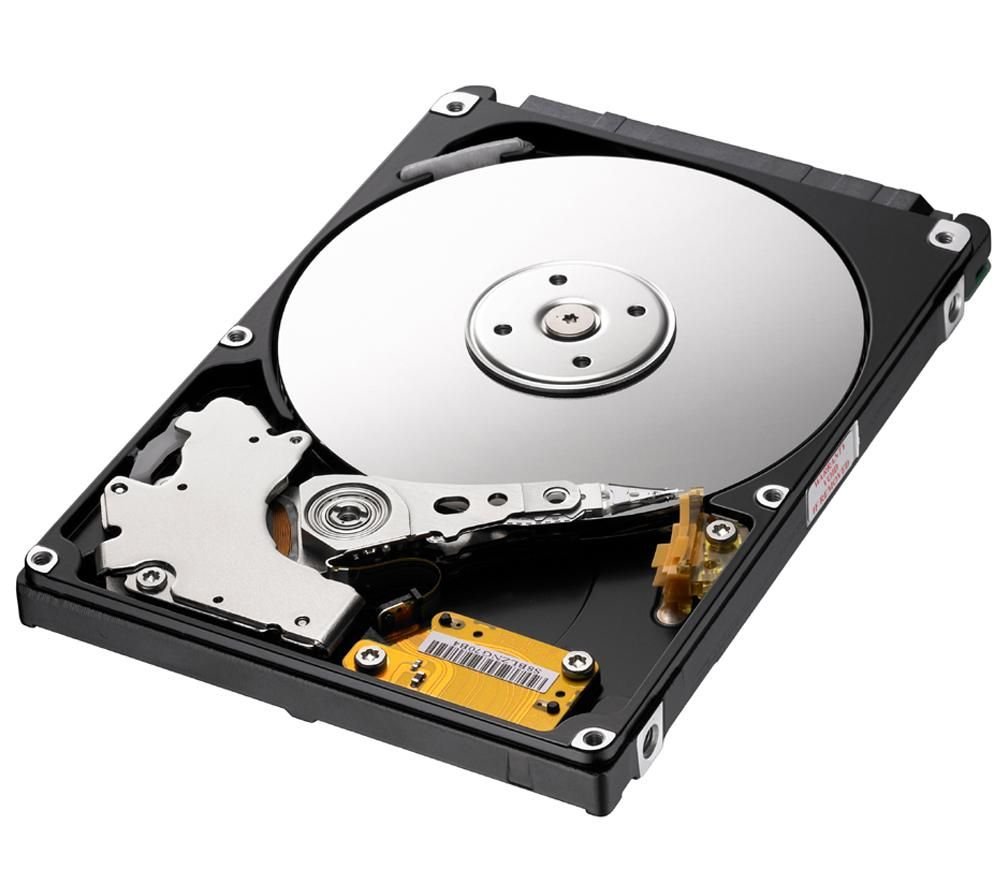
Internal hard drives are the primary storage devices found inside computer systems. They offer high speed and large storage capacity, making them ideal for storing the operating system, programmes, and user files like images, music, documents, and videos. Modern internal hard drives can store up to 12 Tb of data.
Note
However, internal hard drives contain sensitive moving parts and are typically secured with screws inside the computer case, making them difficult to move between computers.
External hard drives
External hard drives are portable versions that connect to computers through USB ports or wireless connections. They use non-volatile storage, meaning data remains saved even when the power is turned off. These devices are excellent for transferring large amounts of data between computers and for creating backups of important files.
SD cards
SD cards, particularly MicroSD cards, are tiny storage devices that can hold up to 512 Gb of data. Their small size makes them perfect for portable devices like smartphones, digital cameras, and tablets, where they provide additional storage capacity for photos, videos, and apps.

Solid-state drives (SSDs)
SSDs represent a newer type of internal storage that contains no moving parts, similar to how a CPU uses transistors to store data. Each transistor stores one bit of information. While SSDs typically have lower storage capacity and higher cost per gigabyte compared to traditional hard drives, they offer much faster data access speeds and greater reliability.
Flash drives
Flash drives are small, portable devices that connect to computers via USB ports. They're extremely convenient for transferring files between different computers and are commonly used for portable storage of documents, presentations, and other files.
Comparing storage devices
Different storage devices offer varying levels of capacity and durability.
Note
Robustness considerations:
- Devices with moving parts (traditional hard drives) are more vulnerable to damage from drops or impacts
- Solid-state devices (SSDs, flash drives, SD cards) are more durable as they have no moving parts
- Proper handling and care can significantly extend the lifespan of any storage device
Important
Signs of hard drive failure:
Hard drives contain sensitive moving components that can fail over time. Watch for these warning signs:
- Computer running slower than usual
- Strange clicking or grinding sounds from the computer
- Frequent system freezes or crashes
It's crucial to regularly back up important data to prevent loss if a storage device fails.
Connecting storage devices
Storage devices connect to computers through various methods. External devices, called peripherals, require proper connection to function correctly.
Note
Common connection types:
- USB connections: Most external storage devices use USB cables for quick plug-and-play connectivity
- Wireless connections: Some devices can connect via Bluetooth or Wi-Fi networks
- Internal connections: Internal drives connect directly to the computer's motherboard
When connecting new storage devices, the computer may prompt you to install drivers - small programmes that help the operating system communicate with the device properly.
Summary
Key Points to Remember:
- Storage capacity is measured in bytes: Starting from bits and bytes, building up to kilobytes, megabytes, gigabytes, and terabytes
- Three key factors matter when choosing storage: Capacity (how much data), speed (how fast), and reliability (how durable)
- Different devices serve different purposes: Internal drives for main storage, external drives for backups and transfers, SD cards for portable devices, SSDs for speed, and flash drives for convenience
- Moving parts affect durability: Devices with moving parts are more fragile, while solid-state devices are more robust
- Regular backups are essential: Always keep copies of important data on multiple devices to prevent loss from hardware failure