Basic Emailing (Grade 10 NSC Matric Computer Application Technology): Revision Notes
📚Revision Notes
Basic Emailing
Introduction to email communication
Email has become one of the most essential forms of digital communication in both personal and professional settings. Before you start composing and sending messages, it's crucial to understand how email accounts work and familiarise yourself with the basic interface. While different email providers like Gmail, Outlook, or Yahoo may look slightly different, they all share similar core functions and features.
Note
Universal Design: Despite visual differences between email providers, the core functionality remains consistent across all platforms. Once you master the basics with one provider, you can easily adapt to others.
In this section, you'll learn the fundamental skills needed to use email effectively, including how to navigate the interface, compose professional messages, and manage your communications properly.
Understanding the email interface
Every email service provider uses a similar layout with three main components that work together to help you manage your electronic correspondence. These components are designed to make email communication as straightforward as possible, regardless of which provider you choose.
The inbox
Your inbox serves as the main storage area where all incoming emails are automatically organised and displayed. This is essentially your email "home page" where you can see at a glance what messages have arrived. Each email entry shows important information including the sender's name, the subject line, and the date or time when the message was received.
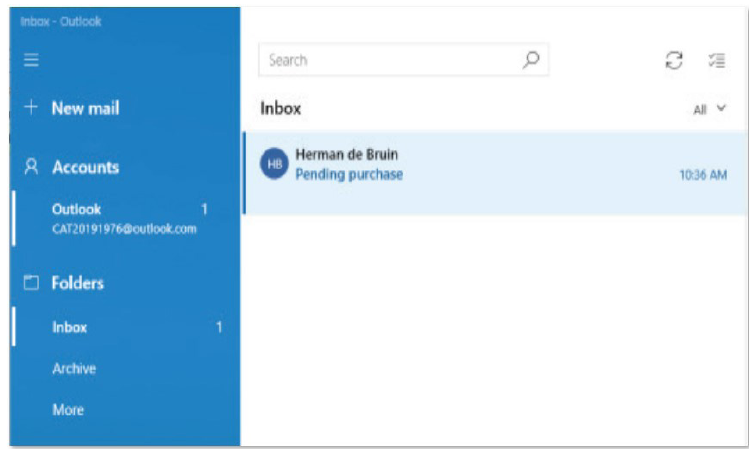
The inbox displays emails in a list format, making it easy to scan through your messages quickly. Unread emails are typically highlighted in bold text to help you identify which messages still need your attention.
The message pane
When you select an email from your inbox, it opens in the message pane where you can read the full content. This area displays the complete email message and provides various options for responding to the sender.
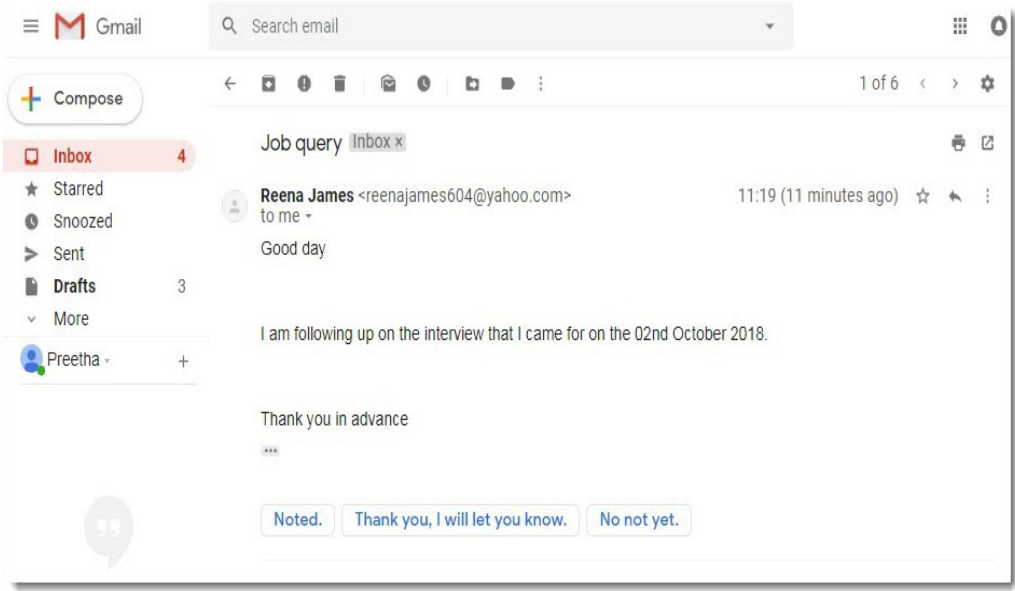
The message pane shows all the essential details of the email, including who sent it, when it was sent, and the complete message content. At the bottom, you'll often find suggested response options that can help you reply quickly to common types of messages.
The compose pane
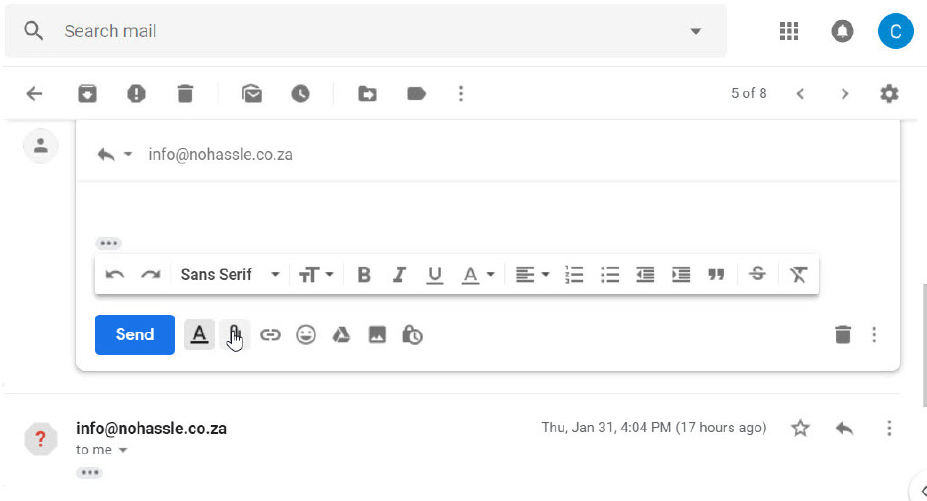
The compose pane is where you create new email messages from scratch. This is your writing workspace where you'll add recipient information, write your subject line, compose your message, and attach any necessary files.
Important
Essential Compose Window Fields
The compose window includes several critical fields that you must understand:
- Recipients (A): Where you enter the email addresses of people receiving your message
- Subject (B): A brief description of what your email is about
- Message body (D): The main content area where you type your message
- Formatting toolbar (F): Tools for changing text appearance and layout
- Send button (G): Click this when your message is ready to be sent
- Attachment options (E): For adding files to your email
Sending your first email
Creating and sending an email involves several important steps that ensure your message reaches the right people with the correct information. The process is straightforward once you understand each component.
When composing an email, you'll work with different types of recipients:
- To field: Contains the email addresses of your main recipients - the people who need to take action or respond to your message
- Cc (Carbon copy): Used for people who should be informed but aren't expected to respond directly. Everyone can see who was copied on the message
- Bcc (Blind carbon copy): Similar to Cc, but recipient addresses are hidden from other recipients. This is useful when emailing large groups while maintaining privacy
Example
Example: Using Recipients Effectively
Scenario: You're organising a team meeting and need to inform your manager and colleagues.
- To: team-members@company.com (they need to attend)
- Cc: manager@company.com (needs to be informed but may not attend)
- Bcc: hr-assistant@company.com (for record-keeping, but others don't need to know)
The subject line should be clear and descriptive, giving recipients an immediate understanding of your message's purpose. Keep it concise but informative.
Your message body should start with an appropriate greeting, contain your main message in clear paragraphs, and end with a professional closing that includes your name.
Working with attachments
Attachments allow you to send files, documents, images, or other digital content alongside your email message. This feature is particularly useful for sharing work documents, photos, or any files that support your message.
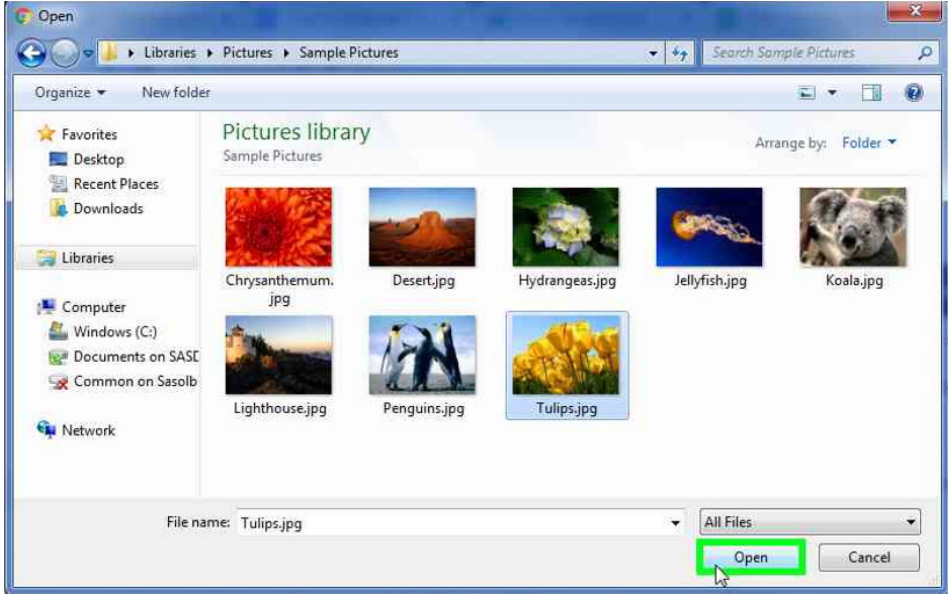
To add an attachment:
- Click the attachment or paperclip icon in your compose window
- Browse through your computer's files to find the document you want to attach
- Select the file and click "Open"
- Wait for the file to upload completely before sending your email
Note
File Size Limitations: Most email providers have size limits for attachments, typically around 25MB. For larger files, consider using cloud storage services like Google Drive, Dropbox, or OneDrive and sharing a link instead.
Reading and managing emails
When emails arrive in your inbox, you can quickly identify important information before even opening them. Unread messages appear in bold text, and you can see the sender's name, subject line, and the first few words of the message.
After opening an email, you have several options for responding, each serving different purposes depending on your communication needs.
Reply options explained
Understanding the different ways to respond to emails is crucial for effective communication. Each option serves a specific purpose and sends your response to different groups of people.
| TYPE | DESCRIPTION |
|---|---|
| Reply | Sends your response only to the original sender. Even if other people were Cc'd on the original email, they won't receive your reply. |
| TYPE | DESCRIPTION |
|---|---|
| Reply to all | Sends your response to everyone who received the original email, including those who were Cc'd. However, people who were Bcc'd won't receive your response. |
| Forwards | Allows you to send the original message to new recipients. You can include any attachments from the original email and add your own comments before forwarding. |
Important
Choose Your Reply Option Carefully
Selecting the wrong reply option can lead to embarrassing situations or information overload for recipients. Always consider who truly needs to see your response before clicking send.
Adding hyperlinks to emails
Hyperlinks make your emails more interactive by allowing recipients to click directly on links that take them to websites, documents, or other online resources. Many businesses use hyperlinks to promote their services or provide easy access to additional information.
Example
Example: Creating a Hyperlink
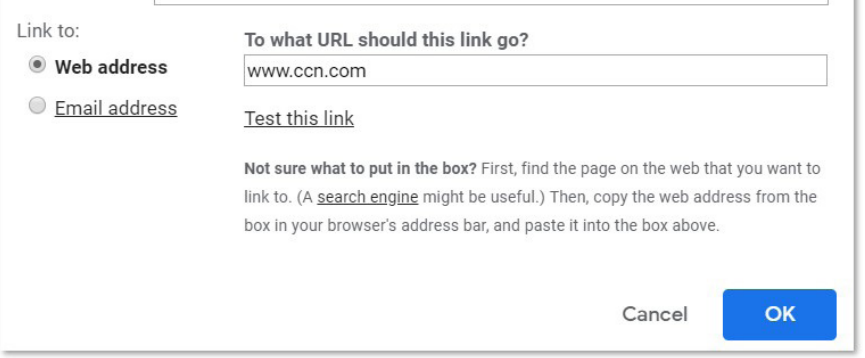
Step 1: Compose your email and position your cursor where you want the link
Step 2: Click the link icon in your formatting toolbar
Step 3: Enter the website address (URL) you want to link to
Step 4: Add the text you want recipients to see (this appears as clickable text)
Step 5: Click OK to create the link
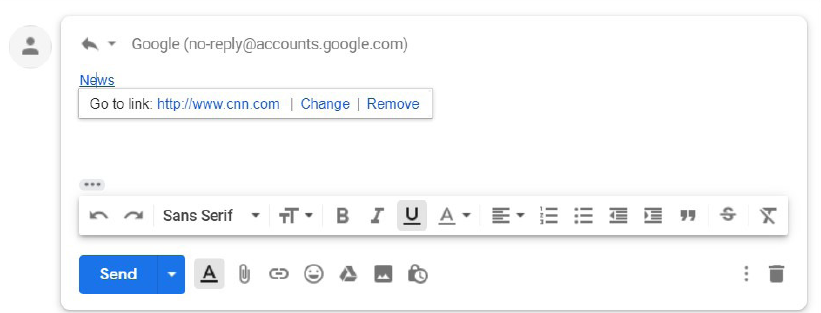
The hyperlink will appear in a different colour and be underlined, making it clear to recipients that they can click on it. When clicked, the link will open in a new browser tab.
Note
Quick Tip: In Gmail, you can press Ctrl+K to quickly open the hyperlink dialogue box.
Email etiquette and professionalism
Proper email etiquette, also known as netiquette (network etiquette), is essential for maintaining professional relationships and ensuring effective communication. Good email manners show respect for your recipients and help prevent misunderstandings.
Here are the key principles of professional email communication:
Message content:
- Avoid sending spam or unwanted messages to colleagues, friends, or family
- Keep your messages clear, concise, and to the point
- Ensure your writing is free from spelling and grammatical errors
Subject lines:
- Write clear, descriptive subject lines that accurately reflect your message content
- This helps recipients understand the email's purpose immediately
Personal identification:
- Always identify yourself at the beginning of your email
- Include your contact information and a professional signature
Note
Professional Communication Standards
Action requirements:
- Clearly state if any action is required from the recipient
- Consider marking non-urgent emails with "FYI" in the subject line
Professional tone:
- Avoid writing in all capital letters, as this appears as shouting
- Use exclamation marks sparingly - overuse can seem demanding or unprofessional
File management:
- Compress large files before attaching them to save recipients' time and data
- Consider the file size limitations of email systems
Important
Content Appropriateness Warning
- Avoid gossip, inflammatory remarks, or criticism in emails
- Remember that emails can be easily forwarded to unintended recipients
- Focus on the email's main purpose and address questions directly
- Always maintain professionalism, as emails create permanent records
Quality control:
- Always proofread your emails before sending
- Check for spelling errors, grammar mistakes, and clarity of message
The importance of spell checking
Spelling accuracy in emails is crucial regardless of whether you're writing to your manager, a colleague, a teacher, or even friends. Emails with spelling errors can negatively impact how others perceive you and may undermine your credibility.
Note
Built-in Spell Check Tools: Most email applications include spell check tools that automatically identify misspelt words by underlining them with red or green wavy lines. When you right-click on a misspelt word, you can select the correct spelling from a context menu.
Many modern email applications also offer automatic spell check functions that correct errors as you type, helping you maintain professional standards in your communication.
Summary
Key Points to Remember
- Master the interface: Understand the three main components - inbox, message pane, and compose pane - to navigate email efficiently
- Use recipients wisely: Know when to use To, Cc, and Bcc fields to ensure the right people receive your messages
- Choose reply options carefully: Reply sends to sender only, Reply to all includes everyone, and Forwards sends to new recipients
- Practice good etiquette: Keep messages clear, identify yourself, write descriptive subject lines, and avoid inappropriate content
- Always proofread: Check spelling and grammar before sending to maintain professionalism and clear communication