Downloads and Uploads (Grade 10 NSC Matric Computer Application Technology): Revision Notes
📚Revision Notes
Downloads and Uploads
Understanding downloads and uploads
By now, you've probably heard the terms downloading and uploading quite often when using the internet. These are fundamental concepts that you'll use regularly throughout your digital life.
Downloading happens when your computer or smart device receives a file or piece of data from the internet. Think of it as bringing something from the online world onto your device.
Uploading is the opposite process - it's when your computer or smart device sends a file or data to somewhere on the internet. This could be posting a photo to social media or saving a document to cloud storage.
Note
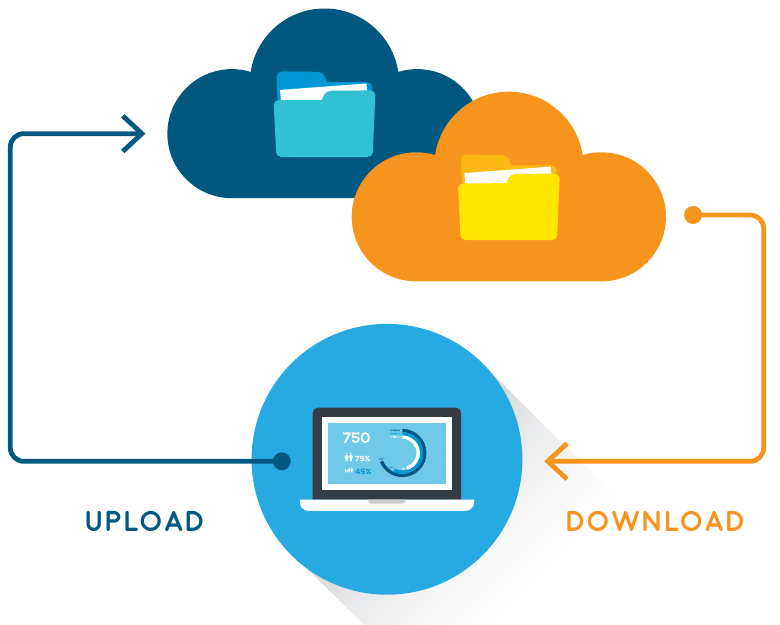
The diagram above shows how this two-way process works with cloud storage. You can upload files from your device to the cloud, and download them back when needed. This makes your files accessible from anywhere with an internet connection.
You've probably already done both of these activities without even thinking about it. Remember downloading a music file or posting (uploading) a photo on your Facebook wall or Instagram? That's exactly what we're talking about!
Downloading files from the internet
Being able to download files from the internet is an essential skill you'll use throughout your life. You might need to download software programmes, music, photos, documents, videos, and much more.
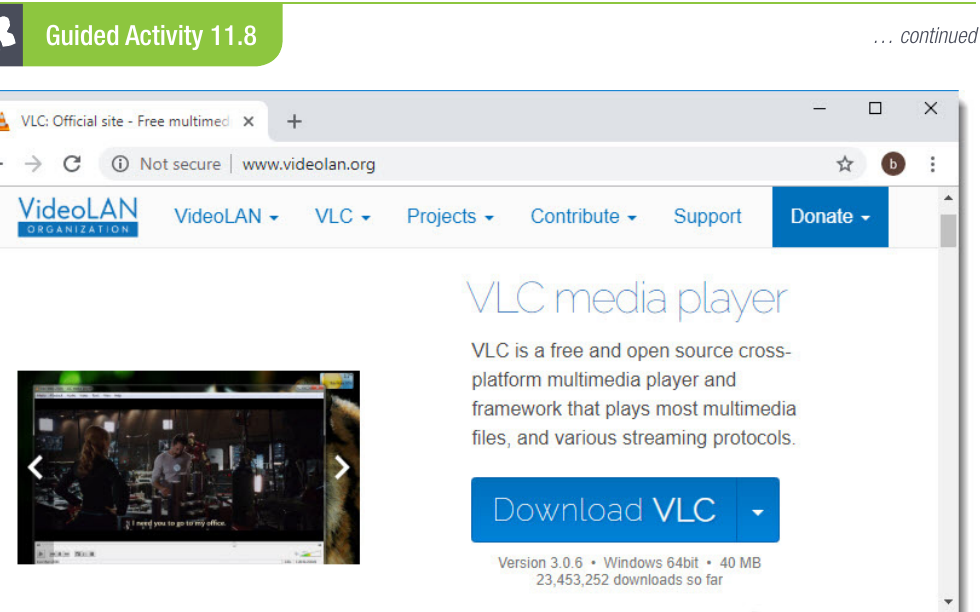
Let's explore the download process using a practical example. When you want to download software like VLC media player (a popular video player), here's what typically happens:
Example
Worked Example: Downloading VLC Media Player
The download process usually follows these steps:
- Navigate to the official website (like www.videolan.org for VLC)
- Look for and click the download button
- The file will begin downloading to your computer
- Once complete, the file will be saved to your computer's downloads folder
Finding your downloaded files
After downloading a file, you might wonder where it went! Most browsers save downloaded files to a specific location, and you can easily find them.
Note
If you're having trouble locating a download, you can access your browser's downloads section by:
- Clicking the three vertical dots in your browser (usually top right)
- Selecting "Downloads" from the menu
- This will show you all your recent downloads and their locations
Top tip: Some browsers don't automatically start downloads when you click a link. In these cases, you might need to right-click the link and choose "Save link as" to specify where you want to save the file.
Uploading files to the internet
The upload function allows you to send emails with attachments, post photos on social media sites, upload files to Google Drive, and much more. It's essentially the reverse of downloading.
When a website supports uploads, it will provide an upload option to help you transfer files. Every site has a slightly different uploading process, but they generally work in similar ways.
Upload interfaces and buttons
Most websites use a dialogue box that opens when you click an upload button. For example, Facebook has a camera icon that represents their upload button for images.
Once you click an upload button, a dialogue box typically appears, prompting you to select a file. You'll need to navigate to where your file is stored on your computer and click "Open". A progress bar will often show you how the upload is progressing.
Different upload methods
Many modern websites offer multiple ways to upload files:
Traditional upload method:
- Click the upload button
- Browse through your computer folders
- Select the file you want
- Click "Open" or "Upload"
Note
Drag-and-drop method: Some websites, like Google Drive, allow you to upload files by simply dragging them from your computer folders and dropping them into the browser window. This is often faster and more convenient than the traditional method.
Understanding upload activities
Here's a table showing different types of online activities and whether they involve downloading or uploading:
| Activity | Type |
|---|---|
| Putting photos up on a Facebook wall | Uploading (3.1) |
| Using a torrent to legally download movies | Downloading (3.2) |
| Getting music from a music player website | Downloading (3.3) |
| Getting a PDF document from the internet | Downloading (3.4) |
Understanding whether an activity involves uploading or downloading helps you better manage your internet usage and file organisation.
Important
Exam Tips:
- Remember the direction: Downloads come TO your device, uploads go FROM your device
- Know where files are saved: Downloaded files typically go to your Downloads folder unless you specify otherwise
- Understand different upload methods: Both clicking upload buttons and drag-and-drop are valid upload methods
- Consider file sizes: Large files take longer to upload/download, especially with slower internet connections
- Always use legitimate websites: Only download from trusted, official sources to avoid malware
Summary
Key Points to Remember:
- Downloading means receiving files from the internet onto your device - think of files coming "down" to you
- Uploading means sending files from your device to the internet - like posting photos or documents "up" to the cloud
- Most browsers save downloads to a Downloads folder, but you can change this location if needed
- Upload interfaces vary between websites, but usually involve clicking a button or dragging-and-dropping files
- Both processes are essential skills for modern internet use, from getting software and media to sharing your own content online