Operating a Computer (Grade 10 NSC Matric Computer Application Technology): Revision Notes
📚Revision Notes
Operating a Computer
Learning to operate a computer doesn't have to be overwhelming! This unit covers the essential skills you need to confidently use a computer system. We'll explore how to switch on your computer, use input devices like the mouse and keyboard, navigate the desktop environment, and perform basic file operations.
Switching the computer on
Starting up your computer involves a specific sequence of steps. When you first switch on a computer, it goes through a process called booting. This is when the computer loads its operating system and checks that all components are working properly.
Example
Step-by-Step: Starting Your Computer
- Make sure the computer is plugged in - Check that all power connections are secure
- Press the power button - This starts the boot process
- The computer will boot - The system loads and performs hardware checks
- A login screen appears - You'll need to enter your credentials to access the desktop
- Enter your username and password - These verify your identity and protect your privacy
Your computer uses login credentials to identify you as an authorised user. This security measure prevents unauthorised access to your files and personal information. Once you've successfully logged in, the desktop screen will appear, ready for you to begin working.
Using the mouse
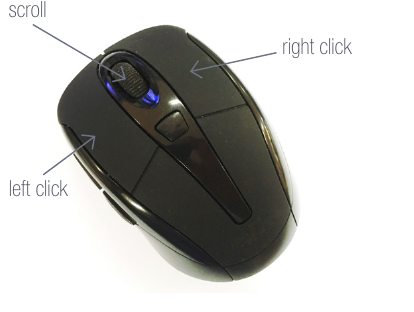
The mouse is one of the most important hardware devices for controlling your computer and interacting with the graphical user interface (GUI). Most computer mice have a scroll wheel and two main buttons - a left button and a right button.
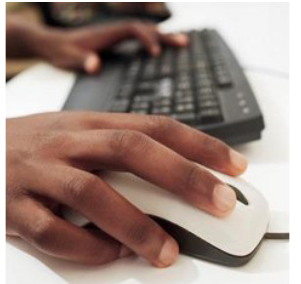
When holding the mouse, rest your hand comfortably over it and place your index finger on the left button. You can rest your thumb and little finger on the sides of the mouse for support and stability.
Understanding mouse cursors
As you move your mouse, you'll notice a pointer or cursor moving on your screen. The cursor changes shape depending on what you're doing, which helps you understand what actions are available.
Here are the main cursor types you'll encounter:
- Arrow pointer: The standard cursor for general navigation
- Hand pointer: Appears when you can click on links or interactive elements
- Hourglass/spinning wheel: Indicates the computer is processing a task - wait for it to finish
Note
Different cursor shapes provide visual feedback about what action you can perform. Learning to recognise these cursors will help you navigate more efficiently and understand when the computer is busy processing tasks.
Mouse operations
Your mouse can perform several important tasks:
Selecting items: Move the cursor over an item and click once with the left button. This highlights or selects the item for further action.
Opening items: To open files or programmes, double-click the left button quickly. Sometimes a single click will also work, but double-clicking is the standard method.
Moving items: To move something, use the "drag and drop" technique. Press down on the left button while over the item, drag the mouse to move it, then release the button to drop it in the new location.
Scrolling: Roll the scroll wheel up or down to move through pages or documents without using your keyboard.
Using the keyboard
A keyboard allows you to enter text, numbers, and symbols into your computer. Every key press sends input data to the computer for processing.
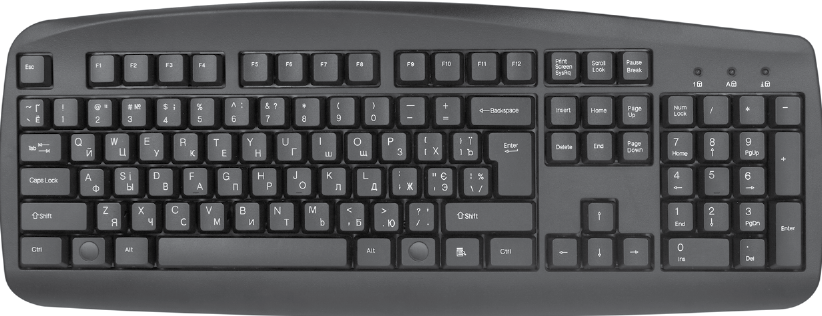
The standard keyboard layout is called QWERTY (named after the first six letters in the top row). This layout includes letter keys, number keys, function keys (F1-F12), arrow keys, and various modifier keys like Shift, Ctrl, and Alt.
When typing, remember that each keystroke provides data input that the computer processes immediately. Practice using the keyboard regularly to build your typing speed and accuracy.
Using the desktop
The desktop is the first screen you see after logging into your computer. It serves as your main workspace and contains various elements that help you navigate and use your computer effectively.
Understanding the operating system
Your desktop is controlled by an operating system (OS) - special system software that manages how you communicate with your computer. The operating system:
- Manages hardware components like input and output devices
- Controls storage devices and memory allocation
- Provides services for running other software programmes
- Creates the graphical user interface (GUI), pronounced "gooey"
Important
The GUI allows you to interact with your computer using visual elements like windows, icons, and menus. This makes computers much easier to use than typing text commands. Understanding how the GUI works is fundamental to becoming proficient with computers.
Desktop components
Your desktop contains several key interface elements:
Desktop: The main screen displaying system icons and providing workspace for your activities.
Windows: Display areas that show the contents of applications, files, or folders. Each window operates independently.
Dialogue boxes: Small windows that appear when programmes need additional information from you.
Toolbars: Sets of clickable icons at the top of windows that provide quick access to common functions.
Icons: Small pictures representing files, folders, or programmes. Each icon type looks different to help you identify what it represents.
Shortcuts: Special icons with small arrows that provide quick access to frequently used files or programmes.
The start button
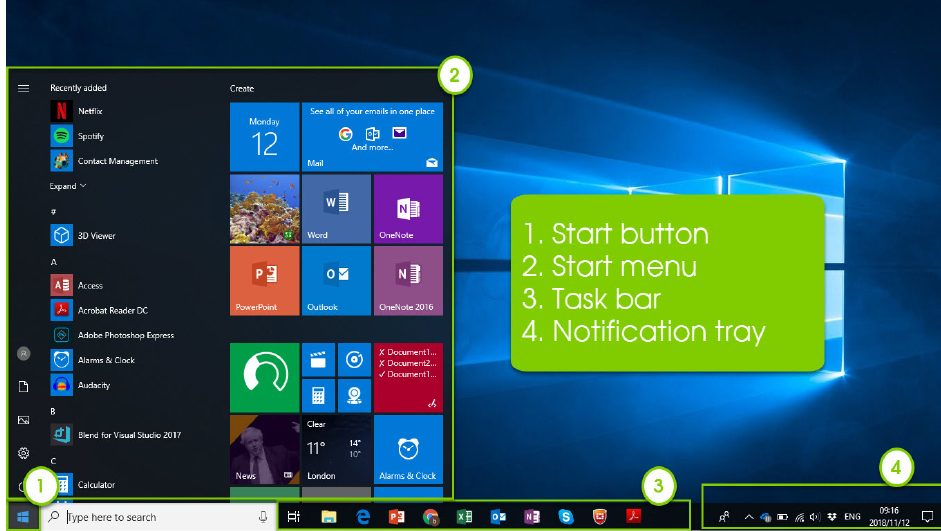
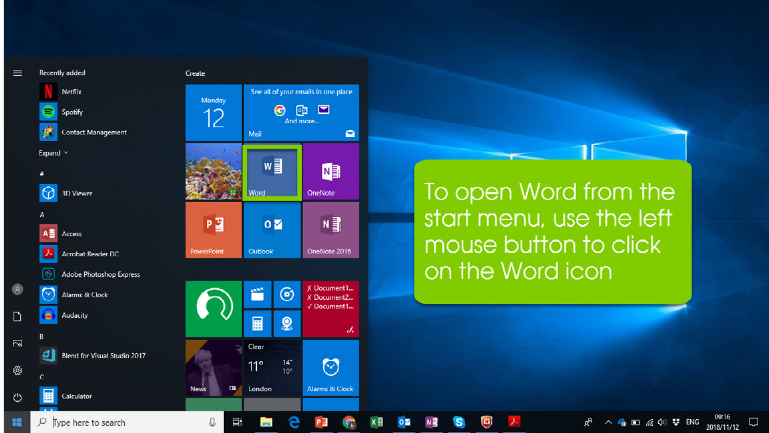
The Start button is located in the bottom-left corner of your desktop. This button is your gateway to accessing programmes, files, and folders on your computer.
When you click the Start button, the Start menu appears, showing you available applications and system options. From this menu, you can select any programme you want to open by clicking on its icon.
The taskbar
The taskbar runs along the bottom of your screen and serves as a control centre for your computer activities. It displays a button for each open file, folder, or application, making it easy to switch between different tasks.
Key features of the taskbar include:
- The Start button on the left side
- Buttons for currently open applications in the centre
- The notification tray on the right side, where you can adjust system settings like time, volume, or Wi-Fi connections
When you click on any taskbar button, that window becomes active and moves to the front of your screen.
This PC, file manager, my documents and recycle bin
When you need to access files and folders on your computer, you'll use the file management system. Clicking on "This PC" opens a window showing your computer's storage devices and folder structure.
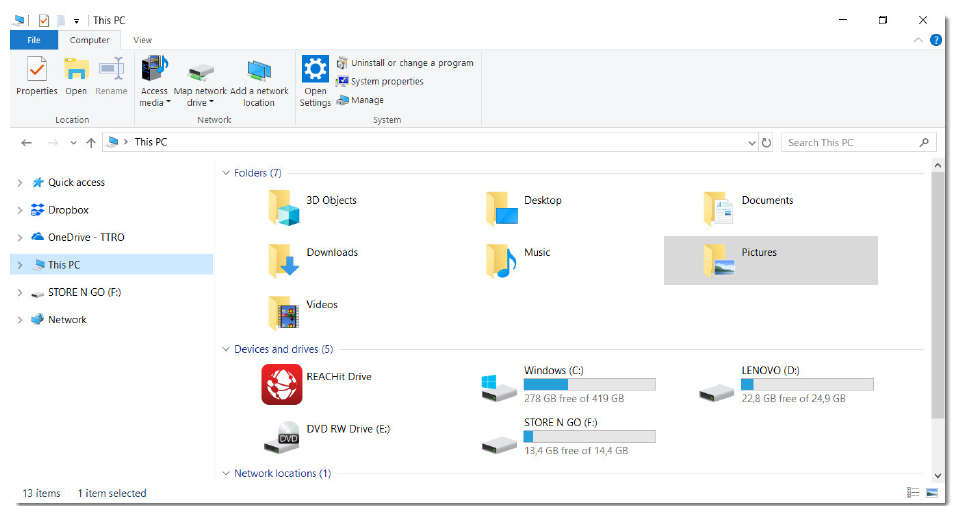
This PC displays information about your storage devices, including hard drives and external storage devices connected to your computer.
File manager is the application that helps you organise and manage your computer's file system. It allows you to view, copy, move, and delete files and folders.
My Documents is a default folder where you can store your personal files, documents, music, and pictures. This keeps your files organised and easy to find.
Recycle Bin temporarily stores deleted files. If you accidentally delete something, you can often restore it from the Recycle Bin. However, permanently deleting items from the Recycle Bin removes them completely.
Note
Think of the file management system as your computer's filing cabinet. Just like you organise physical documents in folders, your computer uses a similar system to keep your digital files organised and accessible.
Accessing applications
You can open different programmes on your computer through the Start menu. Click the Start button and scroll through the alphabetical list of installed applications. To save time, you can click on any letter to jump to applications beginning with that letter.
Note
Time-saving tip: If you're having trouble finding a specific application, try typing its name in the search box on the taskbar - this will help locate it quickly.
Getting to know windows
When you open applications like Microsoft Word, they appear in separate windows on your desktop. Understanding how to work with windows is essential for efficient computer use.
Window features
Every window has several standard components:
Title bar: Located at the top of the window, this shows the name of the open file or application. For new documents, you might see something like "Document1 - Word".

Window control buttons: Found in the top-right corner of every window:
- Minimise: Hides the window but keeps the programme running (accessible via taskbar)
- Maximise: Expands the window to fill the entire screen
- Close: Closes the window and exits the programme (X button)

These controls help you manage multiple windows efficiently and organise your workspace according to your needs.
File management
Managing files effectively is a crucial computer skill. You'll need to know how to create, open, save, and print documents for both academic and personal use.
Opening and saving documents
When working with applications like Microsoft Word, follow these steps to save your work:
Example
Step-by-Step: Saving Your Document
- Create your content: Type or add the information you need in your document
- Access the save function: Click "File" then "Save" (or use Ctrl+S shortcut)
- Choose a location: Select where you want to save the file (usually My Documents)
- Name your file: Give it a descriptive name in the "File name" field
- Click Save: This stores your document permanently on the computer
Important
Remember to save your work regularly to avoid losing important information! Use the keyboard shortcut Ctrl+S for quick saves while working.
Opening existing files
To open a previously saved document:
Example
Step-by-Step: Opening Existing Files
- Open the application (like Microsoft Word)
- Click File, then Open
- Browse to find your document in the file browser
- Select the file and click Open
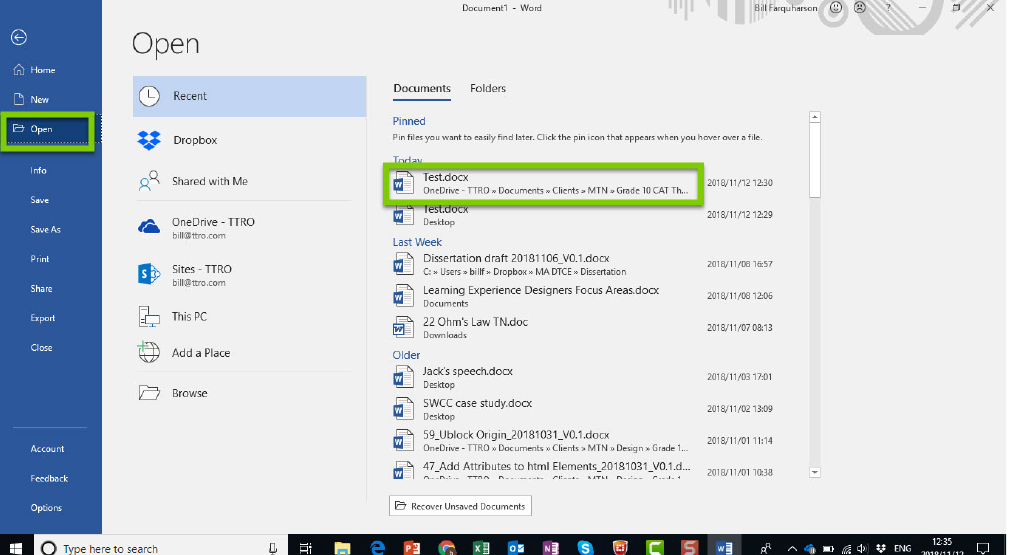
The Open dialogue box shows your recent documents and allows you to browse different storage locations to find the file you need.
Printing documents
When you need a physical copy of your work:
Example
Step-by-Step: Printing Documents
- Open the document you want to print
- Click File, then Print (or use Ctrl+P shortcut)
- Choose your printer from the available options
- Select print settings (number of copies, page range, etc.)
- Click Print to send the document to the printer
Always preview your document before printing to ensure it looks correct and avoid wasting paper.
Summary
Key Points to Remember:
- Login credentials protect your computer - Always use strong passwords and log out when finished
- The mouse has three main functions - left click, right click, and scroll wheel for navigation
- The Start button is your gateway - Located bottom-left, it provides access to all programmes and files
- Save your work frequently - Use Ctrl+S or File > Save to protect important documents
- Window controls help manage your workspace - Minimise, maximise, and close buttons keep you organised