Posture and Ergonomics (Grade 10 NSC Matric Computer Application Technology): Revision Notes
📚Revision Notes
Posture and Ergonomics
Note
Computing has become an essential part of our daily lives, making typing one of the most important skills you'll ever learn. As we spend more time using computers, understanding proper posture and ergonomics becomes crucial for your health and productivity.
Touch typing fundamentals
Touch typing means assigning each finger to specific keys on the keyboard, so you don't need to look down while typing. This technique significantly improves your typing speed and overall computer experience.
Benefits of touch typing
Learning to touch type offers several important advantages:
Speed improvement: Touch typing can help you reach typing speeds of 75-80 words per minute on average. This is much faster than the typical 10 words per minute achieved by people who don't use proper finger placement.
Time efficiency: Better typing speed directly reduces the time needed to complete documents. For example, someone typing at 10 words per minute would need 17 minutes to complete a 170-word document, whilst someone typing at 60 words per minute could finish the same document in just 4 minutes.
Reduced fatigue: When you don't need to constantly look between the keyboard and screen, you experience less physical strain. This prevents neck and eye fatigue that comes from repeated head movement.
Better health: Touch typing promotes better posture because you're not hunching over to look at the keys. This reduces strain on your joints and helps maintain proper spinal alignment.
Improved accuracy: Since you're looking at what you're typing rather than searching for keys, you'll make fewer typing errors and produce more accurate work.
Understanding posture
Posture refers to the position you hold your body in when sitting or walking. When working at a computer for extended periods, even with good posture, you may experience tiredness or eye discomfort over time.
Note
Maintaining correct posture is essential for typing effectively and efficiently. A helpful tip is to position yourself so your belly button aligns with the letter "H" on the keyboard.
Elements of proper posture
To maintain healthy posture whilst using a computer, focus on these key areas:
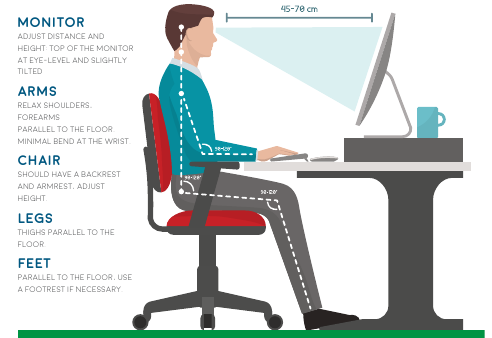
Body position: Keep your back straight, upright, and relaxed whilst remaining comfortable. Ensure your back is properly supported by aligning it with your chair's backrest. Avoid leaning too far forwards, as this causes discomfort over time.
Feet placement: Your feet should rest flat on the floor or on a footrest to feel comfortable and stable.
Knees and hips: Position your hips as far back in the chair as possible. Both your knees and hips should form a 90-degree angle when seated. Make sure your knees don't touch the chair.
Arms, wrists, and hands: Place your arms horizontally at a 90-degree angle. Keep your wrists in a neutral position with your fingers resting on the home row keys.
Eyes and screen: Focus your eyes on the text you're typing on the screen. Position your monitor slightly lower than eye level for comfortable viewing.
Health risks of poor posture
Important
Maintaining incorrect posture whilst working at a computer can lead to various health problems that can significantly impact your quality of life.
Posture-related injuries: Poor posture can cause back and neck pain, headaches, and shoulder or arm discomfort. It affects spinal alignment, potentially causing problems with blood circulation and leading to serious issues like blood clots and varicose veins. Extended periods of slouching can tighten facial muscles and cause jaw pain and headaches.
Computer-related overuse injuries: Repetitive movements combined with poor posture can make muscles and tendons in your elbows, wrists, and hands painful. Symptoms include pain, swelling, joint stiffness, weakness, and numbness.
Eye strain: This occurs when you focus on the same distant point for extended periods, work too close to the screen, or stare at an illuminated computer screen for too long.
Laptop-related injuries: Laptops weren't designed for extended use. The close proximity of the screen and keyboard can cause eye strain and poor posture. Even carrying a laptop can strain your muscles and joints.
Ergonomics principles
Ergonomics is the study of how humans work, with the goal of increasing productivity, comfort, and safety. In computer ergonomics, the focus is on how people use computers and how this can be improved to make users more comfortable whilst reducing discomfort and injuries.
Key ergonomic guidelines
Follow these essential guidelines for safe computer usage:
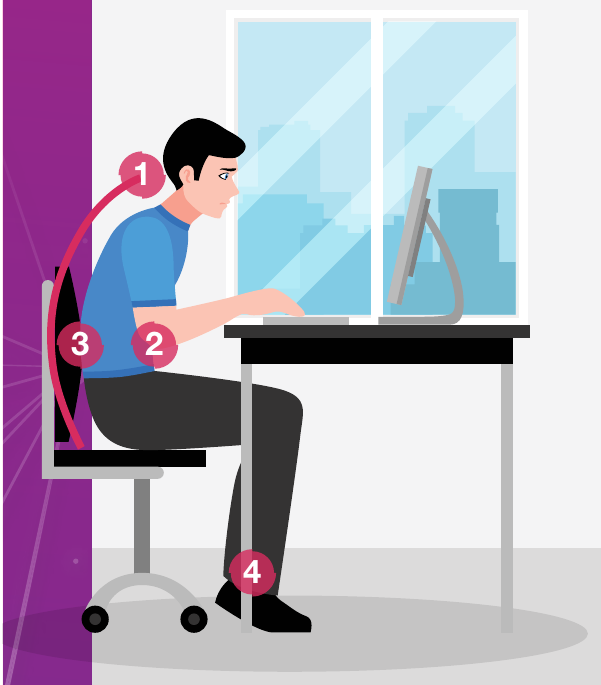
- Sit upright with your back perpendicular to the ground
- Keep your forearms at the same height as your mouse and keyboard
- Place your feet firmly on the ground or on a footrest
- Adjust your chair's back, height, and armrests to support your body in this position
- Position your monitor at eye level approximately 50 cm away from you
- Place something under your monitor if needed to increase its height
- Tilt your monitor slightly upward to reduce glare
- Stand up and take regular breaks from computer work
Prevention strategies
Note
Prevention is always better than treatment. Many people suffer from posture-related injuries, but health problems related to poor posture and ergonomics can be prevented through various methods.
Preventing repetitive strain injury
To avoid repetitive strain injury, follow these practices:
- Ensure your forearms are level with your mouse and keyboard
- Position your mouse close to the keyboard
- Take regular breaks and allow your arms to relax when not actively typing
Avoiding eye strain
To protect your eyes during computer use:
- Ensure there's no glare on your monitor
- Don't sit too close to the monitor
- Position your monitor at eye level or slightly lower
- Take regular breaks to focus on distant objects, giving your eyes a rest
Summary
Key Points to Remember:
- Master touch typing to improve speed, accuracy, and reduce physical strain on your body
- Maintain the 90-degree rule - keep your knees, hips, and arms at 90-degree angles for optimal posture
- Position your monitor correctly - place it at eye level and about 50 cm away to prevent eye strain
- Take regular breaks to prevent repetitive strain injuries and give your eyes time to rest
- Invest in proper ergonomics - good posture and workspace setup prevent serious health problems and improve your productivity