Registering a Web-Based Email Address (Grade 11 NSC Matric Computer Application Technology): Revision Notes
📚Revision Notes
Registering a Web-Based Email Address
Why do you need an email address?
In today's digital world, having an email address is absolutely essential. You'll need it for creating social media accounts, applying for jobs online, signing up for services, and communicating with friends, family, and colleagues. The great news is that setting up a web-based email account is straightforward and free!
Note
In our increasingly connected world, an email address serves as your digital identity and is often required for almost every online service or application you'll encounter.
What is a web-based email service?
A web-based email service allows you to access your email through any web browser, from any device with internet access. Popular services include Gmail, Yahoo Mail, and Outlook. In this guide, we'll focus on creating a Gmail account, as it's one of the most widely used services.
Note
The main advantage of web-based email is accessibility - you can check your email from any computer, tablet, or smartphone with an internet connection, without needing to install special software.
Step-by-step guide to creating a Gmail account
Getting started
First, you'll need to navigate to the Gmail website using your web browser. Simply type www.gmail.com into your address bar and press Enter.
Creating your account
Once you're on the Gmail homepage, look for the "Create an Account" button and click on it. This will open a new page where you can begin the registration process.
Providing your basic information
You'll need to fill in several pieces of information:
Personal details: Enter your first name and surname in the appropriate fields. Make sure you use your real name as this will appear in emails you send.
Choosing a username: This is crucial as it becomes part of your email address. Pick something professional and memorable. For example, if your name is John Smith, you might choose something like "johnsmith2024" or "j.smith.email". Remember, your username will appear before "@gmail.com" in your email address.
Creating a secure password: Choose a strong password that includes a mix of letters, numbers, and special characters. You'll need to enter this password twice to confirm it matches.
Example
Worked Example: Creating a Professional Username
Let's say your name is Sarah Johnson and you're creating an email for job applications:
Good options:
Avoid these:
The key is to keep it professional and memorable!

Optional but helpful information
The system will ask for additional details that can help with account security:
Phone number: While optional, providing a phone number helps Google verify your identity and can help you recover your password if you forget it.
Recovery email: This is another email address that can be used to help you regain access to your account if needed.
Birthday and gender: Fill in these details before proceeding to the next step.
Important
Security Recommendation: Even though phone number and recovery email are marked as "optional," it's highly recommended to provide them. They're your lifeline if you ever get locked out of your account!
Understanding privacy and terms
Before your account is created, Google will present you with their Privacy and Terms agreement. This is an important step where you can:
- Review what information Google collects about you
- Choose your privacy settings, such as whether to save voice and audio activity
- Decide on personalisation options
Take time to read through these options and select what you're comfortable with. You can always change these settings later.
Note
Don't just click "Accept" without reading! These privacy settings affect how Google uses your data, so it's worth taking a few minutes to understand your options.
Account confirmation
Once you've agreed to the terms and conditions, Google will create your new email account. You'll see a confirmation screen showing that your new email address is ready to use.
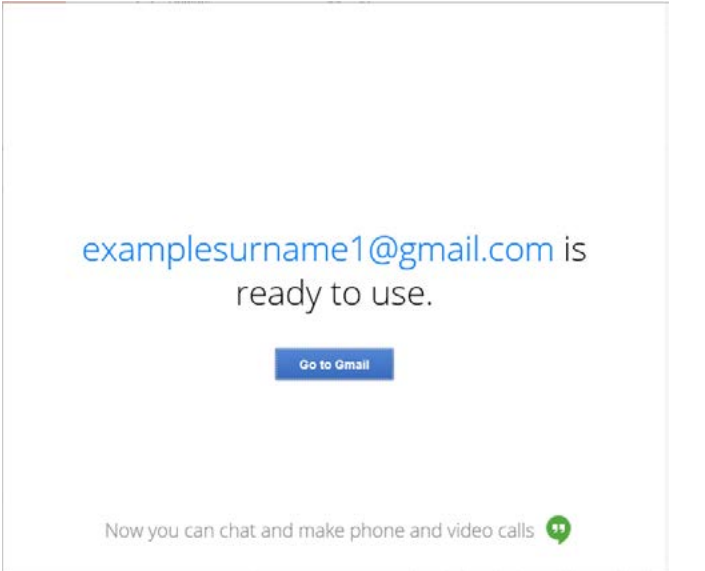
The screen will display your new email address and provide a button to access Gmail directly. You'll also see information about additional features like chat and video calling that come with your account.
Important considerations for email communication
Professional communication tips
When writing emails, especially for school or work purposes, remember these important guidelines:
Subject lines matter: Always write a clear, brief subject line that summarises what your email is about. This helps the recipient understand the purpose immediately.
Use proper greetings: Start with an appropriate salutation. If you don't know the person well, use "Dear [Name]". For less formal situations, "Hi" or "Hello" works well. Avoid slang greetings like "Yo" or "Howzit" in emails.
Proofread before sending: Always check your email for spelling mistakes and typos before hitting send. Poor spelling creates a bad impression and can make your message unclear.
Important
Common Mistake to Avoid: Never send an email without proofreading it first. A single spelling error in a job application email could cost you an interview opportunity!
Communication etiquette
Be clear and complete: Don't assume the recipient knows what you're talking about. Provide enough context so your email can be understood without needing to read previous messages.
Respond promptly: Even if you don't have a complete answer, let the sender know you've received their message and when you'll get back to them.
Think before you send: Never send an email when you're angry or upset. Save it as a draught and review it later when you've calmed down.
Avoid overuse of exclamation marks: Using too many exclamation marks can seem unprofessional or even aggressive.
Keep attachments manageable: Large files can cause problems. Consider sharing a link to download the file instead of attaching it directly.
Reply appropriately: Don't engage in long email conversations about complex topics - sometimes it's better to pick up the phone and have a proper conversation.
Example
Worked Example: Professional Email Structure
Subject: Meeting Request - Project Update Discussion
Email Body: Dear Ms. Thompson,
I hope this email finds you well. I would like to schedule a meeting to discuss the progress on the marketing project we spoke about last week.
Would you be available for a 30-minute meeting next Tuesday (March 15th) between 2:00-4:00 PM? I can accommodate your schedule if these times don't work.
Please let me know what works best for you.
Best regards, [Your name]
Why this works:
- Clear subject line
- Professional greeting
- Specific request with context
- Flexible scheduling options
- Polite closing
Account security tips
Keep your password safe: Never share your password with anyone, and avoid using the same password for multiple accounts.
Enable two-factor authentication: This adds an extra layer of security to your account by requiring a code from your phone when logging in from new devices.
Be cautious with personal information: Be careful about what personal details you share in emails, especially with people you don't know well.
Important
Critical Security Measures:
- Use a unique, strong password for your email account
- Enable two-factor authentication immediately after creating your account
- Never click on suspicious links or download attachments from unknown senders
- Log out of your email when using public computers
- Regularly review your account activity for any unauthorised access
Remember!
Summary
Key Points to Remember:
- Having an email address is essential in today's digital world for communication and accessing online services
- Creating a Gmail account involves choosing a professional username, secure password, and providing basic personal information
- Take time to review and understand privacy settings before agreeing to terms and conditions
- Always write clear, professional emails with proper spelling and appropriate greetings
- Keep your account secure by using strong passwords and being cautious about sharing personal information