File Management (Grade 11 NSC Matric Computer Application Technology): Revision Notes
📚Revision Notes
File Management
Introduction to file management
Note
Understanding file management is essential for organising your digital workspace effectively and making the most of your computer's capabilities.
When setting up a file management system, you need to understand several important concepts. Knowing what types of files you're working with and how large they are helps you understand how much of your computer's resources they use. You'll also need to learn about special file characteristics like hidden and read-only settings, and how to transfer files between different programmes and search for specific files effectively.
File types and extensions
File extensions are like identification cards for your files - they tell you what type of content is likely inside and help your operating system know which programme should open them. For example, when you see a file ending in .docx, you immediately know it's a Microsoft Word document.
Understanding file types is crucial because some files work only with specific programmes, while others are more flexible. If you tried to open an Adobe Photoshop document using Microsoft Excel, it simply wouldn't work. This is because different programmes have their own special ways of organising and storing data.
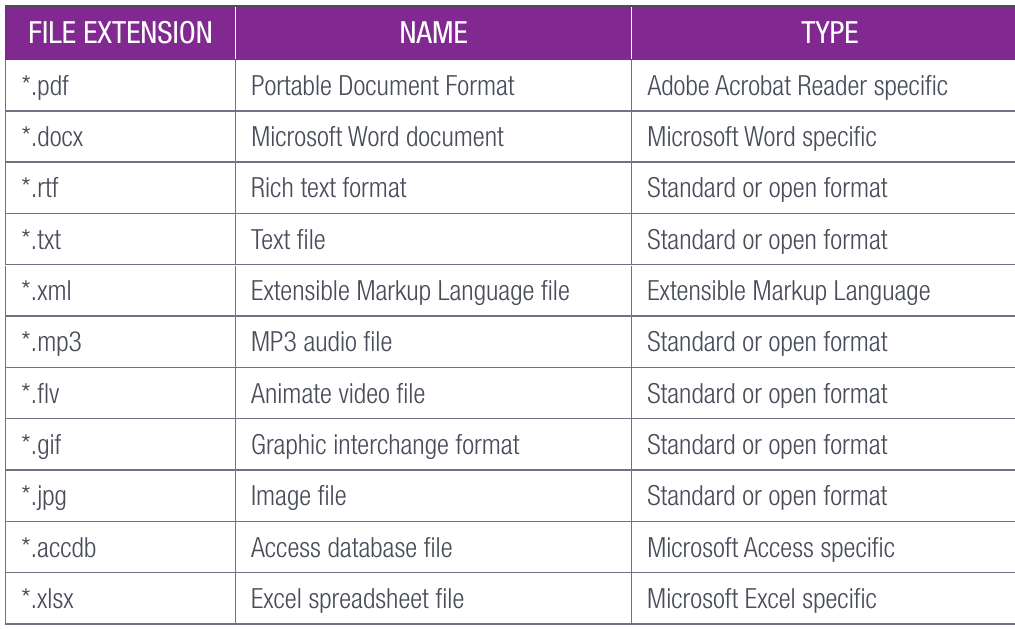
The table above shows common file extensions you'll encounter. Notice how some are marked as "Standard or open format" - these can usually be opened by multiple programmes. Others are program-specific, meaning they work best with particular software.
When organising your files, you can group them either by file type (all your images together, all your documents together) or by subject matter (all your school project files in one folder, regardless of type).
File properties
The Properties window is like a detailed information sheet about any file on your computer. It shows you essential details such as the file type, size, and when it was last modified. For image files, it can even tell you what type of camera was used to take a photograph and include geo-location data.
To access file properties in Windows:
- Right-click on any file name and select "Properties" from the context menu
- Click on "Properties" in the dialogue that appears
Note
The Properties window is your gateway to understanding everything about a file - from basic information to security settings and version history.
The Properties window contains several useful tabs:
- General tab: Shows basic information including file name, size, location, and important attributes like "read-only" and "hidden"
- Security tab: Allows you to control what access you and other users have to the file
- Details tab: Provides in-depth information such as word count and template information for documents
- Previous Versions tab: Shows if there are other saved versions of the file available
File attributes
File attributes are special settings that control how users and the operating system can interact with files. The two most important attributes you need to understand are "read-only" and "hidden".
Important
Understanding file attributes is crucial for protecting important files and maintaining system security. Accidentally changing these settings can make files inaccessible or cause system problems.
Read-only files are protected from changes - you can open and view them, but you cannot edit or save modifications. This protection prevents accidental changes to important data. Think of read-only files as museum exhibits: you can look at them, but you cannot touch or alter them.
Hidden files become invisible when browsing through folders in normal circumstances. These files still exist on your computer, but you cannot see them unless you specifically change your settings to show all hidden items. Operating systems often use hidden files for important system functions that regular users shouldn't accidentally modify.
Example
Practical Example: File Attributes in Action
Imagine you have an important template document for school reports. By setting it to read-only, you ensure that:
- You can still open and use the template
- No accidental changes can be saved to the original
- The template remains unchanged for future use
Similarly, system configuration files are often hidden to prevent users from accidentally deleting critical system components.
Import and export
Most computer programmes have their own unique methods for organising and encoding data into files. This means that while Microsoft Word can easily open Word documents, it might struggle with files created in other programmes. Import and export functions solve this problem by converting files between different formats.
Importing means bringing a file from one programme into another programme you're currently using. Exporting means converting your current file into a format that other programmes can understand.
For example, you might export your Outlook email data as an Excel spreadsheet file, creating a backup of important contact information. Similarly, you could import data from one programme into another when switching between different software applications.
Note
Import and export functionality is your bridge between different software programmes, allowing you to move data freely and maintain compatibility across various applications.
This functionality is particularly useful when moving files between different computers or when changing from one operating system to another (like moving from Apple products to Windows computers).
Search functionality
File Explorer includes powerful search tools that help you locate files quickly, especially when you have many files or cannot remember exactly where something is stored. If you remember the file name, you can simply type it into the search box.
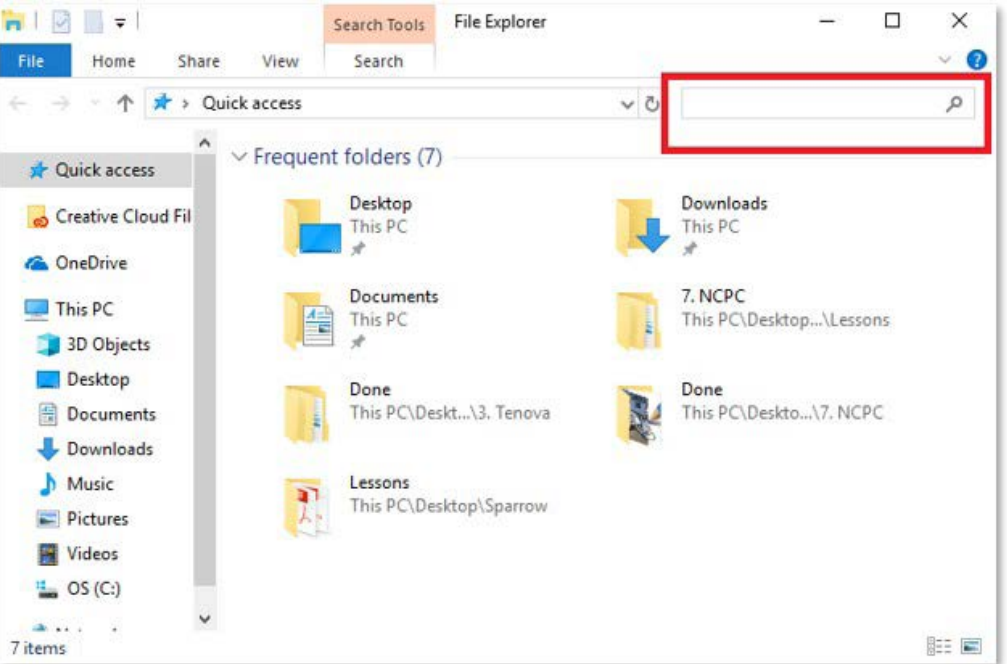
The search function becomes even more powerful when you use wildcards. The asterisk (*) acts as a wildcard that represents any characters:
- *.txt searches for all text files (any filename ending in .txt)
- Home* finds all files starting with "Home", such as homework.docx or homedesign.psd
You can also search by file type or size, making it easier to find specific types of content when you need them.
Summary
Key Points to Remember:
- File extensions identify content: They tell you what type of file you're dealing with and which programmes can open them
- Properties provide detailed information: Right-click and select Properties to see file size, dates, location, and special attributes
- Read-only means protected: These files can be viewed but not changed or saved
- Hidden files are invisible: They exist but don't show up in normal browsing unless specifically enabled
- Import brings files in, export sends them out: These functions help convert files between different programme formats for compatibility