Input, Output, and Other Devices (Grade 11 NSC Matric Computer Application Technology): Revision Notes
📚Revision Notes
Output Devices
What are output devices?
Output devices represent the final stage of the information processing cycle. These are the components that take information from the computer's internal processing system and present it in a format that makes sense to us as human users. Think of them as translators that convert the computer's digital language into something we can understand - whether that's text on a screen, images, sounds, or videos.
Note
The world of output devices is constantly expanding as technology advances. While you probably think immediately of screens, displays, and printers (including 3D printers), there are many other types of output devices. Speakers and headphones let us hear audio, whilst interactive whiteboards, data projectors, and GPS devices also serve as output devices in different situations.
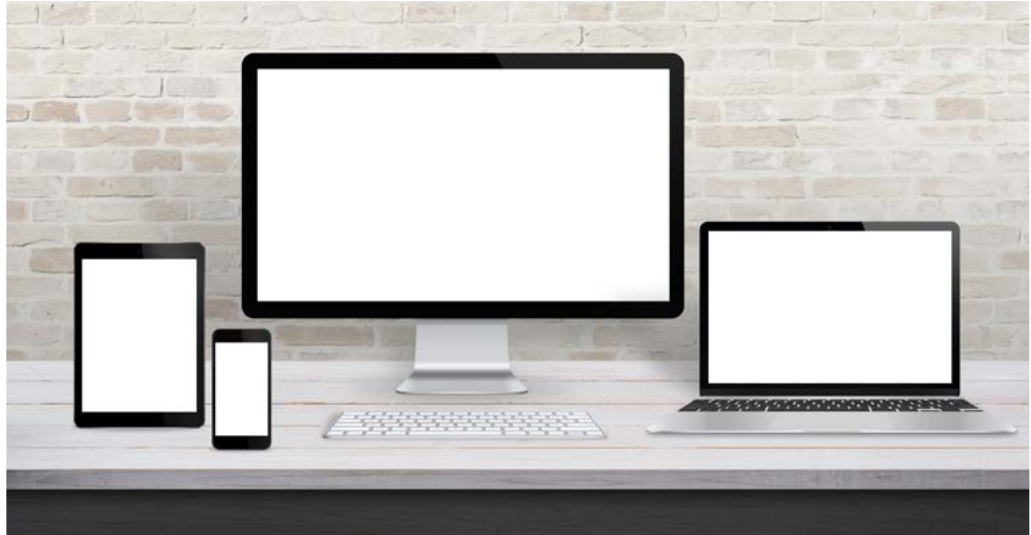
In this unit, we'll explore interactive whiteboards and displays in detail, examining their advantages, disadvantages, and limitations. You'll also discover what factors determine the quality of display devices and printers, as well as the wireless technology that allows these devices to operate without cables.
Display devices
Display devices form a broad category of output devices that includes computer monitors, smartphone screens, and data projectors. These devices all share a common primary function: to show you the information you've input into the computer, allowing you to make choices and interact with programmes and the operating system.
What makes display devices particularly interesting is that some of them can function as both input and output devices. Touchscreens and interactive whiteboards are perfect examples of this dual functionality - they can display information whilst also receiving input from your touch or gestures.
Advantages of display devices
Display devices offer several significant benefits that make them essential for modern computing:
- Immediate feedback: You get instant visual confirmation of what the computer is processing, which makes using technology much more intuitive and responsive.
- Easy interaction: The connection between you and the computer becomes straightforward and user-friendly when you can see what's happening.
- Quick content switching: You can rapidly change between different applications on a smartphone or switch between programmes on a computer, making multitasking efficient.
- Customisation options: Display settings can be adjusted to suit individual needs, such as increasing text size for better readability or adjusting brightness to reduce eye strain.
Disadvantages of display devices
However, display devices also come with some notable drawbacks:
- Privacy concerns: The content shown on displays isn't private - anyone positioned behind you can see what you're doing on your computer. This is somewhat less problematic with smartphones due to their smaller screens and how we typically hold them.
- Temporary output: What you see on screen isn't permanent. If you need to keep a record of information, you'll need to save or print it separately.
- High power consumption: Display screens are typically the component that uses the most power in devices like smartphones, tablets, and laptops, significantly impacting battery life.
- Expensive to replace: When display devices break or become damaged, they're usually the most costly component to repair or replace.
What determines a display device's quality?
Several key factors work together to determine how good a display device's quality will be. These include resolution, aspect ratio, contrast ratios, and response time, along with other technical specifications.
Important
Generally, less expensive devices will excel in one area whilst having lower specifications in others. The best quality devices maintain good balance across all specifications, which typically makes them more expensive.
| Specification | Description |
|---|---|
| Resolution | In the case of display devices, resolution refers to the number of pixels that can be displayed horizontally and vertically. For example, a monitor with a resolution of 1920 x 1440 can display 1920 pixels horizontally and 1440 pixels vertically. |
| Aspect ratio | This describes the basic shape of the screen based on the ratio of the width to the height measured in inches. For example, if a screen is 16 inches (40.6 cm) wide and 10 inches (25.4 cm) tall, the aspect ratio is 16:10. |
| Contrast ratio or colour depth | This measures the number of shades the display device can show between its blackest black and brightest white. The higher the number of shades, the clearer and sharper the images will appear. This also means that the colours will be brighter and more true to life. |
| Response time or frequency | Response time measures how quickly the pixels on a screen refresh. Faster response times mean that fast-moving scenes in a video will be smoother and less blurry. This is especially important when the screen is used to watch movies or play games. |
Printer quality
When it comes to printers, several factors determine the quality of the printed output. The most crucial factor is resolution, which for printers is measured in dots per inch (dpi). This measurement tells you how many individual dots the printer can create within a square inch area - the higher the dpi number, the better the image quality will be.
Example
How Printer Resolution Works:
Step 1: Digital images are measured in pixels per inch (ppi)
Step 2: Printers create dots per inch (dpi) to match the digital image
Step 3: When printer dpi matches image ppi exactly = crisp, clear output
Step 4: When printer dpi cannot match image ppi = reduced image quality
Another important quality indicator is printing speed, measured in pages per minute (ppm). The higher the ppm, the faster the printer can produce finished prints. It's worth noting that laser printers typically have higher ppm rates than inkjet printers due to their different printing technologies.
The duty cycle also indicates printer quality and capacity. This refers to the maximum number of pages a printer can handle in a month without experiencing problems. A typical home printer might have a duty cycle of around 5,000 pages, whilst large business printers can handle approximately 200,000 pages per month.
Interactive whiteboards
At first glance, interactive whiteboards appear identical to traditional whiteboards. However, closer examination reveals that they're unique and exciting tools for classroom and business use. Interactive whiteboards can function as both input and output devices, making them particularly versatile.
What makes interactive whiteboards special is their direct connection to computers and their ability to display computer content. The key difference from normal data projectors lies in their interactivity - hence the name. Users need special pens (containing no ink) to write or draw on the surface.
Note
Interactive whiteboards allow users to interact directly with displayed data. Using a mouse or even your finger, you can drag, click, and copy items. You can use your finger or special pens to write notes, highlight sections, or make comments. Everything done on the whiteboard can be saved and shared with others.
Advantages for education
Interactive whiteboards provide three key advantages when used in classrooms:
- Combined learning styles: Interactive whiteboards allow teachers to combine visual and auditory learning styles into one lesson. This helps learners absorb information in multiple formats, making education more effective for different types of learners.
- Reduced note-taking pressure: Because notes made on the whiteboard can be saved and shared, learners don't need to frantically copy everything during lessons. This allows them to focus more on participation and engagement during class time.
- Active participation: Interactive whiteboards transform learners from passive observers into active participants in their lessons, encouraging engagement and hands-on learning experiences.
Disadvantages of interactive whiteboards
Important
Despite their educational benefits, interactive whiteboards have some notable disadvantages. The cost factor is significant - most interactive whiteboards are extremely expensive (in 2018, an interactive whiteboard cost about R6,100), and they require special equipment to function correctly.
Training and time requirements also present challenges. Teachers and other users need proper training to use interactive whiteboards effectively, and teachers may need to spend additional time preparing interactive lessons to maximise the technology's potential.
Wireless technology
Wireless output devices use Wi-Fi, Bluetooth, or near-field communication (NFC) to communicate with computers. These wireless connections reduce the number of cables needed to connect devices to each other, creating cleaner, more flexible setups.
Wireless printers can connect to multiple devices on the same wireless network, meaning everyone in a specific area can access the printer. Wireless printers can connect to smartphones and tablets, allowing users direct printing access. However, since anyone can potentially access a wireless printer, there are some safety and privacy concerns to consider.
Wireless audio devices, such as speakers and headphones, use Bluetooth technology to connect to computers. These output devices give users much more freedom of movement since they're not physically attached to their computers through cables.
Summary
Key Points to Remember:
-
Output devices translate computer data into human-understandable formats - they're the final stage of the information processing cycle, converting digital information into text, images, sounds, or videos.
-
Display quality depends on four key specifications - resolution (pixel count), aspect ratio (screen shape), contrast ratio (colour range), and response time (refresh speed) all work together to determine visual quality.
-
Printer quality is measured by resolution (dpi), speed (ppm), and capacity (duty cycle) - higher numbers generally mean better performance, with laser printers typically outperforming inkjet printers in speed.
-
Interactive whiteboards combine input and output functions - they're excellent educational tools that support different learning styles and encourage active participation, but they're expensive and require proper training.
-
Wireless technology reduces cable clutter but raises security concerns - Wi-Fi, Bluetooth, and NFC enable flexible device connections, but wireless printers and other devices may be accessible to unauthorised users if not properly secured.