Input and Output Devices for Physically Challenged Users (Grade 11 NSC Matric Computer Application Technology): Revision Notes
📚Revision Notes
Input and Output Devices for Physically Challenged Users
Introduction to assistive technology
Assistive technology plays a crucial role in helping people with physical disabilities interact with computers and access information in our digital world. These specialised input and output devices bridge the gap between traditional computer interfaces and the diverse needs of physically challenged users.
A powerful example of this technology in action comes from the renowned physicist Stephen Hawking. When he was diagnosed with ALS (Amyotrophic Lateral Sclerosis) in 1963, doctors predicted he had only two years to live. However, he lived for 55 more years until 2018, during which time his condition gradually took away his ability to control muscle movements and eventually left him unable to speak after a life-saving operation in 1985.
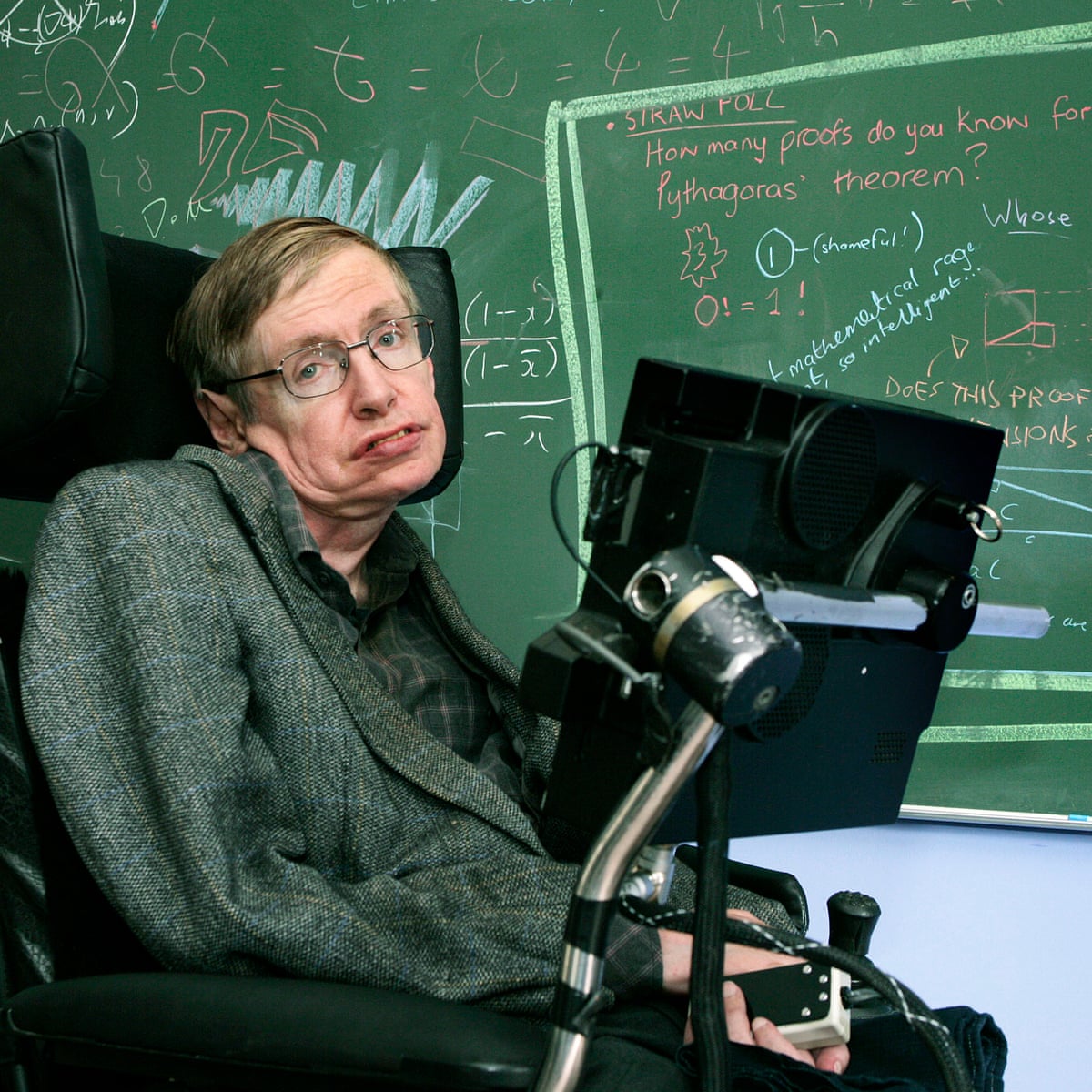
Despite these challenges, Hawking was able to write his famous book "A Brief History of Time" using assistive technology. He used specialised software called Equaliser that tracked his eye movements and translated them into words, combined with a sensor in his glasses. This remarkable achievement demonstrates how the right technology can empower people with physical disabilities to accomplish extraordinary things.
Note
Stephen Hawking's story illustrates the transformative power of assistive technology. His ability to continue his scientific work and communicate complex ideas to the world, despite severe physical limitations, shows how technology can break down barriers and enable human potential to flourish.
Input devices for physically challenged users
There are numerous alternative input devices available to help physically challenged users interact with computers. These devices range from simple adaptations of standard equipment to highly specialised technologies designed for specific disabilities.
Important
The key principle behind assistive input devices is providing multiple pathways for users to interact with computers. Since physical disabilities affect people differently, having a variety of input methods ensures that everyone can find a solution that works for their specific needs and abilities.
Braille keyboards and display devices
Braille technology remains one of the most important tools for visually impaired users. Braille keyboards feature raised dots arranged in specific patterns that represent letters and numbers, allowing blind users to input text through touch.
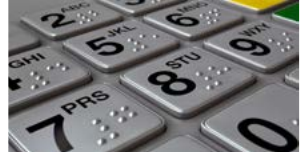
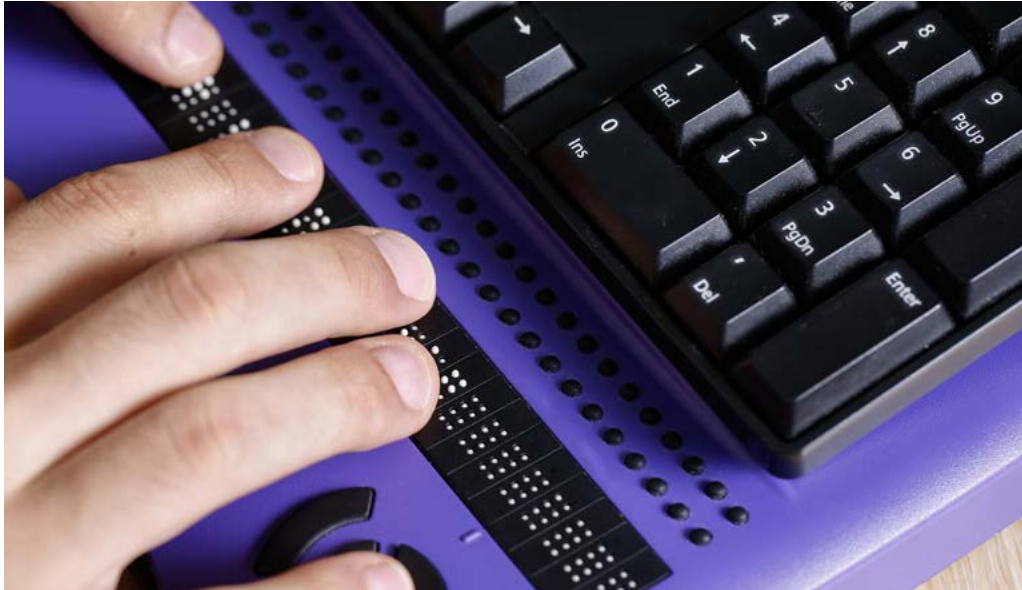
Braille display devices work alongside regular keyboards to provide tactile feedback. These devices use metal or plastic pins that can be raised and lowered to form Braille patterns, enabling users to read text that appears on their computer screens through touch.
On-screen or virtual keyboards
Virtual keyboards appear directly on the computer screen and can be operated using various pointing devices such as a mouse, trackball, or joystick. This solution is particularly helpful for users who cannot operate a physical keyboard due to limited hand mobility or dexterity issues.
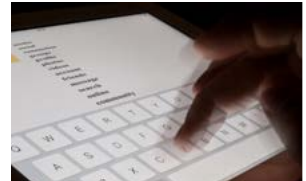
These keyboards can be customised with larger buttons, different layouts, or simplified interfaces to match the user's specific needs and abilities.
Microphones and speech recognition
Speech recognition technology allows users to control their computers and input text using voice commands. Modern speech recognition software has become highly accurate and can understand natural speech patterns, making it an excellent option for users who cannot use their hands effectively.
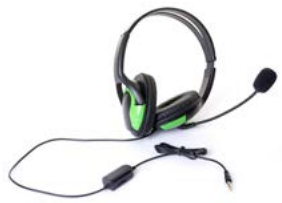
Users can dictate documents, navigate through menus, and execute commands simply by speaking into a microphone. The software interprets these voice inputs and converts them into the appropriate computer actions.
Note
Speech recognition has improved dramatically in recent years thanks to advances in artificial intelligence. Modern systems can achieve over 95% accuracy and can even adapt to individual speech patterns and accents, making them increasingly practical for everyday use.
Keyguards
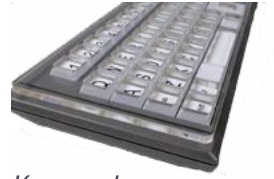
Keyguards are simple but effective adaptations that consist of metal or plastic plates placed over standard keyboards. These plates have holes positioned over each key, preventing users from accidentally pressing multiple keys simultaneously. This is particularly helpful for people with tremors, limited fine motor control, or conditions that affect precise hand movements.
Head-mounted pointers
When hand and arm movement is severely limited, head-mounted pointers provide an alternative way to interact with computers. These devices are controlled through head movements and can simulate mouse functions. The pointers can be operated using switches, sensors that detect eye movement, facial expressions, or even breath control.
Gesture-recognition devices
Advanced gesture-recognition technology can interpret hand movements, head positions, eye movements, and even sign language to input information into computers. These systems use cameras and sensors to track user movements and translate them into digital commands.
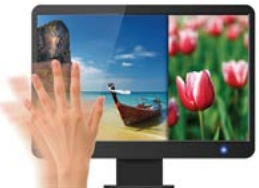
This technology is particularly valuable for users who retain some mobility but cannot use traditional input methods effectively.
Sip-and-puff devices
Sip-and-puff devices operate through breath control, where users breathe into or out of special tubes to control computer functions. The device interprets different patterns of sips (inhaling) and puffs (exhaling) as different commands. Special software processes these breath patterns and converts them into data that the computer can understand.
Note
Sip-and-puff technology demonstrates the ingenuity of assistive device design. By using one of the most basic human functions - breathing - these devices can provide full computer control for individuals with the most severe mobility limitations.
This technology is especially useful for individuals with severe mobility limitations who retain control over their breathing.
Magnification devices
For users with visual impairments who can still see to some degree, magnification devices enlarge the information displayed on computer screens. These tools can provide various levels of magnification and different font options to improve readability. Some magnification software can create large, scrolling virtual screens or focus magnification only on the area near the mouse pointer.
Large-key keyboards
Large-key keyboards feature keys that are three times larger than those found on standard keyboards. The enlarged keys display bright, high-contrast printing (typically white text on black keys) that makes them easier to see and press accurately. These keyboards are particularly helpful for users with vision impairments, those who wear reading glasses or bifocals, and people who work in areas with poor lighting conditions.
Keyboard customisation features
Modern operating systems include built-in accessibility features that can be customised to make input easier for physically challenged users. One important feature is "sticky keys", which allows users to execute keyboard shortcuts without needing to hold down multiple keys simultaneously.
Example
Using Sticky Keys in Practice
Instead of holding down Ctrl and V keys at the same time to paste text, users with sticky keys enabled can press these keys one at a time in sequence:
- Press and release the Ctrl key
- Press and release the V key
- The paste function executes successfully
This feature can be activated by pressing the Shift key five times, or through the computer's accessibility settings in the control panel.
Output devices for physically challenged users
Output devices help physically challenged users access and understand information from their computers through alternative sensory channels when traditional visual displays are not sufficient.
Audio output devices
Physically challenged users often rely on audio output devices such as headphones and speakers working in combination with screen-reading software. Screen readers convert text and interface elements into speech, allowing users to hear what appears on their screens. Some systems also include screen-magnifying programmes that work alongside audio output to provide both visual and auditory assistance.
Braille interfaces
Braille interfaces provide tactile output by raising metal or plastic pins on a flat surface to create readable Braille patterns. These devices connect to computers and display text from the screen in Braille format, allowing blind users to read digital content through touch.
Important
Braille interfaces have an important limitation: they can only display basic text documents and cannot represent complex graphics, images, or elaborate formatting. Users should be aware of this when choosing output methods for different types of content.
Braille printers
Braille printers create permanent tactile documents by embossing raised Braille dots onto special paper. The printing process involves pressing pins into one side of the paper to create raised dots that can be felt on the other side. This technology allows visually impaired users to have physical copies of documents that they can read repeatedly and share with others who understand Braille.
While Braille printers are primarily output devices, they serve an essential role in making digital information accessible in a permanent, portable format.
Note
The embossing process used in Braille printing creates durable documents that won't fade or become unreadable over time, unlike some forms of raised printing that may flatten with use.
Summary
Key Points to Remember:
-
Assistive technology empowers independence - These devices help people with physical disabilities access the same information and opportunities available to everyone else in our digital world.
-
Input devices offer multiple alternatives - From eye-tracking and speech recognition to breath control and gesture recognition, there are solutions for almost every type of physical limitation.
-
Output devices provide alternative sensory channels - When visual output isn't accessible, audio and tactile alternatives like screen readers and Braille displays ensure information remains available.
-
Customisation is key - Most accessibility features can be adjusted to match individual needs, abilities, and preferences, making technology truly personalised.
-
Technology continues to evolve - Modern examples like Stephen Hawking's communication system show how advanced assistive technology can enable remarkable achievements despite severe physical limitations.