Processing Devices (Grade 11 NSC Matric Computer Application Technology): Revision Notes
📚Revision Notes
Processing Devices
Processing devices are the components that handle the second stage of the information processing cycle. These devices work together to manipulate and transform data, turning input into meaningful output. The main processing components include the motherboard, CPU, and memory systems that work as a team to run your computer programmes and complete tasks.
Motherboard
The motherboard serves as the foundation of your computer system. Think of it as the central meeting place where all the important components come together to communicate and work as one unit. This essential component holds many of the parts that allow a computer to function properly, including the CPU, RAM, and various connectors for input and output devices.
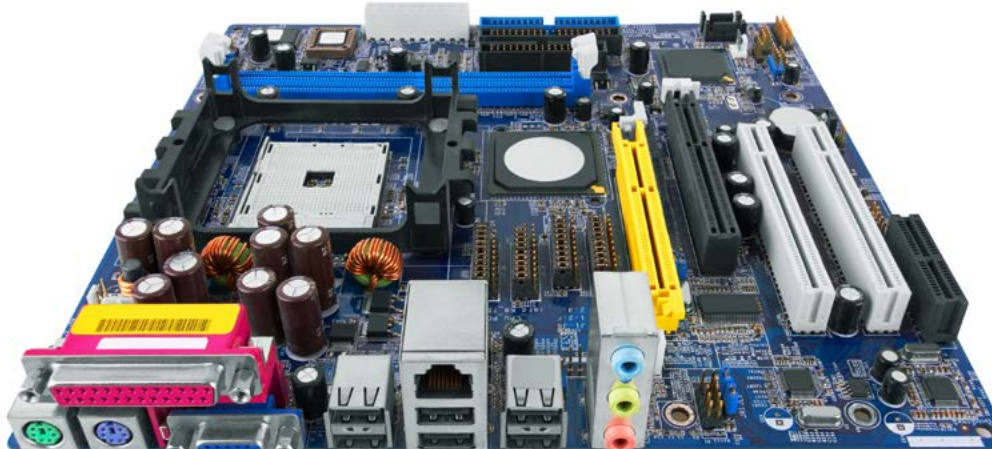
The motherboard is constructed from a thin sheet of rigid, non-conductive material that acts as a base. A very thin layer of copper or aluminium is printed onto this sheet to create pathways called traces. These traces are extremely narrow and form the vital connections between all the different components housed on the motherboard. Without these pathways, the components couldn't communicate with each other.
Note
The traces on a motherboard are like the roads in a city - they provide the essential pathways that allow different components to send information to each other. These microscopic copper or aluminium pathways are what make modern computing possible.
The motherboard performs three critical functions in your computer system. Firstly, it provides a secure place for other devices or interfaces to be installed, such as additional memory sticks or graphics cards that enhance your computer's capabilities. Secondly, it distributes electrical power to all the various components, ensuring each part receives the right amount of electricity to function properly. Finally, it acts as a communication hub where components can send and receive information through the network of traces.
Central processing unit (CPU)
The CPU, also known as the processor, is often called the "brain" of the computer because it carries out all the instructions that make your programmes work. This vital component performs the arithmetical, logical, and input/output operations that transform your clicks, keystrokes, and commands into actual computer actions.
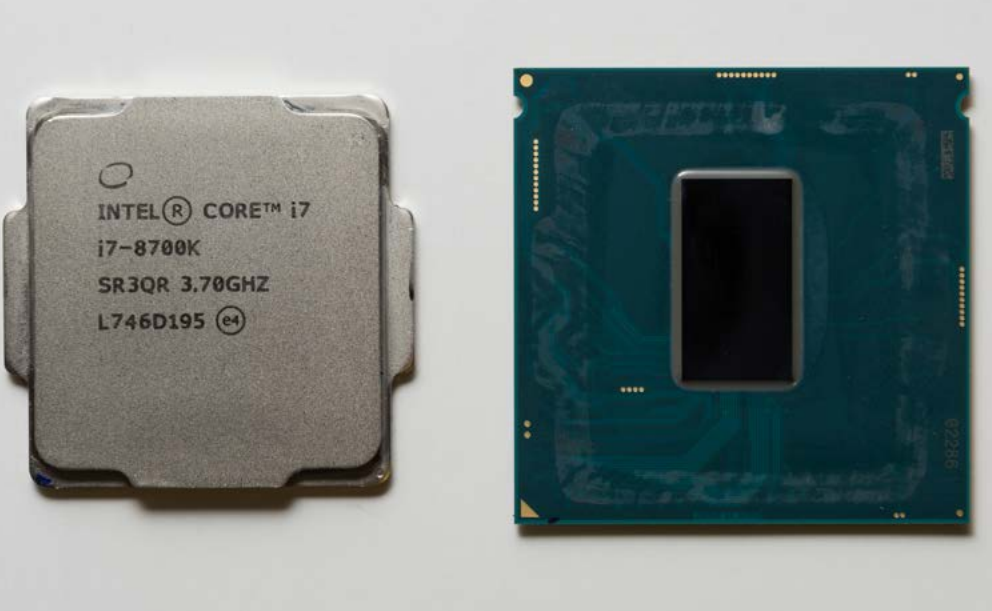
The speed of the CPU determines how quickly your computer can process information and complete tasks. This speed is measured in gigahertz (GHz), which tells you how many billions of operations the processor can handle in one second. A faster CPU means your computer can process more data in the same amount of time, making everything from opening files to running programmes feel quicker and more responsive.
Important
Every instruction that runs on your computer, whether generated by the operating system or triggered by your actions, must go through the CPU. This could be anything from the operating system executing a background task to you typing letters in a document.
The CPU receives these instructions, processes them, and sends out the appropriate responses.
Understanding CPU cores
A core represents the basic computing unit within the CPU that can run a single programme, problem, or task at any given time. Originally, CPUs contained only single cores, but manufacturers began adding multiple cores to boost the overall performance of the processor.
When a CPU has multiple cores, it can split complex tasks into smaller parts and work on them simultaneously, similar to having multiple workers tackle different aspects of the same job. A CPU with two cores can handle two separate tasks at once, which speeds up the computer because it can essentially multitask more effectively.
Example
Practical Example: Multi-core Processing
Imagine you're running a web browser, music player, and word processor simultaneously:
- Single-core CPU: Must switch rapidly between all three programmes, creating delays
- Dual-core CPU: Can dedicate one core to the browser and music player, while the other core handles the word processor
- Quad-core CPU: Can assign different cores to different programmes, providing even smoother performance
Different types of CPUs offer varying numbers of cores. A dual-core processor contains two cores, making it appear like two separate CPUs to the operating system. A quad-core processor includes four cores, while an octa-core processor boasts eight cores. These additional cores help ensure that the CPU remains compact enough to fit into a single socket while taking up minimal space on the motherboard.
Random-access memory (RAM) and read-only memory (ROM)
While both RAM and ROM serve as types of memory in your computer, they perform distinctly different functions that are essential for proper system operation. Understanding the differences between these memory types helps you appreciate how your computer manages information.
| Feature | RAM | ROM |
|---|---|---|
| Full Name | Random-Access Memory | Read-Only Memory |
| Primary Role | Temporary data storage for active programmes | Permanent storage of startup instructions |
| Data Access | Allows data to be accessed in random order for quick retrieval | Stores basic instructions for computer startup |
| Volatility | Volatile - loses all data when power is turned off | Non-volatile - retains data even when power is off |
| Main Function | Provides workspace where CPU fetches instructions and data for active programmes | Contains essential code to get the computer started |
| Storage Location | Installed as removable memory sticks | Usually stored on the BIOS chip in the motherboard |
| Data Modification | Contents frequently change as programmes load and unload | Information is difficult to change and rarely modified |
RAM serves as your computer's temporary workspace where the CPU goes to fetch the instructions and data needed for currently running programmes. When you load a programme from storage, it gets copied into RAM because the CPU can access information from RAM much faster than from a hard drive. RAM also provides temporary storage space for programmes that are actively running, allowing them to work more efficiently.
Important
The key difference between RAM and ROM lies in volatility: RAM is volatile (loses data when power is off) while ROM is non-volatile (retains data permanently). This is why your computer can start up even after being turned off - the startup instructions are safely stored in ROM.
ROM contains the fundamental code required to get your computer started when you first turn it on. This memory stores basic instructions that tell the computer what needs to happen during the startup process. ROM is typically stored on a special chip called the BIOS (Basic Input/Output System) that's built into the motherboard. The information in ROM remains intact even when the computer is powered down, ensuring your computer always knows how to start up properly.
Interpreting computer advertisements
When you're shopping for a new computer, advertisements contain valuable technical information that can help you make an informed decision. By understanding the key specifications, you can determine whether a particular computer meets your needs and offers good value for money.

Key specifications to examine
CPU Speed: The processor speed tells you how fast the computer can handle tasks. Remember that higher numbers generally mean better performance, so a 3 GHz processor can handle twice as much work as a 1.5 GHz processor. In the advertisement example, the CPU operates at up to 3.10 GHz, which provides solid performance for most everyday computing tasks.
Memory Amount: The RAM specification shows how many programmes and applications you can run simultaneously. Most computers come with 4 GB of RAM, which works well for basic tasks like checking emails and creating documents. Users who need more processing power might consider 8 GB of RAM, while 16 GB suits people who frequently use memory-intensive programmes such as games, video editing software, and photo editing applications.
Example
Worked Example: Choosing the Right RAM
Consider your typical computer usage:
- 4 GB RAM: Suitable for basic tasks (email, web browsing, simple documents)
- 8 GB RAM: Good for moderate multitasking (multiple browser tabs, office applications, light photo editing)
- 16 GB RAM: Ideal for heavy users (video editing, gaming, running virtual machines, professional software)
Storage Capacity: The storage specification indicates how much data the computer can hold permanently. Most computers include a hard drive of around 500 GB, though you can also purchase external drives for additional storage if needed. Make sure the storage capacity matches your intended use - more storage costs more money, so consider what you actually need.
Operating System: The operating system specification tells you which software platform the computer uses. Newer operating systems typically offer better compatibility with current programmes and provide more security features and driver support for your hardware components.
Summary
Key Points to Remember:
-
The motherboard serves as the foundation that connects all computer components through thin pathways called traces, providing power distribution and communication between parts.
-
The CPU acts as the computer's brain that processes all instructions, with speed measured in gigahertz (GHz) and performance enhanced by multiple cores for better multitasking.
-
RAM provides temporary workspace for active programmes and is volatile (loses data when powered off), while ROM stores permanent startup instructions and is non-volatile.
-
When buying computers, focus on key specifications like CPU speed, RAM amount, storage capacity, and operating system to ensure the computer meets your specific needs.
-
Multiple CPU cores allow simultaneous processing of different tasks, with dual-core, quad-core, and octa-core processors offering progressively better multitasking capabilities.