Using Functions to Solve Problems (Grade 12 NSC Matric Computer Application Technology): Revision Notes
📚Revision Notes
Using Functions to Solve Problems
Introduction to function combinations in business contexts
When working with spreadsheets in real business situations, you'll rarely use just one function at a time. Instead, you'll need to combine multiple functions to solve complex problems. This approach involves understanding how different functions work together to process data, make decisions, and provide meaningful results.
Note
The key to success is learning to break down complex business requirements into smaller, manageable steps that can each be solved with appropriate functions. Think of it like following a recipe - each function serves a specific purpose in the overall solution.
Understanding the business scenario
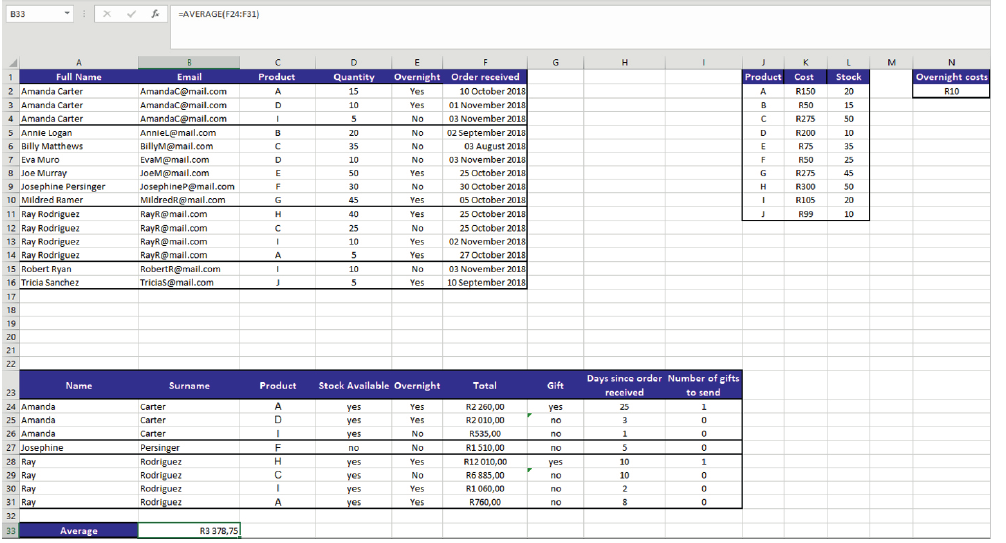
Let's explore a practical example involving a customer order management system. In this scenario, you're working with customer data that includes personal information, purchase details, stock levels, and special business rules about gift eligibility.
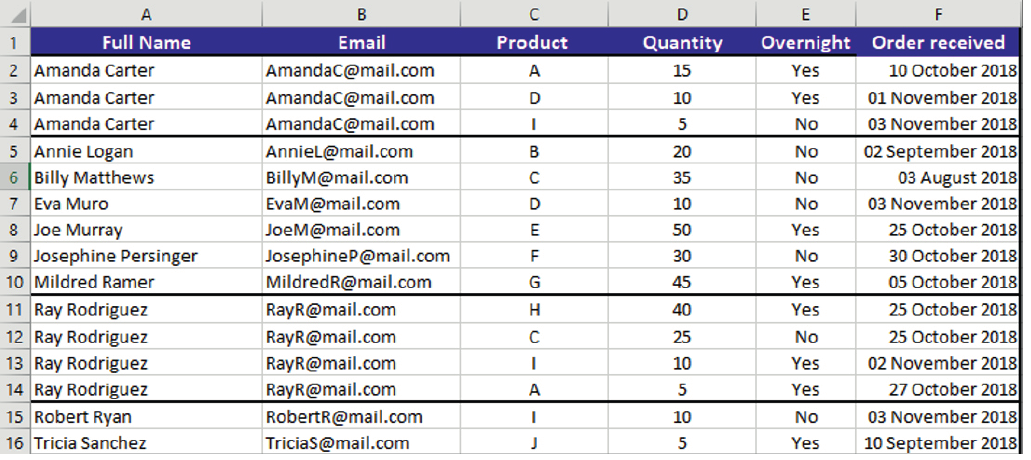
The customer data contains essential information like full names, email addresses, product codes, quantities, overnight delivery preferences, and order dates. This represents typical business data that needs processing and analysis.
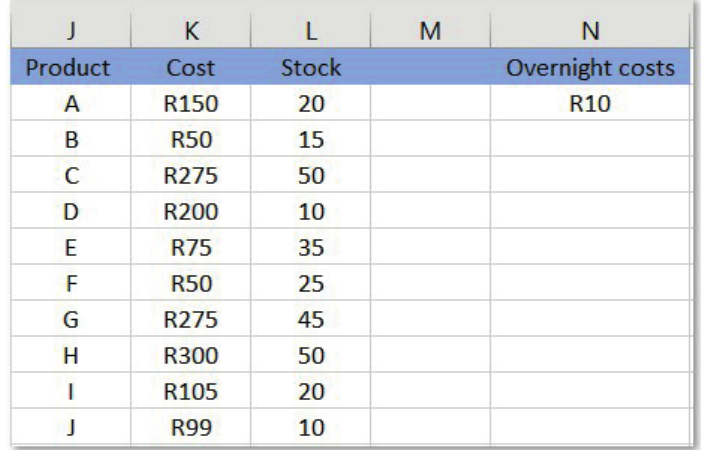
Additionally, you have product information including costs, stock levels, and overnight shipping charges. The business rule states that customers who spend more than R2,000 qualify for a bonus gift, but each customer can only receive this gift once.
Important
Your task is to create a system that automatically processes this information and determines eligibility for gifts whilst tracking various metrics.

Text functions for data manipulation
One of the first challenges in data processing is often separating combined information into useful components. When customer names are stored as "First Last" in a single cell, you need to extract the individual parts.
Using LEFT and FIND functions
The LEFT function extracts characters from the beginning of text, while FIND locates the position of specific characters. When combined, they create powerful text manipulation tools.
Example
Worked Example: Extracting First Names
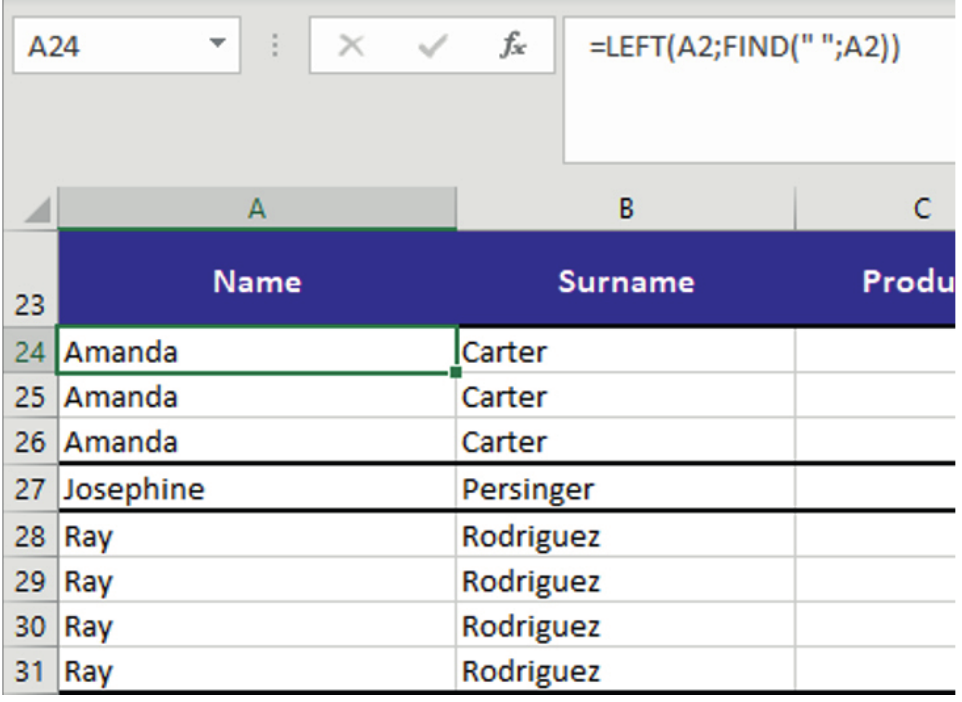
To extract a first name, you can use: =LEFT(A2;FIND(" ";A2))
This formula works by:
- FIND(" ";A2) locates the position of the space character
- LEFT then extracts all characters up to that position
- The result is the first name
Using RIGHT and LEN functions
For surnames, the process is slightly more complex since you need to work backwards from the end of the text string.
Example
Worked Example: Extracting Surnames
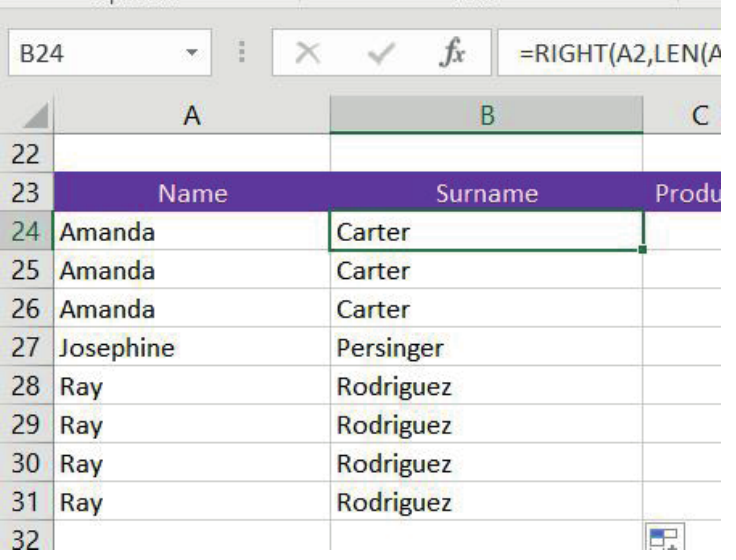
To extract a surname, use: =RIGHT(A2;LEN(A2)-FIND(" ";A2))
This formula:
- Calculates the total length of the text with LEN
- Subtracts the position of the space found with FIND
- RIGHT then extracts that many characters from the end
- The result is the surname
Lookup functions for data retrieval
Once you have clean, separated data, you often need to retrieve related information from other tables. This is where VLOOKUP becomes essential for business applications.
VLOOKUP syntax and usage
VLOOKUP searches for a value in the first column of a range and returns a value from a specified column in the same row.
Example
Worked Example: VLOOKUP Syntax
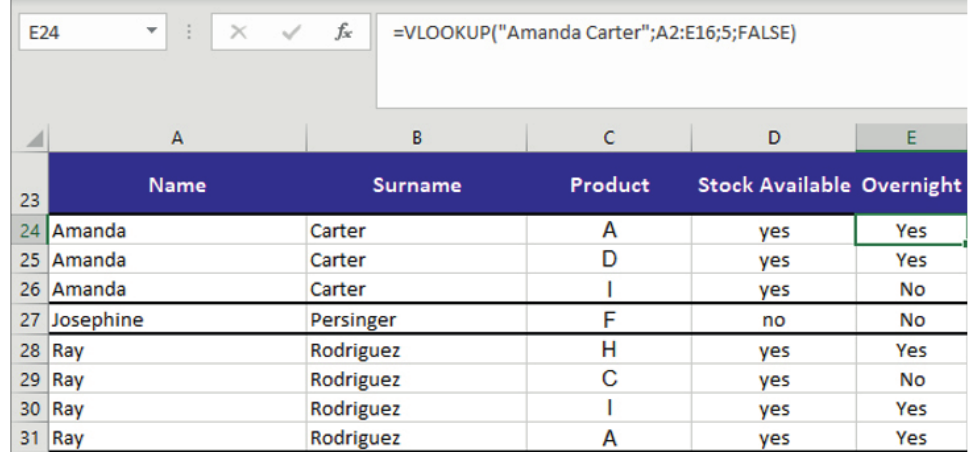
The syntax is: =VLOOKUP(lookup_value; table_array; column_index; exact_match)
For example: =VLOOKUP("Amanda Carter";A3:E16;5;FALSE)
This searches for "Amanda Carter" in the first column of the range A3
and returns the value from the 5th column (overnight delivery information). The FALSE parameter ensures an exact match.Logical functions for business rules
Business applications often require decision-making based on specific criteria. The IF function enables you to create logical tests that return different values based on conditions.
Simple IF statements
Example
Worked Example: Stock Level Check
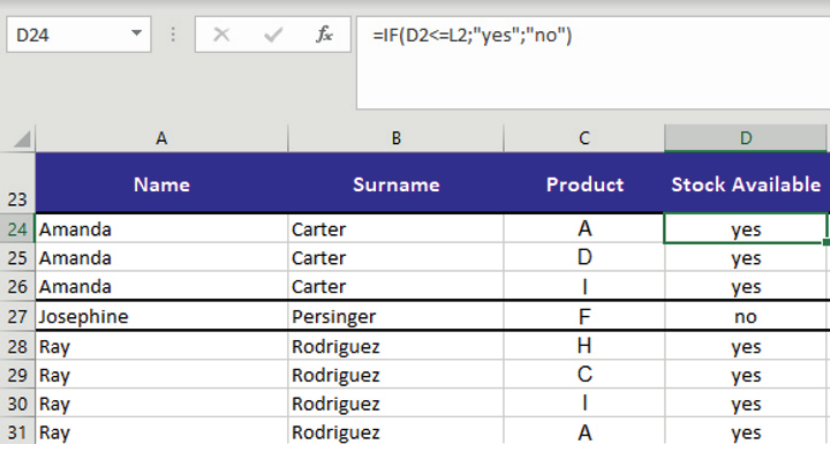
For stock availability checking: =IF(D2<=12;"yes";"no")
This formula checks if the stock level is 12 or below and returns "yes" for low stock or "no" for adequate stock.
Gift eligibility logic
Example
Worked Example: Gift Qualification
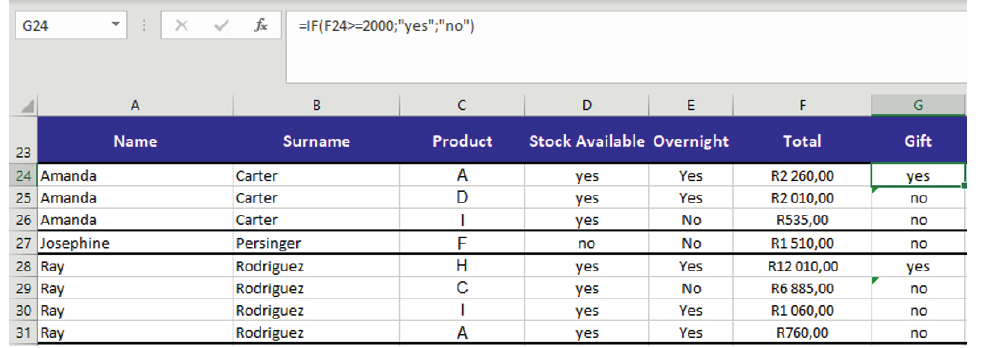
For determining gift qualification: =IF(F24>=2000;"yes";"no")
This tests whether the order total reaches the R2,000 threshold for gift eligibility.
Multiple condition testing with AND
Sometimes business rules require multiple conditions to be met simultaneously. The AND function allows you to test several criteria at once.

Example
Worked Example: Advanced Gift Logic
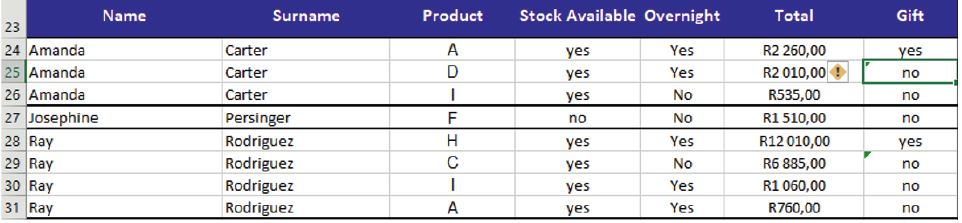
Advanced gift logic: =IF(AND(F25>=2000,I24<1);"yes";"no")
This formula ensures both conditions are true:
- The order total must be R2,000 or more
- The customer must have received fewer than 1 gift previously
The AND function returns TRUE only when all arguments are true, making it perfect for complex business rules.
Date and statistical functions
Business analysis often requires tracking time periods and calculating summary statistics. Excel provides several functions for these purposes.
Working with dates
The TODAY function returns the current date, which can be combined with lookup functions to calculate time periods.
Example
Worked Example: Days Since Order
For calculating days since order: =TODAY()-VLOOKUP("Amanda Carter";A2:F16;6;FALSE)
This subtracts the order date (retrieved via VLOOKUP) from today's date to show how many days have passed.
Counting and averaging
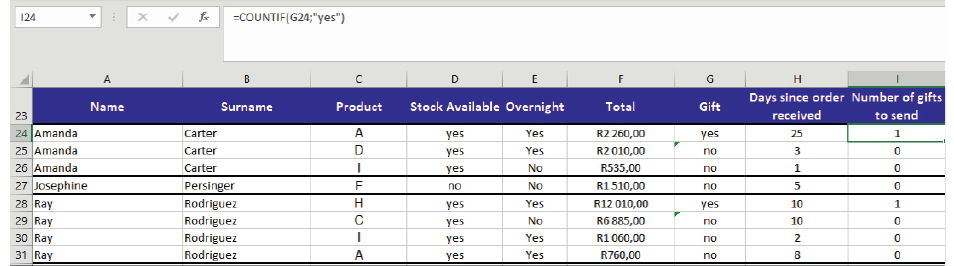
The COUNTIF function counts cells that meet specific criteria: =COUNTIF(G24;"yes")
This counts how many customers have "yes" in their gift column, showing total gifts distributed.
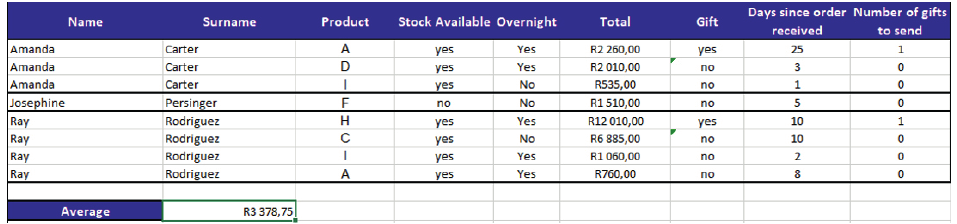
The AVERAGE function calculates the mean of numerical values: =AVERAGE(F24:F31)
This provides the average order value, useful for business metrics and reporting.
Complete workflow example
When combining all these functions, you create a comprehensive business solution that automates complex processing tasks.
Important
The complete system processes customer data through multiple stages:
- Text processing: Separates names into components
- Data lookup: Retrieves product and pricing information
- Logical evaluation: Applies business rules for gifts and eligibility
- Statistical analysis: Calculates summaries and metrics
- Date tracking: Monitors time-based requirements
This demonstrates how individual functions work together to solve real business problems efficiently and accurately.
Function categories summary
The functions used in this business solution can be categorised as:
Summary
Function Categories:
-
Text functions: LEFT, RIGHT, FIND, LEN - for manipulating and extracting text data
-
Lookup functions: VLOOKUP - for retrieving information from data tables
-
Logical functions: IF, AND - for implementing business rules and decision making
-
Date functions: TODAY - for time-based calculations
-
Statistical functions: COUNTIF, AVERAGE - for summary analysis and reporting
Understanding how to combine these different types of functions enables you to tackle complex business scenarios with confidence and create automated solutions that save time and reduce errors.
Summary
Key Points to Remember:
- Break complex problems down - Identify each step needed and choose appropriate functions for each part
- Text functions work together - Use LEFT, RIGHT, FIND and LEN in combination to manipulate text data effectively
- VLOOKUP requires exact syntax - Remember the four parameters: lookup value, table range, column number, and exact match (FALSE)
- AND function needs all conditions true - Perfect for implementing business rules that have multiple requirements
- Combine function types strategically - Mix text, lookup, logical, date and statistical functions to create comprehensive solutions