Links: Bookmarks, Hyperlinks, Cross-Referencing (Grade 12 NSC Matric Computer Application Technology): Revision Notes
📚Revision Notes
Links: Bookmarks, Hyperlinks, Cross-Referencing
What are links in word processing?
Links are powerful tools that help you navigate through documents more efficiently. Just like how you might use bookmarks in a physical book to mark important pages, word processors offer digital linking features that make it easier to move around in your documents. There are three main types of links you'll work with: bookmarks, hyperlinks, and cross-references.
Think of these tools as your navigation system within documents. Instead of scrolling through pages trying to find specific content, you can jump directly to where you need to go with a simple click.
Note
These linking tools become increasingly valuable as your documents grow longer and more complex. They're particularly useful for academic papers, business reports, and technical documentation where readers need to move between different sections frequently.
Bookmarks
Understanding bookmarks
Bookmarks work exactly like the physical bookmarks you use in books - they help you mark specific locations so you can return to them quickly later. In word processing, bookmarks serve as digital markers that you can place anywhere in your document to mark important sections, words, or images.
The main advantage of bookmarks is that they save you time and effort. Instead of scrolling through an entire document to find a particular section, you can jump straight to your bookmarked location. This is especially useful when working with long documents like reports, essays, or research papers.
Inserting bookmarks
Creating a bookmark in your document is a straightforward process. Here's how to do it step by step:
Example
Step-by-Step: Creating a Bookmark
Step 1: Select your content - First, choose the word, paragraph, or image that you want to bookmark. This could be a heading, an important paragraph, or even a picture that you'll need to reference later.
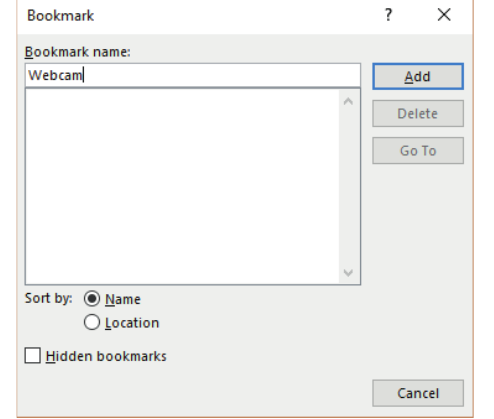
Step 2: Access the bookmark feature - Navigate to the Insert tab in your ribbon toolbar and locate the Links section. Click on the Bookmark option to open the bookmark dialogue box.
Step 3: Name your bookmark - In the bookmark dialogue box, you'll see a field where you can enter a name for your bookmark. Choose a descriptive name that will help you remember what this bookmark represents.
Important bookmark naming rules
When creating bookmarks, you must follow specific naming conventions:
Important
Critical Bookmark Naming Rules:
- The name must start with a letter (not a number or symbol)
- The name cannot be longer than 40 characters
- The name may not contain any spaces
- The name can include letters, numbers, or underscores (_)
Correct examples: webcam_section, webcam1, introduction_heading
Incorrect examples: 1webcam, webcam section, my very long bookmark name that exceeds character limit
Using bookmarks for navigation
Once you've created bookmarks, there are two main ways to navigate between them:
Example
Method 1: Using the bookmark dialogue box
- Open your document and access the bookmark information box
- Select the bookmark you want to navigate to
- Click the "Go To" button
Example
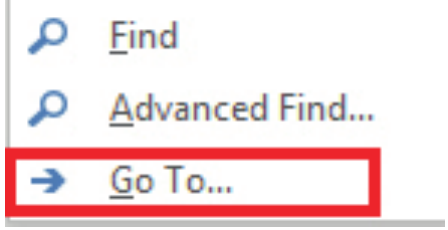
Method 2: Using Find and Replace
- Select the Home tab in your ribbon
- Go to the Editing group and click on Find
- Select "Go To" from the dropdown menu
- Choose "Bookmark" from the list of options
- Select your desired bookmark from the dropdown menu and click "Go To"
This second method opens up the Find and Replace dialogue box with a Go To tab, which provides more navigation options beyond just bookmarks.
Working with hidden bookmarks
Microsoft Word automatically creates hidden bookmarks that have an underscore as the first character of their name. These hidden bookmarks are used for internal references like headings and table of contents entries. You can choose to display these hidden bookmarks in your bookmark list by ticking the "Hidden bookmarks" checkbox in the bookmark dialogue box.
Deleting bookmarks
Sometimes you may need to remove bookmarks that are no longer needed. To delete a bookmark:
Example
Deleting a Bookmark
- Open the bookmark information box
- Select the bookmark you want to delete from the list
- Click the "Delete" button
Remember to save your document after making changes to ensure your bookmark modifications are preserved.
Hyperlinks
Understanding hyperlinks
Hyperlinks are more advanced than bookmarks because they can connect you to various destinations. While bookmarks only work within the same document, hyperlinks can take you to:
- Specific locations within the same document
- Other documents on your computer
- External websites and web pages
- Email addresses
Note
The key difference between hyperlinks and bookmarks is that hyperlinks are clickable elements that appear in your document, while bookmarks are invisible markers that you navigate to using menu options.
Creating hyperlinks within documents
To create a hyperlink that connects to a bookmark within the same document:
Example
Creating Internal Document Hyperlinks
Step 1: Select your text or object - Choose the word, phrase, or image that you want to turn into a clickable hyperlink
Step 2: Access the hyperlink feature - Go to the Insert tab and click on the Links section to find the Hyperlink option
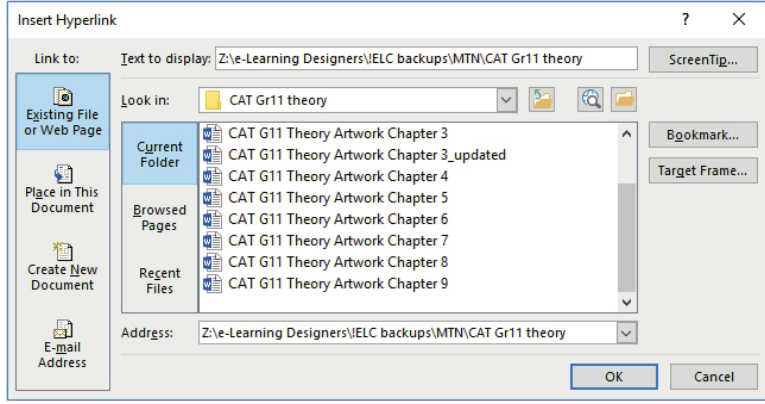
Step 3: Choose your destination - In the Insert Hyperlink dialogue box, select "Place in This Document" from the left panel
Step 4: Select your bookmark - Choose the bookmark you want to link to from the list and click OK
Creating hyperlinks to external sources
You can also create hyperlinks that connect to other documents or web pages by selecting "Existing File or Web Page" in the hyperlink dialogue box. This allows you to link to external resources that provide additional information or context.
Cross-referencing
What is cross-referencing?
Cross-referencing is a special type of linking that's particularly useful for academic and professional documents. When you use cross-referencing, you create automatic references to other parts of your document, such as headings, figures, tables, or page numbers.
The major advantage of cross-referencing is that it automatically updates when you make changes to your document. For example, if you reference "Figure 3" but later add another figure before it, the cross-reference will automatically update to show "Figure 4".
Note
This automatic updating feature makes cross-referencing incredibly valuable for maintaining accuracy in documents that undergo frequent revisions, such as research papers, technical manuals, and business reports.
Creating cross-references
Example
Creating a Cross-Reference
Step 1: Position your cursor - Place your cursor where you want the cross-reference to appear in your document
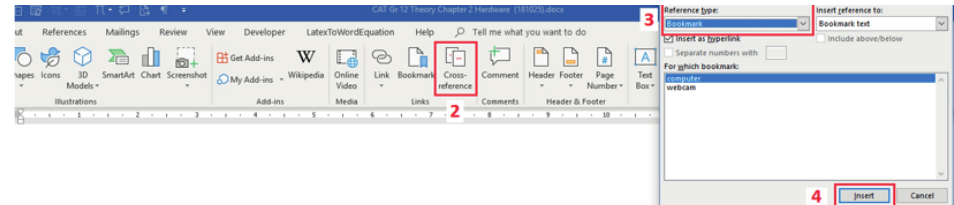
Step 2: Access cross-reference tools - Click on the References tab in your ribbon and locate the Cross-reference option
Step 3: Select reference type - In the Cross-reference dialogue box, choose what type of item you want to reference from the "Reference type" dropdown menu
Step 4: Choose your bookmark - Select the specific bookmark you want to link to and click Insert
Cross-referencing is particularly valuable because it helps maintain accuracy in long documents where page numbers, figure numbers, or section numbers might change during editing.
Practical tips for using links effectively
When working with any type of link in your documents, keep these tips in mind:
Note
Best Practices for Document Links:
- Use descriptive names: Whether creating bookmarks or hyperlinks, choose names that clearly indicate what the link represents
- Test your links: Always check that your links work correctly before sharing your document
- Keep it organised: In long documents, create a logical system for naming your bookmarks and links
- Regular maintenance: Periodically review and clean up unused bookmarks to keep your document organised
Summary
Key Points to Remember:
- Bookmarks are invisible markers that help you navigate within a document using menu commands
- Hyperlinks are clickable links that can connect to locations within the same document, other files, or web pages
- Cross-references are automatic links that update themselves when document content changes
- Bookmark names must start with a letter,contain no spaces, and beunder 40 characterslong
- You can navigate to bookmarks using either the bookmark dialogue box or the Find and Replace Go To function