Reviewing and Tracking Changes (Grade 12 NSC Matric Computer Application Technology): Revision Notes
📚Revision Notes
Reviewing and Tracking Changes
Document review is a crucial final step in creating any professional document. In the past, this process involved printing documents and marking corrections with a red pen, but modern word processing software offers much more efficient digital tools for reviewing and collaboration.
Note
The shift from paper-based editing to digital review tools has revolutionised document collaboration, allowing multiple reviewers to work simultaneously without the confusion of multiple printed versions.
Understanding word count
The word count function helps you determine exactly how many words, paragraphs, and lines your document contains. This is particularly useful when you need to meet specific length requirements for assignments or publications.
Example
How to Check Word Count:
Step 1: Select the text you want to analyse (or leave unselected for entire document)
Step 2: Navigate to the Review tab and click Word Count
Step 3: View the detailed statistics window showing pages, words, characters (with and without spaces), paragraphs, and lines
Quick tip: You can also view a basic word count at the bottom left of your document window at any time.
Spelling and grammar checking
The Spelling & Grammar tool is one of Word's most valuable features for document review. This intelligent tool scans your document for potential spelling and grammar errors, then provides suggested corrections for you to consider.
To use this feature, go to the Review tab and click Check Document. This opens the Editor pane on the right side of your screen, which will highlight any issues found. For each potential error, you can choose to:
- Ignore Once: Skip this instance but flag future occurrences
- Ignore All: Skip all instances of this word throughout the document
- Add to Dictionary: Add the word to your personal dictionary so it won't be flagged again
For spelling mistakes, you'll see suggested corrections in a dropdown list. Grammar issues provide explanations and suggested improvements.
Important
Remember that automated checking isn't perfect - it may miss contextual errors or flag proper nouns that don't exist in the dictionary. Always proofread manually as your final check.
Track changes fundamentals
Track Changes is a powerful collaboration feature that records every modification made to a document. Whether you're correcting spelling mistakes, adding new content, or reorganising information, all changes are documented and can be reviewed by the original author.
How to activate track changes
To start using Track Changes, open your document and navigate to the Review tab. You'll find the Track Changes button in the Tracking section - click it to activate the feature. Once enabled, any modifications you make will appear as coloured markup in the document.
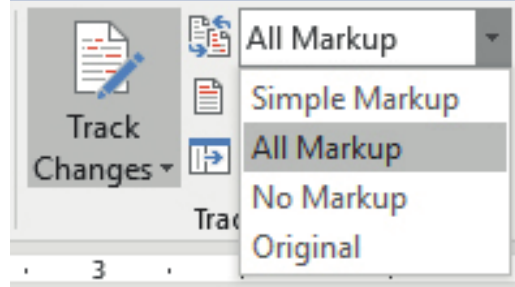
Viewing your tracked changes
One challenge with Track Changes is that extensive markup can make documents difficult to read. Fortunately, Word provides several viewing options to help you work more effectively:
Note
Markup Display Options:
- Simple Markup: Shows the final version with a red marker in the left margin indicating where changes exist
- All Markup: Displays the complete document including all coloured markup showing exactly what was changed
- No Markup: Shows only the final version without any change indicators
- Original: Displays the document as it appeared before any changes were made
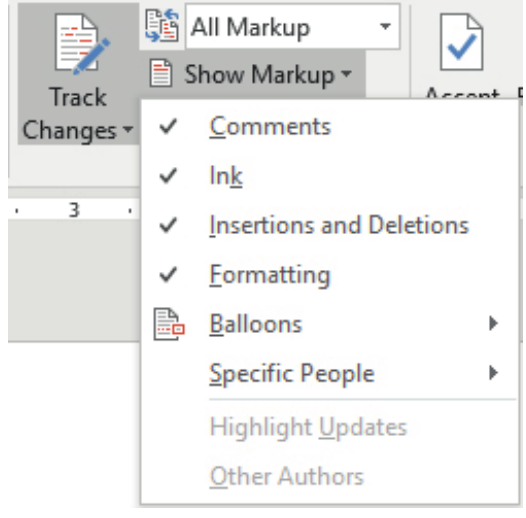
You can also control which types of changes are visible using the Show Markup options:
- Comments: Toggle comment visibility
- Insertions and Deletions: Show or hide added and removed text
- Formatting: Display formatting changes
- Balloons: Move change details to the right margin for easier reading
Reviewing and finalising changes
Track Changes doesn't automatically make your edits permanent - they remain as suggestions until reviewed. To finalise your document, you need to either accept or reject each change.
Example
Reviewing Changes Step-by-Step:
Step 1: Navigate to the Changes section of the Review tab
Step 2: Use the Next button to move through each modification
Step 3: For each change, decide to:
- Click Accept if you agree with the modification
- Click Reject if you want to keep the original text
- Use Previous to return to earlier changes if needed
Bulk Actions: You can also accept or reject all changes at once using the dropdown menus, though this doesn't allow for individual consideration.
After reviewing all changes, remember to save your document and turn off Track Changes to prevent future edits from being tracked.
Adding comments for detailed feedback
Comments provide a way to offer detailed feedback, ask questions, or suggest improvements without directly modifying the document text. This is particularly useful when you want to explain your reasoning or provide additional context.
Example
Adding a Comment:
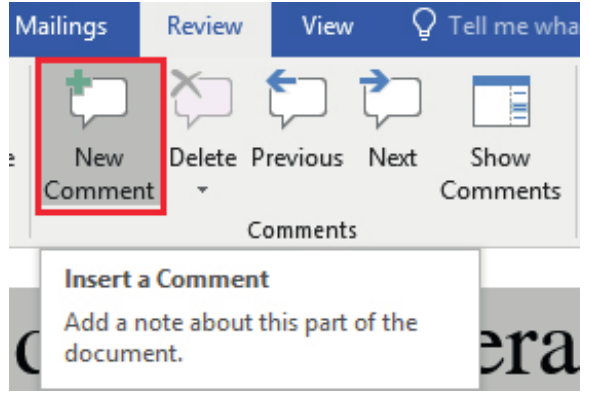
Step 1: Highlight the relevant text where you want to add feedback
Step 2: Click New Comment in the Review tab
Step 3: Type your feedback in the comment box that appears
Result: Comments are linked to specific text sections and display the reviewer's name and timestamp automatically.
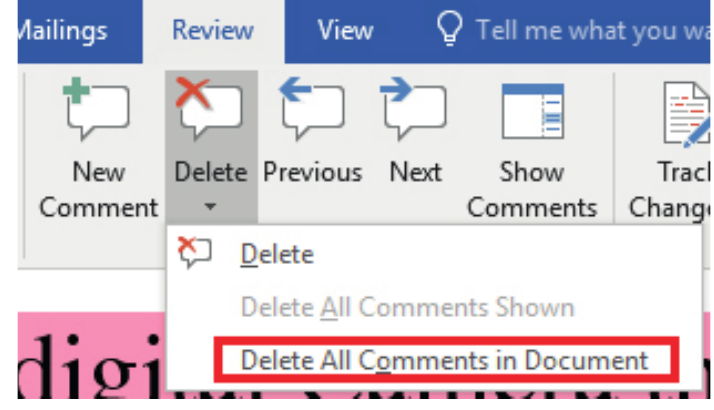
Managing comments is straightforward - you can delete individual comments or remove all comments at once using the Delete dropdown menu. Authors can also add their own comments as reminders or notes for future revisions.
Comparing document versions
Sometimes you may need to compare two versions of a document without using Track Changes. The Compare function analyses an original document against a revised version and highlights all differences.
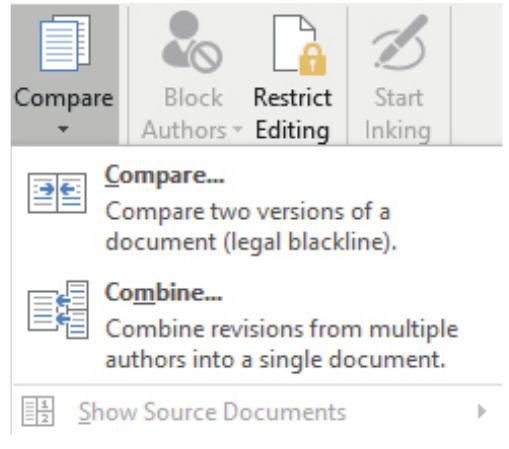
Example
Document Comparison Process:
Step 1: Go to the Review tab and select Compare from the dropdown menu
Step 2: Choose your original document and the revised version
Step 3: Click OK to generate the comparison
Result: Word creates a new document showing all changes in the same format as Track Changes, allowing you to review and accept or reject modifications.
This feature is particularly useful when collaborating with others who may not have used Track Changes, or when you need to analyse differences between document versions saved at different times.
Exam tips and best practices
Note
Professional Review Practices:
When working with document review features, follow these guidelines:
- Always save your work before activating Track Changes
- Use meaningful file names when comparing document versions
- Remember that spell check may not catch all errors, especially with proper nouns
- Consider your audience when choosing markup display options
- Turn off Track Changes when you've finished reviewing to avoid accidentally tracking future edits
Summary
Key Points to Remember:
- Track Changes records all document modifications - every edit is documented and can be reviewed or reversed
- Multiple viewing options help manage complex documents - switch between Simple Markup and All Markup depending on your needs
- Comments provide detailed feedback without changing the text - use them to explain suggestions or ask questions
- Changes must be accepted or rejected to become permanent - Track Changes only suggests modifications until you review them
- Document comparison works even without Track Changes - you can analyse differences between any two document versions