Text Functions: An Overview (Grade 12 NSC Matric Computer Application Technology): Revision Notes
📚Revision Notes
Text Functions: An Overview
Introduction to text functions
Text functions in Excel are powerful tools that help you manipulate, extract, and work with text data in your spreadsheets. When you're working with large amounts of data, you often need to separate, combine, or find specific pieces of text information. Rather than doing this manually (which would take ages!), Excel provides specialised functions that can automatically handle these tasks for you.
Think of text functions as your digital assistants for working with words, names, addresses, codes, and any other text-based information. They give you the freedom to select exactly what you need from your data and present it in the format that works best for your analysis or presentation.
Note
Text functions are essential skills for any Computer Applications Technology student, as they form the foundation of data processing and analysis in the business world. These functions save countless hours of manual work and reduce errors in data manipulation tasks.
The LEFT, RIGHT and MID functions
Understanding LEFT and RIGHT functions
The LEFT and RIGHT functions are your go-to tools when you need to extract characters from either end of a text string. These functions work like digital scissors, cutting off exactly the number of characters you specify from either the left side or right side of your text.
Example
Function Syntax Examples:
LEFT function syntax:
=LEFT(text_cell, number_of_characters)
RIGHT function syntax:
=RIGHT(text_cell, number_of_characters)
Let's look at how these work in practice:
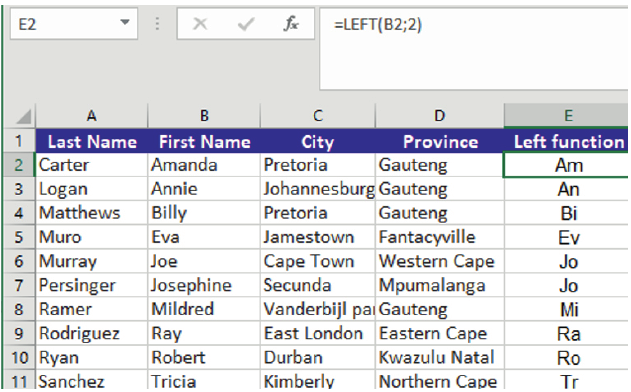
In this example, the LEFT function extracts the first 2 characters from each first name. So "Amanda" becomes "Am", "Annie" becomes "An", and so on. This is particularly useful when you need to create abbreviations or codes based on names.
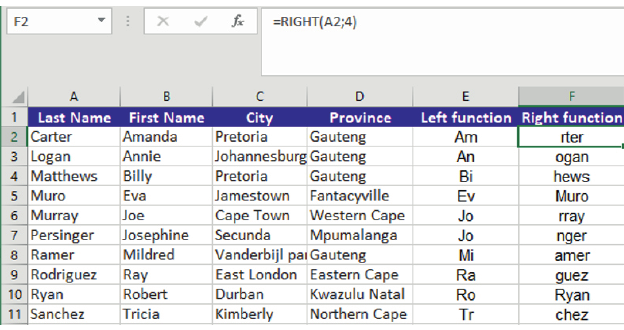
The RIGHT function works similarly but from the opposite direction, taking characters from the right side of the text. Notice how "Amanda" becomes "da" when we take the last 2 characters.
The MID function for precise extraction
The MID function is more flexible than LEFT and RIGHT because it allows you to extract characters from anywhere within your text string. Think of it as being able to cut out a specific slice from the middle of your text.
Example
MID Function Syntax:
=MID(text_cell, start_position, number_of_characters)
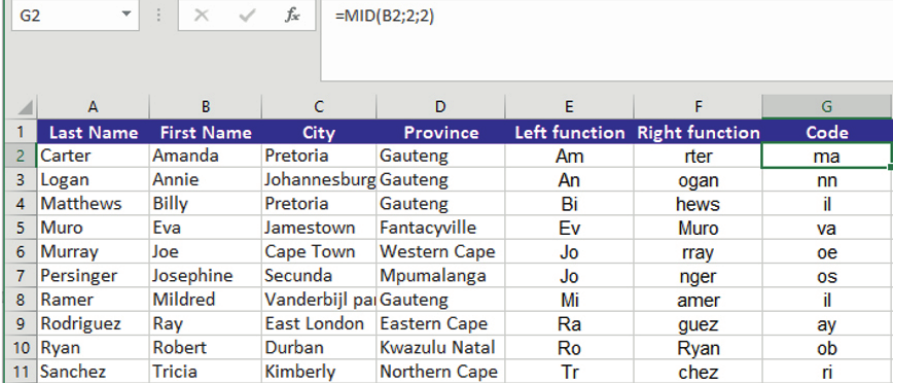
The MID function requires three pieces of information:
- The cell containing your text
- The position where you want to start extracting (counting from the left)
- How many characters you want to extract
For example, =MID(B2,2,2) starts at position 2 in the text and extracts 2 characters. So "Amanda" would give you "ma" (starting from the 'm' which is in position 2).
Important
Unlike LEFT and RIGHT functions where the number of characters is optional, the MID function always requires you to specify both the starting position and the number of characters. If you forget these, Excel will give you an error message.
The CONCATENATE function
The CONCATENATE function does the opposite of the extraction functions - instead of taking text apart, it joins pieces of text together. This is incredibly useful when you have data split across multiple columns but need to combine it into a single cell.
Example
CONCATENATE Function Syntax:
=CONCATENATE(first_text, second_text, additional_text...)
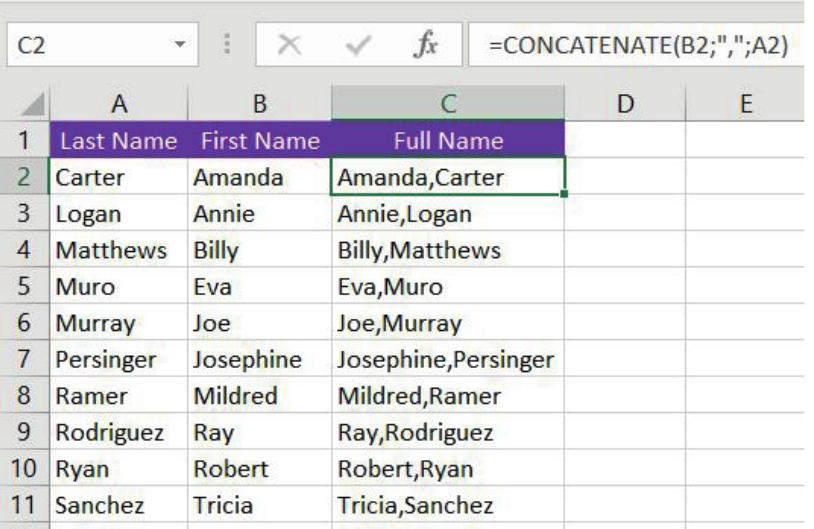
In this example, the CONCATENATE function joins the first name from column B with a comma and the last name from column A. The result shows "Amanda,Carter" format, which might be useful for creating mailing lists or database entries.
The ampersand (&) operator alternative
Excel also provides a quicker way to join text using the ampersand (&) symbol. This operator works exactly like CONCATENATE but with simpler syntax.
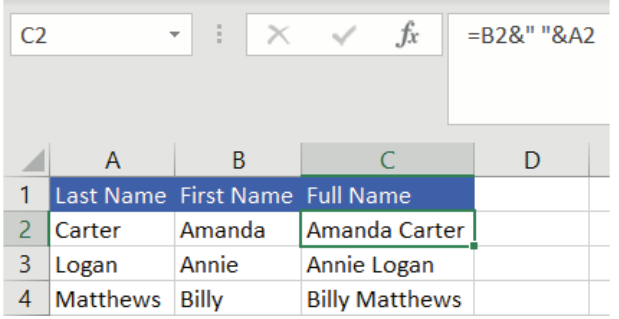
Using the ampersand operator, =B2&" "&A2 produces "Amanda Carter" - notice how we can add spaces or other characters between the text pieces by including them in quotation marks.
Note
The ampersand method is often preferred because:
- It's faster to type
- It's easier to read
- It produces the same results as CONCATENATE
Both methods are valid, so choose whichever feels more comfortable for you.
The LEN function
The LEN function counts the number of characters in a text string, including spaces and punctuation. This function is particularly useful when you need to validate data entry, check field lengths, or analyse text patterns.
Example
LEN Function Syntax:
=LEN(text_cell)
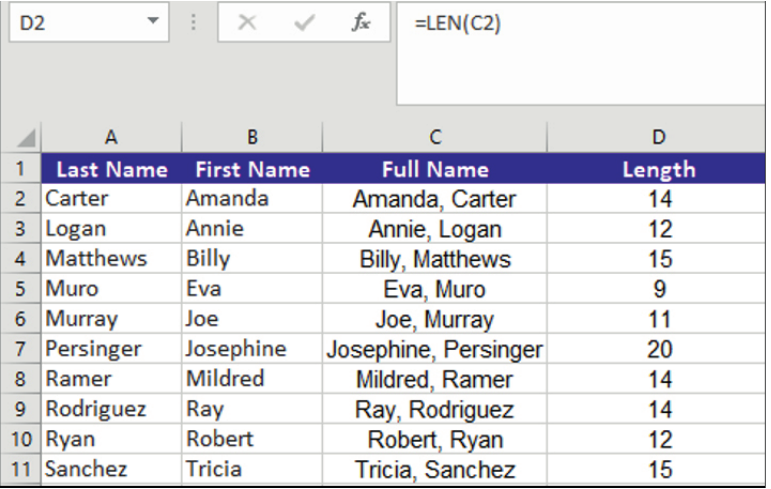
The LEN function counts every character in the cell, including spaces. For example, "Amanda Carter" contains 13 characters (including the space between the first and last name). This can be helpful when you're working with systems that have character limits for fields like customer codes or product names.
Note
Practical applications of LEN:
- Checking if text fits within database field limits
- Validating that codes or passwords meet length requirements
- Identifying unusually long or short entries that might contain errors
The VALUE function
The VALUE function converts text that looks like numbers into actual numerical values that Excel can use in calculations. This is essential when importing data from other systems where numbers might be stored as text.
Example
VALUE Function Syntax:
=VALUE(text_string)
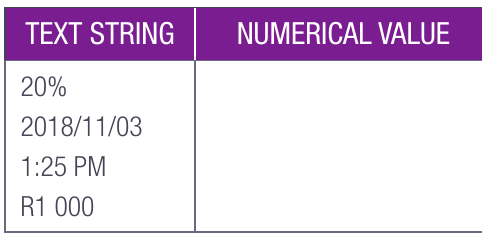
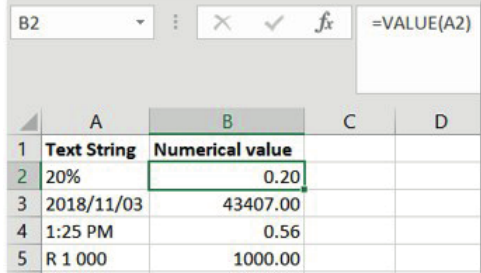
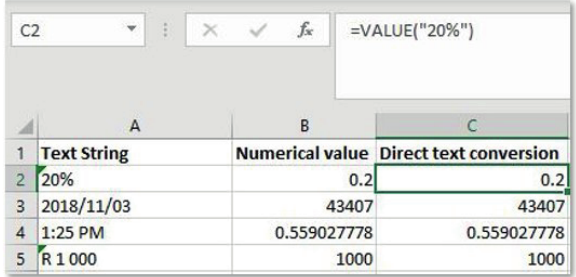
The VALUE function can convert various text formats:
- Percentages like "20%" become 0.2
- Dates like "2018/11/03" become Excel's internal date number (43407)
- Times like "1:25 PM" become decimal time values (0.56)
- Currency amounts like "R 1 000" become 1000
Important
Important considerations:
- The text must be in a format that Excel recognises as convertible to a number
- Text like "Hello" cannot be converted and will return an error
- Excel often converts text to numbers automatically, so VALUE is mainly needed for compatibility with other spreadsheet programmes
The FIND function
The FIND function locates the position of a specific character or text string within another text string. It returns the position number (counting from the left) where the search text first appears.
Example
FIND Function Syntax:
=FIND(search_text, within_text, start_position)
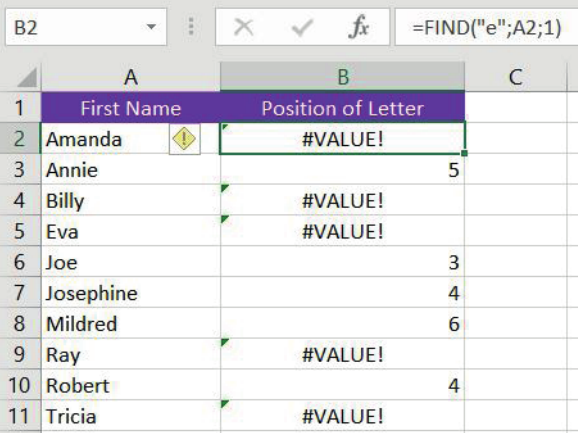
The FIND function is case-sensitive, meaning it treats uppercase and lowercase letters as different. In this example, searching for lowercase "e" in the names shows:
- "Annie" returns 5 (the 'e' is in position 5)
- "Joe" returns 3 (the 'e' is in position 3)
- Names without 'e' show #VALUE! error
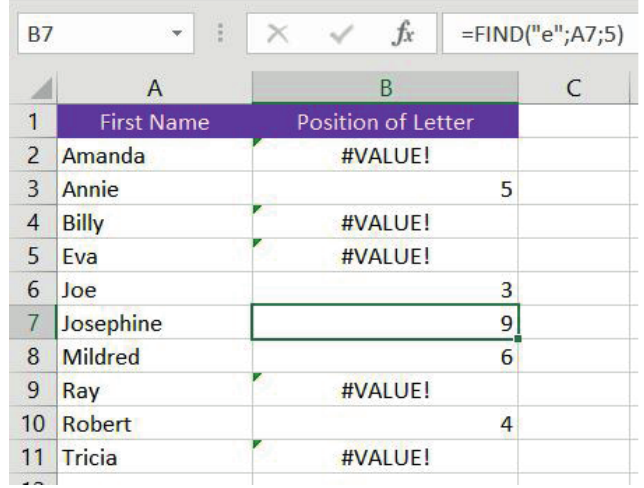
You can also specify where to start searching. =FIND("e",A7,5) looks for "e" starting from position 5, which is useful when you need to find the second or third occurrence of a character.
Note
Key points about FIND:
- It's case-sensitive (use SEARCH function for case-insensitive searches)
- Returns #VALUE! error if the search text isn't found
- The start position is optional - if omitted, it starts from position 1
Function combinations for complex data manipulation
One of the most powerful aspects of text functions is combining them to solve complex data problems. By using multiple functions together, you can extract, manipulate, and format data in sophisticated ways.
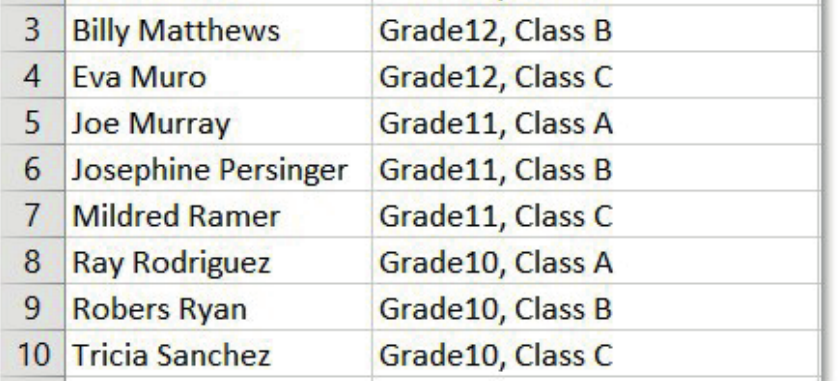
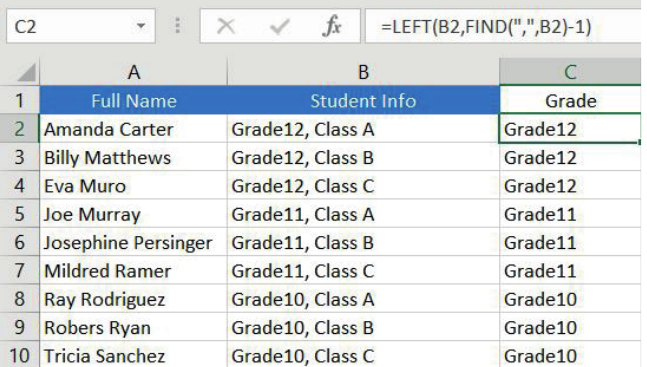
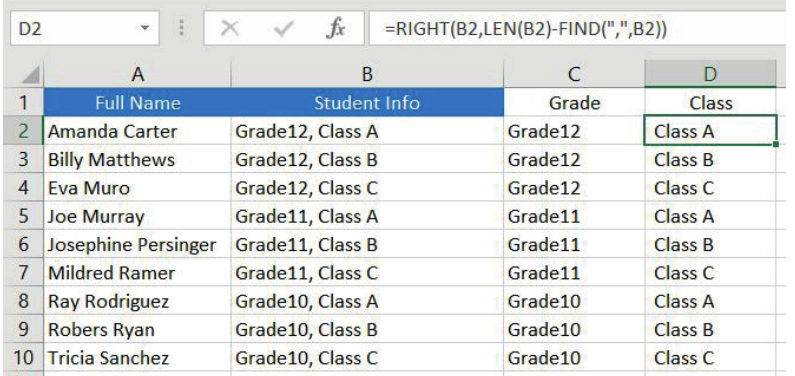
Consider this student database where grade and class information is combined in a single cell. To separate this information, we need to combine several text functions.
Extracting grade information
Example
Worked Example: Extracting Grade Numbers
To extract just the grade number, we use a combination of LEFT and FIND functions:
=LEFT(B2,FIND(",",B2)-1)
This formula:
- Uses FIND to locate the comma position
- Subtracts 1 to stop just before the comma
- Uses LEFT to extract everything from the beginning up to that position
Extracting class information
Example
Worked Example: Extracting Class Information
To extract the class information, we combine RIGHT, LEN, and FIND:
=RIGHT(B2,LEN(B2)-FIND(",",B2))
This formula:
- Uses FIND to locate the comma position
- Uses LEN to get the total length of the text
- Subtracts the comma position from the total length
- Uses RIGHT to extract that many characters from the end
These combinations demonstrate how text functions work together like building blocks, allowing you to create powerful formulas that can handle complex data manipulation tasks automatically.
Real-world applications
Text functions are essential in many business scenarios:
- Customer database management: Creating customer codes by combining initials with phone number digits
- Data cleaning: Standardising address formats or name conventions across large datasets
- Report formatting: Extracting specific information from mixed data for presentation purposes
- System integration: Converting data between different formats when transferring between software systems
Exam tips and common pitfalls
Important
Common mistakes to avoid:
- Forgetting that FIND is case-sensitive
- Not including the start position and character count for MID function
- Assuming VALUE can convert any text (it only works with number-like text)
- Forgetting to account for spaces when counting characters
Exam strategies:
- Practice combining functions before the exam
- Remember the syntax for each function
- Test your formulas with sample data to verify results
- Pay attention to error messages like #VALUE! - they often indicate the wrong data type
Summary
Summary
Key Points to Remember:
- Text functions are powerful tools for manipulating, extracting, and combining text data in spreadsheets
- LEFT and RIGHT functions extract characters from the beginning or end of text strings
- MID function extracts characters from any position within text and always requires start position and character count
- CONCATENATE and & operator join text from multiple cells together
- LEN function counts all characters including spaces and is useful for data validation
- VALUE function converts number-like text into actual numerical values for calculations
- FIND function locates character positions within text and is case-sensitive
- Function combinations allow you to solve complex data manipulation problems by using multiple functions together