Storage Devices (Grade 12 NSC Matric Computer Application Technology): Revision Notes
📚Revision Notes
Storage Devices
What are storage devices?
Storage devices are specialised pieces of computer hardware designed for one primary purpose: storing your data safely and securely. Think of them as digital filing cabinets that hold everything from your operating system and software programmes to your personal photos, documents, and music files.
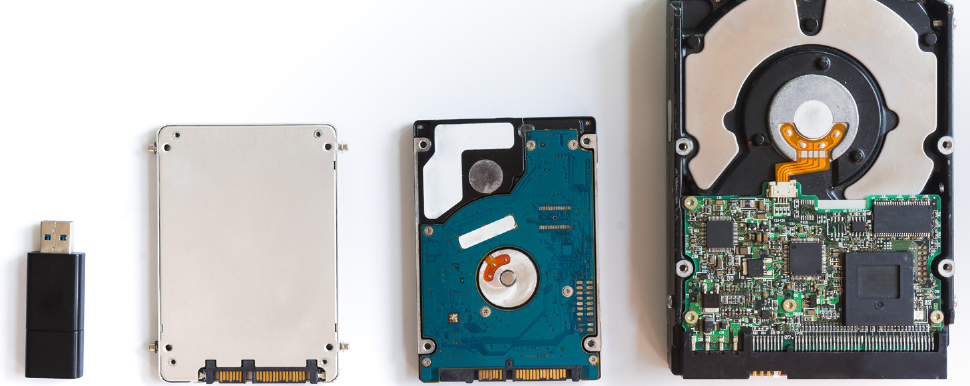
Every modern computer needs at least one storage device to function properly. Without storage, your computer would lose all its information every time you switched it off! Storage devices can be internal (built into your computer) or external (portable devices you can connect when needed).
Choosing the right storage device
When you're deciding which storage device to buy, there are several important factors you should consider:
Note
Key Factors for Storage Device Selection:
- Storage capacity - This determines how much information you can save on the device. Modern storage ranges from a few gigabytes to several terabytes.
- Storage speed - This affects how quickly you can save new files to the device or open existing files from it.
- Volatility - Some storage devices lose their data when the power is turned off, while others keep your files safe permanently.
- Reliability and durability - You want a device that won't break down unexpectedly, especially when storing important work or precious memories.
For most students, an internal hard drive with 7,200 revolutions per minute (RPM) provides good performance, while 1 TB of storage space should handle most needs unless you're storing lots of videos and music files.
Internal hard drives
An internal hard drive is the main storage component inside your computer. It houses your operating system, installed software, and personal files. These drives use spinning magnetic discs (called platters) and moving read/write heads to store and retrieve data.
Every modern computer comes with at least one internal hard drive already installed. These drives can store massive amounts of data - modern versions can hold up to 12 terabytes, which is enough space for approximately 3 million compressed songs or 17,000 uncompressed music tracks.
Advantages and limitations of internal hard drives
| Advantages | Limitations |
|---|---|
| Massive storage capacity | Contains moving parts that can wear out over time |
| Much faster data access than CDs or DVDs | Can be easily damaged if not handled carefully |
| Easy to replace when they fail | Fixed inside the computer, so not portable |
| Stores data permanently, even when power is off | Drive failure can result in complete data loss |
External hard drives
External hard drives are portable versions of internal drives, protected by a sturdy case and connected to your computer via USB cable. They're perfect for backing up your internal drive or transferring large amounts of data between different computers.
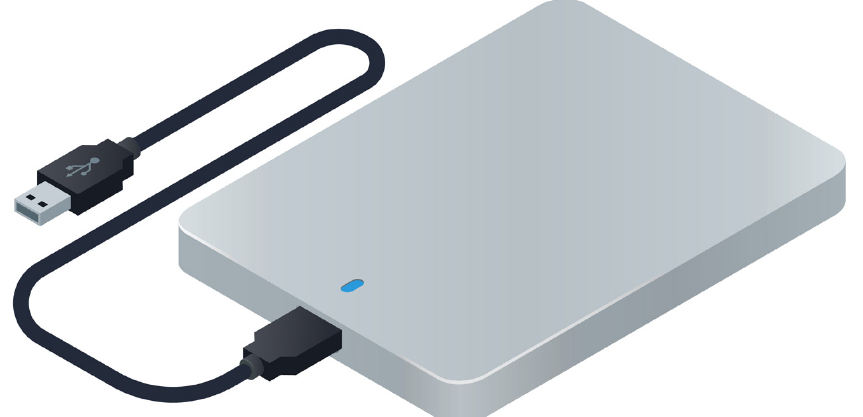
These devices offer most of the benefits of internal drives but with the added advantage of portability. However, they're typically slightly slower than internal drives and may have somewhat less storage capacity.
Advantages and limitations of external hard drives
| Advantages | Limitations |
|---|---|
| Large storage capacity | Contains moving parts prone to wear and tear |
| Faster data access than DVD/CDs | Can be damaged if not treated with proper care |
| Can transfer data between different computers | Slightly slower performance than internal drives |
| Excellent for backing up your internal drive | Generally less storage space than internal drives |
Why backing up your data matters
Imagine spending hours working on an important assignment, only to have your computer crash and lose everything. This scenario happens more often than you might think!
Example
Real-World Example: The Importance of Regular Backups
A student named Tinu spent an entire afternoon writing a lengthy essay about social media. Just as he was finishing up, a power surge caused his computer to restart unexpectedly. When he turned it back on, he discovered he'd forgotten to save his work regularly, and most of his essay was gone. He had to start over, rushing to meet his deadline and producing work that wasn't his best.
The Solution: This situation could have been completely avoided with proper backup procedures and regular saving habits.
Important
Critical Backup Strategy
Backing up means creating copies of your important files on a separate storage device, kept in a different location. If something happens to your main computer, you can easily restore your lost data from the backup.
Common backup options include external hard drives, flash drives, optical discs like CDs and DVDs, or cloud storage services.
Solid-state drives (SSDs)
Solid-state drives represent a newer technology that's revolutionising computer storage. Unlike traditional hard drives with spinning discs and moving parts, SSDs use interconnected flash memory chips - similar to a scaled-up version of the memory chips in your smartphone.
An SSD functions more like a computer processor, containing billions of tiny transistors that each store a single bit of data. This design makes them incredibly fast and reliable compared to mechanical drives.
Important
Revolutionary Technology Difference
SSDs have no moving parts whatsoever - they're completely electronic. This fundamental difference makes them faster, more durable, and more energy-efficient than traditional mechanical drives, but also significantly more expensive per gigabyte.
Advantages and limitations of solid-state drives
| Advantages | Limitations |
|---|---|
| Much faster performance than mechanical hard drives | More expensive than traditional mechanical drives |
| Lower power consumption, better for laptop battery life | Limited storage capacity due to high cost per gigabyte |
| More durable and compact with no moving parts | Shorter lifespan than traditional hard drives or flash drives |
| Completely silent operation |
For most students, a 128 GB SSD provides excellent performance for your operating system and most important programmes, though you might need a traditional hard drive as well for storing large amounts of data affordably.
Flash drives
Flash drives are incredibly small, portable storage devices that connect to your computer through a USB port. Because they're so compact and lightweight, they're ideal for quickly transferring documents and photos between computers.
A flash drive uses the same flash memory technology as SSDs but on a much smaller scale. Most flash drives today offer storage capacities between 4 GB and 512 GB, though larger and smaller versions are available.
Note
Alternative Names for Flash Drives
Flash drives are sometimes called thumb drives, USB sticks, memory sticks, or flash sticks - they're all the same thing! The variety of names comes from different manufacturers and regional preferences.
Advantages and limitations of flash drives
| Advantages | Limitations |
|---|---|
| Extremely compact and portable | Easy to lose due to small physical size |
| More robust than other storage devices | High cost per gigabyte compared to other options |
| No external power source needed | Shorter lifespan due to limited flash memory write cycles |
Optical disc drives
Optical disc drives can read and write data on various types of discs including compact discs (CDs), digital video discs (DVDs), and Blu-ray discs. These drives use laser technology to read data stored on reflective disc surfaces.
CDs typically hold about 700 MB of data, DVDs can store 4.7 GB, and Blu-ray discs offer up to 50 GB of storage space. Most optical drives today are backwards compatible, meaning a DVD drive can also read CDs, and a Blu-ray drive can read both DVDs and CDs.
Advantages and limitations of optical disc drives
| Advantages | Limitations |
|---|---|
| Much less expensive than hard drives | Much slower data transfer rates than hard drives or flash drives |
| Rewritable versions can be used multiple times | Reusable discs require special rewritable media, which costs more |
| Discs can be easily lost or damaged |
Cloud storage
Cloud storage represents a completely different approach to data storage. Instead of keeping files on physical devices you own, cloud storage lets you save data on servers connected to the internet. You can then access your files from anywhere with an internet connection.
Popular cloud storage services include Apple's iCloud and Google's Google Drive. These services typically offer a small amount of free storage (5 GB for iCloud, 15 GB for Google Drive), with additional space available for a monthly fee.
Important
Security and Privacy Concerns
The security concern with cloud storage is real - in 2014, several celebrities had their private photos stolen from iCloud accounts, highlighting the privacy risks of cloud storage. Always consider what type of data you're comfortable storing in the cloud and use strong, unique passwords for your accounts.
Advantages and disadvantages of cloud storage
| Advantages | Disadvantages |
|---|---|
| Access your files from anywhere with internet connection | Less control over security and privacy of your data |
| Automatic disaster recovery prevents data loss | Potential bandwidth limitations and vendor dependency |
| Highly reliable with professional service providers | Costs can increase significantly over time |
| Pay only for what you need, no hardware costs | Service outages can prevent access to your files |
Storage device comparison
Here's a helpful summary comparing the most common storage devices:
| Storage Device | Typical Capacity | Best Used For |
|---|---|---|
| Internal HDD | 200 GB - 10,000 GB | Primary computer storage |
| External HDD | 200 GB - 8,000 GB | Transferring large amounts of data, backing up files |
| SSD | 128 GB - 1,024 GB | Improving speed of important programmes and operating system |
| Flash drive | 1 GB - 512 GB | Transferring smaller amounts of data between computers |
| CD | 700 MB | Distributing small amounts of data to multiple people |
| DVD | 4.7 GB | Distributing data to multiple people |
Summary
Key Points to Remember:
-
Storage devices are essential - Every computer needs at least one storage device to function and keep your data safe when the power goes off.
-
Different devices serve different purposes - Internal drives provide main storage, external drives enable backup and portability, SSDs boost performance, and flash drives offer convenient data transfer.
-
Always back up important data - Use external drives, cloud storage, or optical discs to create copies of crucial files, because hardware can fail unexpectedly.
-
Consider the trade-offs - Faster storage devices typically cost more per gigabyte, while larger capacity options may sacrifice portability or durability.
-
Match the device to your needs - Choose storage based on how much data you need to store, how quickly you need to access it, and whether you need to move it between computers.