Web Browsers (Grade 12 NSC Matric Computer Application Technology): Revision Notes
📚Revision Notes
Web Browsers
What are web browsers?
Web browsers are essential software applications that serve as your gateway to the internet. Think of them as digital windows that allow you to access and view information on the world-wide web. Through browsers, you can open and view web pages containing images, videos, text, and links to other web pages.

The most popular web browsers that you'll encounter include Microsoft Edge, Google Chrome, Safari, and Firefox. Each browser has its own unique features, but they all perform the same basic function of helping you navigate the internet safely and efficiently.
Note
Web browsers act like translators between you and the internet - they take the complex code that websites are written in and display it as the formatted pages, images, and videos you see on your screen.
Bookmarks
Imagine you're reading a physical book and you place a bookmark on a page you want to return to later. Browser bookmarks work exactly the same way! A bookmark is a saved shortcut that tells your browser to go to a specific website address, saving you the effort of remembering and typing the full URL each time you want to visit that page.
Note
Physical Book Analogy
Just like a physical bookmark saves your place in a book, browser bookmarks save your place on the internet. Instead of flipping through pages to find what you're looking for, you can jump directly to your saved websites with a single click.
Creating bookmarks varies slightly between browsers:
- Firefox 4: Click the star-shaped icon next to the website URL in the address bar. To view your bookmarks, click the book-shaped icon with a star in the top right corner of the browser window.
- Safari: Click the "Bookmarks" menu, then select "Add Bookmark" and click "Add". To view bookmarks, click "Bookmarks" menu and select "Show All Bookmarks".
- Google Chrome: Click the star-shaped icon in the address bar, then click "Done" in the dialogue box that appears.
History and favourites
Your browser automatically keeps track of your internet journey through a feature called History. This function organises the list of webpages you've visited over time by category, storing the URLs and dates of your browsing sessions. You can typically view your history organised by Today, Yesterday, Two weeks ago, and Three weeks ago, making it easy to find that website you visited but can't quite remember.
Most browsers also include a Recently closed section as part of your browser history. This shows you the web pages you recently viewed and closed, which is incredibly helpful when you accidentally close a tab you still need.
Favourites work similarly to bookmarks - they save websites you frequently visit for easy access later. You can import favourites from one browser to another when switching browsers or using multiple browsers.
Importing favourites and bookmarks
When you switch from one browser to another, you don't have to lose all your saved bookmarks and favourites. Most browsers provide import functions to transfer this data:
- Firefox 4: Press "Alt" to open the File menu, select "Import", then choose which browser you're importing from and click "Next".
- Internet Explorer 9: Click the star-shaped icon, then select "Import and Export", choose "Import from another Browser", and follow the prompts.
This feature is particularly useful when you're setting up a new computer or trying out different browsers.
Home page settings
Your home page is like the front door of your internet experience - it's the webpage that greets you when you first open your browser or when you click the Home button. You have complete control over what this page displays.
You can customise your browser to show:
- Your startup page (what appears when you first launch the browser)
- Your homepage (what appears when you click the Home button)
Example
Setting Up Your Home Page in Google Chrome
Step 1: Open Chrome on your computer
Step 2: Click "More" at the top right, then "Settings"
Step 3: Under "Appearance", turn on "Show Home button"
Step 4: Choose between the New Tab page or a custom page
Step 5: The Home button will appear to the left of your address bar
Blocking websites
Sometimes you need to prevent access to certain websites - whether it's blocking distracting social media sites during study time or protecting younger users from inappropriate content. Website blocking uses firewalls or proxy servers to prevent access to specific network resources.
Important
Legal Considerations for Website Blocking
Site blocking can be legally sensitive in workplace environments, as it might interfere with legitimate business activities. Organisations need to be careful about their blocking policies to avoid potential legal issues.
For Google Chrome users, extensions like Block Site can be downloaded from the Chrome web store. These tools allow you to:
- Create lists of blocked websites
- Set up scheduled blocking (like blocking Facebook during work hours)
- Set up redirections to more productive websites
Remember that these blocking methods aren't foolproof - they're meant to reduce temptation and add friction to accessing distracting sites, not to provide absolute control.
Caching
Caching is your browser's way of making your internet experience faster and more efficient. When you visit websites, your browser temporarily stores copies of web pages, images, and other content on your computer. This means when you revisit those sites, they load much more quickly because your browser can use the stored copies instead of downloading everything again.
Note
Caching Analogy
Think of caching like keeping photocopies of important documents in your desk drawer - you can access them instantly without going to the filing cabinet every time you need them.
However, caching can sometimes cause problems:
- Websites might appear offline when they're actually working
- You might not see recent changes to websites you've visited before
- Your browser might display outdated content
Important
Troubleshooting Cache Issues
If you suspect caching is causing problems, try clicking "refresh" on your browser first. If that doesn't work, you can clear your browser's cache. Most major browsers (Chrome, Firefox, Safari, Internet Explorer, Opera) have cache-clearing options in their settings menus.
Browser plug-ins
Plug-ins are like apps for your browser - they're additional pieces of software that expand what your browser can do. These add-ons give browsers extra functionality they weren't originally designed to have.
Note
Common Browser Plug-ins
- Adobe Flash Player: Allows browsers to display animations and interactive content (though this is being phased out)
- Acrobat Reader: Enables viewing PDF documents directly in your browser
- QuickTime Player: Allows playback of certain video formats
Most plug-ins are available as free downloads. To install them:
- Visit the developer's website
- Download the installer
- Save it to an easy-to-find location (like your Desktop or Downloads folder)
- Run the installer and follow the prompts
- You might need to restart your browser to activate the new functionality
Pop-up blockers
Pop-ups are small windows that suddenly appear while you're browsing, usually containing advertisements. They're designed to grab your attention with bright colours, animations, and sometimes sound. While some pop-ups provide helpful information (like form guidance), most are unwanted advertisements.
All major browsers now include built-in pop-up blocking features that you can enable or disable through settings. These blockers can usually distinguish between helpful pop-ups and advertising pop-ups, thanks to intelligent blocking systems.
For users who want more control, third-party pop-up blocking software is available, offering features like:
- Advanced ad filtering
- Highly customisable blocking options
- Additional privacy protection
However, for most users, the built-in browser pop-up blockers are perfectly adequate for maintaining a pleasant browsing experience.
Private browsing
Private browsing is like having a secret browsing session that doesn't leave traces on your computer. Since 2008, with the establishment of Data Privacy Day (January 28th), awareness about online privacy protection has grown significantly.
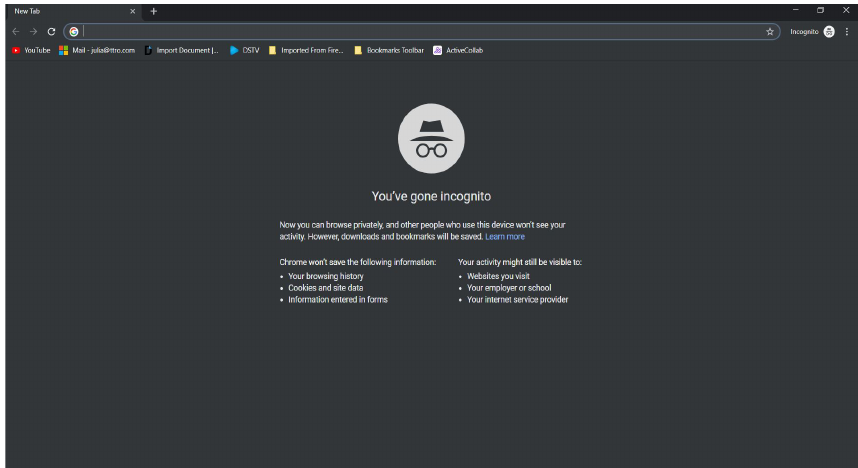
Private browsing modes work differently across browsers:
Google Chrome calls it Incognito Mode. You can identify it by the "secret agent" icon (figure with hat and sunglasses) in the top-left corner. In Incognito Mode, Chrome doesn't keep track of:
- Pages you visit
- Data you enter into forms
- Searches you submit
- Files you download (though the files remain on your computer)
Important
Privacy Limitations
Remember that your internet service provider, employer, or the websites themselves can still see your browsing activity, even in private browsing mode. Private browsing only prevents local storage of your browsing data.
Example
Using Incognito Mode in Chrome
Step 1: Click the "Open menu" icon
Step 2: Click "New incognito tab"
Step 3: Or use the keyboard shortcut Ctrl+Shift+N
Private browsing is particularly useful when:
- Using a shared computer
- Shopping for gifts on a family computer
- Researching sensitive topics
- Testing how websites appear to new visitors
Summary
Key Points to Remember
-
Web browsers are your internet gateway - software applications like Chrome, Firefox, Safari, and Edge that let you access and view web content including images, videos, text, and links.
-
Bookmarks save time and effort - they're shortcuts to your favourite websites that prevent you from having to remember and type full web addresses every time you want to visit a site.
-
Browser features enhance your experience - history tracking helps you find previously visited sites, caching speeds up loading times, and plug-ins add extra functionality your browser didn't originally have.
-
Privacy and security tools protect you - pop-up blockers prevent unwanted advertisements, website blocking helps you stay focused or protect younger users, and private browsing modes prevent your browsing history from being saved locally.
-
Troubleshooting browser issues is straightforward - most problems can be resolved by refreshing the page, clearing your cache, or checking your browser settings for features like pop-up blockers or website restrictions.