Troubleshooting Your Computer (Grade 12 NSC Matric Computer Application Technology): Revision Notes
📚Revision Notes
Troubleshooting Your Computer
When your computer starts acting up, don't panic! There are built-in tools and utilities designed to help you identify and fix common problems. This section explores some essential utility software that can make troubleshooting much easier and more effective.
Note
The tools covered in this guide are already installed on your computer - you don't need to download or purchase additional software to start troubleshooting effectively.
Utility software for troubleshooting
Your operating system comes with several powerful tools that can help diagnose and resolve computer issues. These utilities are designed to be user-friendly and can often solve problems automatically without requiring advanced technical knowledge.
Modern operating systems include sophisticated diagnostic capabilities that can identify hardware failures, software conflicts, and system configuration issues. These tools work behind the scenes to monitor your system's health and can often resolve problems before they become serious enough to affect your daily computer use.
Disc clean-up
One of the most common problems you'll encounter is running out of storage space on your hard drive. When this happens, your computer may slow down significantly or even refuse to run certain programmes. The Disc Clean-up utility is your first line of defence against storage issues.
What is disc clean-up?
Disc Clean-up is a built-in Windows utility that helps you reclaim valuable storage space by identifying and removing files that are no longer needed. This tool is particularly useful because it can safely delete temporary files, clear your Recycle Bin, and remove other unnecessary files without affecting your important documents or programmes.
The utility works by scanning your hard drive and categorising different types of files that can be safely removed. These include temporary internet files, files left over from software installations, and system files that are no longer required.
Important
Always review the file categories before deletion. While Disc Clean-up is designed to be safe, understanding what you're deleting helps you make informed decisions about your system maintenance.
How to use disc clean-up
Using Disc Clean-up is straightforward and involves just a few simple steps. The process is designed to be accessible to users of all technical levels, with clear instructions and safe default settings.
Example
Step-by-Step Guide: Running Disc Clean-up
Step 1: Access the tool Click on the Start menu and search for "disc clean-up"
Step 2: Select your drive Choose "Disc Clean-up" from the search results. Your computer will begin calculating how much space can be freed up
Step 3: Review file categories When the Disc Clean-up window opens, you'll see a list of different file types with checkboxes next to them
Step 4: Make your selections Choose which types of files you want to delete. You can generally select all categories unless you have a specific reason to keep certain files
Step 5: Complete the process Click "OK" to delete the selected files and free up space
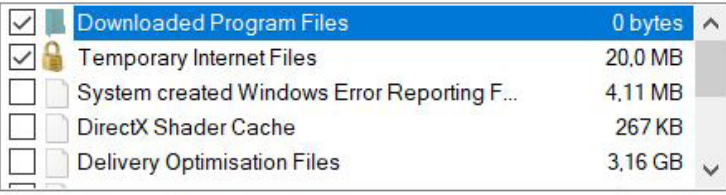
Types of files that can be cleaned
The Disc Clean-up utility can identify and remove several categories of files. Understanding these categories helps you make informed decisions about what to delete and ensures you're maximising the space recovery potential.
Note
Each file category displays the amount of space that can be recovered, making it easy to prioritise which types of files to remove first.
The main categories include:
- Downloaded Programme Files: These are ActiveX controls and Java applets that were automatically downloaded when you visited certain websites
- Temporary Internet Files: Cache files stored by your web browser to speed up page loading
- System-created Windows Error Reporting Files: Diagnostic files created when Windows encounters errors
- DirectX Shader Cache: Temporary files used by graphics applications
- Delivery Optimisation Files: Files used by Windows Update that are no longer needed
Each category shows you exactly how much space can be recovered, helping you make informed decisions about what to delete.
Expected results from disc clean-up
The amount of space you can recover depends on how frequently you use the tool. If you rarely clean up your system, you might be able to free several gigabytes of space in one session. However, if you use Disc Clean-up regularly, you may only recover a few hundred megabytes each time.
Important
Make it a habit: Regular use of this utility is recommended to keep your system running smoothly and prevent storage-related performance issues. Consider running Disc Clean-up monthly as part of your computer maintenance routine.
Wizards
Troubleshooting computer problems can be time-consuming and frustrating, especially when you're not sure what's causing the issue. Fortunately, your operating system includes automated troubleshooting tools called wizards that can help diagnose and fix problems quickly.
What are troubleshooting wizards?
Troubleshooting wizards are intelligent system utilities that come built into your operating system. These tools are designed to automatically check whether your operating system or hardware components are functioning correctly. When a problem is detected, the wizard will attempt to fix it automatically.
If the wizard cannot resolve the issue on its own, it will guide you through a series of questions and diagnostic steps to help identify the root cause of the problem. This systematic approach makes troubleshooting much more manageable for users who may not have extensive technical knowledge.
Note
Modern troubleshooting wizards use artificial intelligence and machine learning to improve their diagnostic accuracy over time, learning from common problems and their solutions.
How wizards help with problem-solving
The beauty of troubleshooting wizards lies in their systematic approach to problem-solving. Rather than leaving you to guess what might be wrong, these tools provide a structured methodology that saves time and reduces frustration.
These automated helpers offer several key advantages:
- Automatically scan for common issues
- Test various system components and settings
- Provide step-by-step guidance when manual intervention is needed
- Offer specific solutions based on the problems they discover
- Save you time by focusing on the most likely causes first
Common problems that wizards can fix
Troubleshooting wizards are particularly effective at resolving several types of common computer problems. Their effectiveness comes from their ability to test multiple potential causes quickly and systematically.
Network connection issues: If you're having trouble connecting to the internet or your local network, network troubleshooting wizards can check your connection settings, test your network adapter, and identify configuration problems.
Printing problems: When your printer isn't working correctly, printing wizards can check driver installations, test communication between your computer and printer, and resolve common printing errors.
Software compatibility problems: These wizards help identify when programmes aren't running correctly due to compatibility issues with your operating system or other software.
Note
The wizards work by running automated tests and checks in the background, then presenting you with their findings and recommended solutions in an easy-to-understand format.
Remember!
Summary
Key Points to Remember:
- Disk Clean-up is your storage space saver - Use it regularly to remove unnecessary files and keep your computer running smoothly
- Prevention is better than cure - Regular maintenance with these tools can prevent many problems from occurring in the first place
- Wizards are your automated helpers - Let them do the diagnostic work for you rather than trying to guess what's wrong
- Start with the simplest solutions - Both Disc Clean-up and troubleshooting wizards address the most common causes of computer problems
- These tools are built-in and free - You don't need to purchase additional software to keep your computer running well