Date and Time Calculations (Grade 12 NSC Matric Computer Application Technology): Revision Notes
📚Revision Notes
Date and Time Calculations
Understanding how Excel handles dates and times
Excel spreadsheet programmes have powerful built-in capabilities for working with dates and times, making them incredibly useful for tracking deadlines, calculating ages, measuring durations, and managing schedules. However, before diving into calculations, it's essential to understand how Excel actually stores and processes date and time information.
Note
Understanding Excel's internal representation of dates and times is crucial for performing accurate calculations and avoiding common errors in your spreadsheets.
Excel's date system
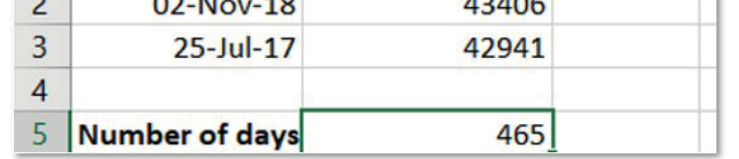
In Excel, dates are not stored as text but as numerical values representing the number of days that have passed since 1st January 1900. This system allows Excel to perform mathematical operations on dates easily. For example, the date 2nd November 2018 has a numerical value of 43406, while 25th July 2017 has a numerical value of 42941.
Example
Worked Example: Basic Date Arithmetic
To calculate the number of days between these two dates, you simply subtract one numerical value from the other:
days
This numerical representation is what makes date arithmetic possible in Excel.
Time representation
Unlike dates, times are stored as decimal values representing fractions of a day. Since there are 24 hours in a day, each hour represents (approximately 0.042) of a day. For example, 0.5 represents 12:00 PM (noon), and 0.75 represents 6:00 PM.
Essential date functions
Excel provides several built-in functions to work with dates effectively. These functions help you extract information from dates or insert current date information automatically.
Getting the current date and time
The TODAY() function automatically inserts the current date into a cell. This is particularly useful when you want your spreadsheet to always show up-to-date information.

The NOW() function goes one step further by displaying both the current date and time. This function updates automatically whenever the spreadsheet recalculates.

Important
Functions like TODAY() and NOW() update automatically, which is useful for dynamic spreadsheets but might cause confusion if you need static values for record-keeping.
Extracting date components
You can break down dates into their individual components using these functions:
YEAR() function: Extracts the year from a date value. For example, =YEAR(A2) will return 2019 if cell A2 contains the date 2019/07/03.

MONTH() function: Returns the month number (1-12) from a date. The formula =MONTH(A2) would return 7 for July.

DAY() function: Extracts the day of the month from a date. Using =DAY(A2) would return 3 for the 3rd day of the month.

Calculating differences between dates
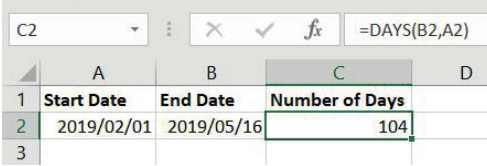
The DAYS() function calculates the number of days between two dates. The syntax is =DAYS(end_date, start_date). This function is invaluable for project planning and deadline tracking.
Important
Pay careful attention to the order of arguments in the DAYS() function - the end date comes first, then the start date. Reversing these will give you a negative result.
Working with time functions
Excel also provides specific functions for working with time components, allowing you to extract hours, minutes, and seconds from time values or create time values from individual components.
Extracting time components
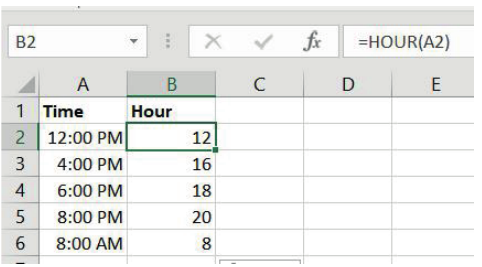
HOUR() function: Returns the hour component of a time as a number between 0 and 23 (24-hour format).
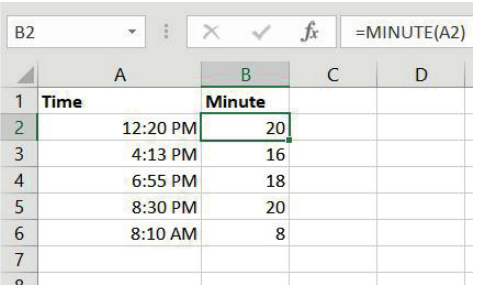
MINUTE() function: Extracts the minutes from a time value, returning a number between 0 and 59.
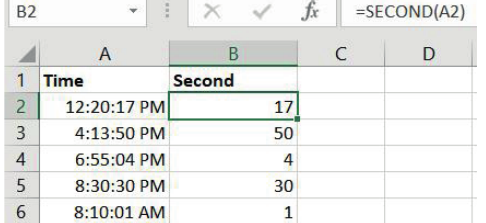
SECOND() function: Returns the seconds component from a time value, also as a number between 0 and 59.
Creating time values
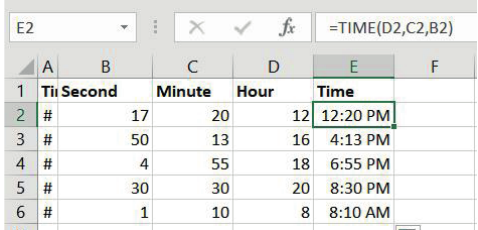
TIME() function: Combines individual hour, minute, and second values to create a formatted time. The syntax is =TIME(hour, minute, second).
Formatting dates and times
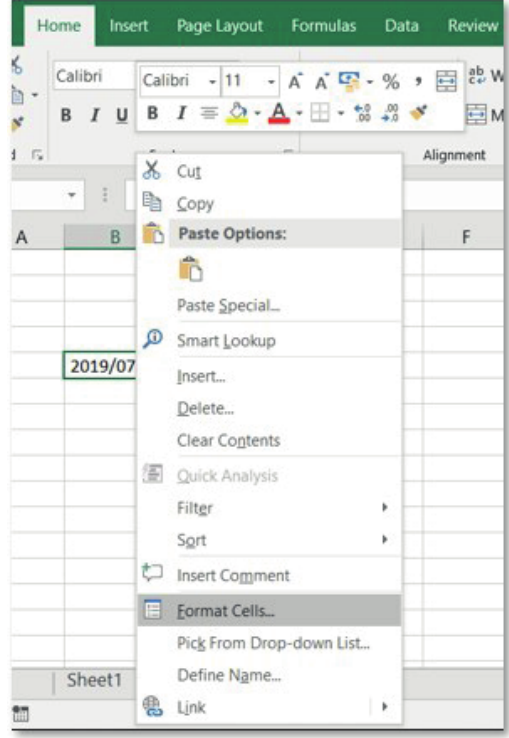
Excel offers extensive formatting options to display dates and times according to your preferences. You can access these options through the Format Cells dialogue box.
Note
To format dates or times:
- Right-click on the cell containing the date or time
- Select "Format Cells" from the context menu
- Choose from predefined date/time formats or create custom formats
- Select your preferred display style
You can also create custom date and time formats by selecting the "Custom" category and entering format codes to specify exactly how you want your dates and times to appear.
Performing date calculations
Date arithmetic in Excel follows simple mathematical principles. When you subtract one date from another, Excel returns the difference in days. This forms the basis for many practical calculations.
Calculating age
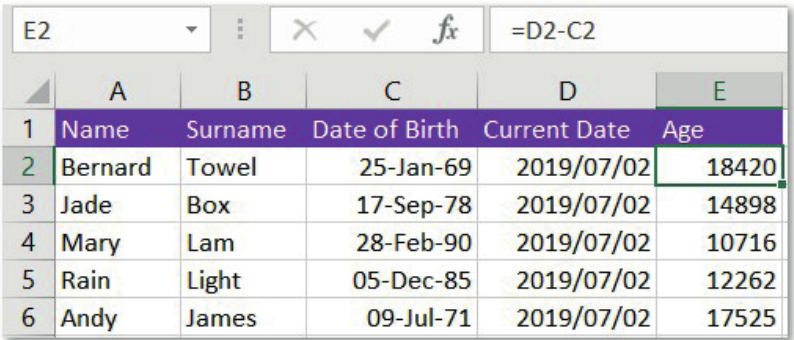
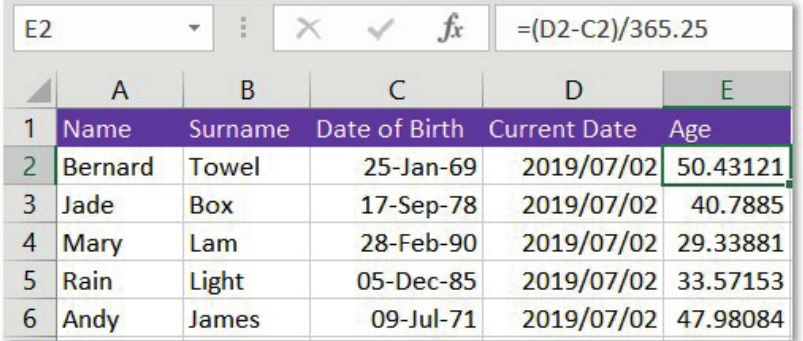
To calculate someone's age, you subtract their birth date from the current date. However, since this gives you the age in days, you need to divide by 365.25 (accounting for leap years) to get the age in years.
Example
Worked Example: Age Calculation
The formula =(current_date - birth_date)/365.25 converts the day difference into years.
Step 1: Calculate the difference in days Current date - Birth date = Days lived
Step 2: Convert to years Days lived ÷ 365.25 = Age in years
The 365.25 accounts for leap years occurring every 4 years.
Determining quarters
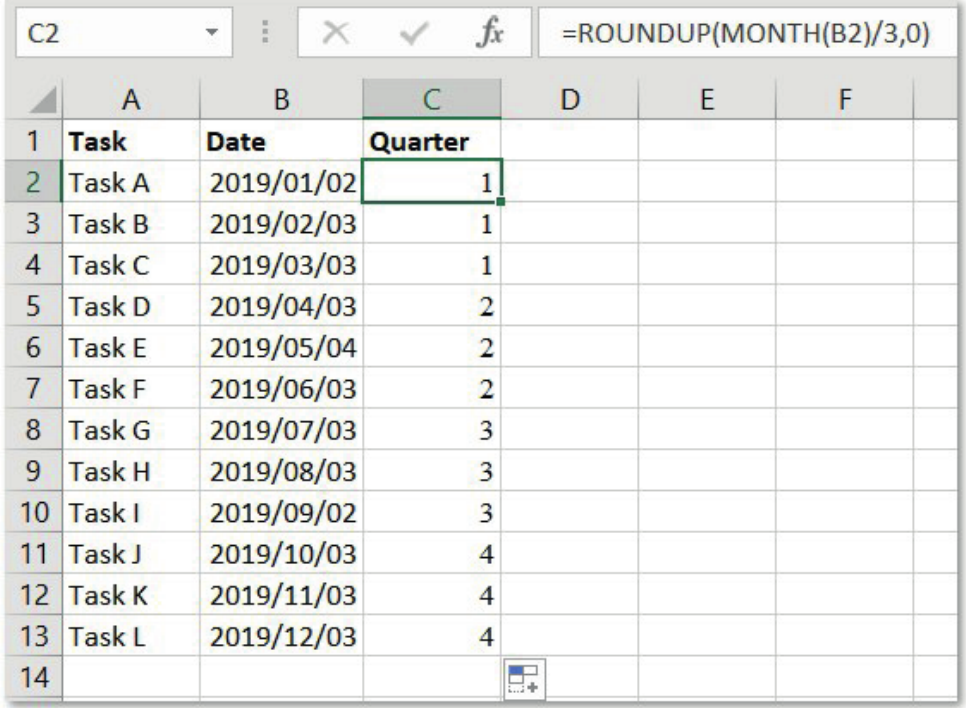
For project management and financial reporting, you might need to determine which quarter of the year a particular date falls into. This can be achieved by combining the MONTH() and ROUNDUP() functions:
Example
Worked Example: Quarter Calculation
Formula: =ROUNDUP(MONTH(date)/3,0)
Step 1: Extract the month number using MONTH(date) Step 2: Divide by 3 to get the quarter position Step 3: Use ROUNDUP() to round to the nearest whole number
This gives you the quarter (1, 2, 3, or 4).
Time calculations and duration analysis
Time calculations are essential for scheduling, productivity analysis, and resource management. Excel handles time arithmetic similarly to date arithmetic, but you need to understand how to convert the results into meaningful units.
Basic time differences
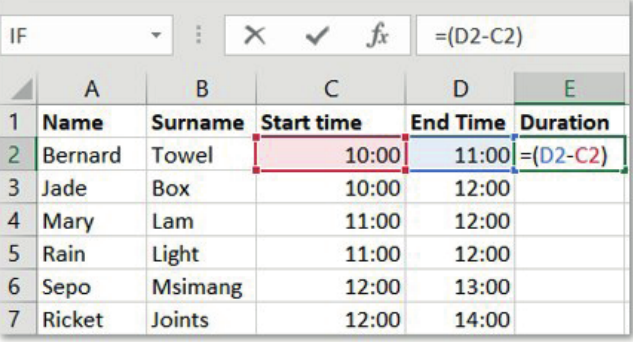
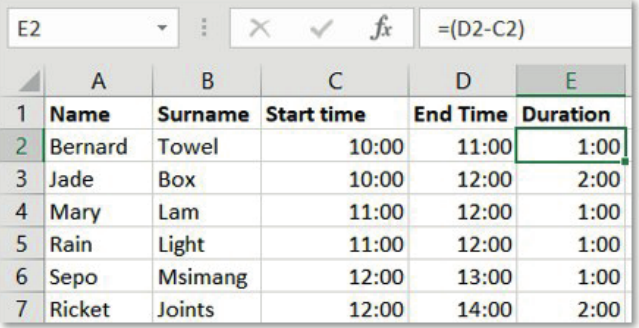
To calculate the duration between two times, subtract the start time from the end time: =(end_time - start_time). This gives you the result as a fraction of a day.
Converting to hours and minutes
Since time differences are expressed as fractions of a day, you need to multiply by the appropriate factor to get hours or minutes:
Example
Worked Example: Time Conversion
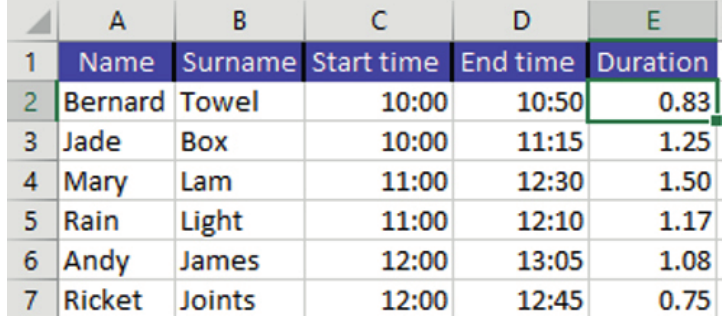
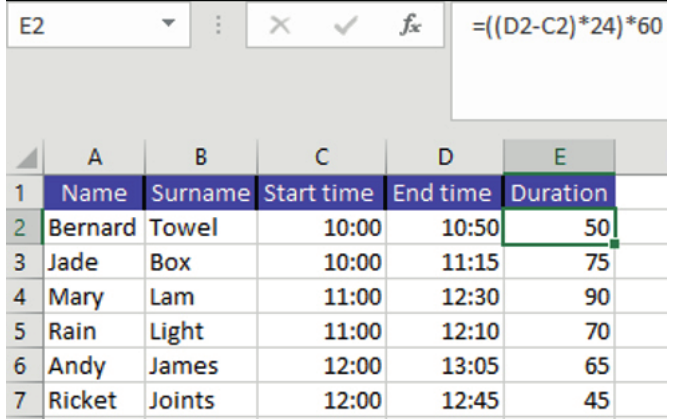
To convert to hours: Formula: =(end_time - start_time)*24 Reasoning: There are 24 hours in a day
To convert to minutes: Formula: =((end_time - start_time)*24)*60 Reasoning: 24 hours × 60 minutes = 1440 minutes per day
Practical applications
Understanding date and time calculations opens up numerous practical applications in real-world scenarios. Here are some examples of how you might use these skills:
Employee scheduling
When managing staff schedules, you can calculate how long each person works by subtracting their start time from their end time, then convert this to hours for payroll purposes.
Project timeline management
For project management, you can track deadlines by calculating the number of days remaining until completion dates, helping you prioritise tasks and allocate resources effectively.
Age verification systems
In applications requiring age verification, you can automatically calculate ages from birth dates, ensuring compliance with age-related regulations or requirements.
Important
Common Pitfalls and Exam Tips
When working with date and time calculations, keep these important points in mind:
- Date format consistency: Ensure all dates in your spreadsheet follow the same format to avoid calculation errors
- Leap year considerations: When calculating ages or long-term durations, remember to use 365.25 instead of 365 to account for leap years
- Time format understanding: Remember that times are fractions of a day, so you'll often need to multiply by 24 to get meaningful hour values
- Function syntax: Pay careful attention to the order of arguments in functions like DAYS(), where the end date comes first, then the start date
- Automatic updates: Functions like TODAY() and NOW() update automatically, which is useful for dynamic spreadsheets but might cause confusion if you need static values
Summary
Key Points to Remember:
- Excel stores dates as numbers - This numerical system (days since 1st January 1900) enables mathematical operations on dates
- Master the core functions - TODAY(), NOW(), YEAR(), MONTH(), DAY(), DAYS(), HOUR(), MINUTE(), SECOND(), and TIME() are your essential tools for date and time work
- Time arithmetic requires conversion - Multiply time differences by 24 for hours or by 1440 (24×60) for minutes to get meaningful results
- Format cells appropriately - Use Excel's formatting options to display dates and times in the most suitable way for your audience
- Practice with real scenarios - Age calculations, project timelines, and scheduling problems help you understand practical applications of these functions