File Management (Grade 12 NSC Matric Computer Application Technology): Revision Notes
📚Revision Notes
File Management
Why file management matters
When working with word processing documents, you'll often need to share your work with others. However, there's an important challenge to consider: the person you're sharing with might not have the same software or be able to open your document properly. This is where effective file management becomes essential.
Note
The key challenge in document sharing is ensuring compatibility across different devices and software systems. Not everyone has the same applications installed!
The solution is to convert or export your document into a more universal format, such as PDF (Portable Document Format) or XPS (XML Paper Specification). These formats preserve your document's appearance and can be opened on almost any device, making them perfect for sharing.
Preparing documents for sharing
Before you share any document, it's crucial to prepare it properly. Think of this as giving your document a final polish before it goes out into the world. Here's what you need to do:
Important
Essential preparation steps:
- Accept or reject all tracked changes - don't leave any pending edits
- Delete all comments that were used during the editing process
- Remove any highlights that were used for review purposes
- Check that all hyperlinks and bookmarks work as intended
- Complete any final formatting to ensure the document looks professional
This preparation ensures that recipients see a clean, finished document without any of the behind-the-scenes editing marks that were useful during the creation process.
Methods for sharing documents
There are three main approaches you can use to share your documents effectively. Each method has its own advantages depending on your specific needs.
Using the share function
Microsoft Word's Share feature provides a convenient way to distribute your documents electronically. Here's how it works:
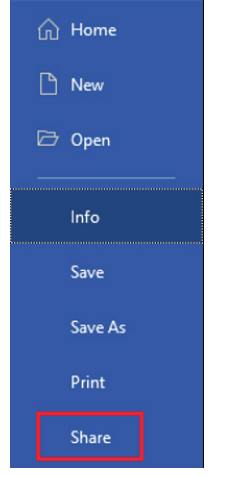
When you access the File menu and select the Share option, you'll see various sharing possibilities. The system can connect with services like Microsoft Outlook or OneDrive to send your document directly to recipients.
Note
The sharing function gives you flexibility in how you send the document - you can attach it as a Word file if the recipient has compatible software, or convert it to PDF format for universal compatibility.
Print to PDF method
One of the most reliable ways to create a PDF version of your document is through the Print function. This might seem counterintuitive since you're not actually printing on paper, but it's a powerful conversion tool.
Example
Worked Example: Converting to PDF via Print
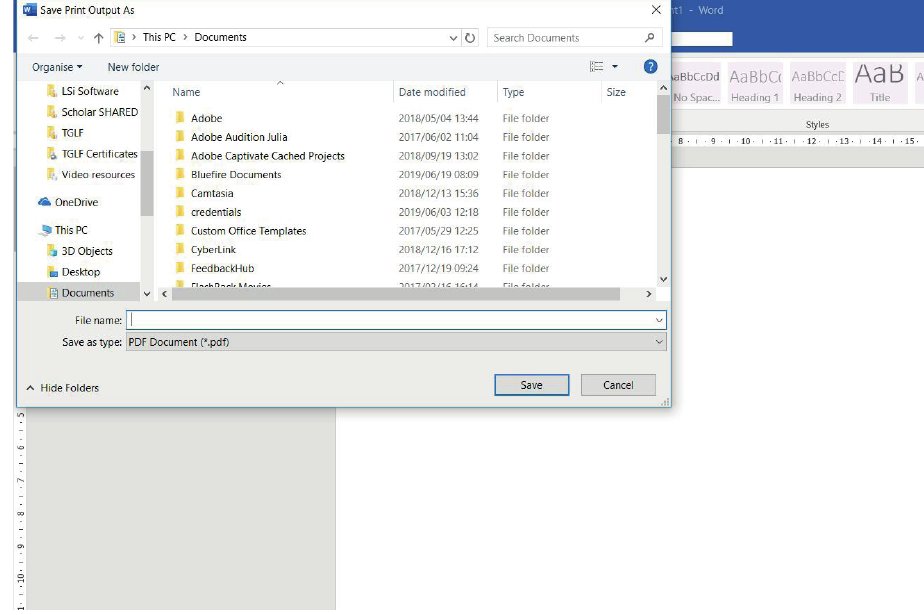
Step 1: Open your document and access the File menu Step 2: Select Print to open the print dialogue Step 3: Instead of selecting a physical printer, choose "Print to PDF" or "Microsoft Print to PDF" Step 4: Configure your print settings (pages to include, paper size, orientation) Step 5: Click Print, which will open a save dialogue Step 6: Choose your file location, name your PDF, and save
This method gives you complete control over how your document appears in PDF format, including which pages to include and how they're formatted.
Export functionality
The Export menu provides the most comprehensive set of options for converting your documents to different formats. This is your go-to tool when you need specific file types or want to explore various sharing options.
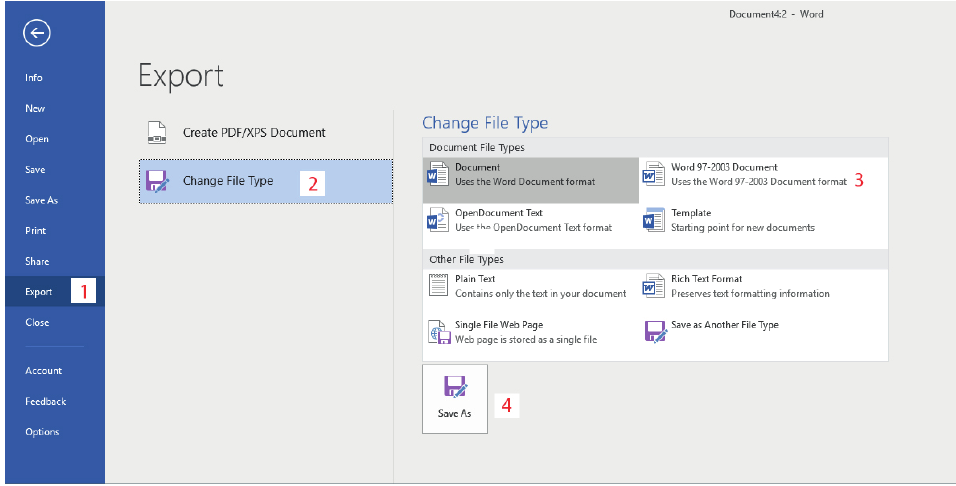
The Export feature offers two main categories:
- Create PDF/XPS Document: Specifically designed for creating these universal formats
- Change File Type: Provides access to numerous other format options
When you select "Create PDF/XPS Document", the system walks you through the conversion process, allowing you to specify exactly how you want your document converted and where to save the result.
Converting documents to different formats
Sometimes you need to convert your document to formats other than PDF. The Export menu's "Change File Type" option provides access to many different formats, each serving specific purposes:
Common format options include:
- Word 97-2003 Document: For compatibility with older versions of Microsoft Word
- Plain Text: Removes all formatting, keeping only the text content
- Rich Text Format: Maintains basic formatting while ensuring broad compatibility
- Web Page formats: For publishing content online
- Template formats: For creating reusable document templates
Note
The conversion process is straightforward: select your desired format from the Export menu, then use the Save As dialogue to choose your file location and complete the conversion.
When converting documents, remember that different formats preserve different elements of your original document. PDF maintains everything exactly as it appears, while plain text strips away all formatting. Choose the format that best matches your sharing needs.
Exam tips for file management
Important
Critical Exam Knowledge:
- Remember the three main sharing methods: Share function, Print to PDF, and Export menu
- Always prepare documents before sharing: Accept changes, remove comments, delete highlights
- Know when to use each format: PDF for universal sharing, Word formats for collaborative editing, plain text for basic content
- Practice the step-by-step processes: File management questions often ask for specific menu sequences
- Understand the differences: Know what each format preserves and what it removes from your original document
Remember!
Summary
Key Points to Remember:
- Always prepare your document first - accept changes, remove comments and highlights before sharing
- Three main sharing methods exist - Share function, Print to PDF, and Export menu, each with different advantages
- PDF format is ideal for universal sharing - it preserves formatting and can be opened on any device
- Export menu offers the most format options - use it when you need specific file types beyond PDF
- Different formats preserve different elements - choose based on what the recipient needs and how they'll use the document