Hardware Components (Grade 12 NSC Matric Computer Application Technology): Revision Notes
📚Revision Notes
Hardware Components
Introduction
Understanding computer hardware is essential for working effectively with technology. Hardware components are the physical parts of a computer system that work together to process, store, and communicate information. These components can be organised into five main categories: input devices, processing devices, storage devices, output devices, and communication devices. Each category serves a specific purpose in the overall functioning of a computer system.
Note
Think of a computer system like a well-orchestrated team where each hardware component has a specific role. Input devices gather information from the outside world, processing devices make sense of that information, storage devices keep it safe for later use, output devices share the results with users, and communication devices connect everything to the wider digital world.
Input devices
Input devices allow users to enter data and instructions into a computer system. They serve as the bridge between human interaction and digital processing, converting physical actions into electronic signals that the computer can understand and process.
Keyboards
Keyboards are fundamental input devices that enable users to enter text, numbers, and symbols into a computer. Different types of keyboards are designed for specific purposes and environments. Standard keyboards are the most common type found in offices and homes, whilst laptop keyboards are built into portable computers with a more compact design. Gaming keyboards often feature special keys and lighting effects to enhance the gaming experience, and virtual keyboards appear on touchscreen devices, allowing users to type by touching the screen.

Pointing devices
Pointing devices control the movement of the cursor on the screen, allowing users to interact with graphical interfaces. The traditional computer mouse remains the most popular pointing device, using optical or laser technology to track movement. Touchpads are commonly found on laptops, providing cursor control through finger gestures on a sensitive surface. Trackballs offer an alternative where users roll a ball with their fingers to move the cursor, which can be helpful for users with limited desk space. Touch screens combine input and output functionality, allowing direct interaction with displayed elements. Joysticks are specialised pointing devices primarily used for gaming and controlling specific applications.
Scanning and reading devices
These devices convert physical documents and objects into digital format, making them accessible to computer systems. Traditional scanners capture images of documents and photographs, converting them into digital files that can be edited and stored. Reading devices use various technologies such as RFID (Radio Frequency Identification), QR codes, and magnetic strips to extract information from specially formatted tags and cards. These technologies are particularly important in retail, inventory management, and security applications.
Note
RFID technology is everywhere in modern life - from contactless payment cards to keyless entry systems in cars and buildings. The same technology that lets you tap your card to pay for coffee is also used in warehouse management systems to track inventory automatically.
Video devices
Video devices capture visual information and convert it into digital format for processing and storage. Video cameras and webcams record moving images and are essential for video conferencing, content creation, and security monitoring. Digital cameras capture still images with high resolution and quality, often featuring advanced settings for professional photography. These devices have become increasingly important for communication, entertainment, and documentation purposes.
Audio devices
Audio input devices enable voice communication and sound recording. Microphones convert sound waves into electrical signals that computers can process, making them essential for video calls, voice recording, and voice recognition systems. Voice-recognition devices use advanced software to interpret spoken words and convert them into text or commands, enabling hands-free operation of computer systems.
Biometric devices
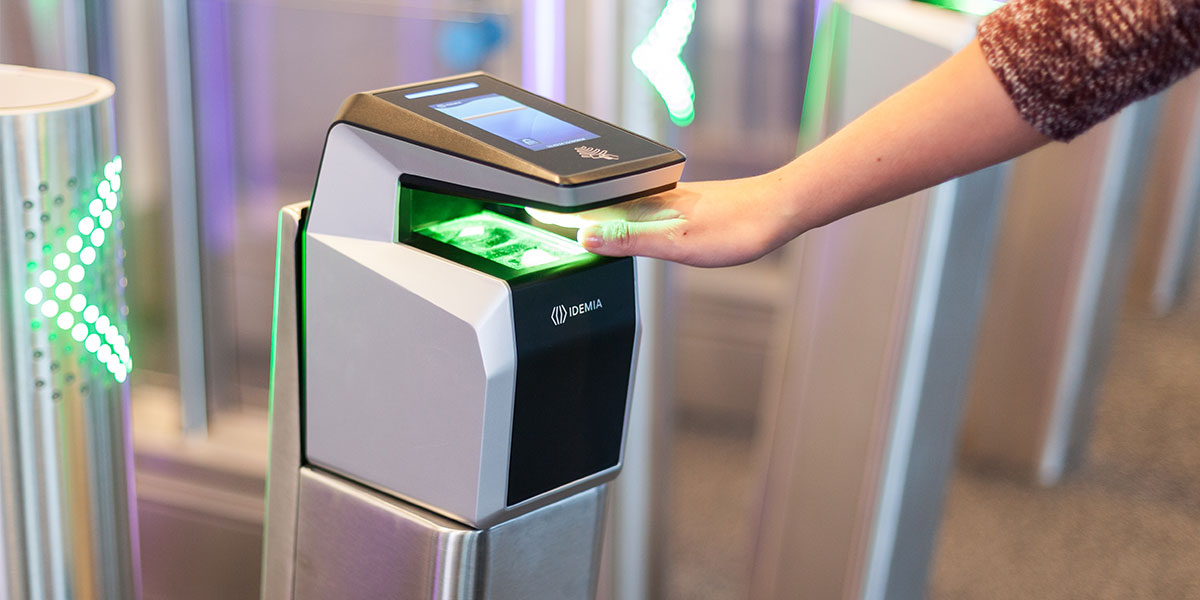
Biometric devices measure unique physical characteristics for identification and security purposes. Fingerprint scanners analyse the unique patterns in a person's fingerprints, providing secure access to devices and systems. Eye and iris scanners examine the unique patterns in a person's eyes, offering extremely high levels of security. Facial recognition devices use cameras and software to identify individuals based on their facial features, becoming increasingly common in smartphones and security systems.
Important
Biometric security is based on the principle that physical characteristics like fingerprints and iris patterns are unique to each individual and cannot be easily replicated or stolen like passwords. However, it's important to understand that biometric data, once compromised, cannot be changed like a password can.
Point-of-sale systems
Point-of-sale (POS) terminals and ATMs are specialised input devices used in commercial environments. POS systems in retail and restaurant industries help maintain accurate tracking of stock and orders, processing transactions and updating inventory databases. ATMs (Automated Teller Machines) are used exclusively in the banking industry, allowing customers to perform various banking transactions without human assistance.
Processing devices
Processing devices form the core of any computer system, handling the computational tasks and coordinating the operation of all other components. These components work together to execute programmes, process data, and manage system resources.
Motherboard
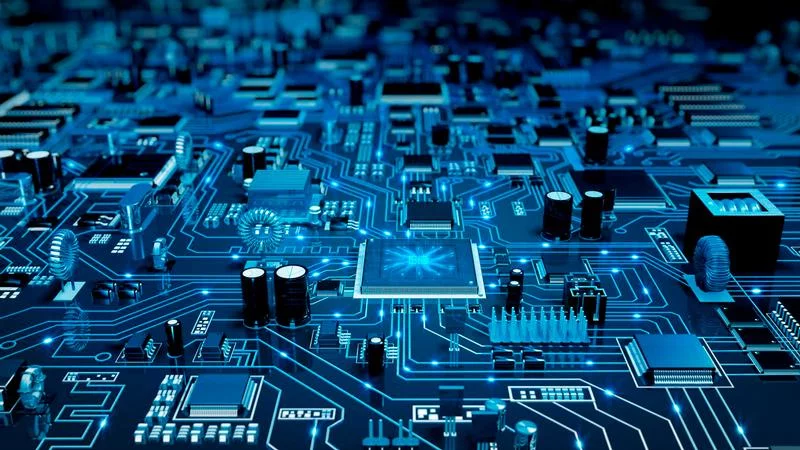
The motherboard serves as the main circuit board that connects all computer components together. It provides the physical foundation for the computer system, housing the CPU, memory slots, expansion slots, and various connectors. The motherboard also contains the chipset, which manages communication between different components and ensures they work together efficiently.

Note
Think of the motherboard as the nervous system of a computer - just as your nervous system connects your brain to all parts of your body, the motherboard connects the CPU to all other components, allowing them to communicate and work together as a unified system.
CPU and GPU
The Central Processing Unit (CPU) completes the general processing tasks of the computer, executing instructions from programmes and coordinating system operations. It serves as the "brain" of the computer, performing calculations, making decisions, and managing data flow. The Graphics Processing Unit (GPU) specialises in graphics processing tasks, handling the complex calculations required for rendering images, videos, and 3D graphics. Modern GPUs are also used for parallel processing tasks beyond graphics, such as scientific computing and artificial intelligence applications.
Important
CPU vs GPU: Different Strengths for Different Tasks
While the CPU excels at sequential processing and complex decision-making tasks, the GPU is designed for parallel processing of many simple calculations simultaneously. This is why modern computers often use both - the CPU handles the operating system and general applications, while the GPU accelerates graphics, video processing, and increasingly, AI and machine learning tasks.
Memory systems
Random Access Memory (RAM) provides very high-speed storage that temporarily stores data the CPU currently uses. RAM is volatile memory, meaning its contents are lost when power is removed. The amount and speed of RAM significantly affect system performance, as the CPU can access data in RAM much faster than from storage devices.
Read-Only Memory (ROM) is non-volatile memory that retains information even when the computer is powered off. When a computer starts up, it uses the information stored in ROM to begin the boot process and initialise system components. ROM typically contains firmware and basic system instructions needed for the computer to function.
Example
Worked Example: Understanding Memory Types
To understand the difference between RAM and ROM, consider this analogy:
RAM is like your desk workspace:
- You can read from it and write to it quickly
- When you turn off the lights and leave (power off), everything gets cleared away
- The more desk space you have, the more projects you can work on simultaneously
ROM is like a reference book:
- Contains essential information that never changes
- Information stays there even when the lights are off
- You can read from it, but you can't write new information to it
Storage devices
Storage devices provide long-term data storage capabilities, allowing users to save files, programmes, and operating systems permanently. These devices retain information even when power is removed, making them essential for data persistence and system functionality.
Hard disc drives
Hard Disc Drives (HDDs) provide slow but reliable long-term storage for computer data. They use magnetic storage technology with spinning discs and moving read/write heads to access data. HDDs are available as internal drives built into the computer or external drives that connect via USB or other interfaces. Although slower than modern alternatives, HDDs offer large storage capacities at relatively low costs, making them suitable for storing large amounts of data that don't require frequent access.
Solid-state drives
Solid-State Drives (SSDs) offer fast, long-term storage using flash memory technology with no moving parts. SSDs provide significantly faster data access speeds compared to HDDs, resulting in quicker system boot times, faster file transfers, and improved overall system responsiveness. Although more expensive per gigabyte than HDDs, SSDs have become increasingly popular due to their speed, reliability, and energy efficiency.
Example
Worked Example: Comparing Storage Performance
Typical Performance Comparison:
HDD Performance:
- Boot time: 30-60 seconds
- File transfer speed: 80-120 MB/s
- Cost per GB: £0.03-0.05
SSD Performance:
- Boot time: 10-20 seconds
- File transfer speed: 300-550 MB/s
- Cost per GB: £0.10-0.20
Conclusion: SSDs cost 3-4 times more but provide 3-5 times faster performance, making them ideal for operating systems and frequently used programmes.
Portable storage
Flash discs, also known as USB drives or thumb drives, are very small, non-volatile, portable devices that connect to computers using USB ports. They provide convenient storage for transferring files between different computers and creating backup copies of important data.
Memory cards are non-volatile storage devices used mainly for storing digital information in cameras, smartphones, and other portable devices. They come in various formats and sizes, offering flexible storage solutions for different types of electronic devices.

Optical storage
CD, DVD, and Blu-ray discs are portable storage devices that use optical technology to store data. Data files from a computer can be copied to these devices using the appropriate writer. While less common than in the past due to cloud storage and high-capacity flash drives, optical storage remains useful for distributing software, creating permanent archives, and sharing large amounts of data.
Note
Optical storage uses laser light to read and write data by creating tiny pits and lands on the disc surface. The different reflective properties of these areas represent the 1s and 0s of digital data. This technology is particularly valuable for long-term archival storage because properly stored optical discs can last for decades without degradation.
Output devices
Output devices present processed information to users in various formats, including visual, audio, and physical outputs. These devices convert digital information from the computer into forms that humans can perceive and use.
Display devices
Display devices show the images generated by the computer, serving as the primary visual interface between users and their systems. LCD monitors are the most common type, using liquid crystal technology to display clear, bright images with low power consumption. Television monitors can serve dual purposes, functioning as both computer displays and entertainment screens. Data projectors and DLP devices project computer images onto larger surfaces, making them ideal for presentations, meetings, and classroom instruction.
Printers
Printers convert electronic data into physical hardcopy documents, enabling users to create tangible versions of digital information. Inkjet printers use liquid ink sprayed through tiny nozzles to create images and text on paper, offering good quality for both text and colour images. Laser printers use laser technology and toner powder to produce high-quality text and graphics quickly and efficiently. Multi-function devices combine printing, scanning, copying, and sometimes faxing capabilities in a single unit. Ink tank printers use refillable ink reservoirs instead of cartridges, offering cost-effective printing for high-volume users.

Important
Choosing the Right Printer Technology
- Inkjet printers: Best for colour photos and low-volume printing
- Laser printers: Ideal for high-volume text documents and professional quality
- Ink tank printers: Most economical for users who print frequently
- Multi-function devices: Space-saving solution for offices needing multiple capabilities
Audio output devices
Audio output devices convert digital data into sound that users can hear. Headsets and speakers transform electrical signals from the computer into sound waves, enabling users to listen to music, hear system sounds, participate in video calls, and enjoy multimedia content. These devices are essential for multimedia applications, communication, and accessibility features.
Communication devices
Communication devices enable computers to connect with networks and other devices, facilitating data sharing, internet access, and collaborative work. These devices form the foundation of modern networked computing environments.
Network infrastructure devices
Routers organise and route data between different networks, managing traffic flow and ensuring data reaches its intended destination. They can route data from a home network to the internet and connect multiple devices to the same network efficiently. Routers often include security features such as firewalls to protect connected devices from external threats.
Modems connect computers to networks and the internet, converting digital signals from computers into formats suitable for transmission over various communication media such as telephone lines, cable systems, or fibre optic networks.
Switches connect multiple computers within the same internal network, enabling them to communicate with each other and share resources. Unlike hubs, switches intelligently direct data only to its intended recipient, improving network efficiency and security.
Example
Worked Example: Understanding Network Device Roles
Scenario: Setting up internet access for a small office with 5 computers
Step 1: Modem connects to your Internet Service Provider (ISP)
- Converts your ISP's signal format to digital data your network can use
Step 2: Router connects to the modem
- Creates a local network and manages internet access for multiple devices
- Assigns local IP addresses to each device
- Provides security through firewall features
Step 3: Switch connects to the router (if more ports needed)
- Allows additional wired devices to connect to the network
- Manages efficient communication between local devices
Result: All devices can access the internet and communicate with each other through this three-tier setup.
Summary
Key Points to Remember:
-
Hardware components work together: Input devices collect data, processing devices handle computations, storage devices preserve information, output devices present results, and communication devices enable connectivity.
-
Choose the right device for the task: Different types of input devices (keyboards, mice, scanners) serve different purposes, and understanding their capabilities helps you select the most appropriate tool.
-
Storage speed vs capacity trade-offs: SSDs offer faster performance but cost more, while HDDs provide larger capacity at lower cost - choose based on your specific needs.
-
Processing power depends on multiple components: The CPU handles general tasks, GPU manages graphics, and sufficient RAM ensures smooth performance - all three must work together effectively.
-
Network devices have specific roles: Routers manage traffic between networks, modems provide internet connectivity, and switches connect local devices - understanding these differences helps troubleshoot connectivity issues.