The Role of the Operating System (Grade 12 NSC Matric Computer Application Technology): Revision Notes
📚Revision Notes
The Role of the Operating System
What is an operating system?
An operating system is a collection of system software that acts as the bridge between you and your computer's hardware. Think of it as the master coordinator that controls all the computer's hardware components and software applications, while providing you with a way to interact with and manage the computer's resources.
The operating system has many different functions and responsibilities, but to make these easier to understand, we can group them into three main categories based on what they aim to achieve.
Note
Understanding the operating system's role is crucial because it affects every aspect of how you interact with your computer - from the moment you turn it on until you shut it down.
The three main functions of an operating system
The operating system performs three essential roles:
- Starting the computer - Getting everything up and running when you power on
- Providing a user interface - Giving you a way to interact with the computer
- Managing programs - Controlling how applications run and share resources
Let's explore each of these functions in detail to understand how your operating system works behind the scenes.
Starting the computer (Boot process)
The booting process explained
When you press the power button on your computer, a complex process called booting begins. This is the sequence of events that transforms your computer from a powered-off state into a fully functional system ready for use.
During booting, the computer's central processing unit (CPU) starts with no software loaded in its main memory. This means the system must load essential software components step by step. The boot process loads picture-like items such as icons and arrows that you'll see on your screen, preparing the visual interface you'll interact with.
Important
The boot process is critical - if it fails, your computer won't be able to start properly. This is why boot errors can prevent you from accessing your files and programmes.
Loading the GUI
One of the most important parts of the boot process is loading the GUI (Graphical User Interface). The GUI consists of several key components:
- Pointer - The arrow or cursor you control with your mouse
- Icons - Small pictures representing programmes or files
- Windows - Rectangular areas where programmes display information
- Menus - Lists of options and commands
- Scroll bars - Tools for moving up and down in documents
- Buttons - Clickable elements that trigger actions
Common GUIs you might recognise include those found in Microsoft Windows, Mac OSX, Chrome OS, GNOME, KDE, and Android. Each of these must be loaded into memory before you can start using your computer effectively.
Providing a user interface
Modern user interfaces
In the past, using a computer required extensive technical knowledge just to open simple programmes like word processors. Fortunately, modern operating systems have revolutionised this experience. Today, even young children can easily use computers to open applications and play games, all thanks to the user-friendly interfaces provided by modern operating systems.

The operating system creates a user interface that makes your life much easier by providing you with intuitive ways to interact with the computer. Most modern computers, laptops and smartphones use a graphical user interface (GUI), which allows you to interact with programmes using point-and-click technology.
Note
The evolution from text-based command interfaces to graphical user interfaces represents one of the most significant advances in making computers accessible to everyday users.
Examples of user interface elements
When you look at your computer screen, you'll see various GUI elements that the operating system provides:
- Icons - Visual representations of programmes and files
- Program windows - Containers where applications display their content
- Menus - Organised lists of commands and options
- Browser tabs - Separate sections within web browsers
- Buttons - Interactive elements you can click to perform actions
All these elements work together to create an environment where you can easily navigate, open programmes, and complete tasks without needing to remember complex text commands.
Managing programmes
Resource allocation and multitasking
One of the most crucial tasks of the operating system is helping your computer manage hundreds of processes that run simultaneously. The system needs to ensure that the right amount of resources is allocated to each process, and that the correct hardware is activated when needed.

Example
Real-World Example: Multitasking in Action
Imagine you're listening to music while playing a game. Your operating system must allocate the exact amount of resources to each application, allowing them to run at the same time. You wouldn't want your computer to spend half its time playing music and the other half running your game - you want both to work smoothly together.
Modern computers are very efficient at managing resources in this way. Sometimes your computer might run out of resources when running multiple intensive processes simultaneously. When this happens, you might need to close programmes that aren't important, or restart your computer. If problems persist, you may need to upgrade to a more powerful computer with additional resources.
Single vs multiple users
Operating systems can be designed to accommodate different numbers of users:
Single-user operating systems are designed for home and private use. These computers use software licensed for just one person, meaning only a single user can operate the computer at any given time. Examples include Microsoft Windows and MacOS on personal computers.
Multiple-user operating systems allow more than one user to access and use the computer system simultaneously. These are typically used as servers that can be accessed by multiple users through a computer network. A mainframe computer uses multiple computer terminals connected to the main system. Examples of multi-user operating systems include Unix and Linux.
Multitasking capabilities
Older operating systems had a significant limitation - they could only load one programme into the computer's memory at a time, meaning you could only run a single application.
Modern multitasking operating systems overcome this limitation by allowing your computer to run multiple processes simultaneously. You can see this in action when you use your smartphone - you might listen to music while browsing the internet and chatting with friends on messaging apps.
Important
Multitasking doesn't stop with the applications you actively use. The system also runs background services that handle tasks like checking for messages, updating applications, managing your cellular network connection, and maintaining system security - all happening simultaneously behind the scenes.
Task Manager (Windows)
What is Task Manager?
To help you understand how your computer uses its resources, Windows operating systems include a built-in application called Task Manager. This powerful tool allows you to see which tasks and applications are currently running on your computer, and how much memory and CPU processing power is being dedicated to each individual task.
Task Manager also gives you control over your system by allowing you to forcefully end applications that have stopped working or are using too many resources. The Task Manager window is organised into several tabs, each providing specific information about different aspects of your system.
Note
Task Manager is an essential troubleshooting tool that helps you identify which programmes might be causing your computer to slow down or freeze.
Task Manager tabs explained
The Task Manager contains seven main tabs, each serving a specific purpose:
| Tab | Description |
|---|---|
| Processes | Shows which programmes are currently running and the resources they're using |
| Performance | Displays real-time information about CPU, memory, hard drive, network and GPU usage |
| App History | Tracks how much CPU and network resources applications have used over time |
| Start-up | Lists applications that automatically start when you turn on your computer, allowing you to disable some to speed up boot time |
| Users | Shows currently signed-in users and their resource consumption |
| Details | Displays every process currently running on the computer |
| Services | Provides information about all Windows services installed on your computer |
How to access Task Manager
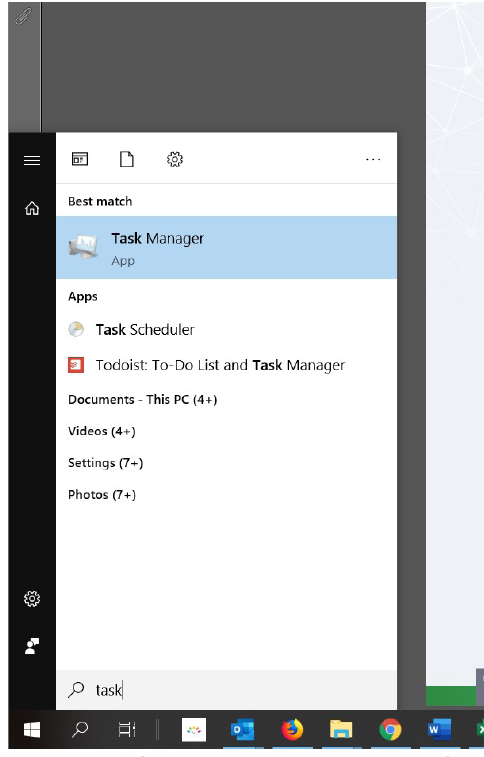
You can open Task Manager in two simple ways:
- Through the Start menu: Open the Start menu and type "task manager" in the search box
- Direct click: Right-click on "Task Manager" in the search results
On most Windows 10 computers, you'll typically find more than 50 applications and processes running at any given time, demonstrating just how much multitasking your operating system handles automatically.
Summary
Key Points to Remember:
- The operating system has three main roles: starting the computer, providing a user interface, and managing programmes
- Booting is the process that loads essential software and the GUI when you turn on your computer
- Modern GUIs include pointers, icons, windows, menus, scroll bars, and buttons that make computers easy to use
- Multitasking allows your computer to run multiple programmes simultaneously by efficiently allocating resources
- Task Manager is a Windows tool that shows you exactly how your computer is using its resources across different programmes and processes