Using a Calculator (Grade 12 NSC Matric Mathematical Literacy): Revision Notes
📚Revision Notes
Using a Calculator
Understanding your calculator layout
Basic calculators have a standard layout that you need to become familiar with for Mathematical Literacy. Understanding where each key is located and what it does will help you work more efficiently and avoid mistakes during exams.
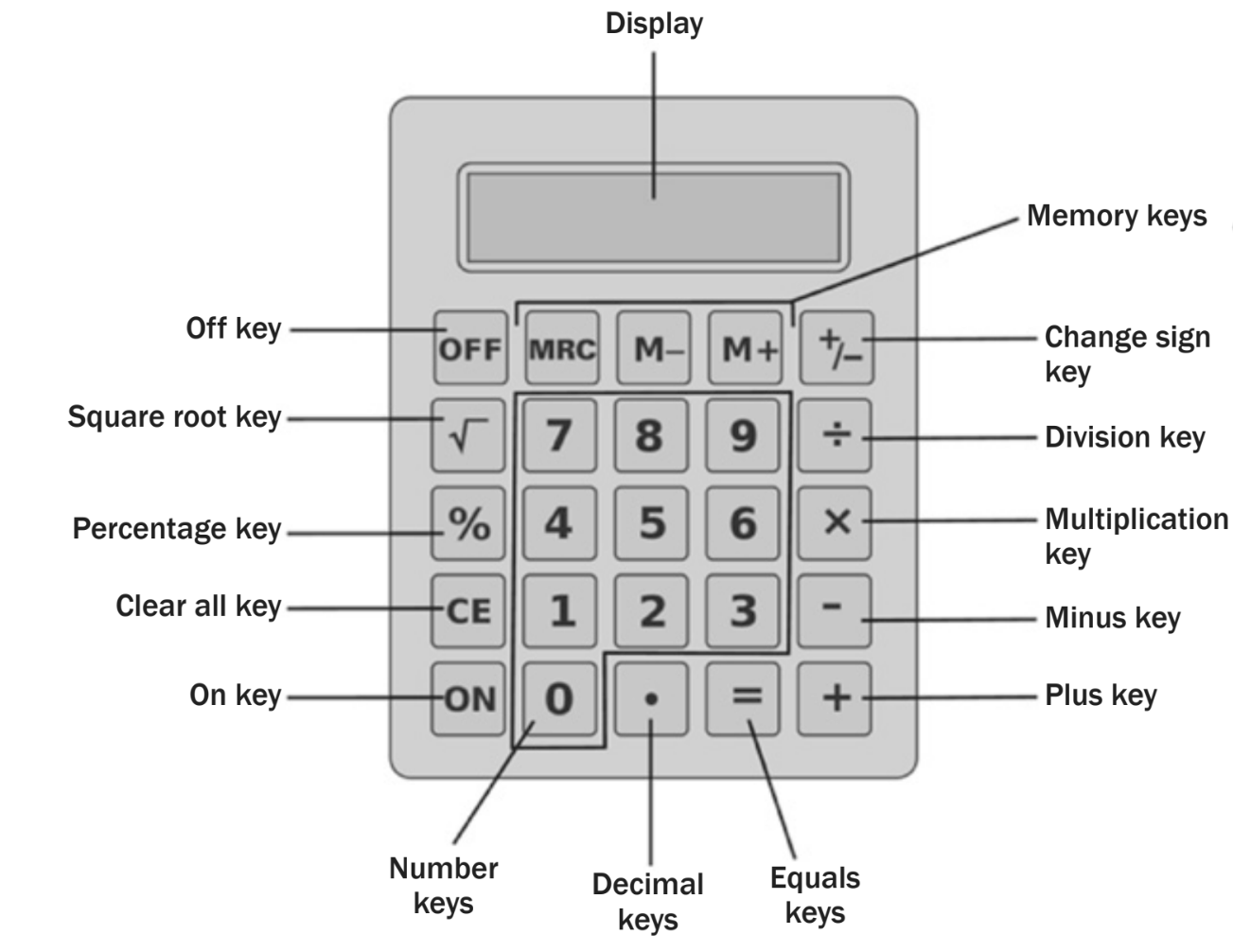
Your calculator contains several important groups of keys:
- Number keys (0-9): Used to enter numbers into calculations
- Operation keys (+, -, ×, ÷): Perform basic mathematical operations
- Memory keys (MRC, M-, M+): Store and recall numbers for complex calculations
- Function keys (√, %, +/-): Perform special mathematical functions
- Control keys (ON, OFF, CE, =): Control calculator operation and complete calculations
The display screen at the top shows the numbers you enter and the results of your calculations. This is where you'll see your answers.
Note
Familiarising yourself with your calculator layout before exams is crucial. Spend time locating each type of key so you can work efficiently under exam conditions.
How large numbers appear on calculators
When working with large numbers, your calculator may display them in different ways. For example, the number 24 900 might appear as:
- 24900 (without spaces)
- 24'900 (with apostrophes as separators)
This is normal and both formats represent the same number. Don't be confused if your calculator display looks slightly different from what you expect.
Changing the sign of numbers
The change sign key (+/-) is very useful when you need to work with negative numbers. This key changes a positive number to negative, or a negative number to positive.
For example:
- To change 100 to -100, enter 100 then press the (+/-) key
- To change -50 to 50, enter -50 then press the (+/-) key
Practice using this function, as it's essential for many Mathematical Literacy problems involving debts, temperature changes, or profit and loss calculations.
Checking your calculations through estimation
Always check your calculator work by doing a quick estimation first. This helps you spot mistakes before they cost you marks in exams.
Estimation means making a rough calculation using rounded numbers. You don't need to be exact - you just need to get close to the right answer to check if your calculator result makes sense.
Here's how estimation works:
- Round numbers to make them easier to work with
- Do the simpler calculation in your head
- Compare this rough answer to your calculator result
- If they're very different, recalculate
Important
Always do each calculation twice on your calculator. If you get different answers, do it a third time. This is especially important when adding long lists of numbers. This simple habit can save you valuable marks in exams.
Understanding BODMAS order of operations
When your calculator handles complex expressions with multiple operations, it follows the BODMAS rule. This determines the correct order for performing operations.
Important
BODMAS stands for:
- Brackets () - Do these first
- Of or orders (powers, roots, etc.) - Do these second
- Division and Multiplication - Do these third (left to right)
- Addition and Subtraction - Do these last (left to right)
This rule prevents calculation errors and ensures you get the correct answer every time. Your calculator automatically follows BODMAS, but you need to understand it to set up problems correctly.
Worked examples
Example 1: Estimation and calculation
Example
Worked Example: Estimation and Calculation
Problem: Estimate and then calculate: a) 467 - 93 b) 6 808 ÷ 74
Solutions:
a) 467 - 93
- Estimate: Round 467 to 500 and 93 to 100
- Calculate:
- The estimate (400) is reasonably close to the exact answer (374) ✓
b) 6 808 ÷ 74
- Estimate: Round 6 808 to 7 000 and 74 to 70
- Calculate:
- The estimate (100) is close to the exact answer (92) ✓
Example 2: BODMAS with multiplication and subtraction
Example
Worked Example: BODMAS Order of Operations
Problem:
Solution: Using BODMAS, multiplication comes before subtraction:
- First:
- Then:
Important: You must do the multiplication first, then subtract from 40 000. There's no other way to get the correct answer.
Example 3: BODMAS with brackets
Example
Worked Example: BODMAS with Brackets
Problem: Cost =
Solution:
- First do brackets:
- Then multiplication:
- Finally addition:
Example 4: Complex BODMAS expression
Example
Worked Example: Complex BODMAS Expression
Problem: Work out
Solution:
- Step 1: Brackets first:
- Step 2: Division:
- Step 3: Multiplication:
- Answer:
Summary
Key Points to Remember:
- Familiarise yourself with your calculator layout - know where all the important keys are located
- Use estimation to check your answers make sense before writing them down
- Always calculate twice - if you get different answers, do it again until consistent
- Follow BODMAS religiously - brackets, orders, division/multiplication, addition/subtraction
- Practice using the sign change key (+/-) for negative numbers
- Don't panic if large numbers display differently on your calculator - they're still the same values