Hardware and Software (AQA A-Level Computer Science): Revision Notes
📚Revision Notes
Hardware and Software
Introduction
A computer system consists of two essential elements that work together to create a fully functional machine: hardware and software. Neither component is useful on its own – you need both working together to have a working computer system. Think of hardware as the physical body of the computer, while software is like the instructions that tell it what to do.
The term 'system' refers to all the physical parts of your computer – the monitor, keyboard, mouse, and everything inside the case. Some definitions also include the user as a vital third element, since computers exist to serve human needs. Without either hardware or software, you simply cannot use a computer effectively.
Note
The concept of a computer 'system' emphasizes that all components must work together harmoniously. Just as a biological system requires all its parts to function properly, a computer system needs both its physical components (hardware) and its instructions (software) to operate effectively.
Hardware
Hardware refers to the physical components of a computer – essentially, the parts you can see and touch. However, this simple definition can be misleading because many hardware components are hidden inside the computer case and cannot be touched without opening it up.
To make sense of hardware, we need to distinguish between two main categories: internal components and external components.
External components (peripherals)
External components are the parts of the computer system that you can physically touch and interact with. These are called peripherals because they sit around the outside of the main computer unit. Common examples include monitors, keyboards, mice, and printers.
Peripherals serve as the gateway for data to enter or leave the system, which is why they are often called input and output (I/O) devices. Input devices allow you to send data into the computer (such as typing on a keyboard or moving a mouse), while output devices display or present information back to you (such as a monitor showing text or a printer producing documents).
Some storage devices also count as peripherals. For example, external DVD drives and flash drives can be connected to your computer as additional storage options.
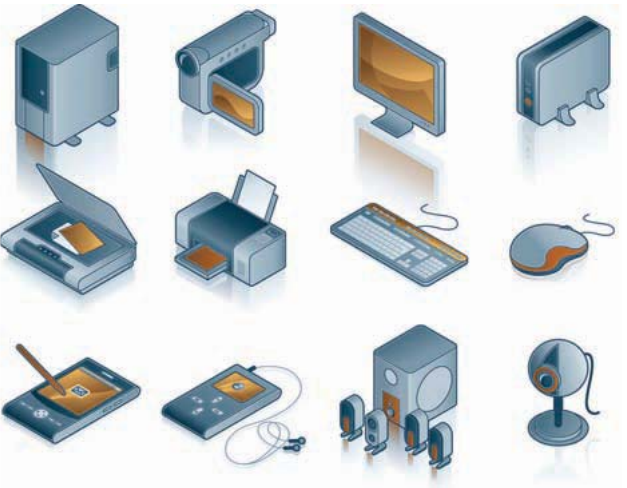
Input devices include:
- Keyboard
- Mouse
- Scanner
- Digital camera
- Microphone
Output devices include:
- Monitor
- Printer
- Speakers
Note
Some devices can function as both input and output devices. For example, a touchscreen monitor accepts input (touches) and displays output (visual information). Storage devices like external hard drives and USB flash drives can both receive data (input) and provide data (output).
Internal components (processing and storage)
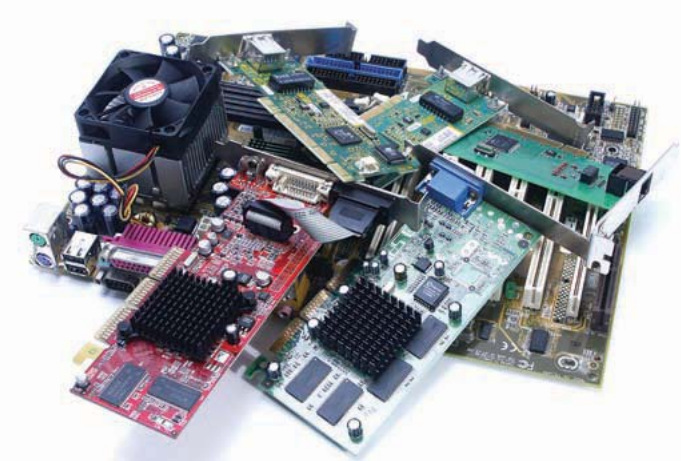
Internal components are housed inside the computer's casing and perform the core processing and storage functions. These include the processor (CPU), hard disk, memory chips (RAM), sound cards, graphics cards, and the circuitry that connects all these devices together (the motherboard).
The processor is the brain of the computer that executes instructions. The hard disk provides long-term storage for your files and programs. Memory chips (RAM) provide temporary working space for programs currently running. All these components work together to process data and run your applications.
Software
While hardware provides the physical structure of a computer, it is completely useless without programs to run on it. Software is the general term used to describe all programs that run on computers. These programs contain instructions that the processor executes to complete various tasks.
Software covers an enormous range of possibilities. It includes standard applications like word processors, spreadsheets, and databases. It also includes more specialised applications such as web browsers, games, and media editing software. Beyond what users see, there are also programs working behind the scenes to manage the computer's resources, such as file management systems and virus-checking software.
Because the range of software is so vast, we need to classify it into categories to make sense of it all. The first major distinction is between application software and system software.
Important
Understanding the distinction between application software and system software is fundamental:
- Application software is what you use the computer FOR – it helps you accomplish specific tasks
- System software is what makes the computer WORK – it manages the computer's resources and supports applications
Without system software, application software cannot run. Without application software, the computer has no practical purpose for the user.
Application software
Application software refers to programs that users interact with directly to complete specific tasks. In other words, application software is what you use your computer for. People buy computers because they need to accomplish something – write essays, send emails, manage a business, create web pages, or play games. Application software provides the tools to do these things.
Think about why someone might buy a computer. They don't buy it just to own a computer – they buy it because they have specific needs. A student might need to write assignments, research information online, and communicate with friends. A business person might need to track sales, manage inventory, and create presentations. Application software provides the necessary features to meet these needs.
There is a wide variety of application software available, and usually multiple options exist for the same task. For example, if you want to access web pages on the Internet, you need a web browser. The three most popular browsers are Internet Explorer, Google Chrome, and Mozilla Firefox (along with many lesser-known alternatives). All of them accomplish the same basic task – displaying web pages – although they each have subtle differences in features and performance.
System software
While application software is what we use computers for, system software handles the technical aspects of setting up and running the computer. Many elements of system software work invisibly in the background, which means users often don't even realise this software is running on their computer. System software exists to support and enable the application software.
There are four main types of system software: utility programs, library programs, translators, and operating system software.
Utility programs
Utility programs are small pieces of software designed to carry out specific housekeeping tasks on your computer. They are often supplied with the operating system, though they can also be purchased separately. The key characteristic of utility programs is that your computer will still function without them, but they enhance your computing experience and make certain tasks much easier.
A common example is compression software, which allows you to compress files to make them much smaller. This is useful for saving storage space or sending files more quickly over the Internet.
Note
Common Utility Programs:
Utility programs typically perform maintenance and optimization tasks:
- Anti-virus software – protecting your system from malware
- Back-up software – creating copies of important files
- Registry cleaners – maintaining system performance
- Disk defragmentation tools – reorganising file storage for better performance
Utility programs are often available as free downloads. They are designed to make your computer easier to use and maintain, though the computer would still work without them.
Library programs
Library programs are collections of code, data, and resources that other programs can call upon to perform common tasks. The word 'library' suggests that there will be multiple software tools available for other programs to use when needed.
While some utility programs are optional, library programs tend to be critical for the applications they support. For example, the Windows operating system uses Dynamically Linked Library (DLL) files, which contain code, data and resources that applications need to run. These files are loaded dynamically by Windows as required.
Important
Why Library Programs Are Essential
There are hundreds of DLL files that perform a wide range of functions including:
- Controlling dialogue boxes
- Managing memory
- Displaying text and graphics
- Configuring device drivers
Similarly, programming languages like Python have extensive libraries containing built-in modules that provide standard system functions. For example, the Python library includes modules for:
- Handling common data types
- Displaying fonts and graphics
- Performing mathematical and functional operations
Without these library programs, every application would need to include all this code itself, making programs much larger and more difficult to develop.
Translators: compilers, assemblers and interpreters
Translators are programs that convert code written by programmers into machine code (the binary language of 0s and 1s that the computer's processor actually understands). There are three main types of translators: compilers, assemblers, and interpreters.
At some point, every piece of software – whether application or system software – must be written by a programmer. A program consists of a series of instructions that the processor must execute. However, programmers write code in programming languages that are designed to be user-friendly and relatively easy to understand. Unfortunately, the processor cannot understand these high-level languages directly. It only understands machine code – binary instructions.
This is where translators come in. They bridge the gap between what programmers write and what the processor can execute.
Example
Comparing the Three Types of Translators
Compilers translate an entire program written in a high-level language (like Python, Java, or C++) into machine code all at once. The compiler reads through all the source code, checks it for errors, and then produces a complete executable file. This file can then be run independently without needing the compiler again.
Assemblers translate programs written in assembly language into machine code. Assembly language is a low-level language that is closer to machine code but uses simple text commands instead of binary. Each assembly instruction typically corresponds directly to one machine code instruction.
Interpreters work differently from compilers. Instead of translating the entire program at once, an interpreter reads each statement in the source code one at a time, translates it, and immediately executes it before moving on to the next statement. This makes interpreters slower than compiled programs, but useful during development because you can test code as you write it.
You will learn more about how these translators work in Chapter 29.
Operating system software
The operating system (OS) is perhaps the most important piece of system software. It is a collection of programs designed to act as an interface between the user and the computer, managing the overall operation of the machine. The OS brings together the hardware, the applications, and the user, while hiding the true complexity of the computer's inner workings. This is sometimes called creating a virtual machine – the concept that all the complexities of using a computer are hidden from the user and other software by the operating system.
When you use a computer, you are obviously aware of the application software you're using – whether it's a web browser, word processor, or game. However, you are much less aware of the systems software running in the background. The operating system dominates this background activity.
Important
The Operating System: Foundation of All Software
Modern operating systems are very large and complex. For example, Microsoft Windows 8 requires a minimum of 1 GB of RAM and 16 GB of hard disk space just to run. This gives you some idea of the complexity of the OS, which carries out many essential tasks including:
- Controlling start-up configuration – deciding what icons to display on your desktop and what backdrop to use
- Recognising user input – detecting when you press a mouse button and deciding what action to take
- Sending signals to hardware – telling the hard disk controller which program to transfer into memory
- Managing memory allocation – deciding which sections of memory to allocate to programs and ensuring all programs have the space they need
- Handling errors – coping with problems as they occur (such as printer errors or file saving issues) and displaying appropriate messages
- Managing shutdown – ensuring your computer shuts down properly when you finish
- Controlling print queues – managing documents waiting to be printed
- Managing network users – maintaining lists of usernames and passwords and controlling which files and resources users can access
Without the operating system, none of the other software could function. It is the foundation upon which everything else is built.
Resource management
Computers can run many programs seemingly at the same time. It is the operating system's job to ensure that each program is allocated sufficient memory and processor time to operate efficiently. This is called resource management – how an operating system manages hardware and software resources to optimise the computer's performance.
In a computer with only one processor (CPU), only one program can actually execute at any given moment. The processor can only carry out one instruction at a time. However, the operating system creates the illusion of simultaneous operation by allocating access to the processor and other resources (such as peripherals and memory) in a carefully controlled manner. One of the main tasks of resource management is ensuring these allocations make the best possible use of available resources.
Scheduling
The most heavily used resource in a computer is usually the processor. The process of allocating access to the processor is called scheduling. The simplest approach is to allocate each task a time slice, giving every task an equal amount of processor time. This is known as 'round-robin' scheduling.
Each task gets a turn with the processor, and when its time slice expires, the processor moves on to the next task. This ensures that all programs get a fair share of processing power. However, this is a crude system because some tasks might not need their full time slice.
Note
Why Simple Scheduling Isn't Always Efficient
Imagine a word processor waiting for you to press a key. Waiting for human input is extremely slow compared to processor speed. If the word processor gets a full time slice but spends most of it waiting for you to type, that's a waste of valuable processor time.
A more sophisticated scheduler might pass the time slice to the next task before the word processor's allocation expires, making more efficient use of the processor. Modern operating systems use complex algorithms to determine which tasks should receive priority based on their current needs.
Managing input/output devices
The operating system controls how input and output devices are allocated, controlled, and used by programs. Common examples include:
- Allocating print jobs to printers
- Rendering windows, frames, and dialogue boxes on the screen
- Controlling read and write access to the hard disk
Accessing some devices is relatively slow compared to the processor's speed. At the same time, there are often competing requests from multiple processes waiting for the same device. For example, reading and writing to a hard disk is slow compared to processor speeds. Rather than making each process wait until the device is free, the OS creates a queue of commands waiting for the device and handles each request in sequence or based on priority.
Every input/output device needs a device driver – a piece of software that enables the device to communicate with the operating system. Device drivers are often built into the OS or automatically installed when new devices are attached. When the OS starts up, it loads all the drivers for the input/output devices it detects.
Memory management
Just as the operating system controls how files are stored on secondary storage (like a hard disk), it also controls how the primary memory (RAM) is used. This is called memory management.
The operating system maintains a record of all unallocated memory locations in a section called the heap. When an application needs memory, the OS allocates space from the heap. Once an application finishes and no longer needs a particular memory location, those locations are returned to the heap for reuse.
When you request a file to be loaded, the memory management routines check whether sufficient memory is available and then allocate the appropriate space to load the file into those locations.
The operating system maintains a memory map showing which blocks of memory have been allocated to each task. This allows the OS to manage multiple tasks in RAM simultaneously. The amount of memory needed by each task depends on factors like the program size, the variables it uses, and any files it generates.
Example
How Memory Management Works in Practice
Imagine App1 is loaded first and begins work on File1:

After a while, App2 is loaded and begins working on File1. Because App2 is now in memory, File1 becomes spread across two sections of RAM:

Then App2 generates File2, and more work continues on File1, which now occupies three sections of RAM:

As work continues and files are saved or deleted, the memory map changes constantly. File1 might be saved and deleted from RAM, leaving gaps. The operating system might then rationalise the memory layout by moving applications and files together, consolidating all unused space. This shows why managing memory is such a complex task for the operating system.
Virtual memory and paging
Sometimes the application or file you're trying to work with is too large to fit in the available RAM. In this case, the operating system uses a technique called virtual memory. This involves using secondary storage (like a hard disk) to store code or data that would normally be held in RAM. The operating system treats part of the hard disk as if it were RAM, hence the name 'virtual memory'.
An alternative approach is to hold a central block (called a kernel) of the program's code in RAM, while other sections (called pages) are loaded from secondary storage only when needed. This method allows very large applications to run using only a small section of RAM, freeing up memory for other applications.
Note
Paging in Action
For example, a word processor keeps core instructions in the kernel, but when you select a less commonly used feature (like spell checking or mail merging), the appropriate page of code is loaded from the hard disk into RAM. This loading process often causes a noticeable delay in the application's response – you may have experienced this brief pause when accessing certain features in complex applications.
File management
One of the many responsibilities of the operating system is managing files. This includes controlling the structures used to store files on disk and providing ways to retrieve them when needed.
A home computer's hard disk typically contains thousands of files. Without some logical organisational structure, finding a specific file would be nearly impossible. The operating system creates folders (also called directories) that allow users to group similar files together.
For example, you might keep all files for your Computing course in one folder, while all photos from your digital camera are kept in another folder. It's common to have folders within folders, creating a hierarchical structure – like an inverted tree with the start or base folder (called the root folder) at the top.
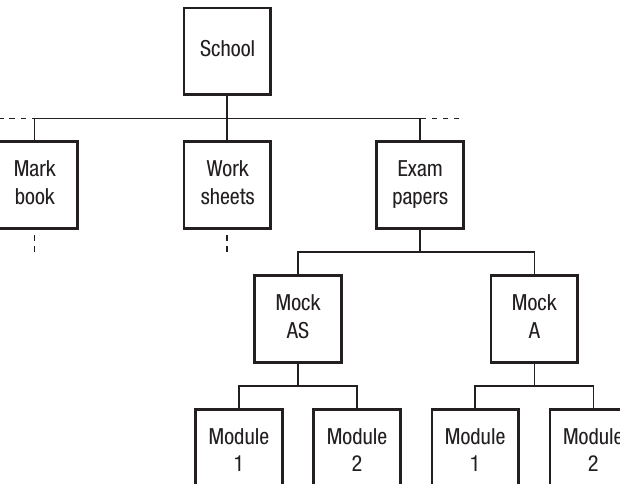
Each file has a filename, but the folder structure allows multiple files with the same name to exist in different locations. In a coursework/photo example, there might be a folder called 'miscellaneous' and a file called 'latest' in multiple locations. While this isn't ideal practice (it can lead to confusion), the hierarchical structure makes it technically possible. It's much better practice to use descriptive folder and file names that clearly indicate their purpose.
Note
Disk Partitioning
As hard disks grow larger, it's becoming common to partition a hard disk into multiple sections (called logical drives). This means that although you physically have only one hard disk, the operating system splits it into several partitions that appear as separate drives. For example, you might store applications on one logical drive and data on another, keeping them organised and separated.
Summary
Key Points to Remember:
-
A computer system requires both hardware (physical components) and software (programs) working together to function properly.
-
Hardware is classified into internal components (processing and storage devices like CPU, RAM, and hard disk) and external components (peripherals like keyboard, mouse, monitor, and printer).
-
Software is divided into application software (programs users interact with directly to complete tasks) and system software (programs that manage the computer and support applications).
-
System software includes utility programs, library programs, translators (compilers, assemblers, and interpreters), and the operating system.
-
The operating system acts as an interface between the user and the computer, managing resources such as the processor, memory, input/output devices, and files, while creating a virtual machine that hides complexity from users.