Memory and Secondary Storage (AQA GCSE Computer Science): Revision Notes
📚Revision Notes
Memory and secondary storage
Understanding how computers store information is crucial for GCSE Computer Science. Computer systems use two main categories of storage: memory (primary storage) for immediate access, and secondary storage for long-term data retention. Let's explore how these work together to make computers functional and efficient.
Memory (Primary storage)
Memory in a computer system refers to storage that the CPU can access directly and quickly. This includes the data and programmes currently being used, such as the operating system, active applications, and any files you're working with. Think of memory as your computer's workspace - it needs to keep important items close at hand for quick access.
Note
Computer systems use different types of memory, each serving specific purposes. The main memory consists of two key components: RAM and ROM, which work together but have very different characteristics and roles.
Random access memory (RAM)
RAM serves as the computer's main working memory where active programmes and data are temporarily stored while the computer is running. When you open an application or file, it gets copied from secondary storage (like your hard drive) into RAM because accessing data from RAM is much faster than reading it from storage devices.
The amount of RAM in a system directly affects performance. With more RAM available, you can run more programmes simultaneously without experiencing slowdowns. A typical modern laptop might have around 8GB of RAM, which allows for smooth multitasking between different applications.
Important
RAM has two critical characteristics that define how it works:
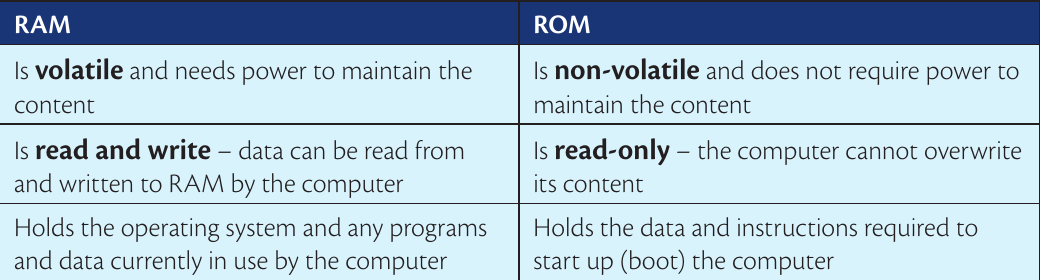
- Volatile memory - RAM requires constant electrical power to maintain its contents. When you turn off your computer, everything stored in RAM is lost
- Read and write operations - RAM allows the computer to both retrieve data from it and store new data to it as needed
Read-only memory (ROM)
ROM plays a completely different role in computer systems. It stores essential startup instructions and data that the computer needs to begin operating when you first turn it on. This includes the boot process instructions that tell the computer how to load the operating system from secondary storage.
Unlike RAM, ROM is non-volatile, meaning it retains its contents even when the power is turned off. This is essential because the computer needs these startup instructions to be available immediately when powered on. ROM is also read-only, meaning the computer cannot modify or overwrite the data stored in it during normal operation.
The differences between RAM and ROM
Understanding the key differences between these two types of memory helps explain why computers need both to function effectively.
Summary
Key Differences Between RAM and ROM:
- RAM: Volatile, read/write access, stores active programmes and data temporarily
- ROM: Non-volatile, read-only access, stores permanent startup instructions
- Purpose: RAM provides workspace for current operations, ROM ensures reliable system startup
Secondary storage
The need for secondary storage
Computer systems would be severely limited if they could only use memory for storage. Since RAM is volatile and loses all data when power is removed, we need a way to store information permanently.
Important
Secondary storage is essential because it provides:
- Long-term, non-volatile storage for all data and programmes
- Permanent storage for the operating system itself
- A way to preserve work and files between computer sessions
Without secondary storage, you'd lose everything each time you turned off your computer, making it essentially useless for practical purposes.
The main difference between memory and secondary storage is accessibility. Memory can be accessed directly by the CPU, while secondary storage requires data to be transferred to memory first before the CPU can work with it.
Magnetic storage
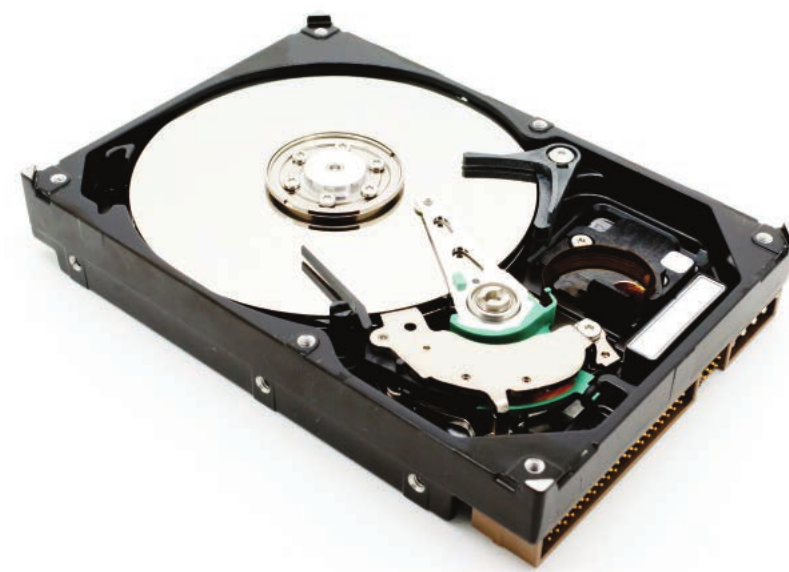
Magnetic storage technology uses magnetism to store data and represents one of the most common forms of secondary storage. Hard Disc Drives (HDDs) are the primary example of magnetic storage devices.
Note
HDDs work by storing data on rotating magnetic discs called platters. These platters are coated with magnetic material and spin at high speeds (typically 5,400 to 7,200 RPM). Read/write heads move across the platters, sensing or changing the magnetic alignment of tiny areas to represent binary data - north for '1' and south for '0'.
Advantages of Magnetic Storage:
- Large storage capacities at relatively low cost
- Reliable for medium-term storage (typically 5-7 years)
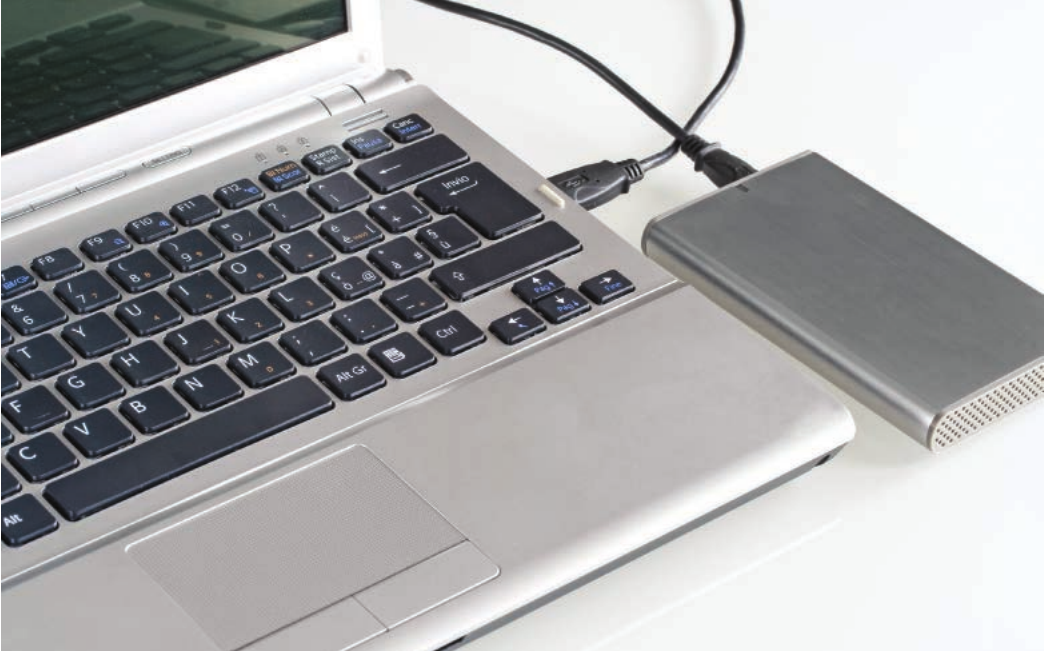
- Portable drives can be easily transported between computers
Disadvantages of Magnetic Storage:
- Slower access speeds due to mechanical components
- Large desktop HDDs are not very portable
- Vulnerable to damage from physical shocks or electromagnetic fields
Solid-state storage
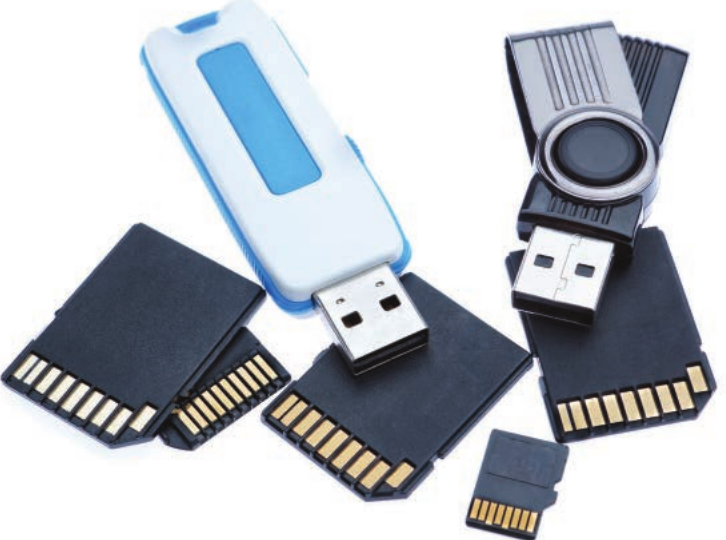
Solid-state storage represents a newer technology that uses electronic circuits rather than moving parts to store data. This technology is based on flash memory, which can retain data without power while allowing both reading and writing of information.
Example
Worked Example: SSD Performance Benefits
When you click to open a programme:
- HDD process: Drive must spin up → read/write head moves to correct location → data is read → transferred to RAM
- SSD process: Electronic circuits instantly access the required data → immediate transfer to RAM
Result: SSDs can boot an operating system in 10-15 seconds compared to 30-60 seconds for HDDs.
Solid State Drives (SSDs) have begun replacing traditional HDDs in many applications because they offer significant performance advantages. Since there are no moving parts, SSDs can access data almost instantly without waiting for mechanical components to move into position.
Advantages of Solid-State Storage:
- Much faster access speeds and data transfer
- More durable and portable (no moving parts)
- Lower power consumption and no noise generation
- Can withstand physical shocks
Disadvantages of Solid-State Storage:
- Typically offers lower capacity than magnetic storage
- Higher cost per gigabyte
- Limited write cycles (though this rarely affects typical users)
Optical storage
Optical storage uses light-based technology to read and write data on specially designed discs. The three main types are CDs, DVDs, and Blu-Ray discs, each offering different capacities and capabilities.
Note
These discs work by having microscopic pits and flat areas on their surface. When a laser light hits a pit, it scatters differently than when it hits a flat area, and these differences are interpreted as binary data.

Capacity Comparison:
- CDs: Around 700MB - suitable for data backup and music
- DVDs: 4.7GB (single-layer) or 8.5GB (dual-layer) - used for movies and larger software
- Blu-Ray: 25GB (single-layer) or 50GB (dual-layer) - high-definition content and games
Advantages of Optical Storage:
- Lightweight and highly portable
- Resistant to electromagnetic interference
- Long-term durability when properly stored
- Inexpensive to produce individual discs
Disadvantages of Optical Storage:
- Limited capacity compared to hard drives
- Very slow access times
- High cost per gigabyte for writeable discs
Cloud storage
Cloud storage represents a modern approach where data is stored on remote servers accessed via the internet, rather than on local storage devices. Major examples include services like Google Drive, OneDrive, iCloud Drive, and Dropbox.
Note
From a user perspective, cloud storage appears as additional storage space, but the data is actually stored in large data centres around the world. These facilities use combinations of magnetic and solid-state storage technologies, but users don't need to know the specific technical details.
Advantages of Cloud Storage:
- Access files from anywhere with internet connection
- Automatic updates and backups
- Flexible storage capacity
- Easy file sharing capabilities
- Professional data security and backup
Disadvantages of Cloud Storage:
- Requires internet connection for access
- Limited user control over data security
- Potential vulnerability to targeted attacks
- Unclear data ownership rights
- Unpredictable long-term costs
Comparing storage types
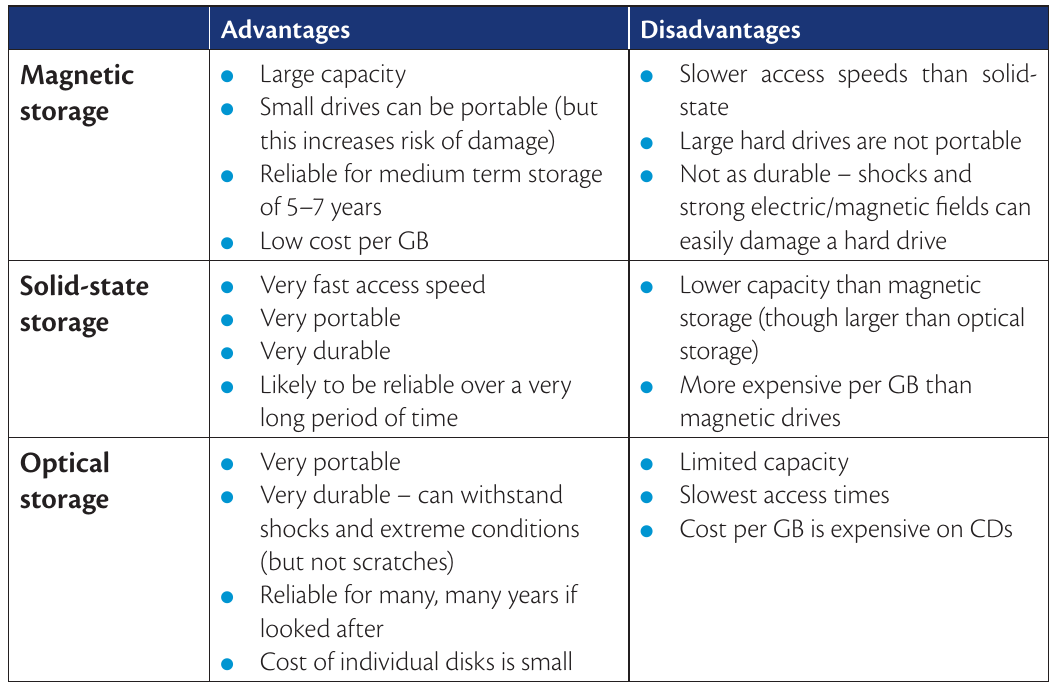
Each storage technology offers different trade-offs between capacity, speed, cost, portability, and durability. Understanding these differences helps in choosing the right storage solution for specific needs.
Important
Storage Selection Guidelines:
- Magnetic storage: Best for bulk storage of files that don't require constant access
- Solid-state storage: Ideal for operating systems and frequently-used applications
- Optical storage: Perfect for archival purposes and portable data distribution
- Cloud storage: Excellent for collaborative work and data sharing across devices
Many modern computer systems use a combination of these technologies to optimise both performance and cost-effectiveness.
Summary
Key Points to Remember:
-
RAM is volatile and fast - it temporarily stores active programmes and data but loses everything when power is lost, while ROM is non-volatile and contains permanent startup instructions
-
Secondary storage is essential because it provides permanent, long-term storage for all data, programmes, and the operating system itself
-
Different storage technologies have different strengths - magnetic storage offers large capacity at low cost, solid-state storage provides superior speed and durability, optical storage excels in portability, and cloud storage enables access from anywhere
-
Access speed varies dramatically - registers and cache are fastest, followed by RAM, then solid-state drives, magnetic drives, and finally optical storage
-
Modern systems often combine multiple storage types to balance performance, capacity, and cost-effectiveness for different computing needs