Management of Files (Grade 12 NSC Matric Computer Application Technology): Revision Notes
📚Revision Notes
Management of Files
File management is essential for keeping your computer organised and ensuring you can find your files quickly without wasting time. Good file management practices help prevent data loss and make your computer more user-friendly.
What is file management?
File management is the process of organising, naming, and arranging files and folders on your computer in a way that makes them easy to locate and work with. Think of it like organising your school locker - when everything has its proper place, you can find what you need quickly and efficiently.
Modern operating systems provide various tools and utilities to help users manage their files effectively. These tools range from basic folder organisation features to advanced utilities that can compress files, create backups, and optimise system performance.
Note
Just like keeping your physical workspace tidy helps you work more efficiently, maintaining good digital file organisation saves time and reduces frustration when looking for important documents.
Basic file management principles
Effective file management follows several important principles that will help keep your digital workspace organised:
Use consistent folder structures: When installing new software, always use the default installation folders. This ensures all your programmes are stored in the same location, making them easier to manage and troubleshoot.
Create a logical hierarchy: Save all your documents in the same root folder, such as your Documents folder. This same principle applies to music files (Music folder), pictures (Images folder), and videos (Videos folder). Within these main folders, create subfolders to distinguish between different types of documents or projects.
Important
Never leave files with default names! When you create a new folder, it typically gets named "New Folder". Always rename it immediately to reflect its contents. Use clear, descriptive names that will make sense to you months later.
File documents as you create them: Don't wait until later to organise your files. Save new documents in the correct folder as soon as you create them. This prevents your desktop and default folders from becoming cluttered.
Regular maintenance: Remove old documents and folders that you no longer need. If you're not ready to delete them permanently, consider creating an "Archive" or "Old Files" folder to move them to. This keeps your active workspace clean while preserving potentially useful files.
Create regular backups: Always backup important files to prevent data loss. This is one of the most critical aspects of file management.
Importing and exporting files
Modern computer systems allow you to move data between different programmes and applications through importing and exporting processes.
Importing refers to bringing a file from one programme into another programme that you're currently using. For example, if you have data in a Microsoft Excel spreadsheet (.xlsx file) and you want to use that information in a Microsoft Word document (.docx), you would import the Excel data into Word.
Exporting works in the opposite direction - it means saving a file from your current programme in a format that can be used by a different programme. For instance, you might export a Word document (.docx) as a PDF file (.pdf) so it can be easily shared and viewed by anyone, regardless of whether they have Microsoft Word installed.
Example
Practical Example: Moving Phone Contacts
Step 1: Export your phone contacts to your Google account for backup purposes
Step 2: When you get a new phone, import those contacts from your Google account
Step 3: Your contacts are now available on your new device
This demonstrates how importing and exporting help you move important data between different devices and platforms.
Operating system utilities
Most operating systems include several built-in utilities designed to help users maintain and protect their computers. These small programmes work alongside the operating system to provide essential maintenance and security functions.
The most commonly used system utilities include:
- Firewall protection
- File compression tools
- File management utilities
- Update schedulers
- Backup and restore tools
File compressors
File compression programmes use sophisticated mathematical algorithms to reduce the amount of storage space that files occupy on your computer. While this might sound like an ideal solution for saving disc space, file compression is actually used less frequently than you might expect for this purpose.
There are two main reasons why compression isn't commonly used to free up storage space:
Note
Why compression isn't always the best solution for saving space:
Compressed files require decompression: Before you can use a compressed file, it must first be decompressed back to its original format. This process takes time every time you want to access the file, and it temporarily uses up the storage space you saved during compression.
Many files are already compressed: The files that typically consume the most storage space - such as videos and music files - are already compressed using specialised formats. Attempting to compress them further provides little to no benefit and may even slightly increase their size.
However, compression becomes very useful for archiving purposes. When you need to store many files and folders together, compression allows you to bundle them into a single archive file. This makes it much easier to store, transfer, or email large collections of files. Since archived files aren't accessed frequently, the need to decompress them isn't a significant inconvenience.
File management utilities
File management utilities provide users with an intuitive graphical interface for organising their files and folders. Operating systems like Windows offer various interface options that allow users to customise their file management experience to suit their preferences and workflow.
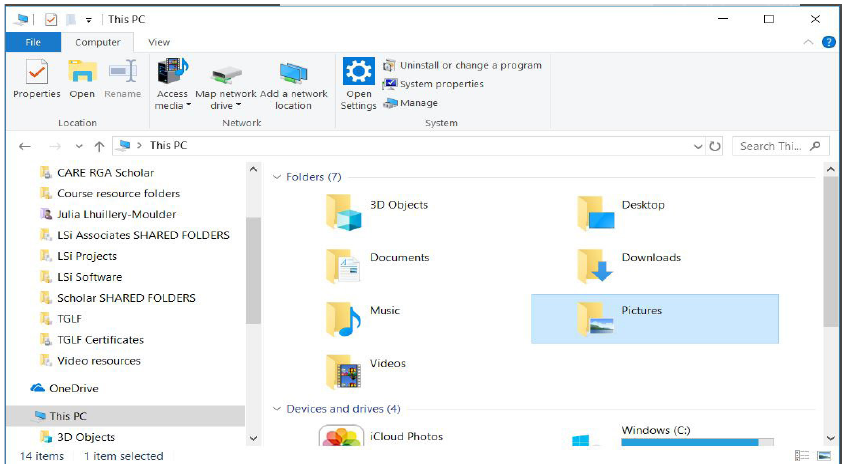
These utilities typically include features such as:
- Different view options (icons, lists, details)
- Search functionality
- File sorting and filtering options
- Drag-and-drop organisation
- Properties and metadata viewing
- Integration with cloud storage services
The Windows File Explorer shown above demonstrates how these utilities present your files in an organised, visual format that makes navigation intuitive and efficient.
Scheduling utilities
In today's competitive software market, developers continuously improve their applications after release. These improvements include adding new features, fixing bugs, improving system reliability, and enhancing security. To benefit from these improvements, users need to keep their software updated.
Important
Always allow automatic updates when requested! When an application or operating system requests permission to install an update automatically, it's generally best to allow it. While updates take a few minutes to complete, they ensure your computer stays current with the latest improvements and security patches.
Refusing updates creates ongoing interruptions because applications will continue to remind you about available updates until you install them.
Scheduling utilities are located in the system settings and provide automated management of these update processes. Modern scheduling features can:
- Automatically download and install updates during off-peak hours
- Schedule regular system maintenance tasks
- Manage email alerts and notifications
- Coordinate repetitive and time-consuming system activities
This automation saves both time and human resources while ensuring your system remains optimally maintained.
Backup utilities
Operating systems like Windows include built-in backup and restore utilities that help protect your important data. These tools allow you to create copies of your files, folders, and system settings, then restore them if needed.
Example
Worked Example: Creating a Windows Backup
Step 1: Connect an external hard drive to your computer for storing the backup
Step 2: Open the Start menu and search for "Control Panel" to access system settings
Step 3: Navigate to "Backup and Restore" (in Windows 7) to open the backup utility
Step 4: Select "Set up backup" to begin the backup configuration process
Step 5: Choose your external hard drive as the storage location for your backup files
Step 6: If your files are organised in standard locations (Documents, Music, Videos folders), you can let Windows choose what to backup automatically. Otherwise, manually select the specific folders you want to include
Step 7: Click "Save and run the backup" to create a complete backup of your selected files
Example
Worked Example: Restoring Files from a Windows Backup
Step 1: Connect your external backup drive to your computer
Step 2: Open the Backup and Restore application from the Control Panel
Step 3: Select "Restore all users' files" to restore everything, or choose specific files/folders
Step 4: Browse to locate your backup files and select what you want to restore
Step 5: Choose the original location for restored files and click "Restore"
Step 6: The restoration process will return your files to their previous locations, effectively recovering any lost data
Defragmentation
When you save files to your computer, the system breaks them into smaller pieces for storage on the hard drive. Ideally, these pieces would be stored together in one location, but this doesn't always happen. Instead, file pieces often get scattered across different areas of the hard drive - a condition known as fragmentation.
Fragmentation occurs naturally as you constantly create, modify, and delete files on your computer. Over time, this fragmentation can cause several performance problems:
Important
Signs your computer needs defragmentation:
- Slower computer operation
- Longer startup times
- Random system crashes
- Computer freezing
These issues occur because your computer has to search multiple locations to find all pieces of a single file.
Defragmentation is the process that solves this problem by reorganising your hard drive. The defragmentation utility collects all the scattered pieces of each file and moves them closer together, creating a more organised and efficient storage system.
Popular defragmentation programmes include:
- Optimise Drive Tool (built into Windows, formerly called Disc Defragmenter)
- PerfectDisk (third-party option)
- Norton Utilities (part of comprehensive system maintenance suites)
Note
Modern computers with solid-state drives (SSDs) typically don't require traditional defragmentation, as they access data differently than traditional hard drives.
Spooling
Spooling is a behind-the-scenes process that temporarily stores data while waiting for a device, programme, or system to process it. The term "spool" originally stood for "simultaneous peripheral operations online."
Spooling works like a queue system at a busy shop - customers (data) line up in order and are served one at a time on a first-come, first-served basis. This is called a FIFO (First In, First Out) system.
Example
Practical Example: Printer Spooling
When you send multiple documents to print:
Step 1: Each document gets added to the print queue (spool)
Step 2: The printer processes documents in the order they were received
Step 3: While one document prints, others wait in the memory buffer
Step 4: The system manages this queue automatically without user intervention
This ensures no print jobs are lost even when multiple people are using the same printer.
Spooling is also used for other input/output operations involving keyboards, mice, and storage devices. It ensures that data doesn't get lost when devices are busy and helps maintain smooth system operation even when multiple processes are competing for the same resources.
Summary
Key Points to Remember:
-
File management is about organising your files and folders so they're easy to find and use - just like keeping your school locker tidy!
-
Importing brings files in, exporting sends files out - remember that importing and exporting help you move data between different programmes.
-
System utilities are your computer's maintenance tools - they include file compressors, backup tools, defragmentation utilities, and scheduling features that keep your system running smoothly.
-
Fragmentation slows your computer down - defragmentation reorganises scattered file pieces to improve performance, especially on traditional hard drives.
-
Spooling manages waiting queues - it temporarily holds data (like print jobs) in memory until devices are ready to process them, working on a first-come, first-served basis.