External Hardware Devices (AQA A-Level Computer Science): Revision Notes
📚Revision Notes
External Hardware Devices
Introduction
External hardware devices are components that connect to a computer system but are not part of the main internal architecture. This includes various input devices, output devices, and storage devices that are external to the processor. The term "external hardware" encompasses the hard disk, as it serves as a form of secondary storage located outside the processor itself.
Modern computing systems have access to an enormous variety of external devices. As an A-Level student, you don't need to understand how every device works. Instead, this note focuses on the key devices specified in your syllabus, examining their main characteristics, purposes, suitability for different tasks, and operating principles.
Note
This guide covers the essential external devices you need to understand for your A-Level exams: digital cameras, barcode readers, laser printers, RFID systems, and various storage technologies including magnetic hard disks, optical disks, and solid state disks.
Digital camera
A digital camera is a device that captures photographs and videos by recording light and converting it into digital information. Unlike traditional film cameras, digital cameras process images electronically, allowing them to be stored, edited, and shared using computer software. Digital cameras have become commonplace in smartphones and other mobile devices, making digital photography accessible to everyone.
How digital cameras work
The process of capturing a digital photograph involves several stages that convert light waves into binary data:
Step 1: Light capture
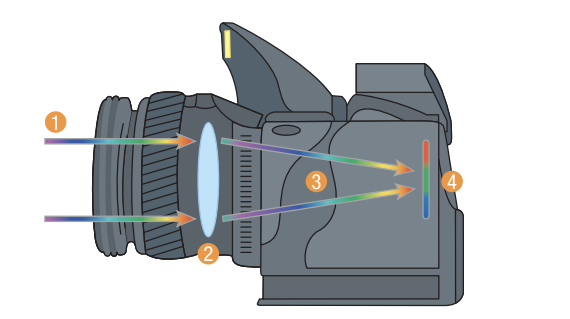
When you press the shutter button, the camera's shutter (1) opens briefly, allowing light from the scene to enter through the lens (2). The lens focuses this light, directing it through RGB filters (3) before being focused onto the CCD or CMOS sensor(4) at the back of the camera.
Step 2: Sensor detection
The focused light strikes a sensor, which is typically either a charge coupled device (CCD) or a complementary metal oxide semiconductor (CMOS). Both technologies perform the same fundamental function but use different approaches. Modern cameras increasingly use CMOS sensors as they consume less power and are cheaper to manufacture.
The sensor consists of millions of tiny light-sensitive units, each corresponding to one pixel (picture element). A single photograph might contain millions of pixels, which together form the complete image. For example, a 12-megapixel camera uses 12 million individual sensor units to capture an image.
Step 3: Converting light to electrical charge
As light hits each sensor unit, it gets converted into electrons. The amount of electrical charge that accumulates depends on the intensity of light that pixel receives. Brighter areas create more charge, whilst darker areas create less. This charge is then recorded and converted into a digital value that represents the brightness at that point in the image.
Step 4: Creating colour with RGB filters
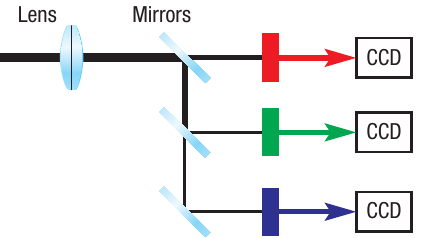
Light contains all colours, and cameras need a method to record this colour information accurately. Since all visible colours can be created by mixing red, green, and blue light (RGB), cameras use RGB filters to separate incoming light into these three primary colours.
Note
There are two main approaches to colour capture:
- Using three separate sensors, each with a different colour filter (red, green, or blue)
- Using a single sensor with individual pixels covered by different coloured filters in a pattern
The camera records the intensity of each colour component separately, then combines this information to reproduce the full colour spectrum of the original scene.
Step 5: Data storage
The digital data representing the image is typically stored on removable storage devices inside the camera, usually flash memory cards that use programmable ROM technology. This allows the data to be retained even when the camera is switched off.
Image file formats and compression
Digital cameras can save images in various file formats, each with different characteristics:
Compressed formats such as JPEG (JPG), TIFF, and PNG reduce the file size by removing some data from the original image. This makes the files smaller and easier to store and transmit, which is particularly useful when images will be shared via mobile networks or social media. The compression process involves algorithms that identify and remove redundant or less important information whilst trying to maintain visual quality.
Uncompressed formats like RAW files contain all the original data captured by the camera's sensors. These files are much larger but preserve maximum image quality and provide more flexibility for professional photo editing. RAW files are said to be in "raw format" because they contain the unprocessed sensor data.
Important
Understanding the Trade-off:
Compressed formats offer smaller file sizes and easier sharing but sacrifice some image quality. Uncompressed formats preserve all original data and provide maximum editing flexibility but create much larger files. Choose the format based on your intended use - social media sharing versus professional printing.
Resolution and image quality
The resolution of a digital camera refers to the number of pixels it uses to create an image. This is often expressed in megapixels, where one megapixel equals one million pixels.
Higher resolution cameras break the image down into more, smaller units, allowing for more detailed readings across the sensor surface. This has important consequences for image quality:
- High resolution images can be enlarged significantly without appearing blurry or pixellated
- More pixels provide finer detail and sharper images
- High resolution is particularly important if images will be printed in large formats
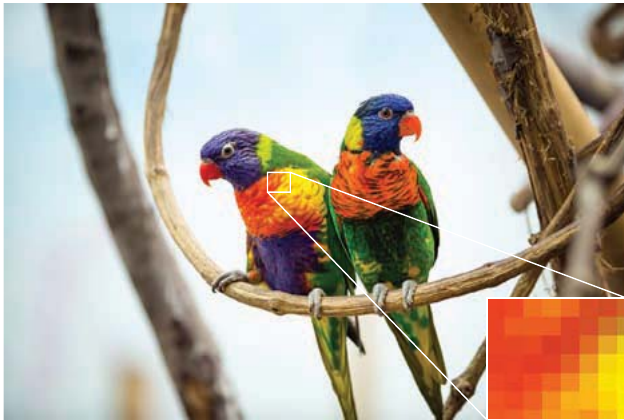
However, higher resolution isn't always necessary or beneficial. For images that will primarily be viewed on phones and transmitted over mobile networks, lower resolution may be more suitable as it results in smaller file sizes whilst still providing adequate quality for the display size. Software can adjust the resolution to make the image suitable for its intended purpose.
Note
The relationship between compression and resolution affects both file size and image quality. Understanding this trade-off helps in choosing appropriate camera settings for different situations - high resolution uncompressed for professional work, lower resolution compressed for everyday sharing.
Barcode reader
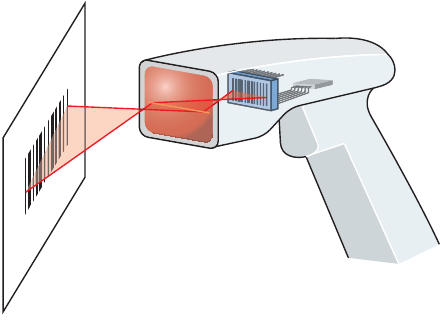
Barcode readers are input devices that use scanner technology to interpret patterns of lines or blocks printed on products and convert them into digital data. They work by measuring light reflection patterns and translating them into information that computer systems can process.
How barcode readers work
The barcode reading process involves several stages:
Step 1: Light emission
A light source, typically an LED or laser, is passed across the barcode image. The light moves systematically across the pattern of bars.
Step 2: Light detection
Some form of light sensor measures the intensity of light being reflected back from the barcode. This sensor might be a photodiode or a CCD sensor, similar to those used in digital cameras. The sensor converts the varying light levels into an electrical current, effectively generating a waveform pattern.
Step 3: Pattern interpretation
White areas of the barcode reflect most of the light, whilst black areas absorb light and reflect very little. This creates distinct variations in the reflected light intensity, making it possible for the sensor to distinguish between the black bars and white spaces clearly.
Step 4: Analogue to digital conversion
The waveform produced by the sensor is analogue (continuously varying), so it must be converted into digital form using an analogue to digital converter. This process transforms the varying signal into discrete digital values.
Step 5: Encoding interpretation
The pattern of black and white bars gets encoded into binary code. Typically, black bars represent 0 and white bars represent 1, though the specific encoding scheme depends on the barcode format being used.
Step 6: Data interpretation
Finally, the binary signal is decoded into a format that software can interpret, usually representing product codes, prices, or other identification information.
Types of barcodes

Traditional barcodes are the most common type you'll encounter. The Universal Product Code (UPC) barcode uses a series of black and white vertical lines of different widths, with printed numbers underneath. The lines represent values from 1 to 4 and are encoded using bars of four different widths. These barcodes are designed to be read reliably by machines and include a check digit for error detection.

QR codes represent a more recent application of the same scanning technology. Unlike traditional linear barcodes, QR codes are two-dimensional, made up of blocks of black and white squares arranged in a grid pattern rather than lines. This allows them to store much more information than traditional barcodes.
Note
QR codes have become widely adopted because they can be read using smartphone cameras and can contain a wider range of data, including website URLs, contact information, and text messages. Their two-dimensional structure enables them to store significantly more data than traditional one-dimensional barcodes.
Applications of barcode technology
Barcodes serve as the primary method for inputting product details at points of sale. Common uses include:
Retail environments: Food products, electrical goods, and books all use barcodes. At checkout, products are passed over a scanner built into the counter. The encoded data in the barcode links to a point-of-sale (POS) database system that matches the code to a particular item or product, retrieving price details and product information.
Inventory management: For larger products sold in DIY stores, hand-held scanners are more practical than fixed scanners. Different classifications of barcodes exist for different purposes, such as the European Article Number (EAN), which serves as the standard for food products sold in the UK.
Important
The barcode system has become essential for modern retail operations, enabling:
- Rapid product identification
- Automatic pricing
- Efficient inventory tracking
- Reduced human error at checkout
- Real-time stock management
RFID
Radio frequency identification (RFID) is a technology that uses radio waves to transmit data between small wireless tracking devices and reading systems. The technology enables automatic identification and tracking of items embedded with or attached to RFID tags.
How RFID systems work
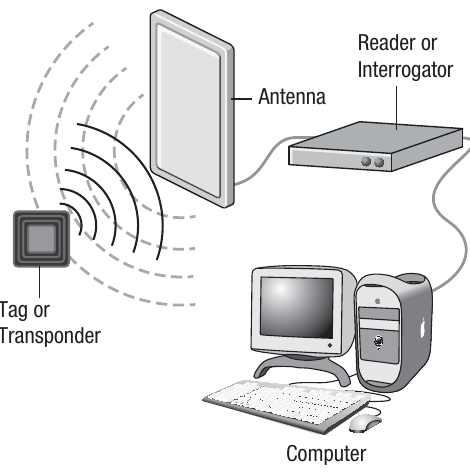
An RFID system consists of three main components: tags (or transponders), readers (or interrogators), and antennas. Understanding how these work together is essential:
RFID tags are typically about the size of a grain of rice and can be attached to almost any object. Each tag contains:
- A microchip that stores data about the item being tracked
- A modem that can modulate and demodulate radio signals for communication
- An antenna to send and receive radio frequency signals
RFID readers consist of an antenna that emits radio signals and receives responses from tags within range. The reader is connected to a computer system that processes the data received from the tags.
Note
Tag types: RFID tags come in two varieties:
- Active tags have their own power source in the form of a small battery, allowing them to transmit signals over longer distances
- Passive tags have no battery and instead pick up electromagnetic power when they come within range of an RFID reader, using this energy to power their transmission
How data transmission works
The process of reading an RFID tag involves bidirectional communication using radio frequencies:
- The RFID reader emits radio frequency signals through its antenna
- When a tag comes within range (typically between 1 and 100 metres, depending on the system), its antenna receives these signals
- For passive tags, the electromagnetic field from the reader provides the power needed for the tag to respond
- The tag's chip modulates the signal with its stored data
- The modulated signal is transmitted back to the reader
- The reader demodulates the signal and sends the decoded data to the connected computer system
Tags can be used simply to track the physical location of tagged items, or they can transmit stored data back to the reader for processing.
Applications of RFID technology
RFID is a relatively new technology that continues to find new applications, though some uses remain controversial. Current and emerging applications include:
Healthcare: RFID tags can track vulnerable individuals, particularly patients with Alzheimer's disease or dementia, helping ensure their safety whilst allowing them some independence.
Travel and security: Electronic passports incorporate RFID chips to store biographical information and travel history, helping border control agencies track where people travel.
Contactless payments: Banks have added RFID tags to credit and debit cards, allowing users to make payments by simply holding their card near a reader rather than inserting it into a chip reader.
Supply chain management: Transport and distribution companies use RFID extensively to track shipments and deliveries throughout the logistics chain, providing real-time location data.
Asset tracking: Museums use RFID tags on valuable artworks, and hospitals use them on expensive equipment, providing security and enabling quick location identification.
Retail environments: RFID is increasingly being used in shops to enable automatic checkout systems and to tag products for inventory management and theft prevention.
Important
Privacy Considerations:
While RFID technology offers numerous benefits for tracking and identification, it raises privacy concerns. RFID tags in passports, payment cards, and consumer products can potentially be read without the owner's knowledge. This has led to debates about data security and personal privacy, particularly regarding tracking individuals' movements and purchases.
Laser printer
A laser printer is an output device that uses laser technology and toner (powder-based ink) to create high-quality printed documents in black and white or colour. Modern laser printers often combine the functions of scanning, copying, and printing into single 'all-in-one' devices.
How laser printers work
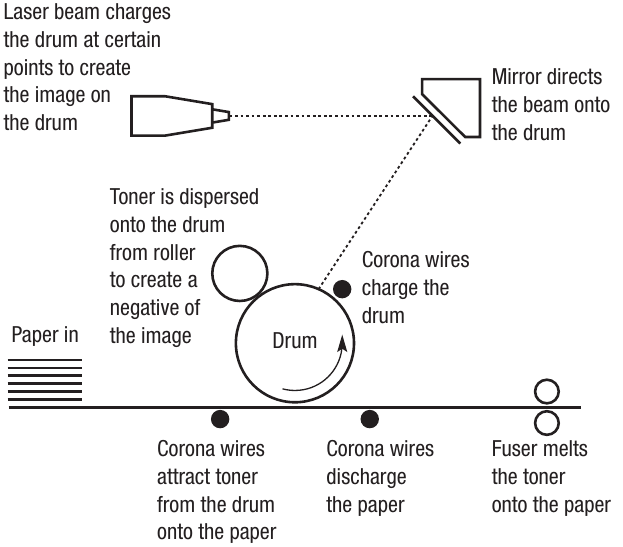
The laser printing process operates similarly to a photocopier and involves several precise steps:
Step 1: Drum charging
A rotating cylindrical drum inside the printer is coated with a photosensitive chemical that can hold an electrical charge. Corona wires create a uniform positive electrical charge across the entire surface of the drum.
Step 2: Image creation with laser
A laser beam is directed onto the spinning drum using a rotating mirror. Where the laser light hits the drum's surface, it causes the electrical charge to be discharged. This effectively "draws" the image onto the drum by creating a pattern of charged and discharged areas that corresponds to the document being printed.
Step 3: Toner application
As the drum continues to rotate, it passes a roller containing toner (fine powder). The toner particles are attracted to the areas of the drum that still retain their electrical charge, whilst discharged areas remain clean. This creates a negative image on the drum using toner particles.
Step 4: Transfer to paper
Paper is fed through the printer and passes over the drum. Corona wires charge the paper with an electrical charge opposite to that on the toner particles. This causes the toner to be attracted away from the drum and onto the paper.
Step 5: Fusing
Finally, the paper passes through a fuser unit, which applies heat and pressure to melt the toner particles and permanently bond them to the paper fibres. This is why paper feels warm when it first comes out of a laser printer.
Step 6: Drum discharge
Additional corona wires discharge the paper and reset the drum for the next page, whilst the fuser melts the toner onto the paper to complete the process.
Colour printing
To produce colour prints, laser printers use four different coloured toners:
- Cyan
- Magenta
- Yellow
- Black
Note
These four colours are known by the acronym CMYK (with K representing black, as B might be confused with blue). Unlike RGB colour mixing used in screens, CMYK is used for printing because it works with reflected light rather than emitted light.
When printing in colour, the drum must be charged and the toner transferred four separate times - once for each colour. Some printers use a transfer belt to hold the four-colour image and transfer it to the paper in one pass, rather than having the paper make four separate passes around the drum. This speeds up the colour printing process.
Creating all possible colours from light on a screen requires three primary colours (red, green, blue). However, when printing, four colours (cyan, magenta, yellow, black) are needed because of how pigments absorb and reflect light.
Speed and cost considerations
Laser printers offer several advantages in terms of speed and efficiency:
The cost of laser printers and replacement toner cartridges has decreased significantly in recent years, making them a popular choice for both personal and business use. Prices range from small home printers costing around $100 to large commercial machines costing tens of thousands of pounds.
Important
Speed Advantage:
One of the main advantages of laser printing is speed. Home laser printers typically print around 20 pages per minute, with an output capacity of a few hundred pages per month. Commercial laser printers can produce 200 or more pages per minute and are designed to print millions of copies monthly.
This combination of speed, quality, and decreasing costs has made laser printers the standard choice for offices and businesses that need to produce large volumes of printed material.
Magnetic hard disk
Within a computer system, main memory (RAM or Immediate Access Store) provides high-speed access for running programs and actively used data. However, this memory is only temporary - all contents are lost when the computer is switched off. To preserve data permanently, computer systems require secondary storage devices. The hard disk (HDD) is one of the primary forms of permanent storage.
Structure and construction
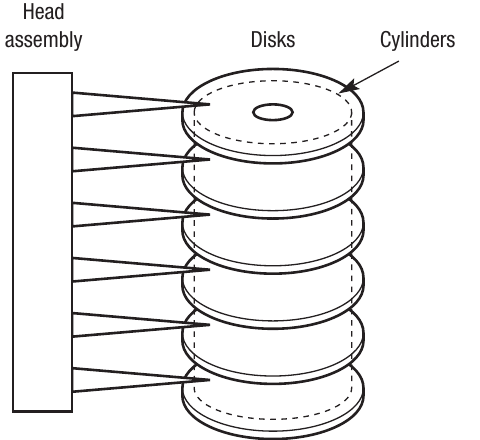
Hard disks are constructed from rigid metallic materials and are hermetically sealed to protect them from contamination by dust and other debris. Most hard disks consist of multiple disk platters arranged in a vertical stack, all spinning together on a common spindle.
The disk surfaces are coated with a thin film of magnetic material. Data is stored by creating patterns in the magnetism on this surface. Changes in the direction of magnetism represent the binary values zero and one, allowing digital information to be recorded magnetically.
How hard disks read and write data
Hard disks operate through a combination of rotation and precise head movement:
Spinning mechanism: The disk platters spin at speeds between 3600 and 12,500 revolutions per minute (rpm). This high-speed rotation is maintained continuously whilst the computer is powered on.
Read/write heads: A series of read/write heads are positioned to access the disks. These heads don't actually touch the disk surface - instead, they float slightly above it. The heads are held in position by the speed at which the disk spins, similar to how an aircraft wing generates lift. This floating action prevents the heads from scratching or damaging the magnetic surface.
Note
The read/write heads float above the disk surface at an incredibly small distance - typically less than the width of a human hair. This floating mechanism is crucial for preventing damage while maintaining the ability to read and write data accurately.
Actuator arm: An actuator arm moves the heads laterally across the disk surface as it spins. The combination of the disk's rotation with the lateral movement of the arm means the heads can access every part of the disk surface rapidly.
Data organisation: tracks, sectors, and cylinders
The operating system organises the disk surface into a structured format to enable efficient data storage and retrieval:
Tracks: The disk surface is divided into concentric circles called tracks. Think of these as similar to the grooves on a vinyl record, but arranged in circles rather than a spiral.
Sectors: Each track is further divided into segments called sectors. Each sector can be individually addressed by the operating system, allowing specific data to be located and accessed.
Cylinders: When multiple disk platters are stacked together, the corresponding tracks on each platter form a cylinder. Because the head assembly can read from any of several disks simultaneously, a cylinder reference identifies which disk in the stack is being addressed at any given time.
Clusters: The operating system groups sectors together into larger units called clusters to make storage management easier. When a file needs to be saved, the operating system allocates complete clusters to that file.
Important
Storage Inefficiency:
This can sometimes lead to inefficient space usage - for example, a file might require five complete clusters but only partially fill the sixth cluster. The whole sixth cluster gets allocated to the file anyway, even though it's not entirely needed, resulting in redundant space on the disk. This wasted space is sometimes called "slack space."
Capacity and performance
The typical capacity of a hard disk at the time of writing is 1 terabyte (TB). As manufacturers continue to create hard disks with larger capacities, an issue arises with retrieval speed. The physical speed at which the disk can spin, combined with the rate at which data can be transferred, limits how quickly information can be accessed.
In terms of relative speed, magnetic hard disks enable faster access than optical disks but provide slower access compared to solid state disks. The mechanical nature of hard disks - with spinning platters and moving arms - creates physical limitations on how quickly data can be retrieved.
Optical disk
An optical disk serves as a generic term encompassing all variations of CDs, DVDs, and Blu-Ray discs that use laser technology to read and write data. Optical disks provide a portable, inexpensive form of secondary storage, though they offer lower capacity and slower access speeds compared to other storage technologies.
Structure and operation
Unlike magnetic hard disks which use multiple tracks arranged in concentric circles, an optical disk is made up of one single continuous spiral track that starts in the middle and works its way to the edge of the disc. A laser reads the data contained within this track by detecting the physical features on the disk surface in combination with a sensor that measures the amount of reflected light.
Read-only optical disks
For read-only optical disks (such as CD-ROM), data is permanently encoded during manufacturing:
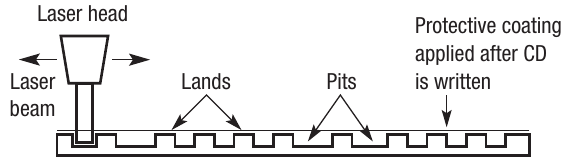
Physical structure: The disk surface contains a pattern of bumps (called pits) and flat areas (called lands). These physical features are created during the disk manufacturing process and cannot be changed.
Reading mechanism: When the disk is read, a laser beam is directed at the surface. The pits and lands reflect different amounts of light back to a sensor. These differences in reflected light are interpreted as different electrical signals, which can be converted into binary codes representing the stored data.
Protective layer: After manufacturing, a protective coating is applied over the surface to prevent the pits and lands from becoming corrupted or damaged.
Writeable optical disks
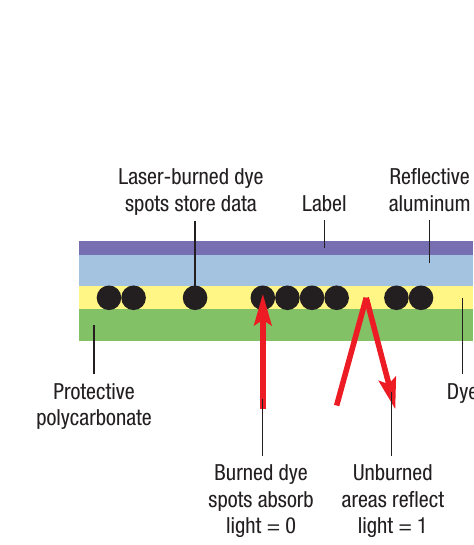
For writeable optical disks (such as CD-R), a different approach is used:
Photosensitive dye layer: Rather than having physical pits and lands, writeable disks are coated with a photosensitive dye that is translucent in its initial state.
Writing process: When writing data to the disk, a higher-powered laser alters the state of the dye spots where data needs to be recorded, making them opaque. The dye reflects a certain amount of light in its altered state.
Reading process: A read laser (which uses lower power than a write laser) interprets the different densities of the dye to distinguish between written and unwritten areas. This creates binary patterns that represent data.
Binary representation: Burned spots that absorb light typically represent binary 0, whilst unburned reflective areas represent binary 1.
Important
Write lasers must be more powerful than read lasers to physically alter the dye, but they must also be carefully controlled to avoid damaging the disk surface. The write laser permanently changes the dye's properties, making the data effectively permanent (though it can degrade over time).
Types and capacities
Optical disks come in various formats with different storage capacities:
- CD (Compact Disc): Standard CDs offer relatively low capacity, typically 700 MB
- DVD (Digital Versatile Disc): DVDs provide medium capacity, ranging from 4.7 GB to 8.5 GB for dual-layer versions
- Blu-ray: Blu-ray discs offer the highest capacity among optical formats, typically 25-50 GB
These variations differ in the density at which data can be written to the disk surface and the wavelength of laser used to read the data.
Applications and limitations
Optical disks serve as an inexpensive, portable form of storage, making them ideal for certain applications:
Backup purposes: Optical disks work well for creating inexpensive backups of important data and programs. They can be easily transported and stored safely off-site, providing disaster recovery options.
Software distribution: Original copies of software have traditionally been distributed on optical disks because they're easily transportable and can be safely stored for long periods.
Important
Limitations:
- The limited storage capacity means optical disks are generally only suitable for small-scale backups, typically for home computer systems rather than business environments.
- The very slow access time on optical drives further limits their usefulness to backup purposes rather than active data storage.
- The mechanical process of spinning the disk and moving the laser head creates significant latency compared to other storage technologies.
Solid state disk (SSD)
High-speed access to memory is achieved using memory cards made up of semiconductors. These devices are entirely electronic with no mechanical parts, enabling very fast data transfer. However, standard memory cards (like RAM) are volatile, meaning they lose all data as soon as power is removed. This volatility makes them unsuitable as permanent storage devices.
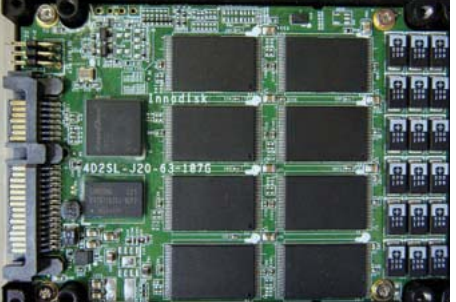
The challenge has been to create fast electronic storage that doesn't lose data when power is switched off. Traditional magnetic hard disks solved the persistence problem but suffered from slow access times due to their mechanical nature - the disk must spin and an arm must physically move across the surface to locate data. This mechanical movement creates latency.
A relatively new development addresses these challenges: the solid state disk (SSD), also known as a solid state drive. SSDs are made up of semiconductors but are non-volatile, meaning data is not lost when there's no power. Common implementations include flash drives (USB memory sticks) and increasingly, solid state drives that replace traditional hard disks in computer systems.
Why they're called "solid state disks"
The term "solid state disk" is somewhat misleading because there is no actual disk inside the device. Instead, SSDs use programmable ROM chips similar to memory cards.
Note
The term "disk" persists partly for historical reasons and partly because these devices are stored inside a unit that physically resembles a hard disk. This design allows SSDs to be used as direct replacements for traditional hard disks in computer systems, fitting into the same mounting brackets and using the same connection interfaces.
How SSDs store data
SSDs organise data into blocks, similar to how traditional hard disks use sectors and clusters:
Block structure: Data is stored in fixed-size blocks. When reading and writing operations occur, data can only be accessed in complete blocks. On a traditional hard disk, blocks would be allocated to different physical clusters scattered across the disk surface. With SSDs, blocks are allocated to particular semiconductor chips within the device.
Advantages of block allocation: The key advantage is that data can be added and deleted in blocks across different areas of the drive. Only the specific blocks that need to be changed require erasing and rewriting. This enables very fast access times since the system doesn't need to wait for mechanical parts to move or disks to spin to the correct position.
The role of the controller
SSDs require a controller to manage the blocks of data and coordinate where information is stored within the semiconductors. The controller acts as an intermediary between the computer's operating system and the physical memory chips, organising data efficiently and managing wear-levelling to extend the lifespan of the device.
Floating gate transistors and NAND memory
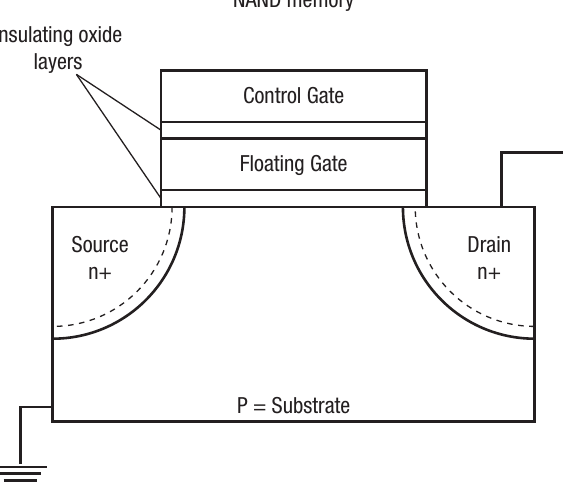
The ability of semiconductors to retain data without power comes from the type of transistor used. SSDs employ a technology called floating gate transistors, which can trap and store electrical charge even when the power supply is removed.
Transistor structure: A floating gate transistor contains two gates:
- A control gate (similar to standard transistors)
- A floating gate positioned between the control gate and the substrate
Charge trapping: A thin layer of insulating oxide surrounds the floating gate on all sides, effectively creating an isolation barrier. When charge is placed into the floating gate during a write operation, this insulating layer traps the charge inside, preventing it from escaping even when the power is turned off.
Note
NAND memory: This technology is commonly referred to as NAND memory or NAND flash. The term NAND comes from the logical gate operation used in the memory cell design, and "flash" refers to the ability to erase large blocks of memory quickly (in a "flash").
Advantages of SSDs over HDDs
Because SSDs contain no moving parts, they offer several significant advantages over traditional hard disk drives:
Reliability: With no mechanical components to fail, SSDs are more reliable than HDDs. There's no risk of the read/write head crashing into the disk surface or of the motor failing.
No fragmentation: SSDs never need to be defragmented. On mechanical hard disks, data can become scattered across different physical locations on the platters, requiring the head to make multiple movements to read a single file. This fragmentation degrades performance over time. SSDs can access any block of data equally quickly regardless of its physical location within the memory chips, so fragmentation doesn't affect performance.
Speed: Access times for SSDs are dramatically faster than HDDs - up to 100 times faster in some cases. This speed advantage makes SSDs particularly suitable for use in laptop computers where fast boot times and responsive application loading are valued.
Size and weight: SSDs are physically smaller than traditional hard disks, making them ideal for portable devices.
Power consumption: SSDs use less power than spinning hard disks, which helps extend battery life in laptop computers and reduces heat generation.
Disadvantages and considerations
Despite their advantages, SSDs have some limitations:
Cost: The relative cost per gigabyte compared to HDDs is significantly higher. This price difference has implications for business and organisational users who may require large amounts of storage capacity.
Capacity: The largest SSDs offer around 1 TB of storage at the time of writing, and this capacity will inevitably increase over time. However, this remains lower than the highest-capacity HDDs available.
Note
Hybrid implementations: Large-scale users often consider hybrid implementations where some aspects use SSD technology whilst others use traditional HDDs. For example, the operating system and frequently-used applications might run from SSD for maximum responsiveness, whilst large data files could be stored on cheaper, higher-capacity HDDs.
Storage devices compared
Understanding the different types of secondary storage allows you to make informed decisions about which technology to use in different situations. Each storage type has distinct characteristics that make it more or less suitable for particular applications.
| Feature | Hard disk (HDD) | Solid state disk (SSD) | Optical disk (CD/DVD) | Optical disk (Blu-ray) |
|---|---|---|---|---|
| Typical capacity | High (1 TB) | Medium (500 GB) | Low (900 MB to 1.7 GB) | Low to medium (25-50 GB) |
| Relative cost | Medium | High | Low | Low |
| Easily portable | External disks are available | External disks are available | Yes | Yes |
| Relative power consumption | High | Low | High | High |
| Relative speed of access | Medium | High | Low | Low |
| Latency | High | Low | Very high | High |
| Fragmentation | Can fragment | None | N/A | N/A |
| Reliability | Good | Very good | Fair | Fair |
| Relative physical size | Large | Small | Large | Large |
Choosing between HDD and SSD
Hard disk drives and solid state disks are broadly comparable in terms of their primary function - both serve as the main secondary storage device in PCs and laptops. However, their different characteristics make each more suitable for specific scenarios:
Speed considerations: SSDs enable access times up to 100 times faster than HDDs, making them ideal for situations where quick data access is critical, such as booting operating systems or loading frequently-used applications.
Physical characteristics: SSDs are physically smaller and lighter than HDDs, making them perfectly suited for use in laptops and portable devices where size and weight matter.
Cost and capacity trade-offs: The higher cost per gigabyte for SSDs means that whilst they excel at speed, they're more expensive for storing large amounts of data. At the time of writing, the largest SSDs offer around 1 TB of storage, which may be limiting for users who need to store extensive media libraries or large datasets.
Example
Practical Application: Choosing Storage for Different Scenarios
Scenario 1 - Gaming PC: Use an SSD for the operating system and frequently-played games to minimize loading times, combined with a large HDD for game library storage.
Scenario 2 - Budget laptop: A smaller SSD (256 GB) provides fast boot times and application performance while keeping costs manageable.
Scenario 3 - Media workstation: Combine a small SSD for the operating system and active projects with multiple large HDDs for archived video footage and completed projects.
Business implications: These differences have important implications for business and organisational users. Organisations may require large amounts of storage capacity but need to manage costs carefully.
Hybrid solutions: Large-scale users often implement hybrid systems that leverage the strengths of both technologies. A typical hybrid approach would have the operating system and applications running from SSD storage (for maximum responsiveness), whilst data files are stored on cheaper, higher-capacity HDDs.
When to use optical disks
Optical disks (CDs, DVDs, and Blu-ray) serve a different purpose in the storage hierarchy:
Backup applications: Optical disks work well as an inexpensive method for creating portable backups of important data and programs. They're easily transportable and can be stored safely off-site for disaster recovery purposes.
Software distribution: Original copies of software are commonly distributed on optical disks because they can be safely stored for extended periods and easily transported to end users.
Limitations: The limited storage capacity and very slow access speeds mean optical disks are only generally suitable for small-scale backups, typically for home computer systems rather than business environments. Their very high latency makes them impractical for active data storage - they work better as archival media.
Note
Declining usage: With the growth of high-speed internet connections and cloud storage services, the use of optical disks has been declining, though they remain useful for certain specialised applications and offline storage needs.
Summary
Key Points to Remember:
-
Digital cameras convert light into digital data using CCD or CMOS sensors. RGB filters enable colour capture, and data is stored in compressed formats (JPG, TIFF, PNG) or uncompressed (RAW). Higher megapixel counts provide better resolution for printing and enlargement.
-
Barcode readers use laser or LED light to scan patterns of black and white bars or blocks. Light intensity variations are converted from analogue to digital, with black and white encoded as binary. QR codes extend this technology to two-dimensional patterns that can store more data.
-
RFID systems use radio waves to transmit data from tiny tags to readers. Active tags have batteries, whilst passive tags draw power from the reader's electromagnetic field. Applications include tracking people and products, contactless payments, and inventory management.
-
Laser printers create images by using lasers to discharge selected areas of a charged drum, attracting toner to create a negative image, then transferring and fusing the toner onto paper. Colour printing requires four toners (CMYK: cyan, magenta, yellow, black).
-
Magnetic hard disks store data on spinning platters coated with magnetic material. Data is organised into tracks (concentric circles), sectors (track divisions), and cylinders (corresponding tracks across multiple platters). They offer high capacity but slower access than SSDs due to mechanical components.
-
Optical disks use lasers to read pits and lands (read-only) or burned dye spots (writeable) on a single spiral track. They provide cheap, portable storage but with limited capacity and very slow access speeds, making them suitable mainly for backups and software distribution.
-
Solid state disks use NAND flash memory with floating gate transistors that trap charge without power. They have no moving parts, providing very fast access (100x faster than HDDs), no fragmentation issues, and greater reliability, but at higher cost per gigabyte and with lower maximum capacities.