Bitmap images (Edexcel GCSE Computer Science): Revision Notes
📚Revision Notes
Bitmap images
What are bitmap images?
Digital images stored on computers are called bitmap images. These images are created using binary code - sequences of 1s and 0s that computers can understand and process. Think of bitmap images as a digital way of recreating the pictures we see in real life.
Note
Binary code is the fundamental language computers use to store and process all information. Every digital image you see on your screen is ultimately just a very long string of 1s and 0s!
Pixels - the building blocks
Every bitmap image is made up of thousands or millions of tiny coloured dots called pixels (short for picture elements). Each individual pixel contains its own specific colour information. The more pixels an image contains, the more detailed and sharp it will appear.
Note
Visual Analogy: Newspaper Photos
Imagine looking at a newspaper photo through a magnifying glass - you'll see it's made up of tiny dots of different colours. Digital images work in exactly the same way, but the "dots" are pixels displayed on your screen.
Image size and dimensions
The image size tells us how many pixels wide and how many pixels tall an image is. This is usually written as width × height in pixels.
For example:
- A small web image might be 800 × 600 pixels
- A high-quality photo might be 3000 × 2000 pixels
- A smartphone photo could be 4000 × 3000 pixels
The total number of pixels in an image equals the width multiplied by the height. So a 3000 × 1000 pixel image contains 3,000,000 individual pixels!
Colour depth and bit depth
Colour depth (also called bit depth) determines how many different colours each pixel can display. It's measured in bits - the basic units of computer memory.
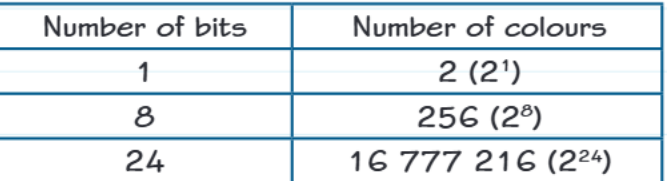
The relationship works like this:
- 1 bit per pixel = 2 possible colours (usually black and white)
- 8 bits per pixel = 256 possible colours
- 24 bits per pixel = 16,777,216 possible colours
The magic formula is: Number of colours =
Important
Understanding Colour Capacity
Most modern cameras and smartphones use 24-bit colour depth, which gives us over 16 million colours - more than enough to create realistic, detailed images. This is why digital photos can look so lifelike!
Resolution and image quality
Resolution describes how many pixels fit into each inch when an image is displayed on a screen or printed on paper. Higher resolution means more pixels packed into the same space, creating sharper, clearer images.
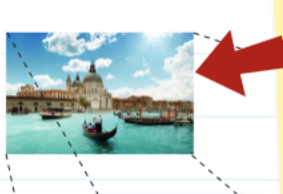
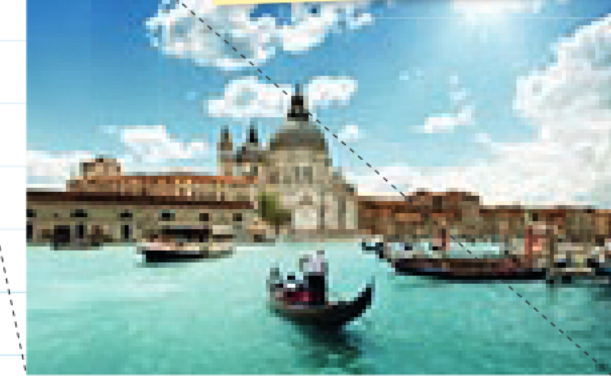
When you enlarge a small image to cover a larger area, it becomes less sharp because there are fewer pixels per unit area. Each pixel has to be stretched bigger to fill the space. This creates a pixelated effect where you can actually see the individual square pixels - the image looks blocky and blurred.
Important
Key Resolution Rule
If you enlarge an image too much, it becomes pixelated and loses quality because the individual pixels become visible. This is why you can't just "enhance" a blurry photo like they do in movies - the detail simply isn't there!
Image file size calculation
The size of an image file (measured in bits or bytes) depends on three factors:
- Width (W) - how many pixels wide
- Height (H) - how many pixels tall
- Colour depth (D) - how many bits per pixel
File size formula:
This tells us the file size in bits. To convert to more practical units:
- Divide by 8 to get bytes
- Divide by 1024 to get kilobytes (KB)
- Divide by 1024 again to get megabytes (MB)
Note
File Size Trade-offs
Higher quality images (more pixels and more colours) create larger file sizes. This can be a problem when transferring files over the internet or when storage space is limited. It's all about finding the right balance between quality and file size!
Worked example
Example
Worked Example: Calculating Image File Size
Let's calculate the file size for an image that is 410 × 270 pixels with 24-bit colour depth:
Step 1: Apply the formula File size in bits =
Step 2: Calculate bits
Step 3: Convert to more useful units
- bytes
- kilobytes (KB)
- megabytes (MB)
So this image would be approximately 0.32 MB in size.
Remember!
Summary
Key Points to Remember:
-
Bitmap images are made of pixels - tiny coloured dots that combine to create the complete picture
-
More pixels = more detail - higher resolution images look sharper but create larger file sizes
-
Colour depth determines colour range - 24 bits gives over 16 million colours, perfect for realistic photos
-
File size formula is W × H × D - width × height × colour depth gives you the size in bits
-
Enlarging images reduces quality - stretching pixels makes images look blurry and pixelated