Error Indications (Grade 11 NSC Matric Computer Application Technology): Revision Notes
📚Revision Notes
Error Indications
Excel uses error indicators to help users identify when something has gone wrong with a formula or when the logic doesn't make sense. You've already learned about several error indicators like ######, #NAME?, #DIV/0!, #REF!, #VALUE! and #NUM!, which alert you when values in formulas or formula parameters are incorrect.
In this section, we'll explore two additional error indicators that you need to understand: circular references and #NULL! errors.
Note
Error indicators are Excel's way of providing immediate feedback when formulas contain errors or logical inconsistencies. Understanding these indicators helps you quickly identify and resolve formula problems.
Understanding circular reference errors
A circular reference error occurs when a formula attempts to calculate a value using the same cell where the formula is located. Think of it like a dog chasing its own tail - the formula keeps going in circles without reaching a solution.

What causes circular reference errors
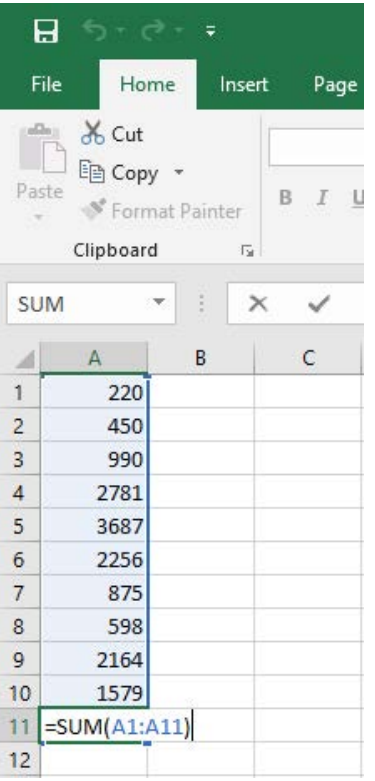
When you create a formula that refers back to its own cell, Excel cannot calculate the result because it creates an endless loop. For example, if you place a SUM formula in cell A11 that includes A11 in its range (like =SUM(A1:A11)), Excel will display a circular reference error message.
Important
The error message warns you that there are circular references where a formula refers to its own cell either directly or indirectly, which might cause incorrect calculations. Always address these errors immediately to ensure accurate results.
How to fix circular reference errors
Fixing circular reference errors is straightforward once you understand what to look for. Here are the steps to resolve them:
Example
Worked Example: Fixing Circular Reference Errors
Step 1: When the error message appears, click "OK" to dismiss it.
Step 2: Navigate to the cell containing the problematic formula and examine the cell references carefully.
Step 3: Identify the incorrect cell reference and change it to the correct range. In most cases, you'll need to exclude the current cell from the range. For example, change A11 to A10 in the range reference.
Step 4: Press Enter to let Excel recalculate the formula with the corrected reference.
Once you've made the correction, Excel should calculate the formula properly without any circular reference issues.
Understanding #NULL! errors
The #NULL! error appears when Excel encounters problems with range references in formulas. This error typically occurs in two specific situations that involve incorrect syntax or invalid range operations.
Common causes of #NULL! errors
Important
Two Main Causes of #NULL! Errors:
-
Incorrect range operator usage: When you use the wrong operator to separate cell ranges. For example, using a semicolon (;) instead of a colon (:) to define a range of cells.
-
Invalid range intersections: When you use a space between range references to specify an intersection, but the ranges don't actually intersect. An intersection in Excel represents a point where data in two or more ranges crosses over.
Excel's reference operators
To work effectively with ranges, you need to understand Excel's three reference operators:
Note
Excel's Reference Operators:
- Range operator (colon :) - Creates a reference to a range of cells (e.g.,
A1:A10) - Union operator (comma ,) - Combines multiple references into one reference (e.g.,
A1:A5,C1:C5) - Intersection operator (space) - Indicates the intersection point of two ranges (e.g.,
A1:C3 B2:D4)
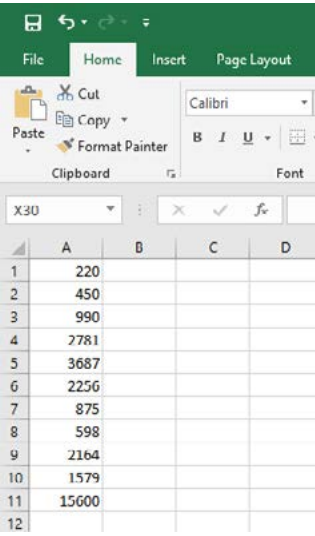
An example of a #NULL! error occurs when the range operator is missing from a formula, such as writing =SUM(A1 A10) instead of =SUM(A1
).How to fix #NULL! errors
To resolve #NULL! errors, you need to check the formula syntax carefully:
Example
Worked Example: Fixing #NULL! Errors
- Verify range operators: Ensure you're using colons (:) when referencing ranges of cells that follow each other
- Check union operators: Use commas (,) when you want to combine separate cell references
- Validate intersections: When using spaces for intersections, make sure the ranges actually overlap
- Correct the syntax: Replace incorrect operators with the appropriate ones based on what you're trying to achieve
For example, if you see =SUM(A1;A10), change it to =SUM(A1:A10) to create a proper range reference.
Exam tips for error indicators
Note
Essential Exam Tips:
- Read error messages carefully - Excel's error messages often provide helpful hints about what went wrong
- Check your cell references - Most circular reference errors occur because of incorrect range references
- Remember operator rules - Colon for ranges, comma for unions, space for intersections
- Test your formulas - After fixing an error, verify that your formula produces the expected result
- Practice identifying errors - The more you work with these errors, the quicker you'll spot and fix them
Summary
Key Points to Remember:
- Circular reference errors occur when a formula tries to calculate using its own cell - like a dog chasing its tail
- Fix circular references by checking the formula and excluding the current cell from the range
- #NULL! errors happen when you use incorrect range operators or invalid intersections
- Use the correct operators: colon (:) for ranges, comma (,) for unions, space for intersections
- Always check your syntax when formulas produce unexpected error messages