Integration Techniques (Grade 11 NSC Matric Computer Application Technology): Revision Notes
📚Revision Notes
Integration Techniques
Introduction to Excel integration
Excel is a powerful tool that becomes even more useful when you learn how to connect it with other programmes and link data between different parts of your spreadsheet. You can use Excel to create charts and graphs that enhance Word documents or PowerPoint presentations, and you can even prepare and check data before uploading it to an Access database.
One of Excel's most valuable features is its ability to integrate within itself. This means you can link cells and formulas between different worksheets in the same workbook, allowing data in one sheet to automatically influence calculations in another sheet. This creates a dynamic system where updating information in one place automatically updates related calculations throughout your workbook.
Note
Excel's integration capabilities extend far beyond simple data entry. When you master cross-sheet linking, you transform static spreadsheets into dynamic, interconnected systems that respond intelligently to data changes across multiple worksheets.
Understanding cross-sheet linking
What is linking cells and formulas?
When working with large amounts of data spread across multiple worksheets, you often need to draw conclusions or perform calculations using information from different sheets. Instead of manually copying data or recalculating everything each time something changes, Excel allows you to create links between worksheets. This means each worksheet's data can directly affect calculations in other sheets.
Why link worksheets?
Cross-sheet linking offers several important advantages:
- Automatic updates: When you change data in one sheet, all related calculations in other sheets update automatically
- Reduced errors: No need to manually copy and paste data between sheets
- Better organisation: Keep raw data separate from analysis and summary sheets
- Time efficiency: Make changes once and see results everywhere they're needed
Note
Think of cross-sheet linking as creating a network of connected information. Each worksheet becomes a node in this network, sharing data and calculations seamlessly with other parts of your workbook.
Step-by-step process for linking cells
Here's how to create links between worksheets using the AVERAGE function as an example:
Example
Worked Example: Creating Cross-Sheet Links with AVERAGE Function
Let's walk through linking cells between worksheets to calculate an average from another sheet.
Step 1: Select your destination cell Choose the cell where you want your linked formula to appear. This is where the result of your cross-sheet calculation will be displayed.
Step 2: Begin your formula Start typing your formula in the formula bar. Begin with the equals sign followed by your function name. For example, if you're calculating an average, type =AVERAGE(.
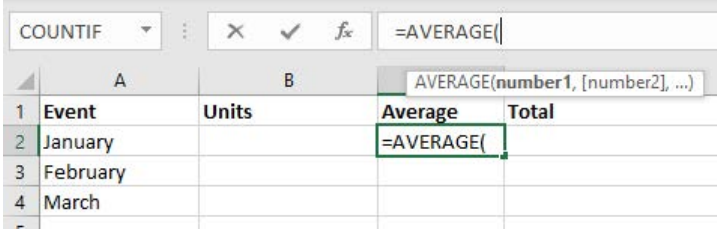
Step 3: Select the source worksheet Click on the tab of the worksheet that contains the data you want to reference. Excel will automatically include the sheet name in your formula.
Step 4: Select your data range Choose the range of cells or single cell you want to reference from the source worksheet. Excel will show the complete reference including the sheet name followed by an exclamation mark (!).
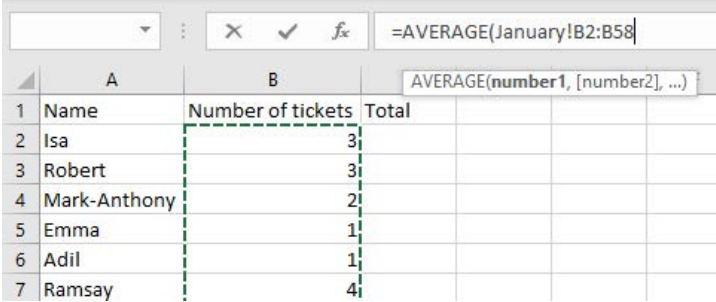
Step 5: Complete your formula Close any open brackets and press Enter. Excel will calculate the result and display it in your destination cell. The formula bar will show the complete cross-sheet reference.
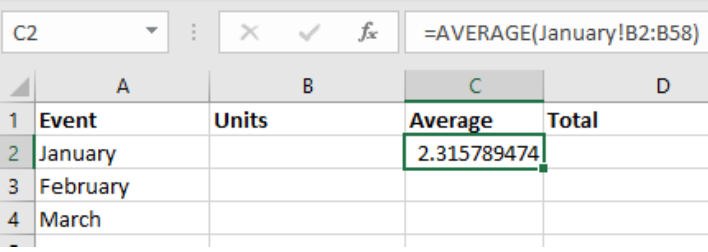
Understanding the syntax
Important
Critical Syntax Rule
The key to cross-sheet referencing is understanding the syntax: SheetName!CellRange. The exclamation mark (!) acts as a separator between the worksheet name and the cell reference. For example, January!B2
refers to cells B2 through B58 on the worksheet named "January".Practical applications
Cross-sheet linking transforms how you work with complex data across multiple worksheets, making your spreadsheets more powerful and efficient.
Example
Real-World Example: Community Event Tracking
Consider a scenario where a community group tracks ticket sales for multiple events across different months. Each month's data is stored on a separate worksheet (January, February, March).
To calculate overall statistics, you can use cross-sheet linking to:
- Calculate average ticket sales across all months using =AVERAGE(January!B2,February!B2,March!B2)
- Find total revenue from all events
- Compare performance between different time periods
This approach keeps monthly data organised while providing comprehensive analysis capabilities.
Manual alternative
You can also type cross-sheet references manually if you know the exact cell ranges you want to reference. This is particularly useful when you're familiar with your worksheet structure and want to work quickly.
Tips for successful integration
Understanding best practices and avoiding common pitfalls will help you create robust, reliable cross-sheet linking systems.
Note
Best Practices for Cross-Sheet Integration
- Use descriptive sheet names: Make it easy to identify which sheet contains which data
- Keep consistent data layouts: Similar data structures across sheets make linking easier
- Test your formulas: Always verify that your cross-sheet references are working correctly
- Document your links: Keep track of which sheets depend on others
Important
Common Mistakes to Avoid
Be careful to avoid these frequent errors that can break your cross-sheet links:
- Forgetting the exclamation mark (!) in sheet references
- Selecting wrong cell ranges when linking
- Moving or renaming sheets without updating references
- Creating circular references between sheets
These mistakes can cause your formulas to display error messages or produce incorrect results.
Advanced formatting considerations
When working with integrated spreadsheets, proper formatting becomes even more important. You might need to:
- Format headings consistently across all linked sheets
- Apply conditional formatting that responds to linked data
- Use cell formatting to highlight important calculated results
- Lock certain cells to prevent accidental changes to key formulas
Note
Advanced formatting in linked spreadsheets serves both functional and visual purposes. It helps users understand data relationships while protecting the integrity of your cross-sheet formulas.
Summary
Key Points to Remember:
- Cross-sheet linking allows data in one worksheet to automatically influence calculations in another worksheet
- The syntax for sheet references is SheetName!CellRange with an exclamation mark as the separator
- You can create links by either selecting cells with your mouse or typing references manually
- Linked formulas update automatically when source data changes, reducing errors and saving time
- Always test your cross-sheet formulas to ensure they're referencing the correct data ranges