Operating system 1 (Edexcel GCSE Computer Science): Revision Notes
📚Revision Notes
Operating system 1
What is an operating system?
An operating system (OS) is like the manager of your computer - it's a special programme that sits between all your applications and the computer's hardware. Think of it as a translator that helps different parts of your computer talk to each other properly.
Important
The operating system (OS) is the programme that acts as an interface between the hardware and other software in a computer system, enabling them to communicate with each other.
Without an operating system, your computer would just be a collection of parts that can't work together!
Some popular operating systems you might know include:
- Microsoft Windows - used on most PCs
- Apple iOS - used on iPhones and iPads
- Linux - used on many servers and some computers
Computer system architecture
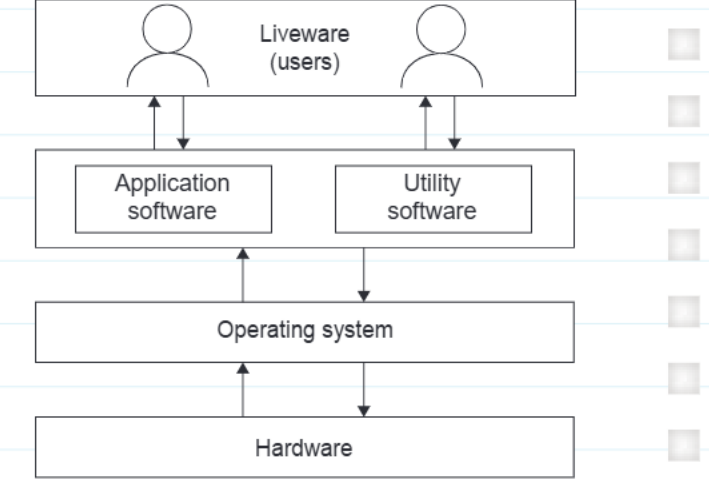
To understand how an operating system works, it's helpful to see where it fits in the overall computer system. The system is organised in layers, like a sandwich:
Note
This diagram shows the layered architecture of a computer system. Notice how the operating system sits in the middle, acting as the central coordinator between users and hardware.
This diagram shows how information flows between the different layers:
- Liveware (users) - that's you! The people using the computer
- Application software - programmes like games, word processors, web browsers
- Utility software - helpful programmes like antivirus software or file cleaners
- Operating system - the manager that controls everything
- Hardware - the physical components like CPU, memory, and storage
The arrows show that each layer communicates with the layers above and below it, with the operating system acting as the central coordinator.
Main tasks performed by an operating system
Every operating system has four main jobs to keep your computer running smoothly. Think of these as the OS's core responsibilities:
Process management
This is all about managing the programmes (called processes) that are running on your computer. The OS has to:
- Keep track of which programmes are currently running
- Give each programme a fair share of the CPU's time
- Allocate memory space for each programme
- Make sure programmes don't interfere with each other
File management
The OS organises and controls all the files and folders on your computer by:
- Keeping track of where files are stored on the hard drive
- Managing folders and organising the file system
- Controlling who can access which files using permissions
- Helping you save, open, move, and delete files
User management
This involves controlling how people interact with the computer:
- Creating user accounts and passwords
- Deciding what each user is allowed to do
- Managing login and logout processes
- Providing the user interface (like the desktop and menus)
Peripheral management
The OS communicates with all the extra devices connected to your computer:
- Printers, keyboards, mice, speakers
- USB devices, cameras, external hard drives
- Using special programmes called device drivers to control each device
Process management in detail
When you double-click to open a programme, something interesting happens behind the scenes. The programme file is copied from your hard drive (secondary storage) into the computer's main memory (RAM) so the CPU can work with it quickly.
Once a programme is loaded in memory, it becomes a process. Modern computers are multitasking, which means they can run several processes at the same time - like having your web browser, music player, and word processor all open together.
Important
Here's the clever part: the CPU can actually only do one thing at a time! So how does it seem like multiple programmes are running simultaneously?
The operating system uses a scheduling algorithm to rapidly switch between processes, giving each one a tiny slice of CPU time. This happens so fast that it appears all programmes are running at once.
Memory management in detail
The OS also has to be smart about managing the computer's memory. When processes are loaded from storage into main memory, the OS organises this memory into chunks called pages.
Sometimes your computer might run out of available memory if you have too many programmes open. When this happens, the OS has a clever solution - it temporarily moves some inactive processes out of main memory and stores them in an area of the hard drive called virtual memory.
Note
Virtual Memory Explained: Think of virtual memory like a temporary storage room. When your main memory (RAM) gets full, the OS moves less important items to this "storage room" on your hard drive. When you need those items again, they get moved back to the main room, and something else might get temporarily stored away.
The OS uses a paging algorithm to decide which processes to move out of main memory. When you switch back to one of these programmes, the OS swaps it back into main memory and may move a different inactive process to virtual memory instead.
Round-robin scheduling algorithm
One common way the OS decides which process gets to use the CPU next is called round-robin scheduling. Here's how it works:
Example
Worked Example: Round-Robin Scheduling in Action
Imagine 4 processes waiting to use the CPU: Word Processor, Music Player, Web Browser, and Game.
Step 1: Each gets a time slice of 2 seconds Step 2: They line up in a queue: Word → Music → Web → Game Step 3: Word Processor runs for 2 seconds, then goes to back of queue Step 4: Queue becomes: Music → Web → Game → Word Step 5: Process repeats until all tasks are complete
This ensures every process gets fair access to the CPU!
How round-robin works:
- Each process gets allocated a fixed amount of time called a time slice
- Processes that need more time are given additional time slices
- While waiting for their turn, processes are held in a queue (like a line)
- The process at the front of the queue gets to use the CPU next
- During its time slice, a process has exclusive use of the CPU
- If the process isn't finished when its time slice ends, it goes to the back of the queue to wait for another turn
Summary
Round-Robin Scheduling: Advantages vs Disadvantages
Advantages:
- Fair system - every process eventually gets a turn, so all programmes will eventually complete
- Predictable - you know each process will get regular CPU time
Disadvantages:
- Can be slow - processes might have to wait a long time to complete because there are many other processes in the queue
- Not efficient for quick tasks - even simple tasks have to wait their turn
Summary
Key Points to Remember:
- The operating system is the manager of your computer - it coordinates between hardware and software
- The OS has four main tasks: process management, file management, user management, and peripheral management
- Multitasking works by rapidly switching the CPU between different processes using scheduling algorithms
- Memory management involves organising RAM into pages and using virtual memory when needed
- Round-robin scheduling gives each process fair turns but can be slow when many processes are waiting