Operating system 2 (Edexcel GCSE Computer Science): Revision Notes
📚Revision Notes
Operating system functions
The operating system (OS) performs many crucial tasks to keep your computer running smoothly. Three of the most important functions are managing files, users, and peripheral devices. Understanding these functions helps explain how your computer stays organised and secure while handling multiple tasks and users.
File management
The operating system acts like a super-organized librarian for all the files stored on your computer's hard drive. Instead of just throwing files randomly onto the storage device, the OS uses a clever system called a hierarchical tree structure to keep everything tidy and findable.
Think of this structure like a family tree or an upside-down tree. At the very top sits the root directory, which is the starting point for everything else. From there, the structure branches out into different directories (which are just fancy names for folders) and individual files.
Note
The different parts of this tree structure have special names:
- Nodes: These are the individual elements in the tree (both folders and files)
- Branches: These are the connecting lines that show how different parts relate to each other
- Root directory: The top-level folder that contains everything else
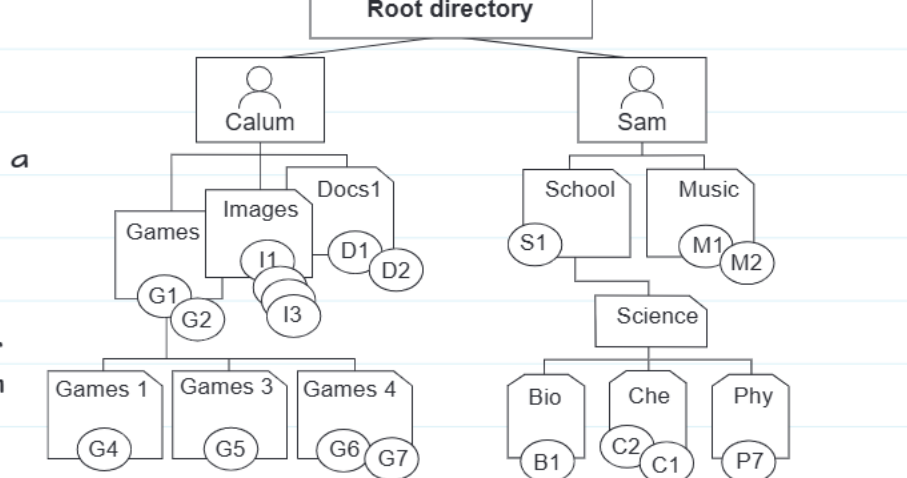
Example
File Structure Example: Multi-User System
Looking at this example, you can see how two users (Calum and Sam) each have their own section under the root directory, with their personal folders organised beneath them. This demonstrates how the hierarchical system separates user data while maintaining an organised overall structure.
This hierarchical system makes it much easier for both you and the computer to locate specific files quickly. Instead of searching through thousands of random files, the OS can follow a clear path down through the branches to find exactly what it needs.
User management
Modern computers often need to handle multiple users, whether that's different family members sharing a home computer or hundreds of employees using a company network. The OS handles this challenge through sophisticated user management systems.
Access control
The OS uses access control to decide who can use the computer and what they're allowed to do. This involves several key components that work together to ensure security and proper user identification.
Note
Access Control Methods:
- Login credentials: Users must provide a username and password to prove who they are
- Biometric identification: Some systems use fingerprints, face recognition, or other biological markers for extra security
- User permissions: Once logged in, the system controls what each person can access
User interfaces
The OS provides different ways for people to interact with the computer, each designed for different user needs and skill levels.
Graphical User Interface (GUI): This is what most people are familiar with - systems like Windows or Android that use windows, icons, menus, and pointers. GUIs make computers user-friendly because you can point and click rather than memorising commands.
Command Line Interface (CLI): This text-based system requires users to type specific commands. While it looks intimidating, expert users often prefer CLIs because they offer more precise control and can perform complex tasks more quickly.
File permissions
The OS doesn't just control who can log in - it also manages what each user can do with individual files. Understanding these permission levels is crucial for maintaining both security and functionality.
Important
Four Main Levels of File Permissions:
- Read: Users can only view the contents of files but cannot make any changes
- Write: Users can read files and make changes to them, but cannot delete them completely
- Execute: Users can run the file if it's a programme (assuming it's designed to be executable)
- Delete: Users have complete control and can read, write, and permanently remove files
The OS carefully enforces these permissions to keep important system files safe while still allowing users the access they need for their work.
Peripheral management
Your computer needs to communicate with lots of additional hardware devices - printers, keyboards, mice, graphics cards, microphones, and many others. These extra pieces of hardware are called peripheral devices.
The challenge is that each device might be made by a different company and work in its own unique way. The OS solves this problem using special programmes called device drivers.
Device drivers
Device drivers act like translators between the OS and peripheral devices. When you plug in a new printer, for example, its device driver tells the OS exactly how to send print jobs to that specific model.
Important
Device Driver Requirements:
These drivers need to be:
- Installed on the computer's hard drive before the device can work properly
- Kept up-to-date so that peripherals continue working correctly as the OS receives updates
- Compatible with both the OS version and the specific hardware
When device drivers become outdated or corrupted, peripheral devices may stop working properly or fail completely. This is why the OS often automatically checks for and installs driver updates.
Summary
Key Points to Remember:
- The operating system performs three crucial functions: file management, user management, and peripheral management
- Files are organised in a hierarchical tree structure with a root directory at the top, making them easier to locate and manage
- User management includes access control through login systems and different file permission levels (read, write, execute, delete)
- Device drivers allow the OS to communicate with peripheral devices, acting as translators between the system and hardware
- Both GUI and CLI interfaces serve different user needs, with GUIs being more user-friendly and CLIs offering more precise control