Online/Offline Help (Grade 11 NSC Matric Computer Application Technology): Revision Notes
📚Revision Notes
Online/Offline Help
When working with software applications like Microsoft Word, you'll occasionally encounter problems or need guidance on how to perform specific tasks. Fortunately, modern software comes equipped with comprehensive help systems that can assist you both when you're connected to the internet (online) and when you're working without an internet connection (offline).
Understanding built-in help systems
Most software applications, including Microsoft Office programmes, include built-in help functions that provide instant access to information and guidance. These help systems are designed to be user-friendly and offer multiple ways to find the information you need.
Note
Microsoft's offline help function is not available in newer versions from 2016 onwards. This means you'll primarily rely on online help resources when using recent versions of Microsoft Office applications.
Three methods to access help
There are several ways to access help within Microsoft Word, each offering different advantages depending on your specific needs.
Method 1: Using the search feature
The most intuitive way to get help is through the "Tell me what you want to do" search box. This feature uses natural language processing to understand your queries and provide relevant assistance.
To use this method, simply locate the search box at the end of the ribbon tabs at the top of your document. The box displays the placeholder text "Tell me what you want to do." Click on this box and type your question or describe the task you want to accomplish using everyday language.
Example
Worked Example: Using the Search Feature
Step 1: Look for the search box at the end of the ribbon tabs
Step 2: Click on the box that says "Tell me what you want to do"
Step 3: Type your question in natural language, such as "How do I insert a table?"
Step 4: Select from the suggested options that appear
Method 2: Using the F1 keyboard shortcut
A quick and efficient way to access help is by pressing the F1 key on your keyboard. This action opens the Help panel on the right-hand side of your document window, providing you with immediate access to various help categories and search functionality.
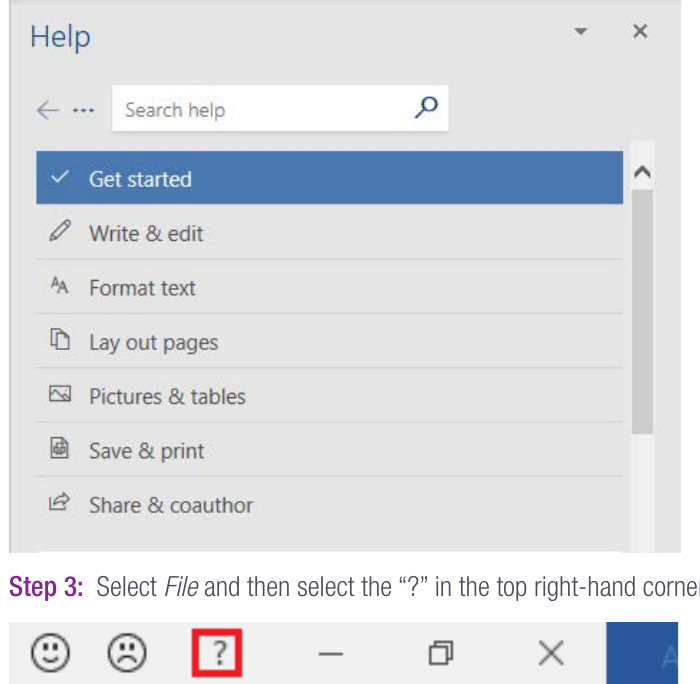
The Help panel includes organised categories such as:
- Get started (for beginners)
- Write & edit (for basic text operations)
- Format text (for styling and appearance)
- Lay out pages (for document structure)
- Pictures & tables (for visual elements)
- Save & print (for file management)
- Share & coauthor (for collaboration features)
Method 3: Using the help icon
The third method involves accessing help through the File menu and then selecting the help icon (represented by a question mark "?") in the top right-hand corner of the application interface. This approach provides access to the same help system but through a different navigation path.
Online help resources
When you need more comprehensive assistance or want to access the latest information and tutorials, online help resources are invaluable. The primary online resource for Microsoft products is the Microsoft Support website.
You can access Microsoft Support by visiting https://support.microsoft.com/en-za (the South African version). This website offers extensive resources including:
- Step-by-step tutorials for Microsoft products
- Answers to frequently asked questions
- Troubleshooting guides for common problems
- Community forums where users share solutions
- Video tutorials and interactive guides
Important
The online approach typically provides the most up-to-date and comprehensive information, as Microsoft regularly updates their support content to reflect software changes and new features.
When to use different help methods
Understanding when to use each help method can save you time and improve your efficiency:
- Use the "Tell me what you want to do" search when you have a specific task in mind and want immediate guidance
- Press F1 when you want to browse help categories or need general assistance with the application
- Access the help icon through File when you prefer a more traditional navigation approach
- Visit the Microsoft Support website when you need detailed tutorials, community input, or solutions to complex problems
The built-in help system is perfect for quick answers and basic guidance, while online resources are ideal for comprehensive learning and troubleshooting complex issues.
Summary
Key Points to Remember:
- Modern Microsoft Office versions (2016 onwards) primarily use online help rather than offline help systems
- There are three main ways to access help: the search box, F1 key, and the help icon
- The "Tell me what you want to do" feature accepts natural language queries for intuitive searching
- The F1 key provides quick access to organised help categories
- Microsoft Support website (support.microsoft.com) offers the most comprehensive online assistance
- Choose your help method based on whether you need quick guidance or detailed tutorials