Relational Operators (Grade 11 NSC Matric Computer Application Technology): Revision Notes
📚Revision Notes
Relational Operators
Relational operators are powerful tools that help you compare values in spreadsheets and make decisions based on those comparisons. Think of them as the decision makers in your Excel formulas - they look at two values and tell you how they relate to each other.
What are relational operators?
When working with IF functions, you often need to compare values to make decisions. Relational operators allow you to create these comparisons by testing whether one value is greater than, less than, or equal to another value. They always return either TRUE or FALSE, which makes them perfect for use in conditional statements.
Note
The key feature of relational operators is that they always produce a binary result - either TRUE or FALSE. This makes them ideal for decision-making formulas where you need a clear yes/no answer.
The five essential relational operators
Here's what each operator does:
Important
Essential Relational Operators Reference
| Operator | Description | Example |
|---|---|---|
| > | Greater than | A1>10 (is A1 greater than 10?) |
| < | Less than | B2<5 (is B2 less than 5?) |
| <= | Less than or equal to | C3<=20 (is C3 less than or equal to 20?) |
| >= | Greater than or equal to | D4>=16 (is D4 greater than or equal to 16?) |
| <> | Not equal to | E5<>0 (is E5 not equal to 0?) |
Using relational operators in IF functions
The real power of relational operators becomes clear when you combine them with IF functions. This allows you to create formulas that automatically make decisions based on your data.
Example
Worked Example: Student eligibility for sports team
Imagine a teacher wants to check which students can play on the soccer team based on their demerit points. Students with more than 20 demerits cannot play.
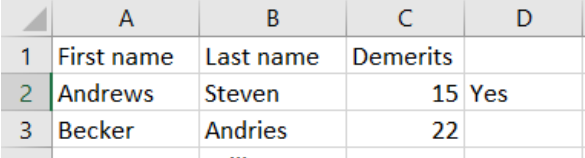
The formula =IF(C2>20,"No","Yes") works like this:
- It checks if the value in C2 (demerits) is greater than 20
- If TRUE (more than 20 demerits): displays "No"
- If FALSE (20 or fewer demerits): displays "Yes"
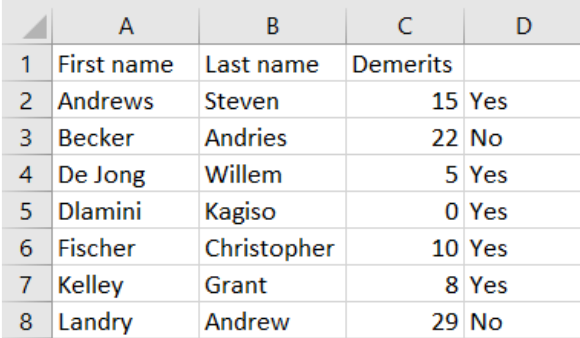
When you copy this formula down to other rows, it automatically checks each student's eligibility:
Example
Worked Example: Age classification system
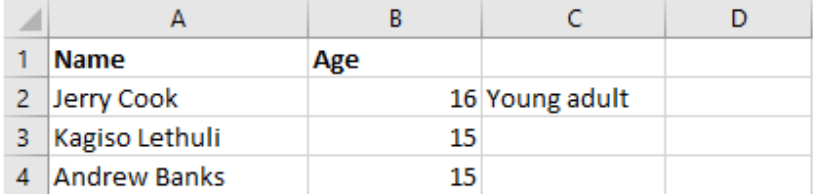
Another common use is classifying people by age. Here's how to automatically categorise learners as "Teenager" or "Young adult":

The formula =IF(B2>=16,"Young adult","Teenager") checks:
- If the age is greater than or equal to 16: displays "Young adult"
- If the age is less than 16: displays "Teenager"
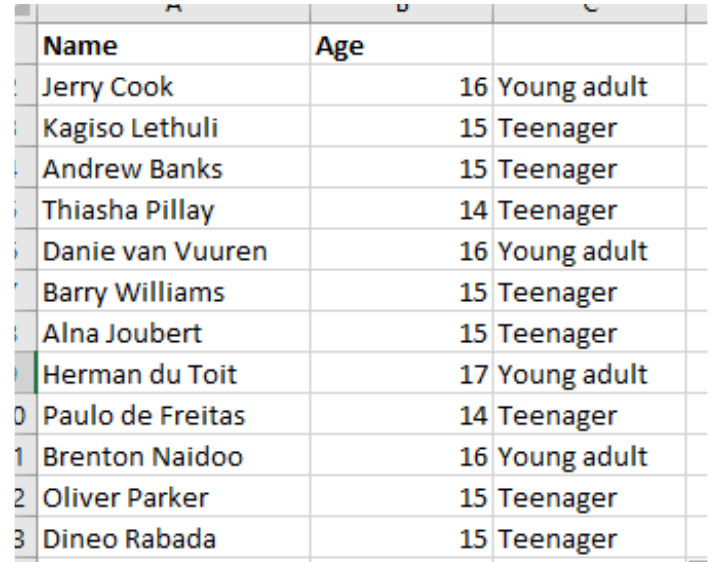
When applied to a larger dataset, this formula saves enormous amounts of time:
Why relational operators are essential
Relational operators become incredibly valuable when working with large datasets. Imagine having to manually check 4,000 student records to see who's eligible for the soccer team - it would take hours! With relational operators, the computer does all the checking instantly and accurately.
These operators help you:
- Save time: Automatic comparisons instead of manual checking
- Reduce errors: Computers don't make mistakes in comparisons
- Handle large datasets: Works just as well with 10 records or 10,000 records
- Create dynamic reports: Results update automatically when data changes
Exam tips
Important
Common Pitfalls to Avoid
- Remember the symbols: Practice writing them until they become automatic
- Test your logic: Always check that your comparison makes sense
- Use brackets: When combining operators, use brackets to make your intentions clear
- Check your operators: > and < are easy to mix up - the symbol points towards the smaller value
Remember!
Summary
Key Points to Remember:
- Relational operators compare two values and return TRUE or FALSE
- The five main operators are: >, <, <=, >=, and <>
- They work perfectly with IF functions to create conditional logic
- > and < point towards the smaller value (like arrows)
- These operators are essential for automating decisions in large datasets
- Always double-check your operator direction to avoid logic errors